How to set up Dolphin {Cloud} before you start
Updated:
⚡ In short
- Add proxies and a Useragent for accounts in Dolphin {Cloud}.
- Learn the main settings and the API key.
- Set up FB data auto-update, Telegram notifications and cost export.
- Set common link parameters for ads creation.
🛡️ Adding a proxy and Useragent
To work with accounts as safely as possible, specify a Proxy and a Useragent when adding them to Dolphin {Cloud}.
ℹ️ Good to know
Unlike Dolphin {Server}, Dolphin {Cloud} requires a proxy.
To use a Useragent, simply specify it when adding an account. By the way, just like in an antidetect browser, you can choose a random Useragent.
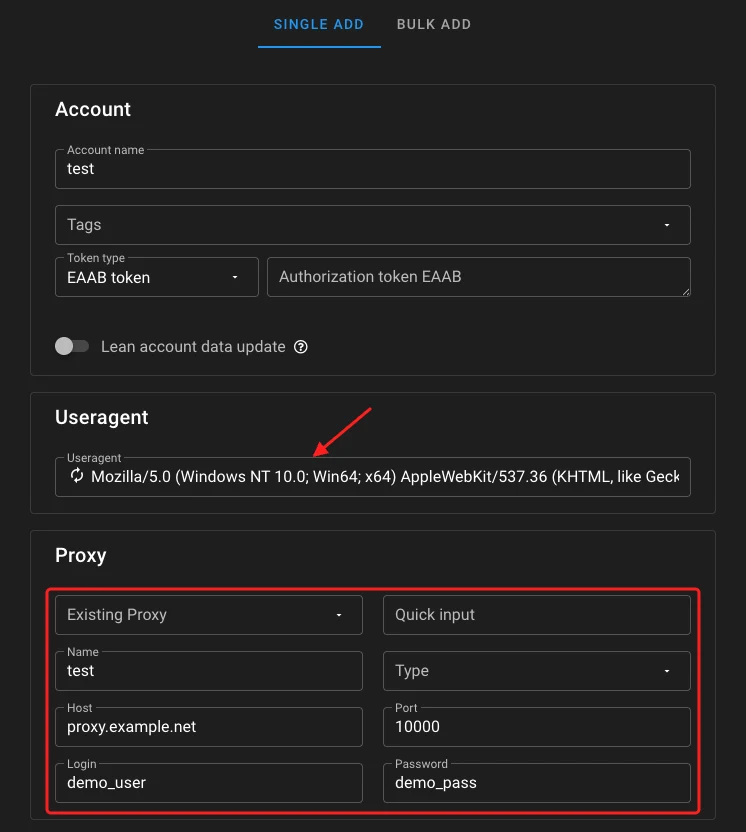
How to add a proxy? See here.
⚙️ Common
Here you see 2 parameters:
- Global settings: useful for teams. For example: the admin sets the settings and turns this on, and then all buyers can use only the settings the admin set.
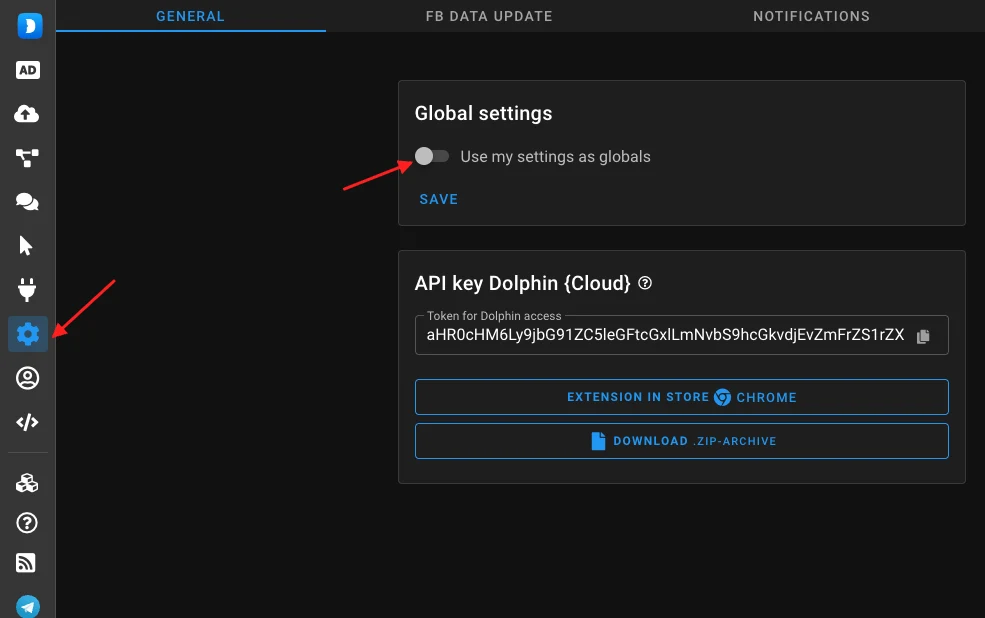
- API key Dolphin {Cloud}: shows your token for the Dolphin Anty and Dolphin Cloud integration. Here you will also see a zip archive: download it and install the extension in Dolphin Anty.
How to set up the integration with Dolphin Anty?
⏳ Setting up data auto-update
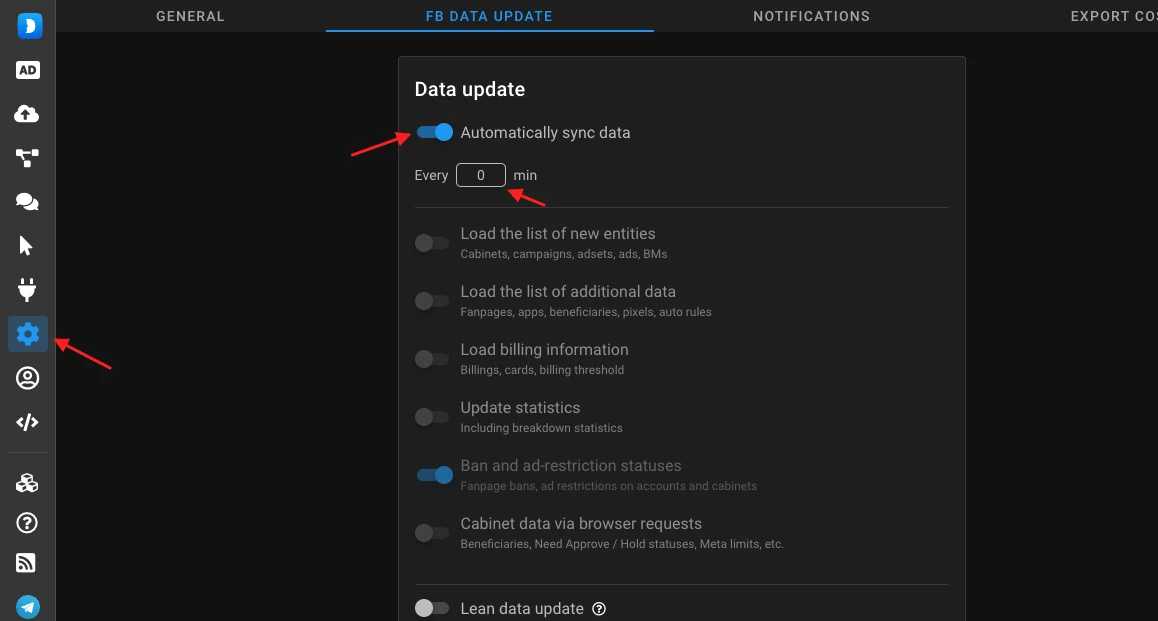
By default, any data from FB can only be fetched manually:
- Check the account token
- Get the current list of ad accounts
- Get ad account stats
If this works for you, go to the next step.
If you need automation, go to Settings => FB Data Update and set up the actions you need.
🔔 Setting up Telegram notifications
- Go to Settings => Notifications.
- Get the key from the bot.
- Add it to the corresponding field ;)
For more on notifications, read here.
🛫 Export costs
ℹ️ Good to know
Cost export is not available on the Light and Start plans. Importing data from trackers is available only on Pro and on the trial.
There are 2 trackers here. To learn how to set them up, click the link you need:
🔗 Link parameters in the Ads creation tab
To avoid adding the same parameters to links every time, you can set common URL params.
For example, to append this to links in all your launches: ?web_id=1290
FB macros
| Parameter | Macro |
|---|---|
| Ad ID | ad_id={{ad.id}} |
| Adset ID | adset_id={{adset.id }} |
| Campaign ID | campaign_id={{campaign.id}} |
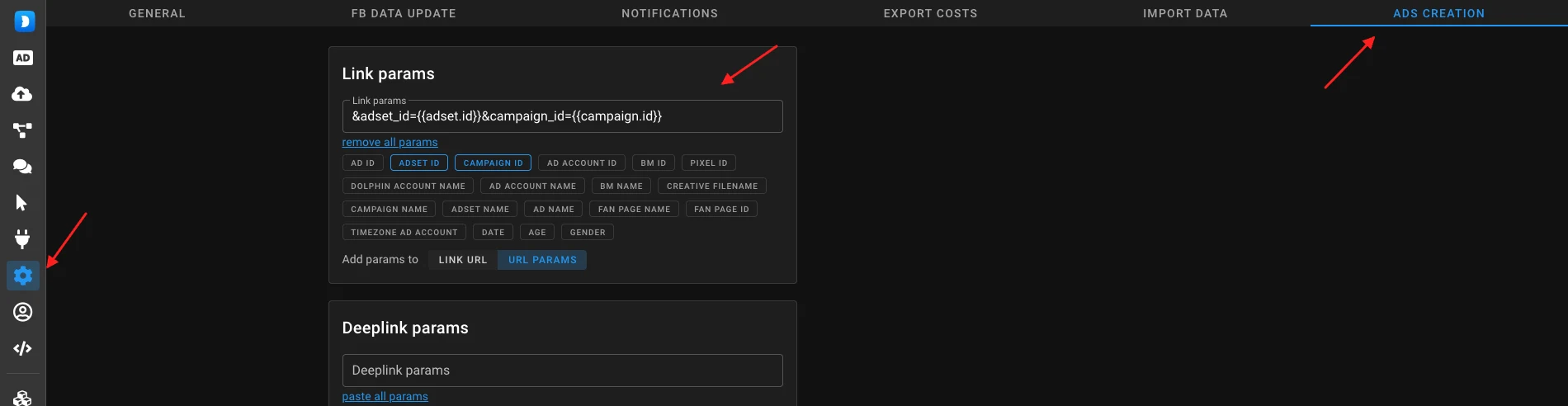
Dolphin macros
| Parameter | Macro |
|---|---|
| Ad account ID | cab_id={{cab.id}} |
| Pixel ID | pixel_id={{pixel.id}} |
| BM ID | bm_id={{bm.id}} |
| Account name in Dolphin | dolphin_account_name={{dolphin.account.name}} |
| Ad account name | cab_name={{cab.name}} |
| BM name | bm_name={{bm.name}} |
| Creative filename | creative_name={{creative.name}} |
| Campaign name | campaign_name={{campaign.name}} |
| Adset name | adset_name={{adset.name }} |
| Ad name | ad_name={{ad.name}} |
| Fan page name | page_name={{page.name}} |
| Fan page id | page_id={{page.id}} |
💡 Tip
You can set up Deeplink parameters the same way. To learn what a Deeplink is and which types exist, see here.
✅ Done
If you have any questions while working, contact support right away.
🚀 Good profits!
🐬 Everything is ready for your first launches: open Dolphin {Cloud}