How to add and change proxies in Dolphin {Cloud}
Updated:
⚡ In short
- Every account needs a proxy: without one the account will not be added.
- You can add proxies in the Proxy section or right in the add account window.
- HTTP, SOCKS4 and SOCKS5 are supported, with or without login and password. If no type is given, the proxy is treated as HTTP.
- You can change the proxy for one account or many at once: ⋮ → Change proxy.
Through a proxy, Dolphin {Cloud} works with each Facebook account as if you were logging in from your antidetect browser. Below: how to add proxies, which format to use, how to check, edit, change them on accounts and delete them.
🧾 Proxy formats
| Format | Example |
|---|---|
| Without authorization | 192.168.0.1:8000 |
| With type, name and IP change link | http://192.168.0.1:8000:myproxy[https://change-my-proxy.com] |
| With type, login and password | socks5://login:password@192.168.0.1:8000 |
| Login and password separated by colons | 192.168.0.1:8000:login:password |
- You can add
:nameat the end of any variant to find the proxy quickly in the list. - If there is no type at the beginning, Cloud treats the proxy as HTTP. For SOCKS5, always write
socks5://. - The IP change link can be given in square brackets at the end of the line.
- The port is digits only, from 1 to 65535.
ℹ️ IP change link
Cloud saves the link with the proxy but does not change the IP by it. For mobile proxies, turn on automatic IP rotation at your provider.
➕ How to add proxies in the "Proxy" section
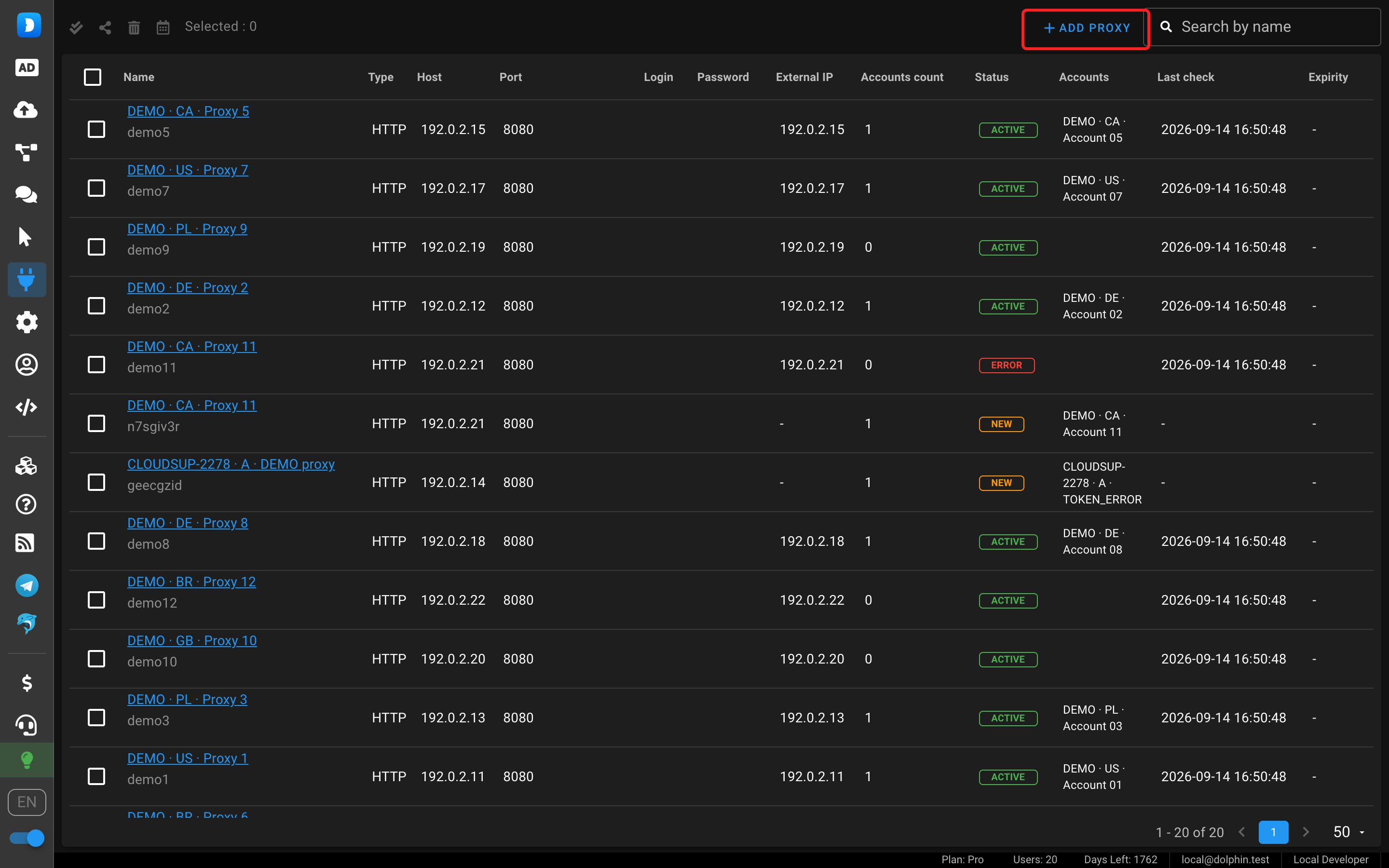
- In the left menu, open Proxy and click Add.
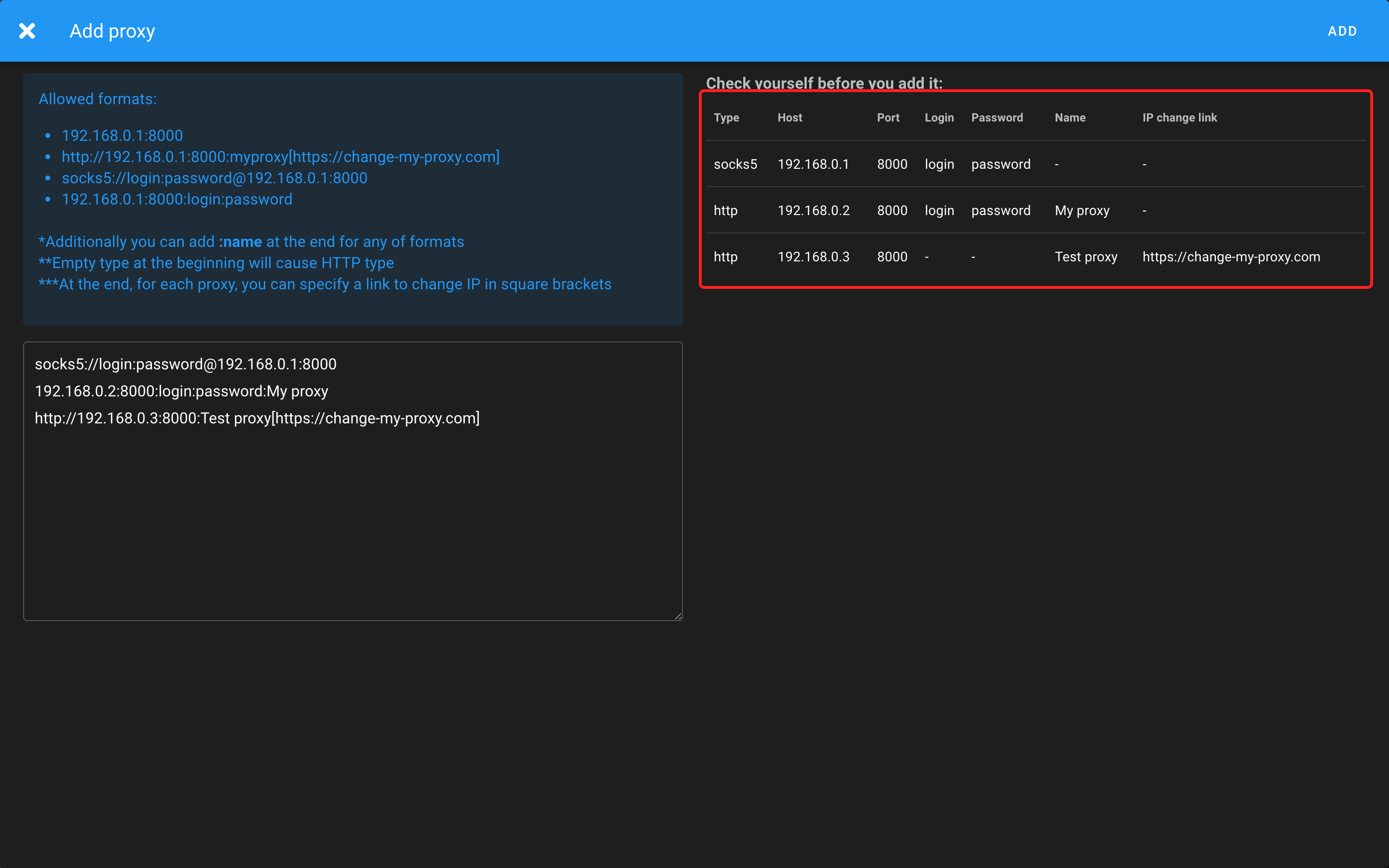
- Paste a proxy as one line in any format from the table above. You can paste several proxies at once, each on a new line.
- Below, in the Check yourself before you add it table, Cloud shows how it parsed each line: type, host, port, login and password. Check the data. If the type is wrong, fix the line, for example add
socks5://. - Click Add. The proxies appear in the table with the New status. To find out whether they work, check them as described below.
👤 How to add a proxy together with an account
- Open Ads Manager → Accounts → Add account.
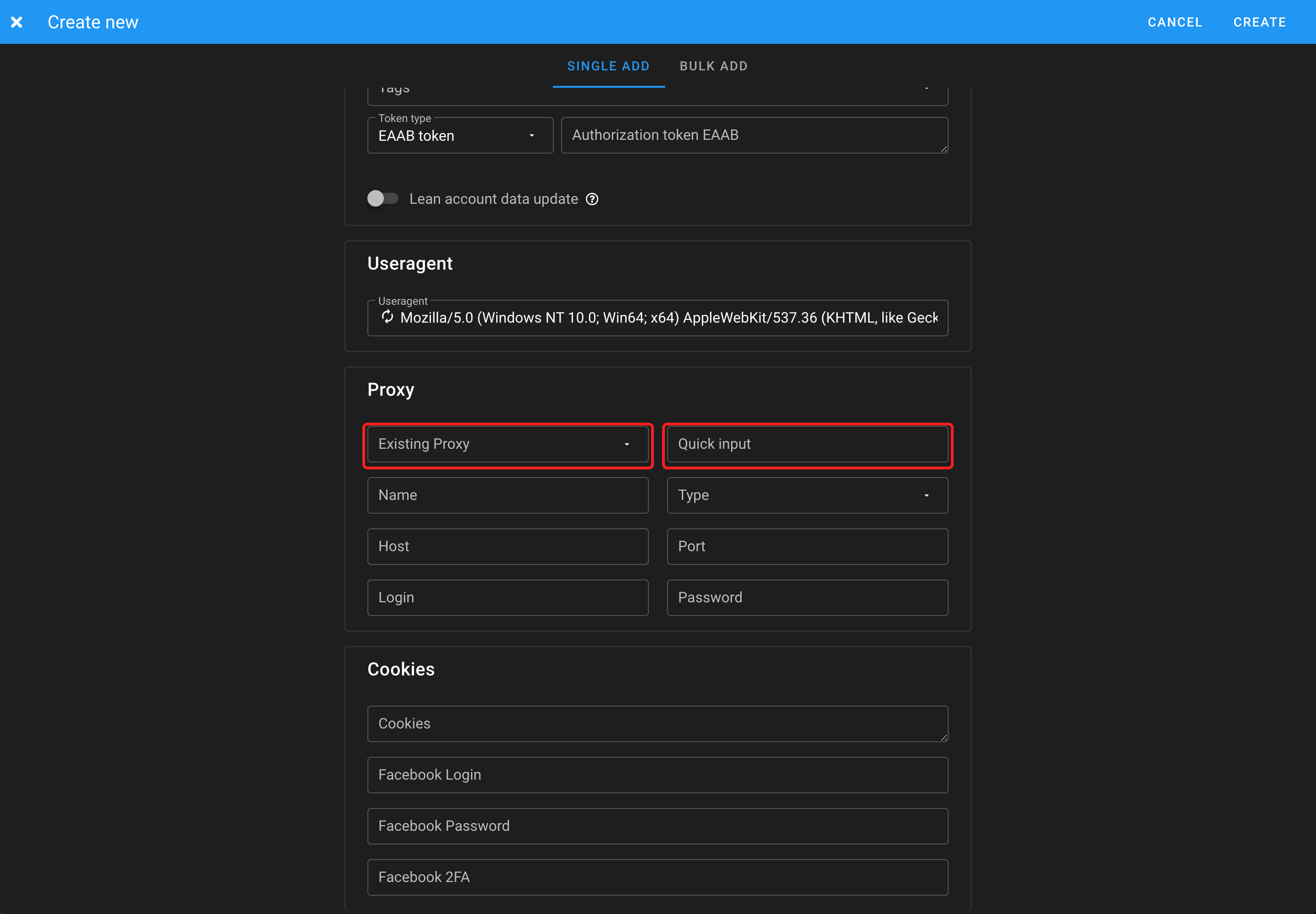
- In the Proxy block, choose an Existing Proxy from the list or fill in the fields of a new proxy.
- To avoid filling the fields one by one, paste the proxy line into Quick input: Cloud splits it into the fields itself.
- Create the account. The new proxy also appears in the Proxy section.
When adding accounts in bulk, you put the proxy right in the account line or pick it at the check step. Details: How to add Facebook accounts.
📊 What the proxy table shows
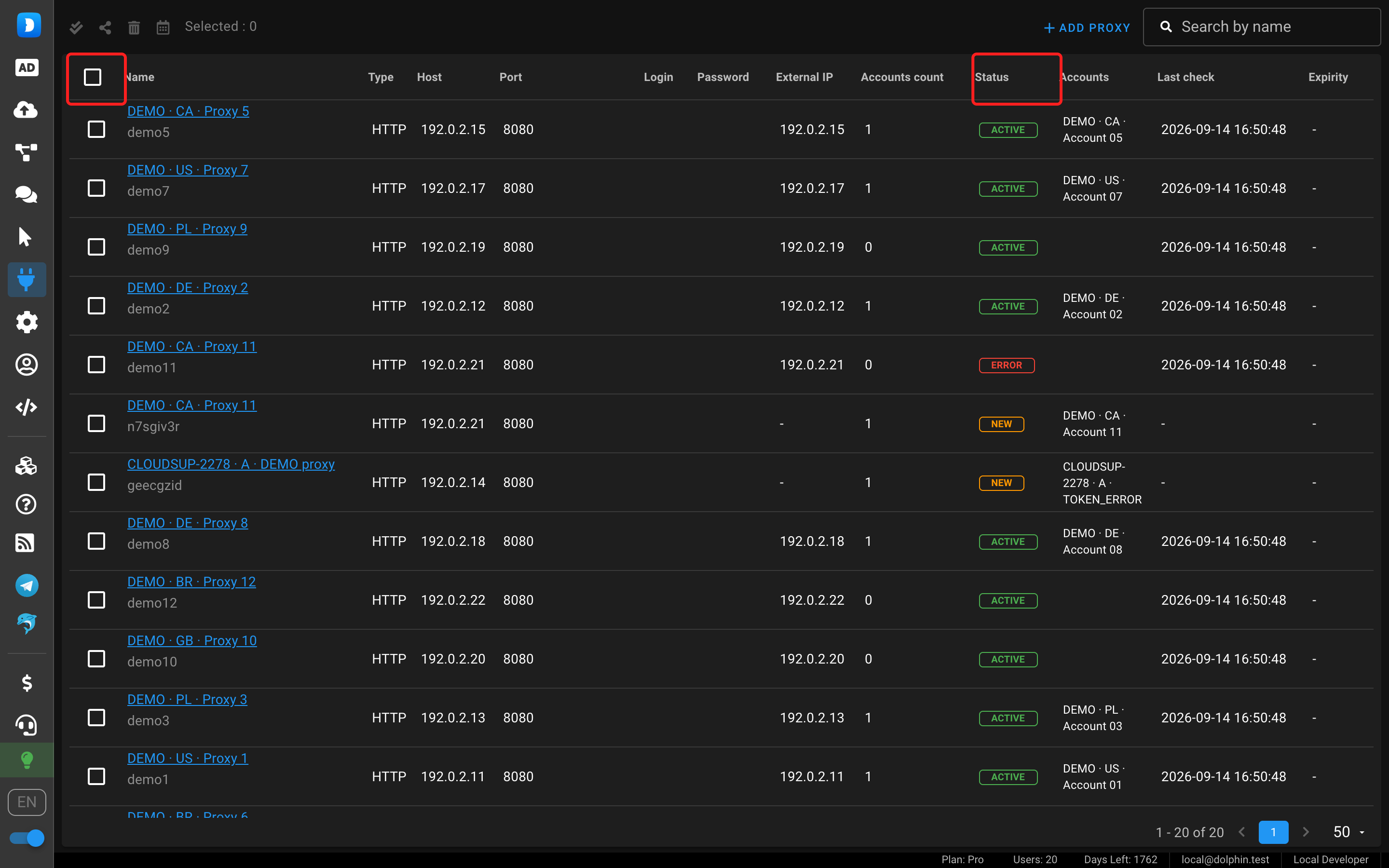
| Column | What it means |
|---|---|
| Name | The proxy name. Clicking it opens editing. |
| Type, Host, Port, Login, Password | Connection data. |
| External IP | The IP the proxy uses to go online, according to the last check. |
| Accounts count and Accounts | How many and which accounts work through this proxy. |
| Status | The result of the last check. |
| Last check | When the proxy was checked. |
| Expirity | The rental end date, if you set it. |
| Shared | Who in your team you shared the proxy with. |
🚦 Proxy statuses
| Status | What it means | What to do |
|---|---|---|
| 🟢 Active | The check passed, the proxy works | You can attach it to accounts |
| 🟡 New | The proxy has not been checked yet | Tick it and click Check |
| 🔴 Error | The connection failed | Check the type, login and password, test the proxy in a third-party checker |
🔍 How to check a proxy
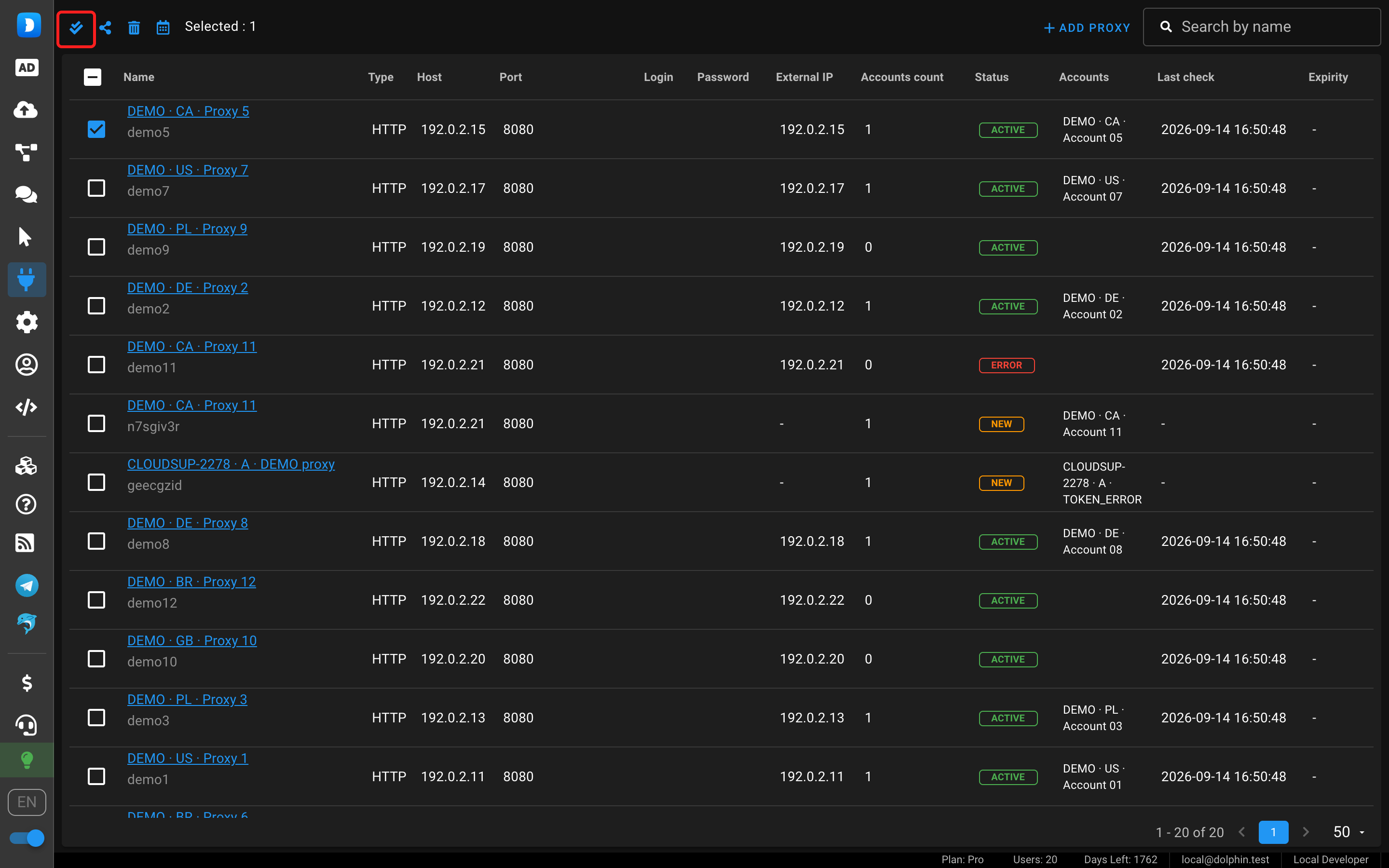
- In the Proxy section, tick one or more proxies.
- Click Check above the table and confirm.
- Wait for the new status and the external IP in the table.
✏️ How to fix proxy data
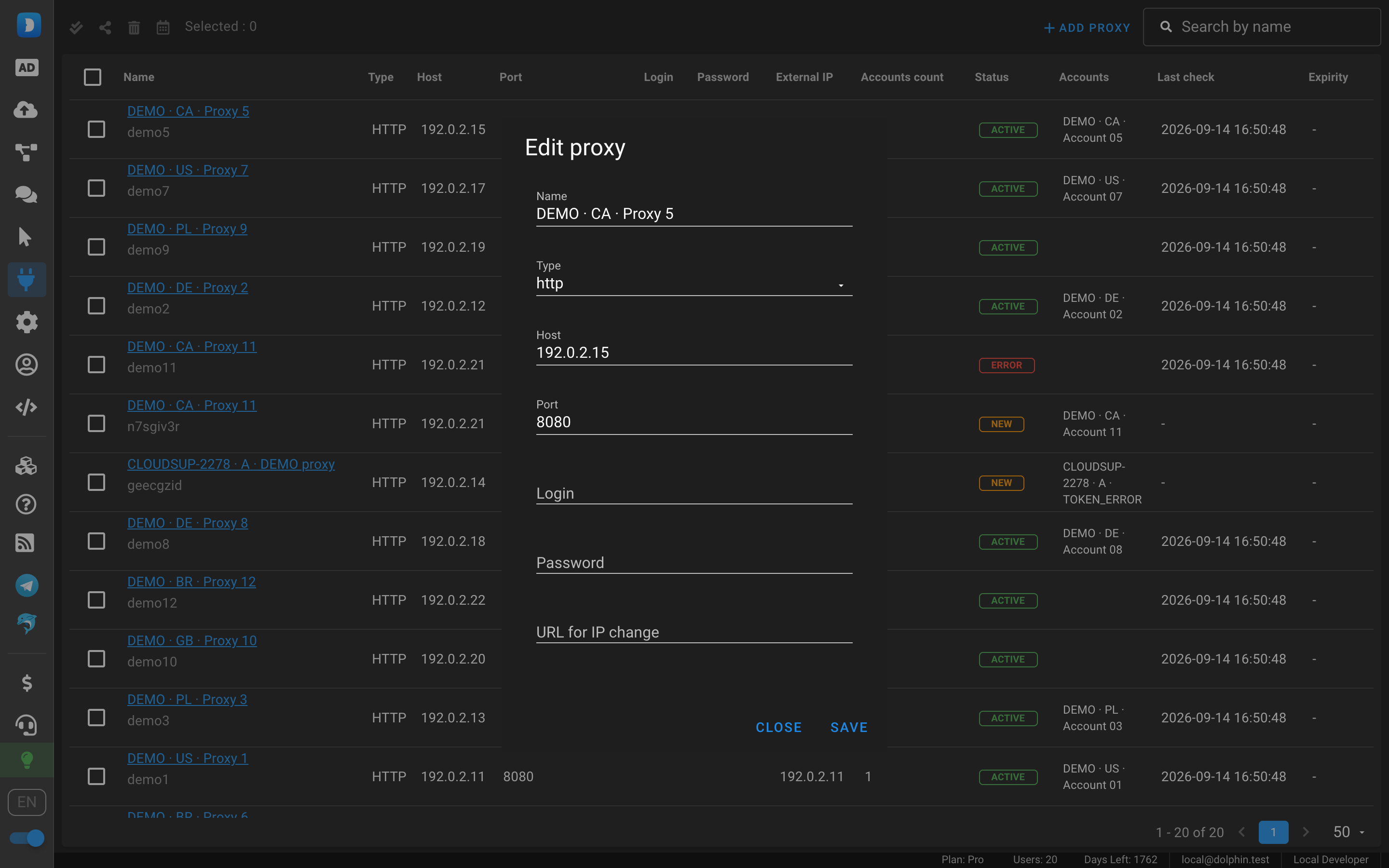
- Click the proxy name in the table.
- In the Edit proxy window, change the type, host, port, login, password or IP change link.
- Click Save and check the proxy again.
💡 A common cause of errors
A SOCKS5 proxy was added without socks5://, and Cloud saved it as HTTP. Open editing and change the type.
🔄 How to change an account's proxy
For one account
- In Ads Manager → Accounts, click the account name.
- In the Proxy block, choose another existing proxy or enter a new one.
- Click Edit to save.
For many accounts at once
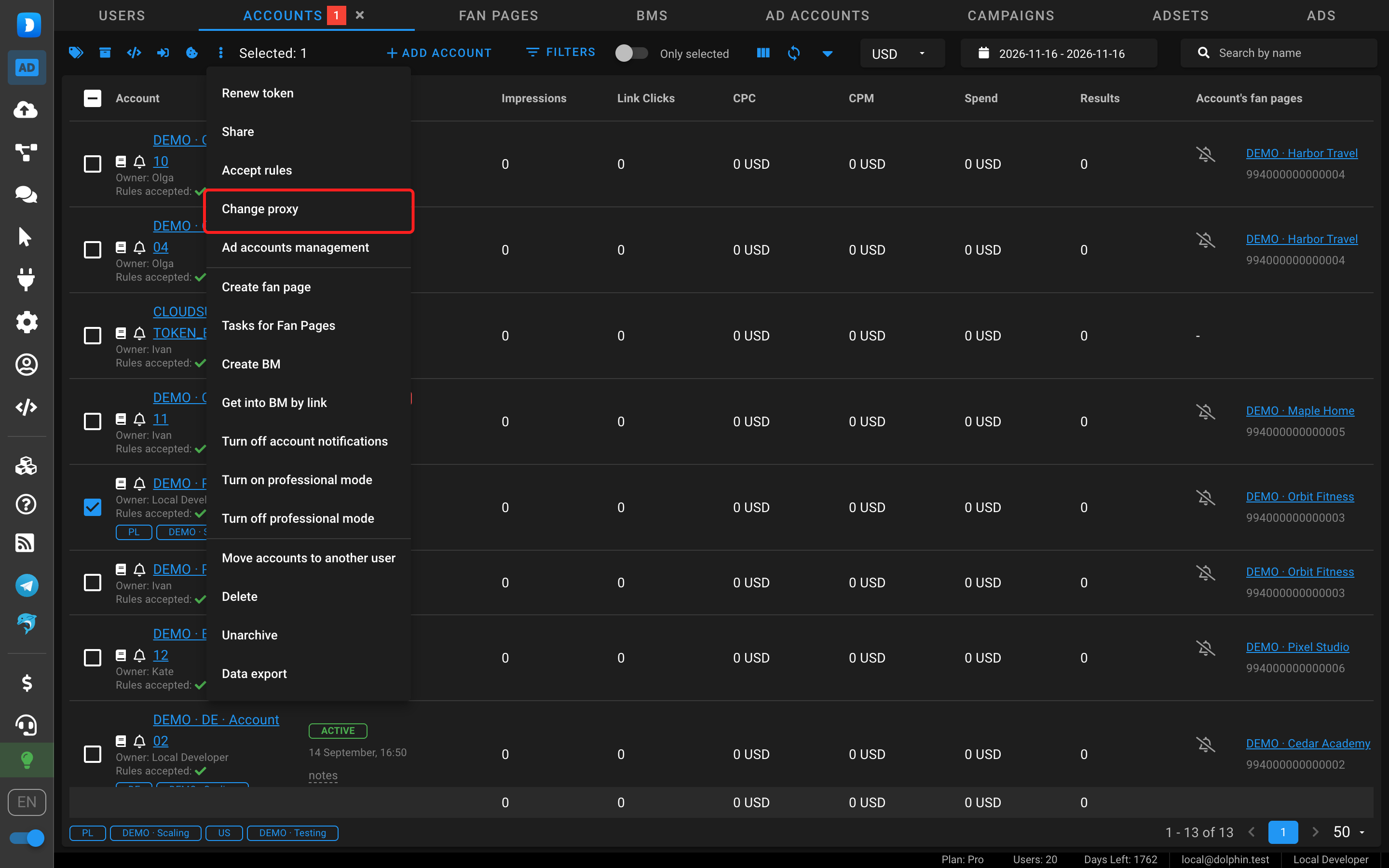
- Tick the accounts.
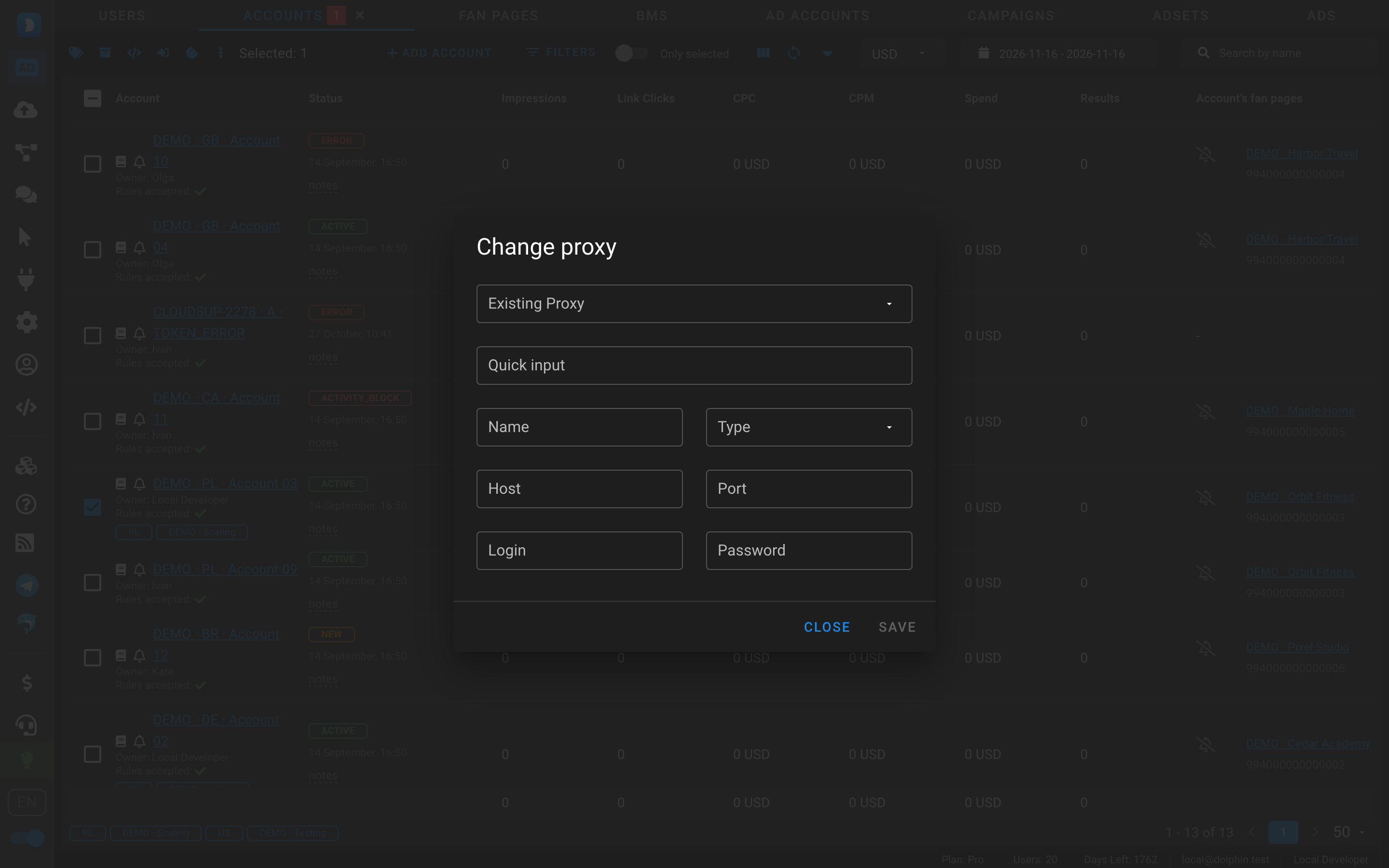
- Open the ⋮ menu above the table and choose Change proxy.
- Choose an existing proxy or enter a new one and click Save. The proxy changes for all ticked accounts.
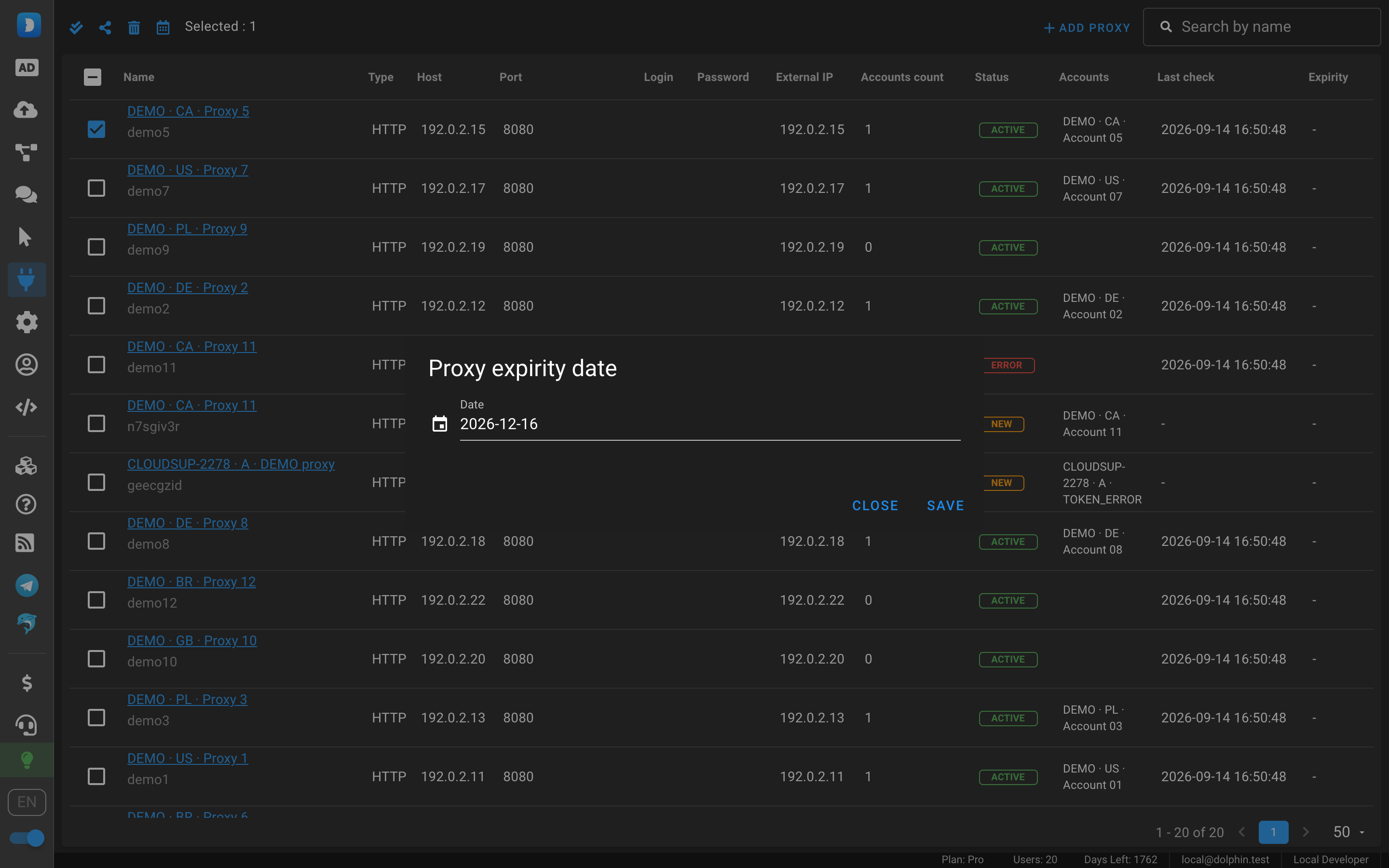
⏰ How to set a proxy expiry date
- In the Proxy section, tick the proxy.
- Choose Set proxy expirity date, set the date and click Save.
- To get a reminder, turn on Proxy expirity is coming in Settings → Notifications.
When 4 days or less are left, the bot sends a reminder to Telegram. How to connect the bot: How to get notifications in Telegram.
🗑️ How to delete a proxy
- Tick the proxy and click Delete.
- Confirm the deletion.
⚠️ A proxy used by accounts can't be deleted
If the proxy is attached to at least one account, Cloud shows an error. First give these accounts another proxy with Change proxy, then delete the old one.
🚨 "Proxy error" on an account
The red Proxy error label under the account status means that the last check of this proxy failed.
- Open the Proxy section, tick the account's proxy and click Check.
- If the status is Error, test the proxy in a third-party checker. If it doesn't work there either, the problem is on the provider's side.
- If the proxy works, tick the account and choose ⋮ → Renew token: the account may have simply been logged out.
- If the proxy works in the checker but Cloud still shows an error, contact support.
❓ FAQ
Which proxy type should I choose?
Any supported type works. Tips on choosing and on the number of accounts per proxy are in How to choose proxies and share them with your team.
Do I need to add proxies in advance?
No. You can enter a proxy right when adding an account, and it will appear in the "Proxy" section by itself.
Does Cloud change a mobile proxy's IP by the link?
No. The link is saved, but Cloud does not change the IP by it. Turn on automatic rotation at your provider.
Can I use one proxy for several accounts?
Yes, choose it as the existing proxy for each account.
🧭 What's next
- 🏆 How to choose proxies and share them with your team
- ➕ How to add Facebook accounts
- 👤 How to work with accounts in Ads Manager
🐬 Ready to add proxies? Open Dolphin {Cloud}