How to work with ad accounts in Ads Manager
Updated:
⚡ In short
- Learn which ad account actions are available in the Ad accounts tab: tags, archive, attaching cards, prepaid, auto-rules and more.
- Get to grips with filters, column setup and search.
- Understand ad account statuses, the trust Tier and forced payment.
ℹ️ Plan
Not available on Light: linking a bank card, top-up, deactivating an ad account, spending limit, notifications and auto rules. Also not available on Light and Start: linking a BM card, switching to prepaid, Risk Payment and transferring ad accounts. The “Create ad” button works on Pro and the trial.
🧐 Overview
The Ad accounts tab in Dolphin {Cloud} shows all ad accounts from all your accounts. If you select specific accounts first, you will see only the ad accounts of the selected accounts.
ℹ️ Good to know
If an ad account is missing from the list, make sure the social account has enough permissions for it: it must have Administrator rights. Without Administrator rights, the social account's ad accounts won't be shown.
Let's split the tab into 4 parts and go through each one:
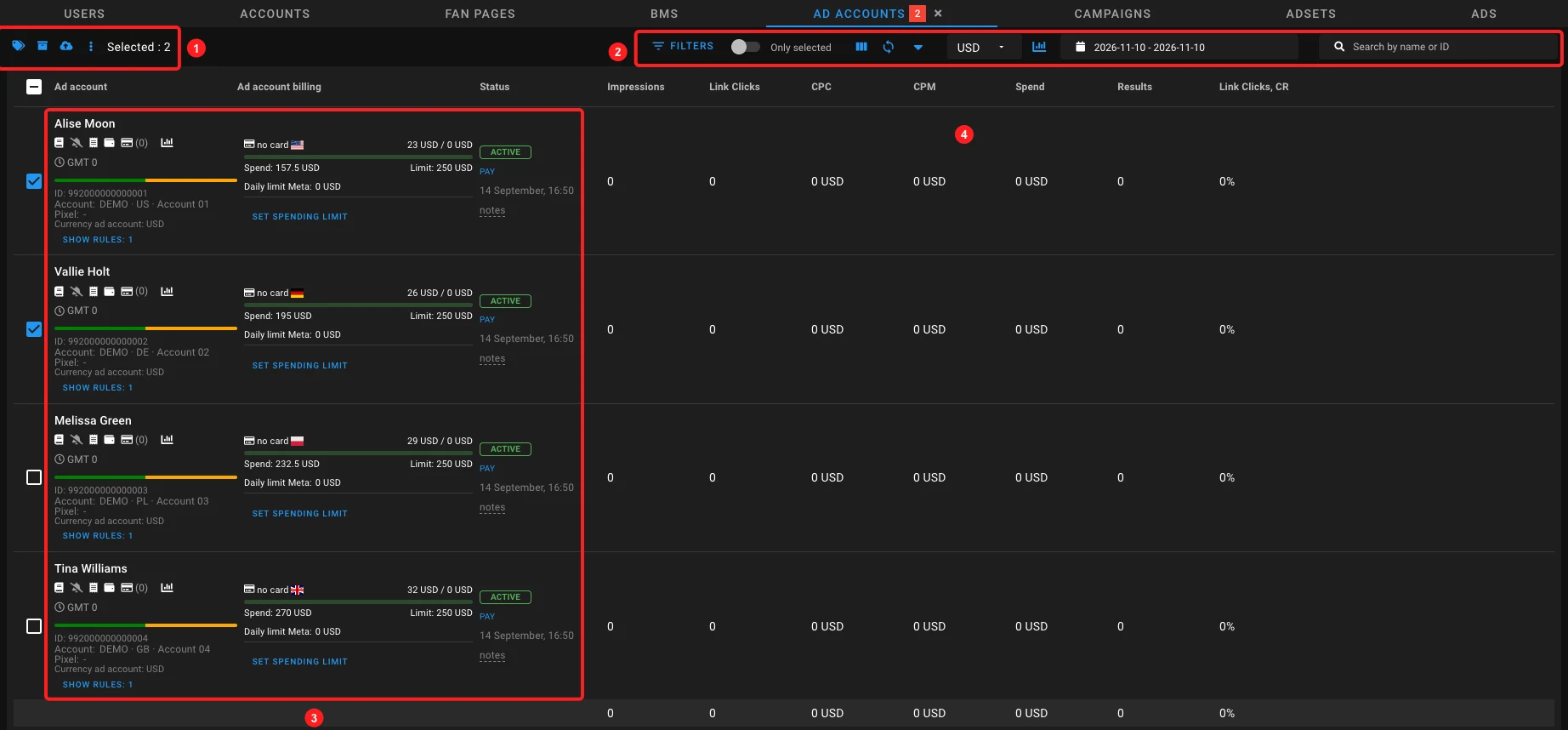
- Main ad account features
- Extra features for easier sorting
- Ad account information
- Stats
⚙️ Main ad account features
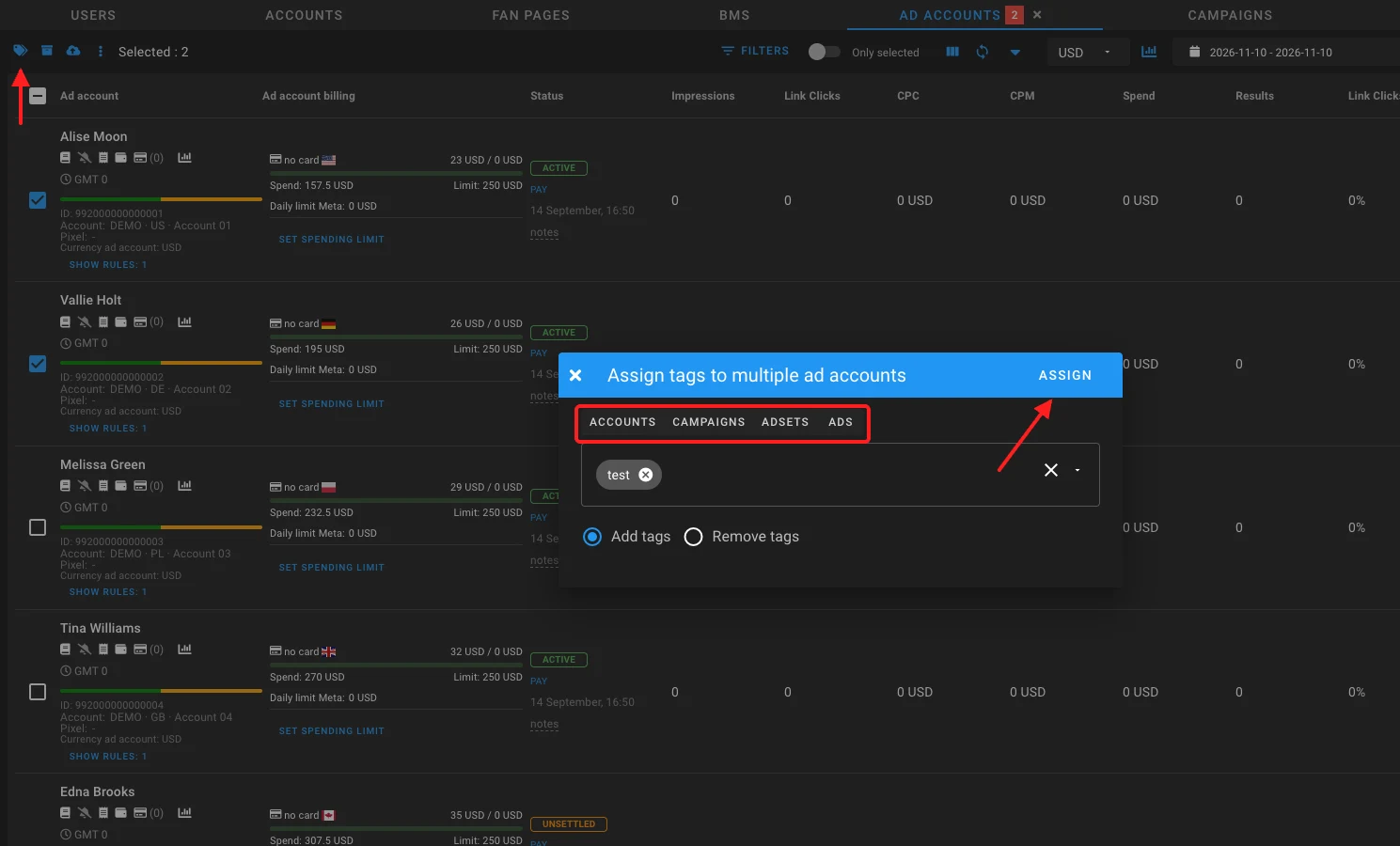
🏷️ Tags
Add a tag to an account to easily sort accounts later.
🗄️ Archive
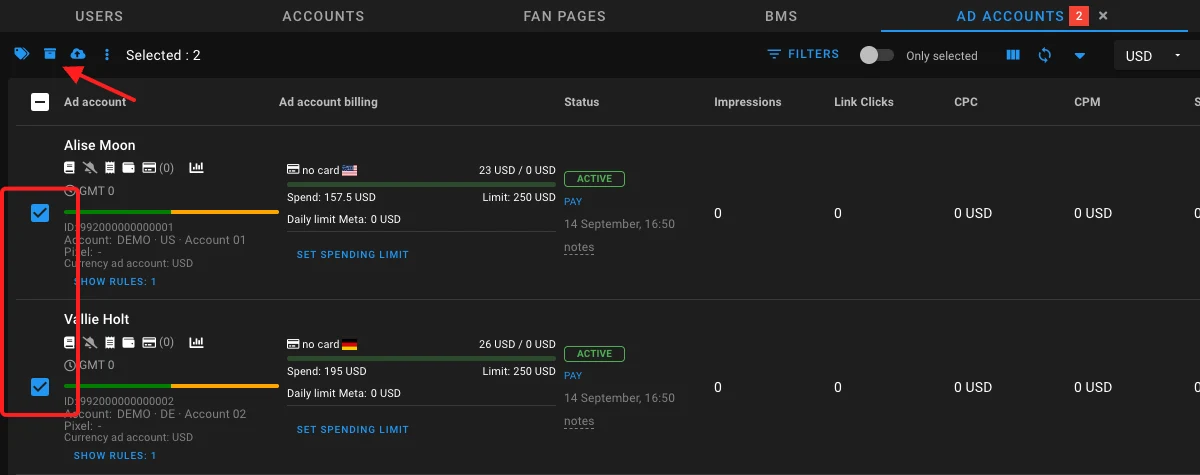
Hides accounts you want to keep but don't need for work.
- Tick the account.
- Click “Archive” in the Dolphin {Cloud} top menu.
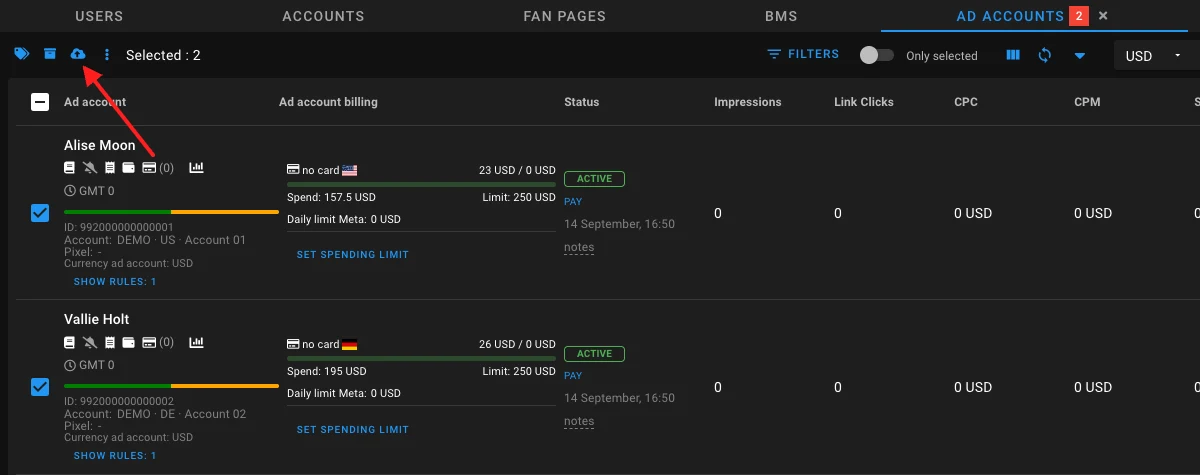
🚀 Create ad
To learn how to run your first launch, read here.
⋯ 3 dots
The “Three dots” menu holds the other ad account actions. Let's go through them in order.
💳 Attach card
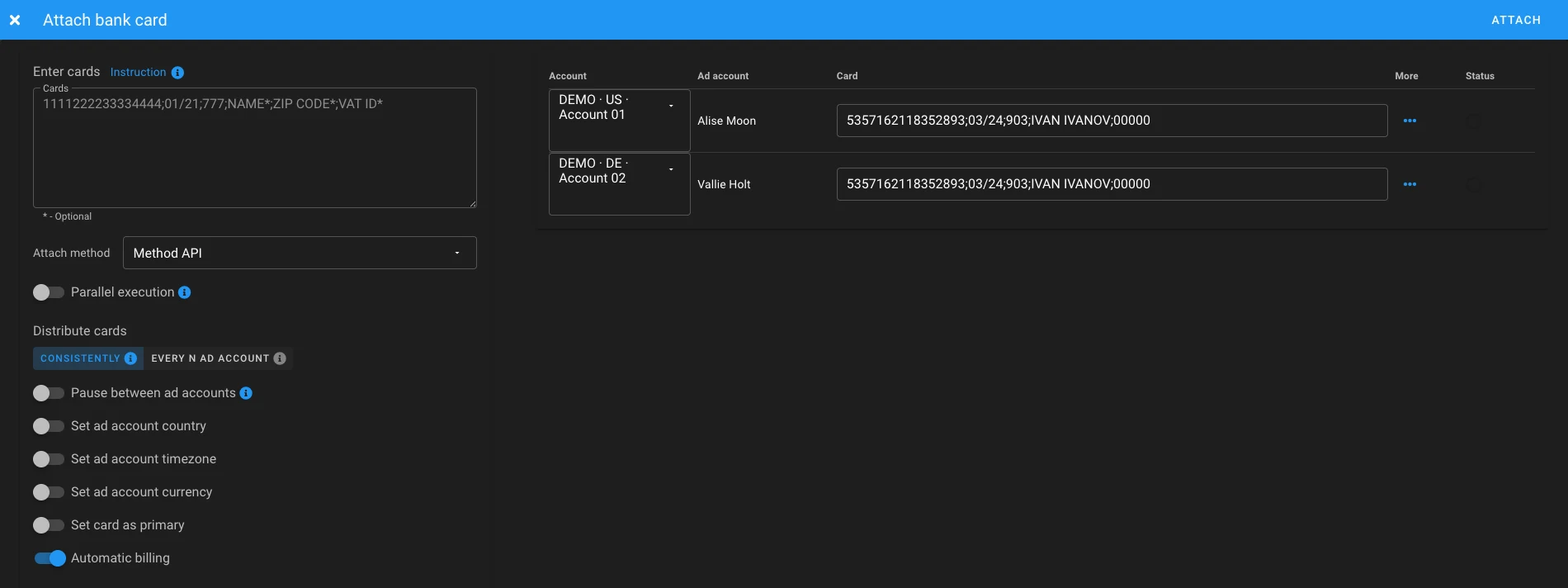
After creating an FP, you need to attach cards to the ad accounts. It's very simple:
- Tick the accounts whose ad accounts you want to process.
- Go to the “Ad accounts” tab.
- Select the ad accounts you need.
- Click “Three dots” and “Attach card”.
In this window, enter a card or a list of cards in this format:
1111222233334444;01/21;888;CARDHOLDER NAME;ZIP;VAT ID- The CARDHOLDER NAME;ZIP;VAT ID parameters are optional, and you don't have to enter all of them. Just keep the order.
- ZIP is needed for US cards and can have 5 digits.
⚠️ Warning
VAT ID (a 12-digit card tax number) can currently be added for Ukraine billing GEO.
This menu also has these parameters:
- Select currency: sets or changes the current currency of the ad account.
- Set timezone: Learn more.
- Set ad account country: changing the ad account country often helps fix some card attachment errors.
- Make card primary.
💡 Tip
After entering the data, it's very important to check that the card(s) were read correctly.
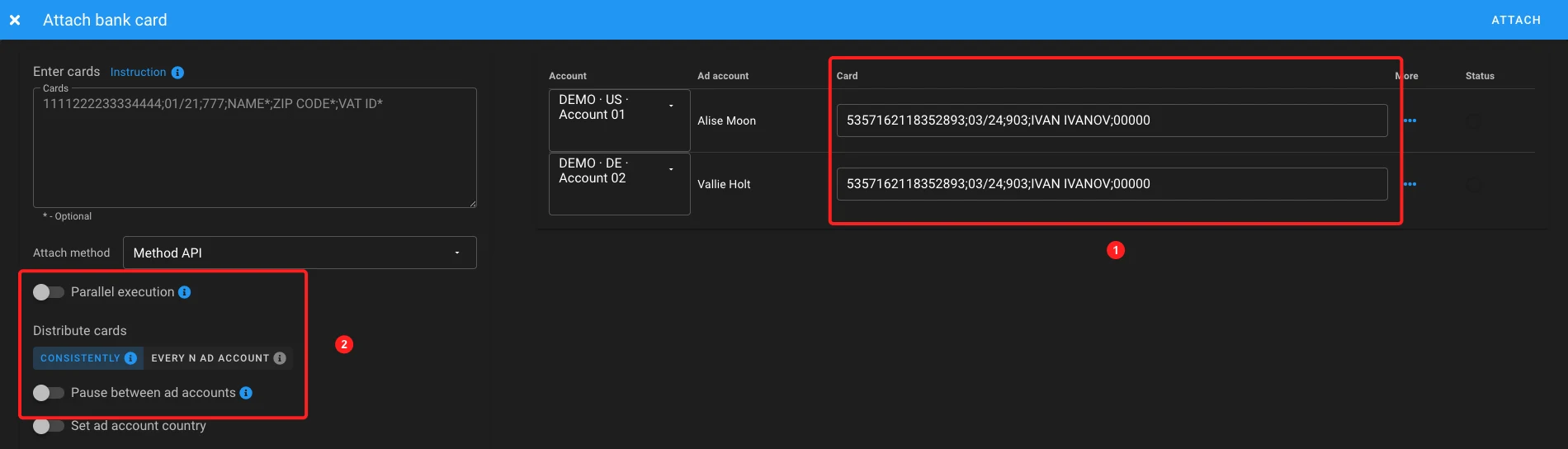
⚠️ Warning
Note the “Run in parallel” and “Pause between ad accounts” toggles. They work only if you attach cards to ad accounts from different accounts with different proxies. If the ad accounts belong to one account, these options don't matter.
If you have, for example, 10 cards and 100 ad accounts to attach them to, you can distribute the cards (there are 2 options on the left):
- Consistently: the 10 cards are attached in turn 10 times. The 1st card goes to ad accounts 1, 11, 21, 31, 41…, the 2nd card to 2, 12, 22, etc.
- Every N ad account: the 1st card is attached to N ad accounts, the 2nd card to the next N ad accounts. For example, there are 100 ad accounts in total and N is set to 12. The system will try to attach the 1st card to the first 12 ad accounts, the 2nd card to ad accounts 13 to 25, etc.
After choosing the settings, click “Attach”.
🗑️ Delete cards
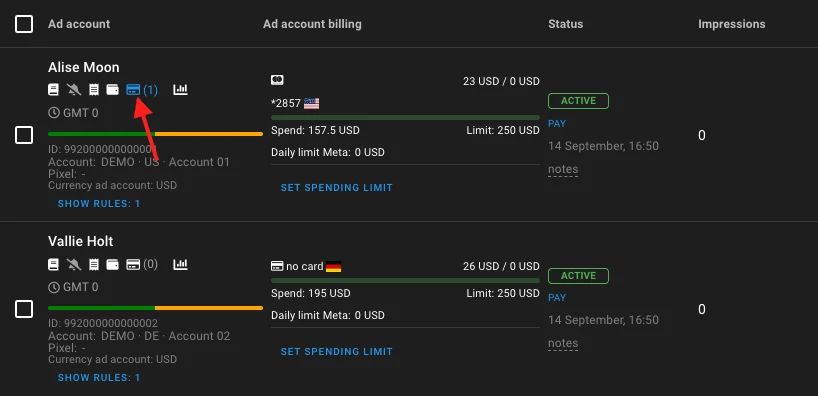
Removes a card from the ad account. If you have 2 or more cards, after the primary card is deleted, the second attached card automatically becomes primary.
💰 Transfer to prepaid
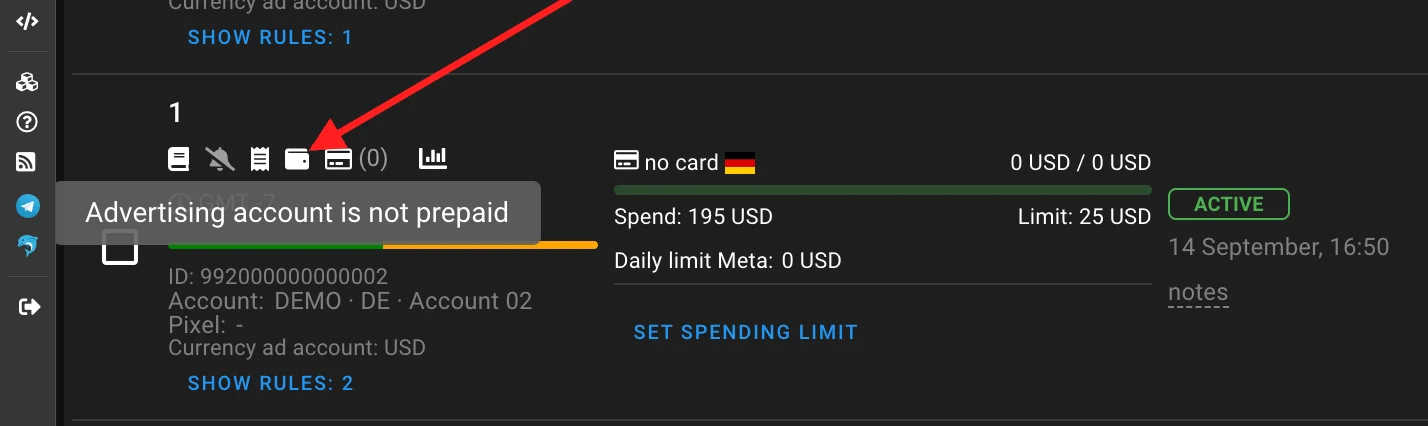
Lets you change the payment method on ad accounts quickly and easily. It doesn't trigger limits or change the currency and country, it simply switches the ad account to prepaid.
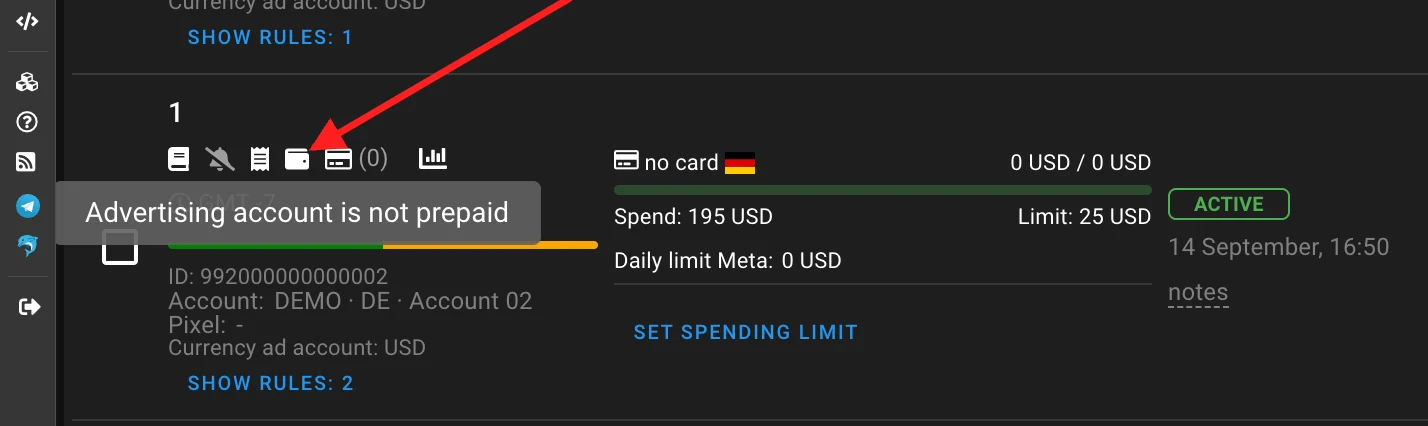
For your convenience, we added an indicator showing whether the ad account is currently prepaid.
🎬 Video link: https://cli.co/excf6N_
💵 Topping up Prepaid ad accounts
You can top up prepaid accounts right in Dolphin {Cloud}, without topping them up manually in FB.
- Select the ad account to top up.
- Select a card.
- Enter the amount and top up the balance.
In a few seconds, the ad account is topped up and the account keeps spending.
🎬 Video link: https://cli.co/tuquI91
🌍 Change billing country
Almost everyone has run into this: a purchased FB account was already used for traffic and its ad account has Russia selected. Or you opened your old account and don't want to pay the VAT charge either. This feature will help you.
🧾 Delete VAT/TAX ID UA
Deleting the VAT ID switches the account from a legal entity to an individual so the hold comes back.
- You need an ad account with Ukraine billing.
- You need an active social account for the request to succeed.
The “Ad accounts” level also has a “VAT ID” column. It shows whether the ad account has a tax number and shows it is gone once you delete it.
📤 Unarchive
To take an ad account out of the archive:
- Click “Filters” in the top menu.
- Select “Show archived accounts”.
- Tick the account.
- Click “three dots” in the menu above and “Unarchive”.
✏️ Rename
Changes the name of the selected ad account(s).
⛔ Deactivate ad account
Useful for getting around some ad account issues you may run into while working.
⚠️ Warning
If you deactivate an ad account shared with a social account, you will lose access to it both from that social account and from the account it was shared from.
This feature works correctly only with personal, native ad accounts.
🎬 Video link: https://cli.co/FaIojno
🎯 Create pixel
The Facebook pixel lets you split your audience into groups and show ads to people who are really interested: your website visitors.
📉 Set spending limit
You can set the number of cents that can be charged from the billing and set the limit so you make it before the first bill.
🔁 Share personal ad account
Moving a personal ad account to another personal account, moving an ad account to another account, sharing an ad account, moving an autoreg's personal ad account to a trusted account (King, social account): these are all the same thing, done with one action.
🏢 Share personal ad account to BM
Moving a personal ad account to a BM, moving an ad account to another account's BM, sharing an ad account to a BM, moving an autoreg's personal ad account to a trusted BM of a “King, social” account: these are all the same thing, done with one action.
🔔 Turn notifications on/off
These are the notifications that ad accounts receive in Ads Manager.
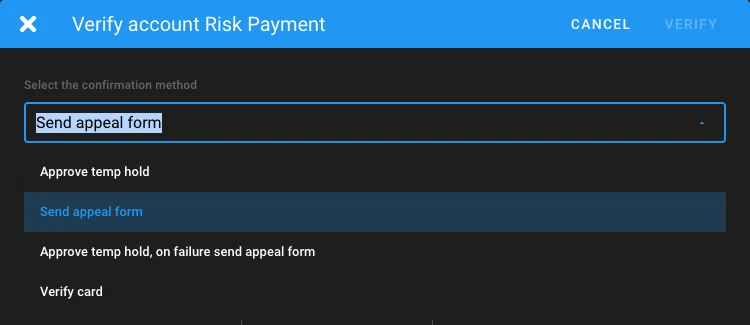
🛡️ Verify account Risk Payment
Risk Payment (RP) is a block on the payment method. It happens after a card is attached: after a payment check, the card gets banned. You can pass it in the three ways shown.
💡 Tip
Can you charge the pre-authorization through our ads automation? Yes: just select the right option in Risk Payment.
Pre-authorization is card verification, or hold verification.
🤖 Auto-rules management
To manage auto-rules (delete, turn on and off), click “Rules” under the ad account (if you have already applied any). A window opens where you can perform these actions.

🧩 Apply automation rules group
Lets you apply or remove a rule group on the ad account.
Learn more about creating and adding auto-rules and auto-rule groups.
🧭 Extra features for easier sorting

| Setting | What it does |
|---|---|
| Filters | Filters ad accounts by status, account tags and attached cards. You can also choose to show archived ad accounts and ad accounts without active campaigns. |
| Only selected | When the toggle is on, shows only the selected ad accounts. |
| Setup columns | Here you choose which metrics to display in the stats. |
| Data update from FB | You can also set up automatic updates. |
| Sorting stats by date | Helps you navigate by dates and track metrics more accurately. |
| Search by name or ID | Finds an ad account by name or ID. |
📋 Ad account information
Most data is clear to users, so let's focus on the most common questions.
🚦 Ad account statuses
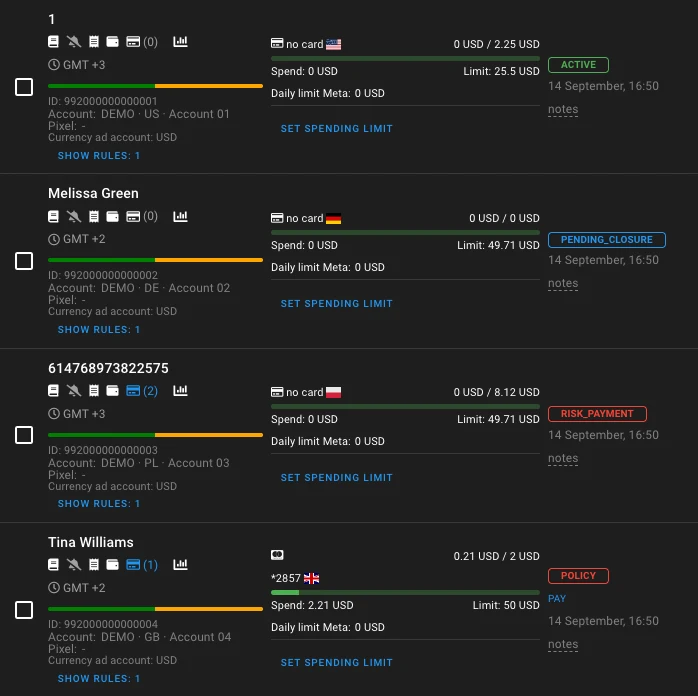
| Status | What it means |
|---|---|
| ACTIVE | The account is fine. |
| RISK_PAYMENT | learn more |
| POLICY | Any violation of Facebook policy. |
| PENDING_CLOSURE | Pending closure, for example if you closed the ad account in Facebook. See the Facebook documentation for details. |
| TOKEN_ERROR | Check the FB token. See how to renew the token in the Accounts tab. If this error is present, it shows on all tabs. |
| UNSETTLED | The ad account has an unpaid current bill, or the account went through a risk payment (card verification). In the 1st case, the status clears once you pay the debt. In the 2nd case, it disappears after the stats update and changes to the current status of the ad account. |
🕒 Ad account time zone
A bit more about this parameter here.
🔎 What else the ad account row shows
- Last stats update time: in the screenshot it is April 26, 13:12.
- Whether the ad account is prepaid: shows the ad account state; you can make it prepaid manually.
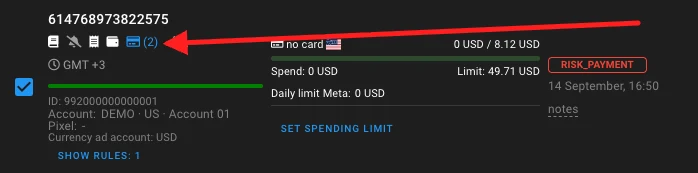
- Making a card primary: lets you switch to a card that has already been added.
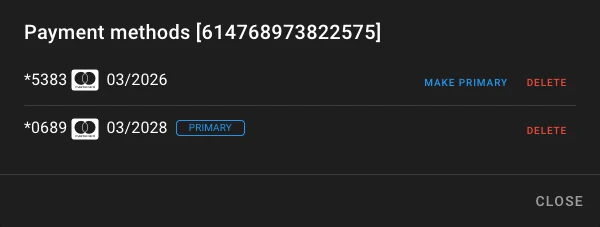
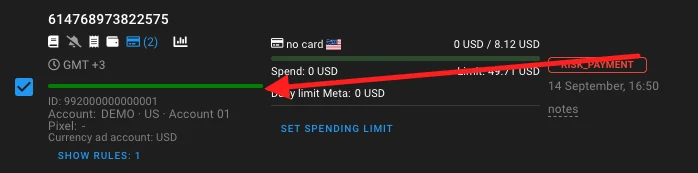
- The bar under the ad account name: this is the review status on ad accounts. Green means approved, red means rejected, yellow means under review, several colors mean different statuses.
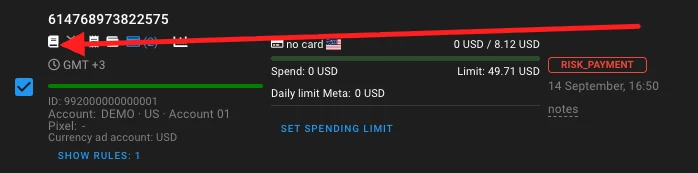
- Fb API log: shows all actions performed with your ad account via the API. It also shows errors and their causes, or why ads failed to launch on this ad account.
💳 Forced payment
This option appears as soon as a payment method is attached to the ad account. It is meant for manual payment:
- if the billing threshold hasn't been reached yet, but you need to pay right away to raise the limits in Business Manager;
- to retry the charge if the payment method had insufficient or no funds at the time of the regular billing.
ℹ️ Good to know
This feature appears only after spend data for this ad account has been received.
If this ad account has no spend, there will be no button.
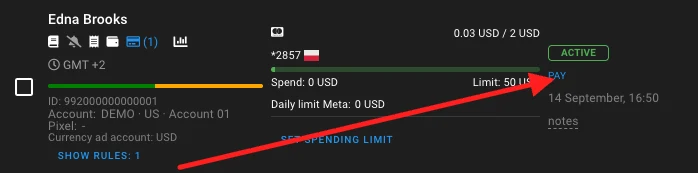
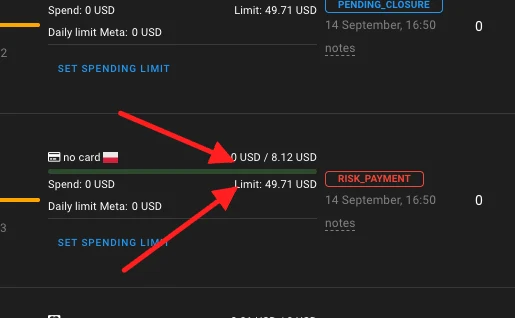
For example:
- 0/8.12 USD is the ad account's first bill.
- 49.71 USD is the ad account's daily limit.
📊 FB trust score (Tier)
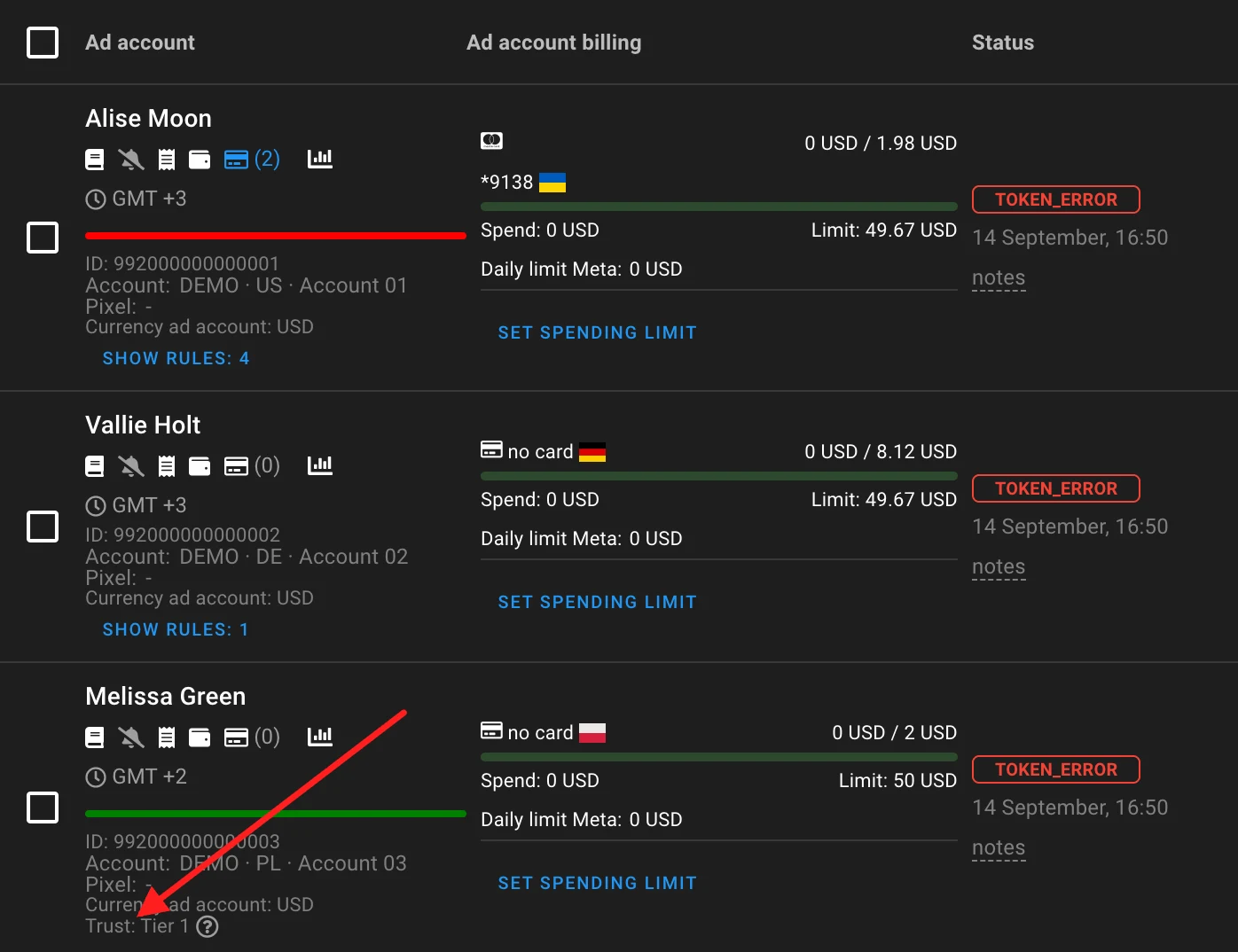
This area also shows the FB trust score. FB has 4 levels in total: 0, 1, 2, 3, where 0 is the weakest account and 3 is the top one. Next to this score, Dolphin has a hint explaining what each ad account Tier means.
| Tier | What it means |
|---|---|
| Tier 0 - High risk. | Ad account spending limit restricted to 25$ to 50$. 1 ad account allowed per Business Manager. |
| Tier 1 - Medium/high risk. | Ad account spending limit restricted to 50$ to 250$. Up to 3 ad accounts can be created in a Business Manager. |
| Tier 2 - Low/medium risk. | Ad account spending limit restricted to 250$ to 5000$. The number of ad accounts in a Business Manager no longer depends on the trust level. |
| Tier 3 - High trust level | No restrictions on the ad account daily spending limit. No restrictions on ad accounts in a Business Manager. You can request a DSL (Daily Spend Limit) of 5000$ and higher. When an ad account has Tier 3 trust, its ads are no longer checked by the system but go to a moderator (a person checks them, not the system). |
📈 Stats
This shows the metrics available in Facebook or selected in the column setup.
ℹ️ Good to know
If the metric you need is missing and Facebook doesn't have it either, we can't show it. Learn more about stats issues and working with stats.
🐬 All ad accounts of your accounts in one tab in Dolphin {Cloud}.