How to view and change the ad account time zone in Dolphin {Cloud}
Updated:
⚡ In short
- Find the ad account time zone in the “Ad accounts“ tab.
- Change the time zone when attaching a card.
- Know when FB may not let you change the time zone.
Ads, campaigns and audiences are much easier to manage when the ad account uses your “working” time zone. For example, your own time zone or the time zone of the target audience / GEO you plan to work with.
Yet such a simple action as changing the time zone in Facebook gives webmasters a lot of trouble. Below you will see how to view and change the time zone in Dolphin {Cloud}.
🕒 How to find the ad account time zone?
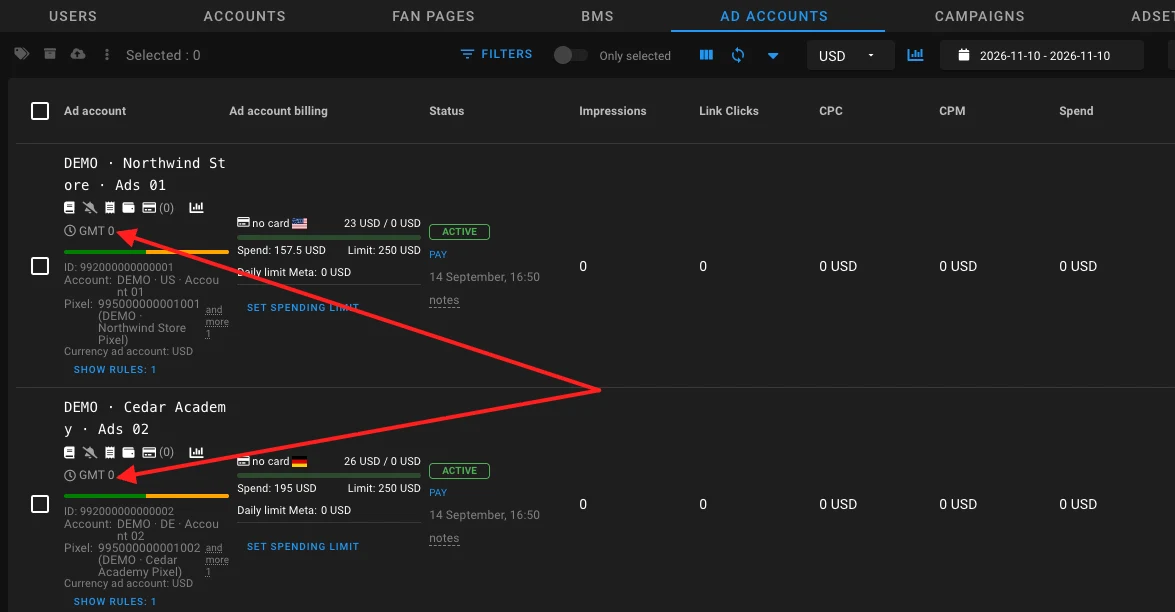
In the “Ad accounts“ tab, the time zone is shown under the ad account name. For example, GMT +3 means the ad account is in the +3 time zone.
⚙️ How to change the time zone?
You can change the ad account time zone when attaching a card.
⚠️ Warning
This works only if you have not changed the time zone in FB before, because FB may restrict this change.
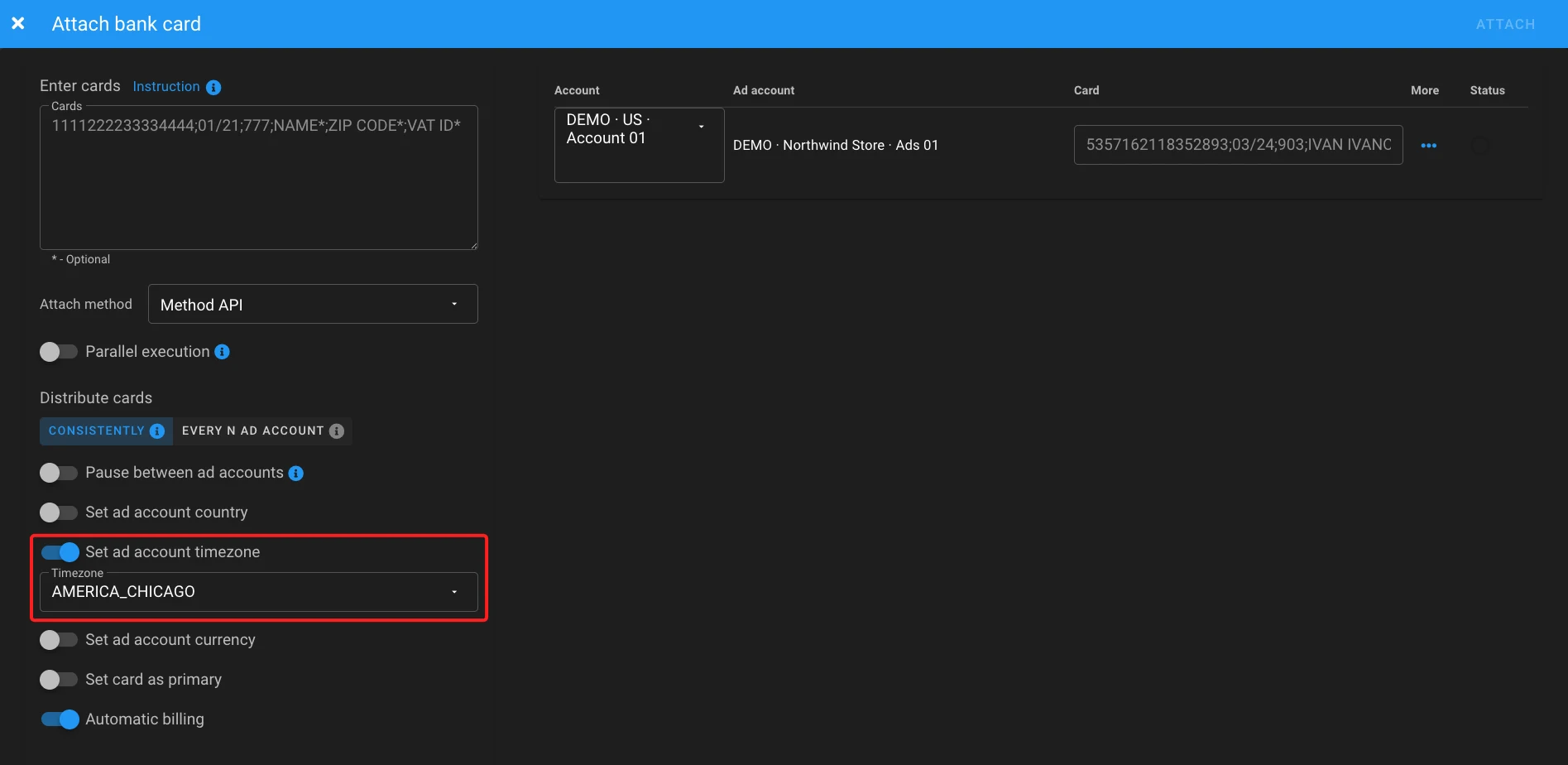
- Start attaching a card to the ad account you need.
- Turn on the “Set ad account timezone” toggle.
- Select the time zone you need.
- Continue attaching the card: the time zone will be changed (if FB has not set restrictions on this ad account).
🐬 Attach cards and set ad account time zones in one window. Try Dolphin {Cloud}