How to create a Facebook auto rule
Updated:
⚡ In short
- Learn what auto-rules are and why you need them.
- Create a rule or a rule group in Dolphin {Cloud}.
- Use 6 ready-made examples as a starting point.
- Apply a rule to an ad account and learn to manage it.
ℹ️ Plan
Auto rules are available on every plan except Light.
🧐 What is an auto-rule?
Automated rules are a tool that lets you react quickly when set conditions are met and make changes to ad campaigns, ad sets or ads.
With them, you can manage budgets and bids, pause ads or launch them at the time you need.
🤖 Creating an auto-rule
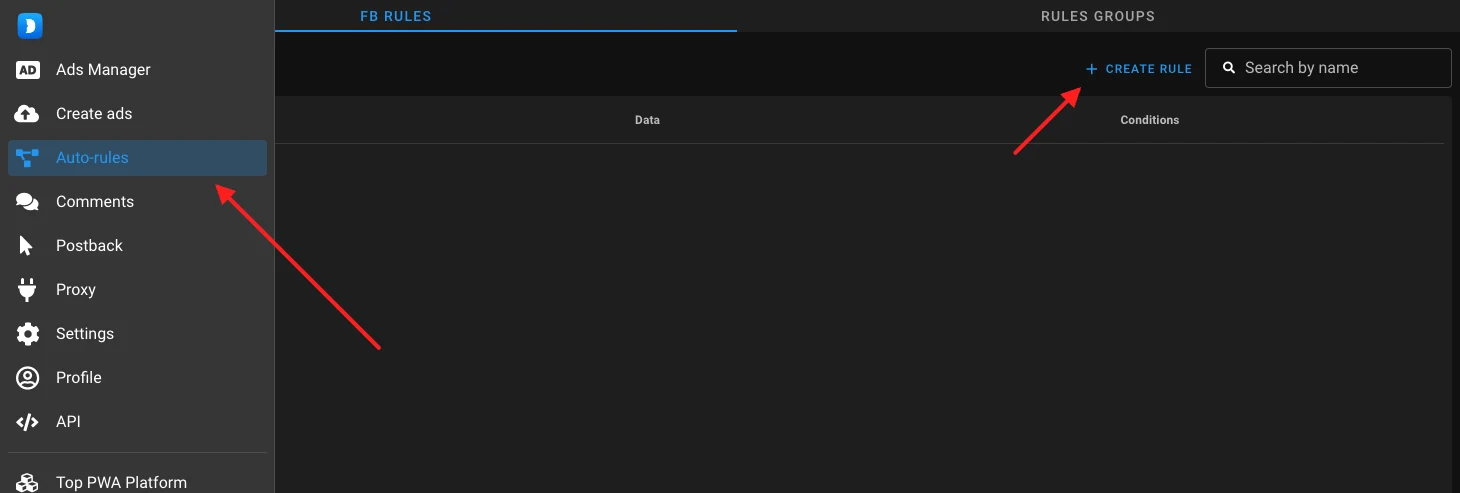
- Open the Dolphin main menu and select Auto-rules.
- Click Create rule and start building it.
You create a rule the same way you usually do in Facebook Ads Manager.
When creating it, you can set:
| Setting | What it does |
|---|---|
| Rule type | Schedule |
| Frequency | The time when the action runs; you can set your own |
| What to work with? | Ads, Adset, Campaign |
| Which statuses to take? | Ad, Adset, Campaign statuses |
| What to do? | Set the action to perform on the items above |
| Stat period | The stats period for Ads, Adsets, Campaigns that the Condition is based on |
| Condition | Here you set the condition under which the action above runs |
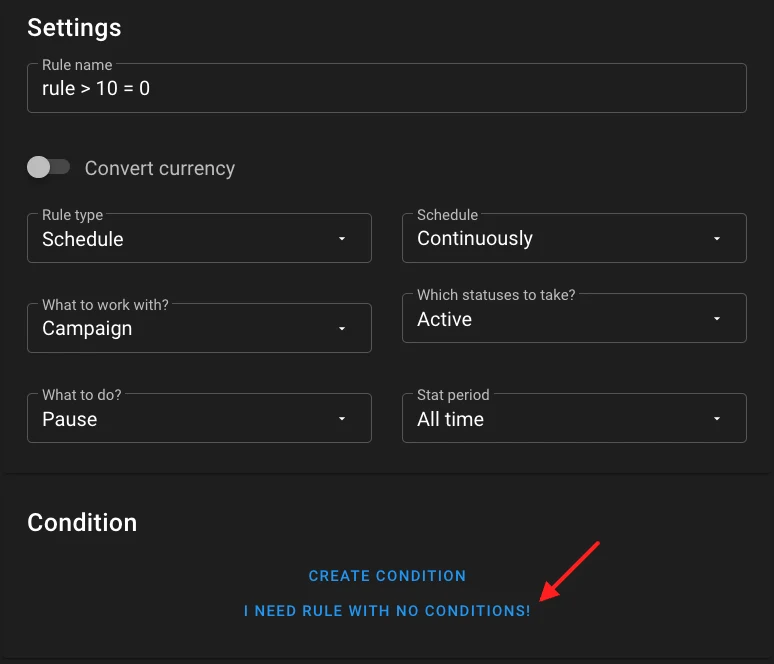
If you want to create a rule without conditions, you can do it by clicking the corresponding button.
🗂️ Auto-rule group
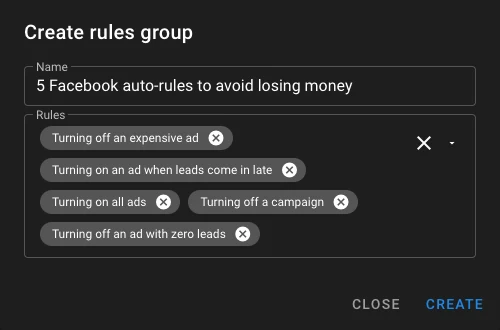
Here you can also create an auto-rule group, which helps chain rule actions in sequence. For example, stop an Ad at one time and Start it at another time you need.
⚠️ Warning
An important point when creating auto-rules: they all need to work at the same level. That is, if you turn off expensive ads, then the next day your auto-rules should not turn on a campaign or an ad set, but also work at the ad level.
🤗 Auto-rule examples
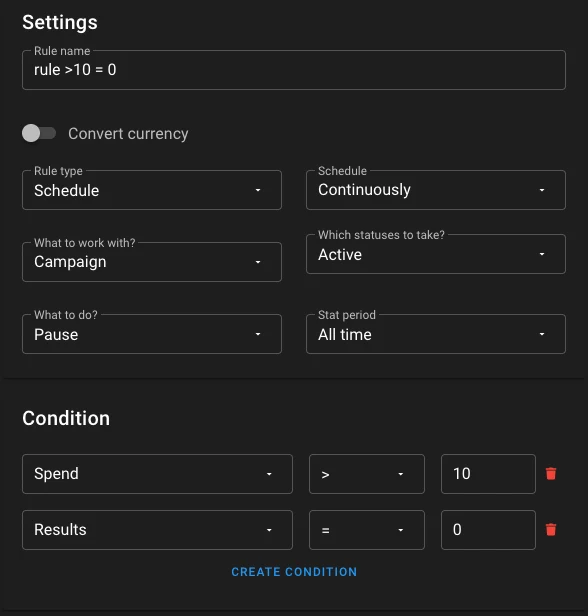
Stopping any ads where spend is over 10 and results equal 0.
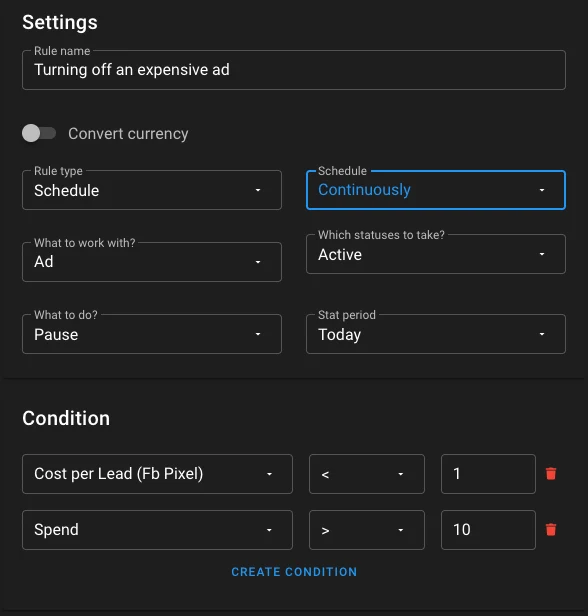
Turning off an expensive ad. We set the lead cost to > 7$ because we give FB some budget to find the right people: we let it spend +10-30% of the lead cost with no result.
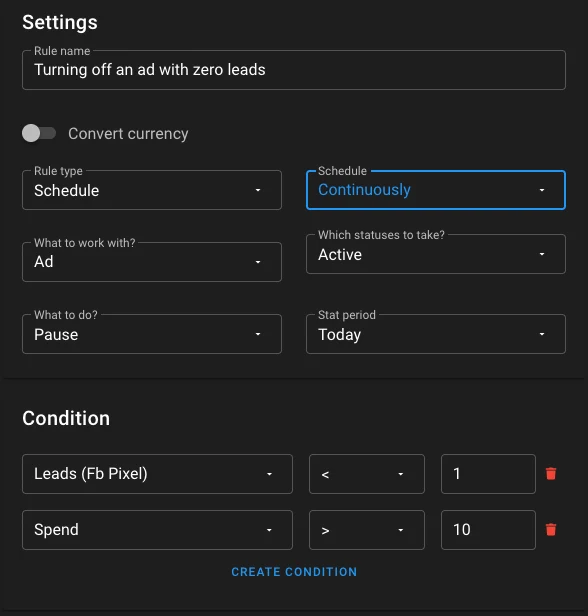
Turning off an ad with zero leads. Without leads and without this auto-rule, the campaign would keep running! The previous auto-rule works on the "Cost per Lead" field and won't trigger when there are no leads. We let it spend 2 lead costs with no result before stopping.
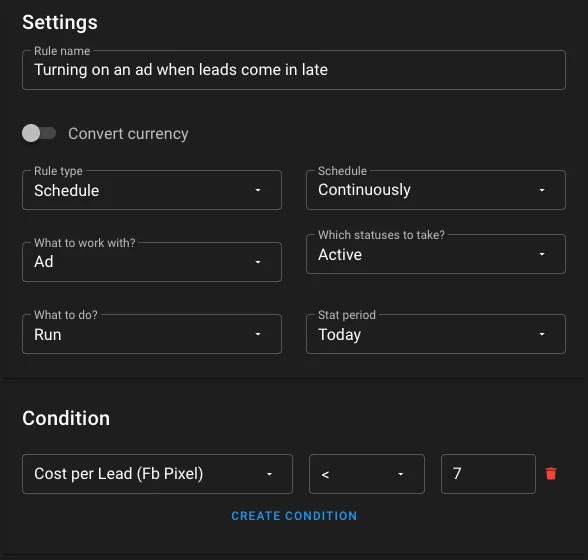
Turning an ad back on for late leads. Sometimes the pixel reports leads to FB with a delay. Because of this, the previous auto-rules may turn off your ads, then a lead comes in and you need to turn them back on! That's exactly what this rule is for.
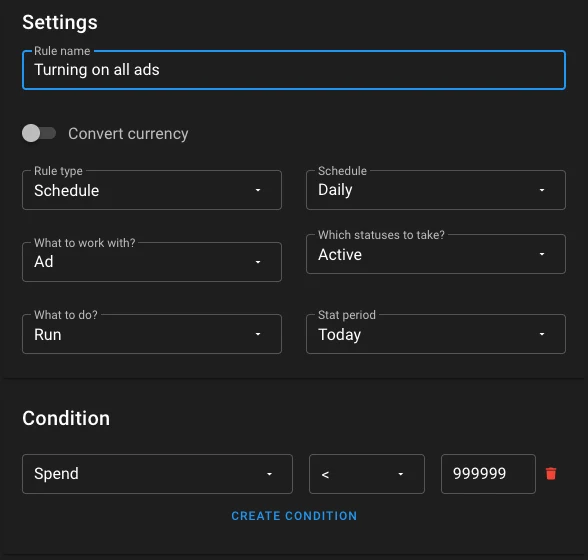
Turning on all ads. Every new day we turn on everything that was turned off to try entering a new auction with a different audience.
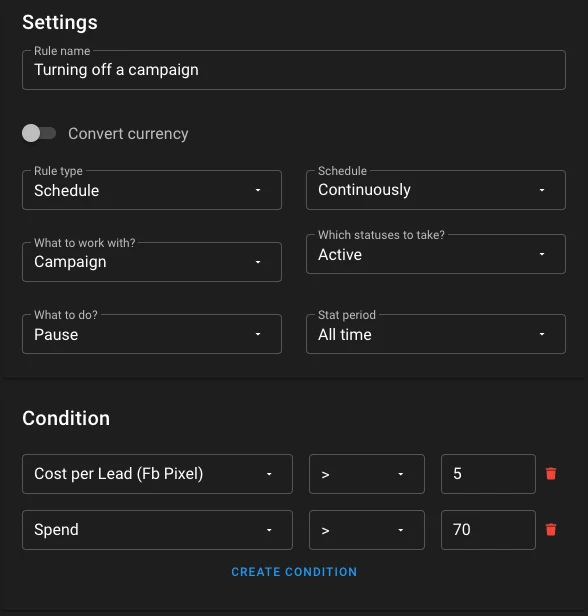
Turning off a campaign. If a campaign brings expensive leads for several days, turn it off. Then change the creatives, relaunch it, or use the account for another offer.
🧬 How to apply an auto-rule to an ad account
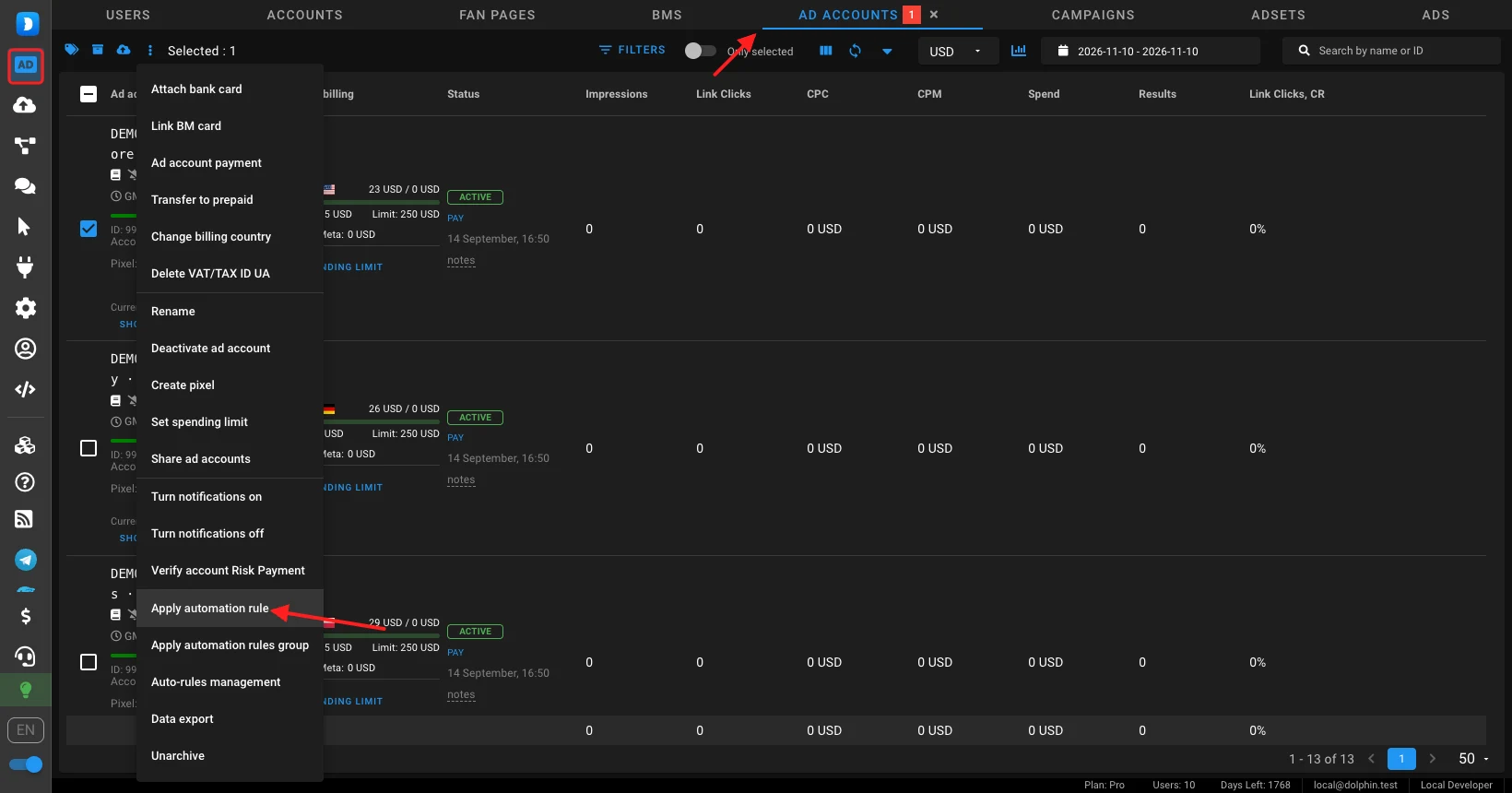
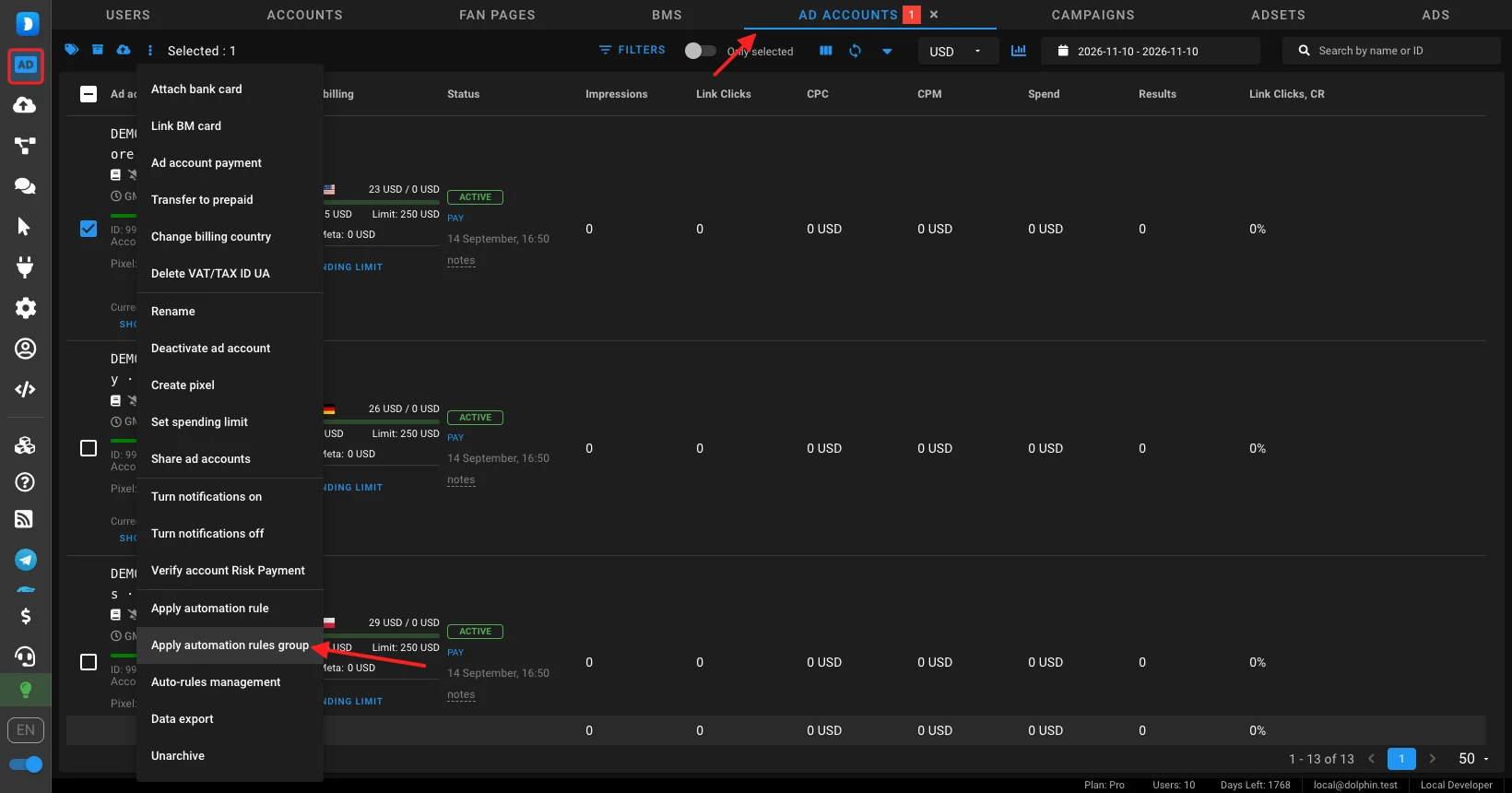
Go to the Ad accounts section, select an ad account and hover over the three dots at the top.
In the drop-down list, select Apply automation rule.
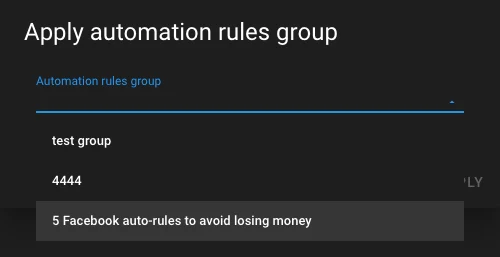
Or Apply automation rules group.
⚙️ Managing rules
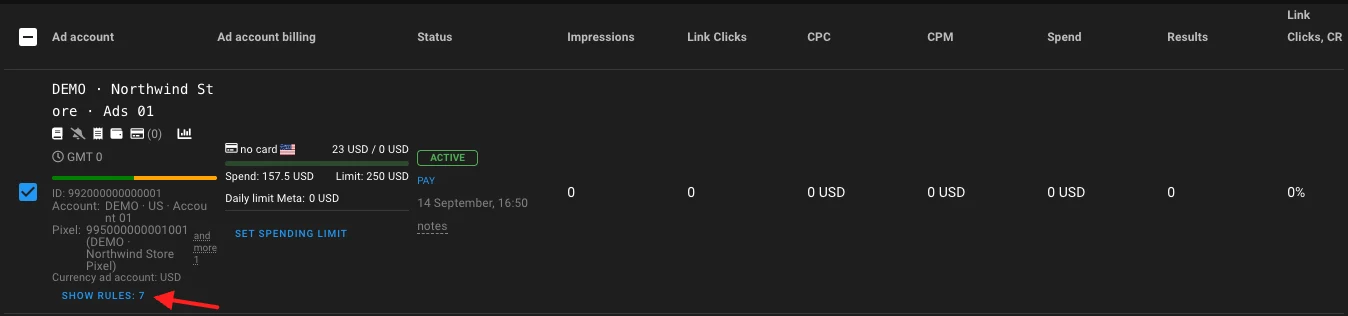
To manage auto-rules, delete them, turn them on or off, click Rules under the ad account (if you have already applied any). A window opens where you can perform these actions.
❓ FAQ
Which plans include auto rules?
Auto rules are available on every plan except Light.
Can I create an auto rule without conditions?
Yes. When creating a rule, click the button for a rule without conditions.
How do I apply an auto rule to an ad account?
Go to the Ad accounts section, select an ad account, hover over the three dots at the top and choose to apply an auto rule or a group of auto rules.
Why should all rules work at the same level?
If a rule turns off expensive ads, the rule that turns them back on the next day must also work at the ad level, not at the campaign or ad set level.
🐬 Automate your Facebook ads routine: try Dolphin {Cloud}