How to launch a carousel ad
Updated:
⚡ In short
- How to turn on Carousel
- Distribution across ad sets
- Limitations
Since July 2026 the Dolphin {Cloud} upload wizard can create Carousel ads. One ad holds several cards, and each card has its own creative, text, link and deep link.
🛠️ How to turn on Carousel
- Open "Create ads" and pick a bundle, as in a regular upload.
- On the "Creatives" step, turn on the Carousel switch.
- Card fields appear for every ad account. Add cards and fill in the creative, headline, text, link and, if needed, deep link for each one.
- Check the preview and start the upload.
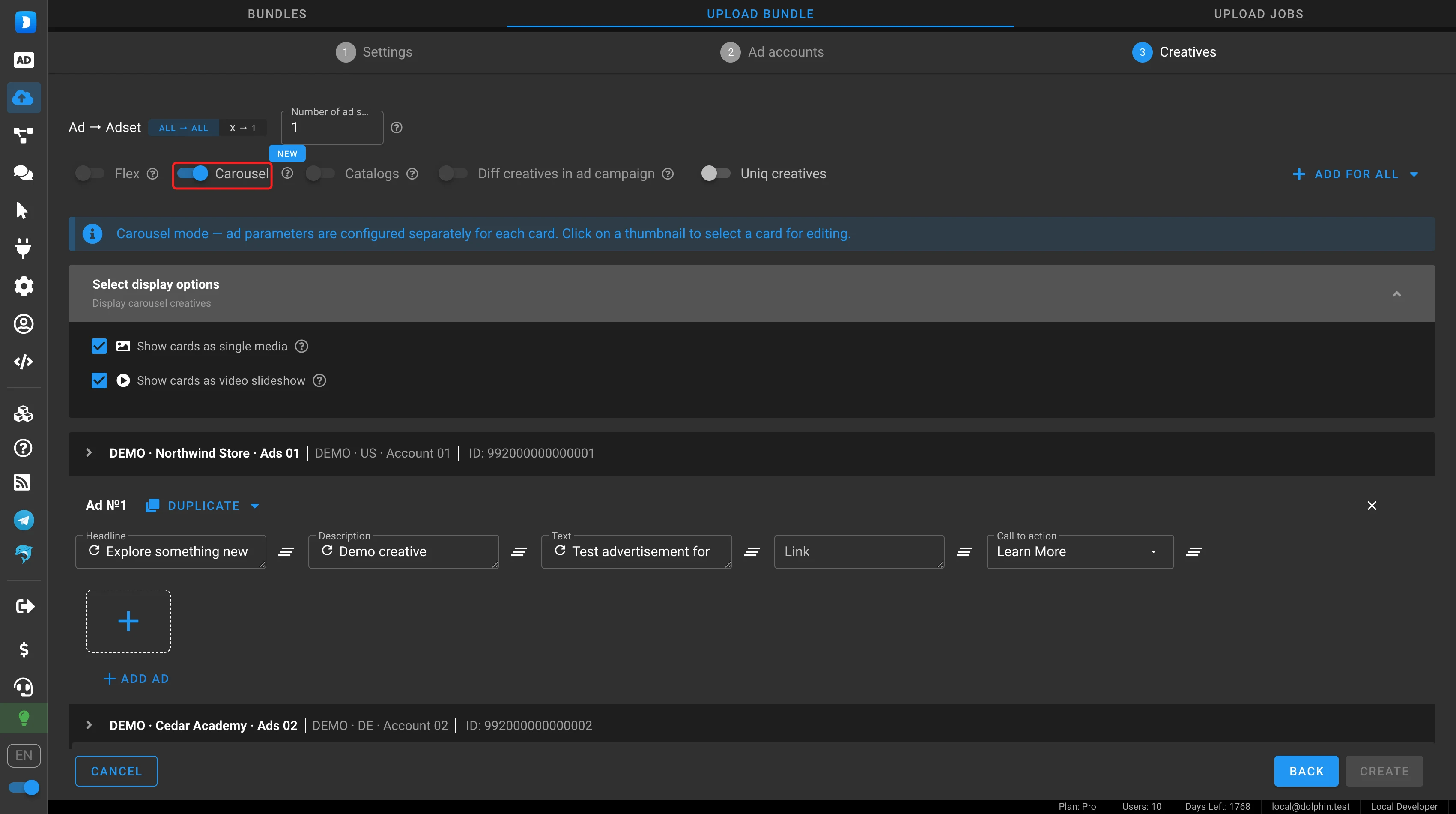
🔹 Distribution across ad sets
Carousel supports the "X → 1" distribution on step 3 of the wizard, just like regular uploads, Flexible and multi-language ads. You set how many ads go into each ad set, and Dolphin {Cloud} spreads them in a round-robin way. Learn more in Creative distribution and bulk upload.
⚠️ Limitations
⚠️ Important
- The Carousel switch is available only for bundles with the "App installs", "Traffic", "Leads" and "Sales" objectives.
- A carousel has from 2 to 10 cards.
- If you need 15 different ads with different texts, a carousel is not the right tool. Use multi-language ads or Flexible.
- A carousel of catalog products is set up in «Catalogs» mode: How to launch ads on a product catalog.
📚 See also
🐬 New to Dolphin {Cloud}? Try it free for 3 days.