How to fix upload errors in Dolphin {Cloud}
Updated:
⚡ In short
- Upload errors show up in three places: in the wizard (red text or an inactive button), in a window after Create, and in the job row in Upload jobs.
- If Continue or Create is inactive, a required field on the current step is empty.
- Errors from Facebook and from the Cloud server come in English. This is normal, and you can translate the text.
- Once the cause is fixed, restart the job or click Edit and re-upload.
- If the error is unclear, send support the job ID and the text from the log.
When you upload through Dolphin {Cloud}, the wizard catches some problems before anything is sent to Facebook, and Facebook returns others while the ads are being created. Below are all the messages step by step: what each one means and what to do so the ads get uploaded.
🧭 Where to look for the error
| Where | What it looks like | Section below |
|---|---|---|
| Wizard, Settings step | Red text under a field, the Continue button is inactive | ⚙️ The Settings step |
| Wizard, Ad accounts step | Marks in the ad account row, the Continue button is inactive | 🏦 The Ad accounts step |
| Wizard, Creatives step | A hint when you hover over the inactive Create button, or a message when you upload a file | 🖼️ The Creatives step |
| After clicking Create | An Error or API error caused window, an Unsuccess notification | 🚀 After Create |
| Create ads → Upload jobs | A red block with the error text in the job row | 📋 Errors in the queue |
⚙️ The Settings step
If Continue can't be clicked and there is no error text, check three things: the number of campaigns and ad sets is at least 1, a bid is set for the Lowest cost with bid cap and Cost per result goal strategies, and when the ad set limit is on, the minimum or maximum is filled in.
| Message | Why | What to do |
|---|---|---|
| The value of this parameter cannot be greater than 90% of the total budget value. | The ad set spending limit is 90% of the campaign budget or more | Lower the limit or raise the campaign budget |
| The minimum and maximum values must differ by more than 1 US dollar. | The minimum and maximum of the ad set limit differ by 1 USD or less | Set them more than 1 USD apart, for example 20 and 21.5 |
| Invalid date. Please set date more than 24 hours from now | The budget is Lifetime, and the end date is less than 24 hours away | Move the end date further out |
| The specified periods must not overlap | Two scheduled budget increase periods overlap in time | Shift the periods |
| The time between the start and end must be at least 3 hours | A budget increase period is shorter than 3 hours | Make the period longer |
| It can't be more than 800% | The increase in a period is more than 800%, or more than 8 budgets if set as an amount | Lower the increase |
| All periods must use the same unit for budget increase | Some periods use percentages and others an amount | Pick one unit for all periods |
| The start date and time must not be more than 24 hours in the past. | The period start is set too far back | Set the start in the ad account's time, no earlier than 24 hours before now |
More about the budget and scheduled increases: How to set the budget and bid for an upload.
🏦 The Ad accounts step
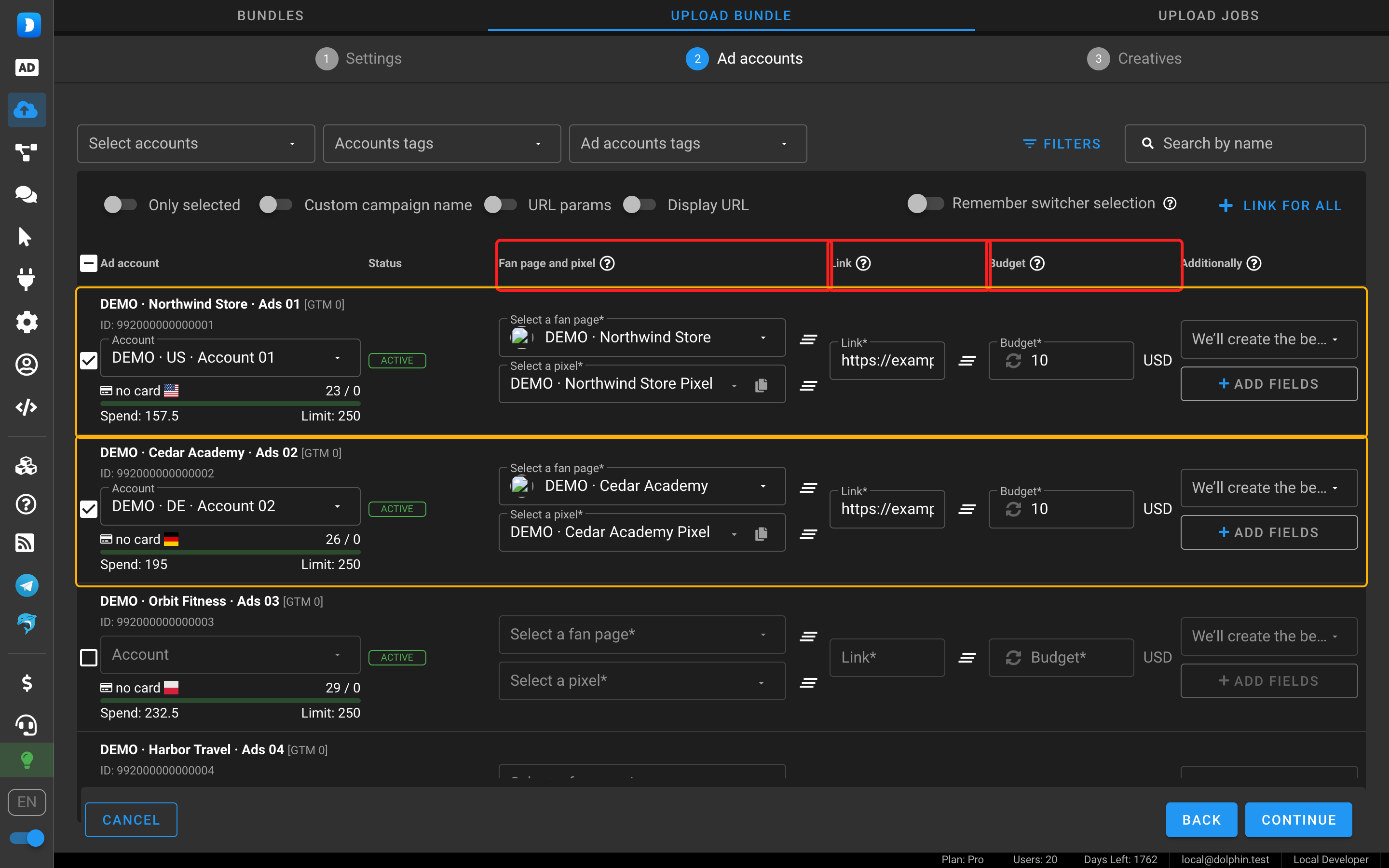
This step has no separate error messages. Problems show up as marks in the ad account row.
| What you see | Why | What to do |
|---|---|---|
| Continue is inactive | No ad account is selected, or a selected ad account is missing the fan page, link, budget, or for app installs the app. Another cause: Display URL is on and contains an invalid address | Fill in the fields marked with an asterisk: Select a fan page, Link, Budget, Select an app |
| The Display URL field is highlighted in red | The address doesn't look like a link: there is no domain with a dot, or it contains spaces | Enter an address like example.com or https://example.com/path. While the field is red, Continue stays inactive |
| A No card mark | No card is attached to the ad account | The upload will go through, but Facebook won't start delivery without payment. Attach a card to the ad account in Ads Manager on the Ad accounts tab |
A status badge: DISABLED, UNSETTLED, RISK_PAYMENT, POLICY, NEED_VERIFY_CARD and others | The ad account status from Facebook. Blocked and deleted ad accounts are highlighted in red | Upload to ad accounts with the ACTIVE status. Unblock a problem ad account first, or uncheck it |
| A red icon next to a fan page, and you can't select it | The fan page is restricted from advertising or isn't published | Choose another fan page or lift the restriction in Facebook |
| An Archived mark next to the name | The ad account is in the Cloud archive | Unarchive the ad account if you need it |
🖼️ The Creatives step
If Create is inactive, hover over it: for the Languages, Carousel and Catalogs formats a hint appears. In normal mode there is no hint, and the cause is almost always the same: some ad account has no creatives, or an ad set ends up with more than 200 ads.
| Message | Why | What to do |
|---|---|---|
| Fill in all fields for ads in different languages. | Languages mode: some language is missing a creative, headline, text or link | Fill in all fields for every language |
| “Languages” mode, ads without at least one additional language cannot be used. | The ad has only the primary language | Add at least 1 additional language |
| Cannot remove the Creative Name language | This language is the source for {{creative.name}} in the ad name | First choose another language or “All languages” in the ad. More: How to launch an ad in several languages |
| You used different creative types for languages within the same ad. | One language has an image and another has a video | Use creatives of one type for all languages of the ad |
| You can’t remove the primary language | You tried to delete the ad's primary language | Make another language primary first |
| Carousel mode can't be used with ads that have fewer than two separate creatives. | The carousel has fewer than 2 cards | Add a second card |
| One or more creatives in the Carousel are missing a link or have an invalid one. | A carousel card has no link | Add a link to every card |
| In Carousel mode, you cannot upload more than 10 media files per ad. The same message exists for Flexible mode | More than 10 files were added to the ad | Keep no more than 10 |
| Make sure that catalogs, sets, and links are present in all ads. | Catalogs mode: no catalog or product set is selected, or a link is missing. Or “Replace product links” is on and “General link for products” is empty | Select a catalog and a set, fill in the links and “General link for products” |
| The Carousel format requires at least 2 products in the set | The product set has 1 product | Choose a set with 2 or more products, or change the format |
| The file cannot be larger than 200 MB | The creative is larger than 200 MB | Compress the file |
| The uploaded file format is not supported | Languages mode: the file is not an image or video in a supported format | Upload jpg, gif, png or mp4 |
| Failed to upload creative | The file upload failed | Upload the file again |
| Some files do not meet the requirements and were not added. | Some of the video thumbnails didn't fit | Check the thumbnail format: jpg, gif or png |
| Check quantity (instead of the “Total ads” counter in the ad account header) | The total number of instances of all ads in the ad account is over 200 | Reduce “Ad instances” or the number of creatives. More: How to create ad copies inside an ad set |
| Whole number from 1 to 200 | The instance count field has a number less than 1 or over 200 | Enter a whole number from 1 to 200 |
Is the Diff creatives in ad campaign switch gray, and the hint says “Unable to activate the switcher”? You need 2 or more campaigns, 1 ad set and the Ad → Adset scheme with X = 1. Details: How to upload creatives and distribute them across ad sets.
🚀 After Create
Before the upload is sent, the Cloud server checks the settings once more. If something is wrong, an Error or API error caused window opens with text in English.
| Message | Why | What to do |
|---|---|---|
You have not permission to operate this | You only have the View right on the bundle, or no rights to the account | Ask the bundle owner to give you the Actions right, or to share the account |
Limit must not be 90% or more of the company's budget. | The ad set spending limit is 90% of the campaign budget or more | Lower the limit |
The minimum campaign budget must be $1 | The campaign budget is less than 1 USD | Raise the budget |
The budget type must be set to lifetime, with added schedules... | The scheduled budget increase settings are wrong | Check the budget type and the periods, there can be no more than 50 |
Display URL must be a valid domain or URL | The Display URL is invalid | Enter a domain or a website address |
Language is not supported by Facebook. | In Languages mode, a language Facebook doesn't support is selected | Replace the language |
The link field is not allowed when deeplink is provided. | In Languages mode, both a link and a deeplink are set | Keep only one of them |
Unique creatives per campaign require... | The Diff creatives in ad campaign switch is on with unsuitable settings | Set 2 or more campaigns, 1 ad set, the Ad → Adset scheme with X = 1 and turn off Flex, or turn off the switch |
| Trial version limit exceeded | The trial has a limit of 20 upload jobs and 20 account additions. More ad accounts are selected than uploads remain | Select fewer ad accounts or pay for a plan in your personal account |
| An Unsuccess notification in the queue | The job for an ad account couldn't be queued: for example, the ad account or account is no longer available to you. There will be no job row for that ad account | Check that the ad account and account are in your Cloud, and upload again |
The API error caused window suggests copying the code and sending it to the developer. If the table didn't help, send this code to support.
📋 Errors in the queue
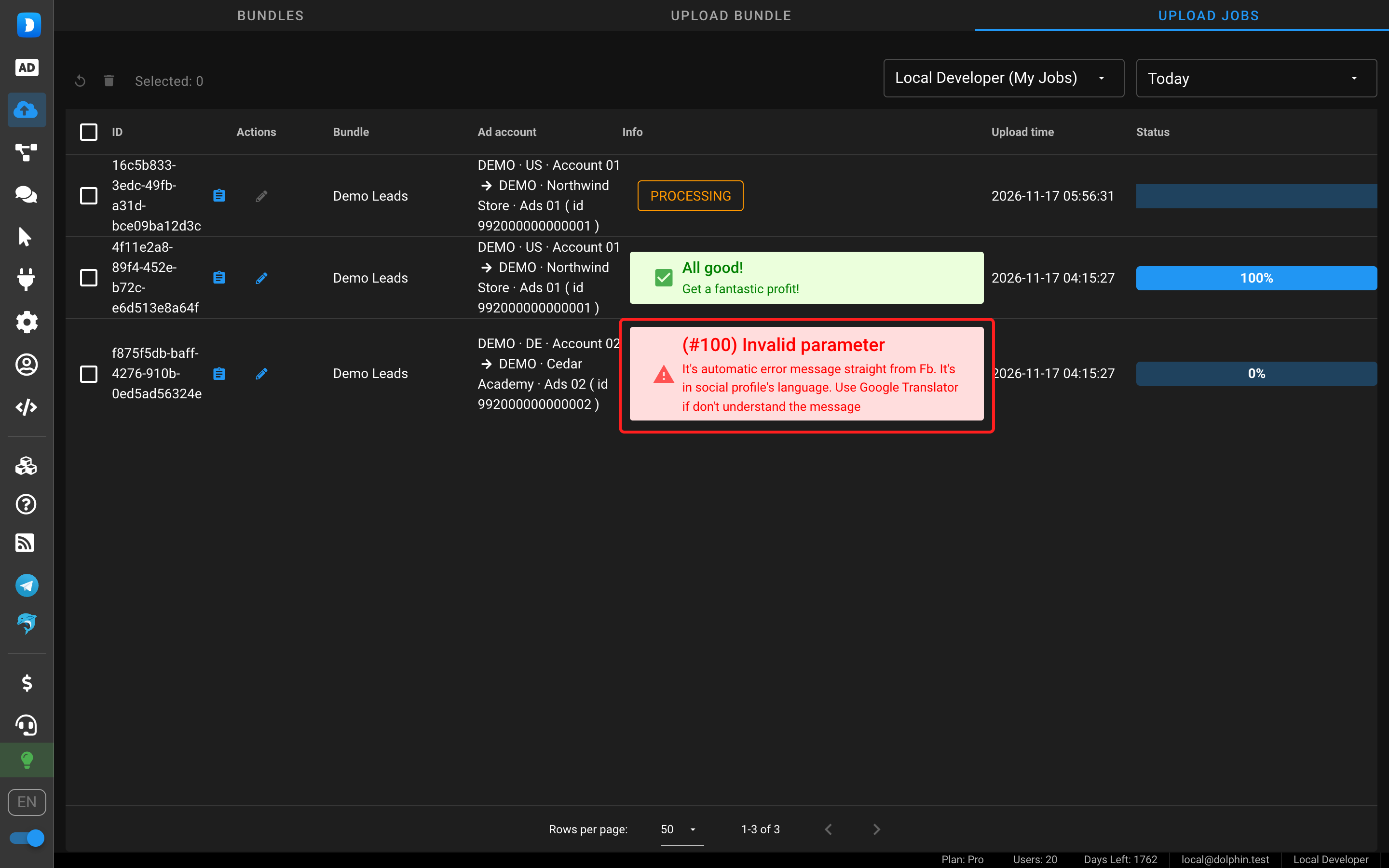
When Facebook rejects part of an upload, a red block with the error text appears in the job row, with a note below it that the message comes from Facebook itself and can be translated. The block shows the job's last error, and all responses step by step are in the log.
- Read the text in the red block. Translate it if needed.
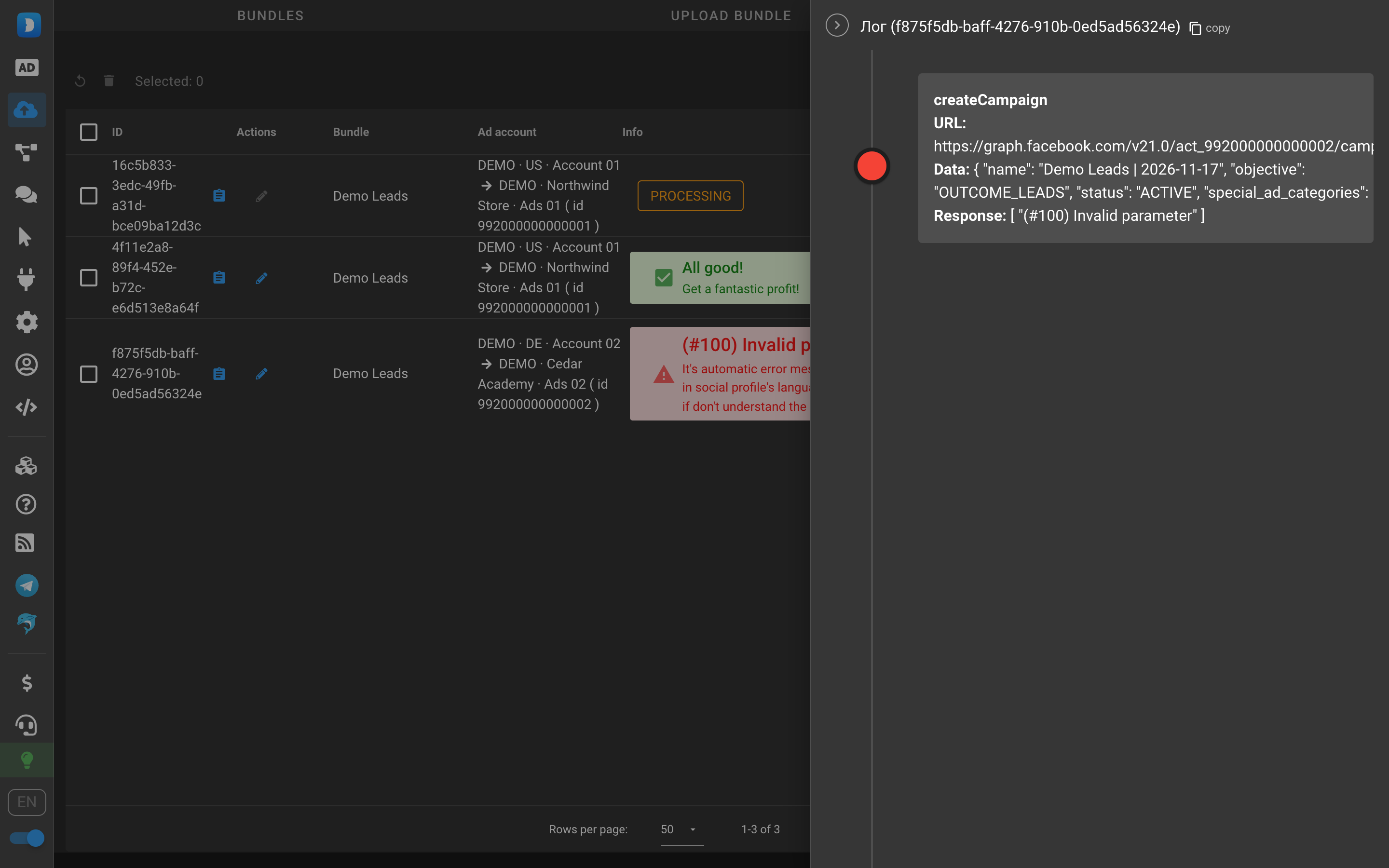
- Open the log: the icon next to the job ID or View log. The error is usually in the last Response block.
- Fix the cause: in Facebook, in the account, in the ad account or in the bundle settings.
- If the account, ad account, fan page, pixel or app changed, click Edit and re-upload. If nothing in the job needs to change, select it and click Restart.
⚠️ Restarting creates all of the job's campaigns again
If some campaigns were already created, they will appear in the ad account again after the restart. Check the ad account in Ads Manager and delete the extra copies.
Sometimes the job row shows a message from Cloud itself instead of a Facebook response. These messages are in English too:
| Message | Why | What to do |
|---|---|---|
Failed to upload media | The image or video couldn't be uploaded to the ad account | Check the file format and size, restart the job |
Failed to get thumb | The video thumbnail couldn't be retrieved | Restart the job. If it happens again, add your own thumbnail to the video |
Failed to detect account additional tokens, please check cookies and try again | Cloud couldn't get the account's tokens from its cookies. This happens more often with the Boost Fan Page objective | Refresh the account's cookies on the Accounts tab and restart the job |
Failed to duplicate campaign or Failed to duplicate adset | Copies of campaigns or ad sets couldn't be made | Restart the job |
Unknown error | Facebook returned an error with no text | Restart the job. If it happens again, contact support with the job ID |
Contact support with this task's ID... | The job didn't finish completely, but Facebook sent no error text | Contact support: the job ID and what you set up in the bundle |
| This ad upload task cannot be recreated. (brown block) | An old job created in the previous upload format was restarted | Create the upload again through the wizard |
How to work with the queue, the log and restarts: How to track uploads in the queue and restart them.
🆘 How to contact support
- The job ID from the first column of the queue.
- The error text from the red block.
- The log: open the log panel, click Copy and paste the text into your message.
- What you changed in the bundle or the job before the error.
✅ Pre-upload checklist for fewer errors
- An account with live cookies, ad accounts with the
ACTIVEstatus and an attached card. - A fan page with no advertising restrictions.
- A budget of at least 1 USD, ad set limits below 90% of the budget.
- Every ad account has a fan page, a link and a budget, and for app installs an app.
- Creatives in jpg, gif, png or mp4 up to 200 MB, no more than 200 ads per ad set.
- You have the Actions right on the bundle.
❓ FAQ
Why are the errors in English?
Error texts are sent by Facebook or the Cloud server, and they come in English. Translate them with any translator: the meaning is usually clear right away.
Continue is inactive, but I don't see any errors.
Go through the rows of the selected ad accounts: one of them is missing a fan page, link, budget or app. On the Settings step, check the number of campaigns and ad sets and the bid.
The upload went through without errors, but the ads aren't running.
Check that a card is attached to the ad account and its status is ACTIVE. Look at the ad status in Ads Manager: Facebook can reject ads in review after they are created.
The error repeats after a restart.
That means the cause hasn't been fixed. Open the log, find the last Facebook response and compare it with the tables above. If that doesn't help, contact support with the job ID and the log.
🧭 What's next
- 📋 How to track uploads in the queue and restart them
- 🚀 How to upload a bundle in Dolphin {Cloud}
- 💵 How to set the budget and bid for an upload
- 👤 How to work with accounts in Ads Manager
🐬 Upload ads to dozens of ad accounts and sort out errors in one place. Try Dolphin {Cloud}