How to give an employee access to accounts in Dolphin {Cloud}
Updated:
⚡ In short
- You can give an employee accounts in three ways: through the role and teamlead, through Share, or through Move accounts to another user.
- Share: the account stays yours, the employee gets the View, Stats, Actions and Share permissions.
- Move accounts to another user: the employee becomes the owner, together with cookies, token, tags and a copy of the proxy.
- Both actions are not available on the Light and Start plans.
In Dolphin {Cloud} each employee sees only their own accounts and what was opened to them. Below: how to give an employee the accounts they need, which permissions there are, and how sharing differs from moving. How to add an employee and choose their role is described in How to add users and assign a teamlead to a buyer.
🧭 Three ways to give access
| Way | Who is the owner | What the employee sees | When it fits |
|---|---|---|---|
| 👥 Role and teamlead | Doesn't change | An administrator sees everything, a teamlead sees their buyers' accounts | For managers: access appears by itself |
| 🤝 Share | You stay the owner | Only the shared accounts and only with the chosen permissions | Give a buyer part of the accounts for a while or with limits |
| 🔁 Move accounts | The employee | The account becomes theirs | A farmer prepared accounts and hands them to a buyer for good |
👥 Who sees what without extra steps
| Role | Which accounts they see |
|---|---|
| 👑 Administrator | All team accounts |
| 🧑💼 Teamlead | Their own and their buyers' accounts, including ones added later |
| 🎯 Buyer | Their own and those shared with them |
| 🌱 Farmer | Their own and those shared with them. Campaigns, ad sets and ads are not available to a farmer |
🤝 How to share accounts
- Open Ads Manager → Accounts and tick the accounts you need.
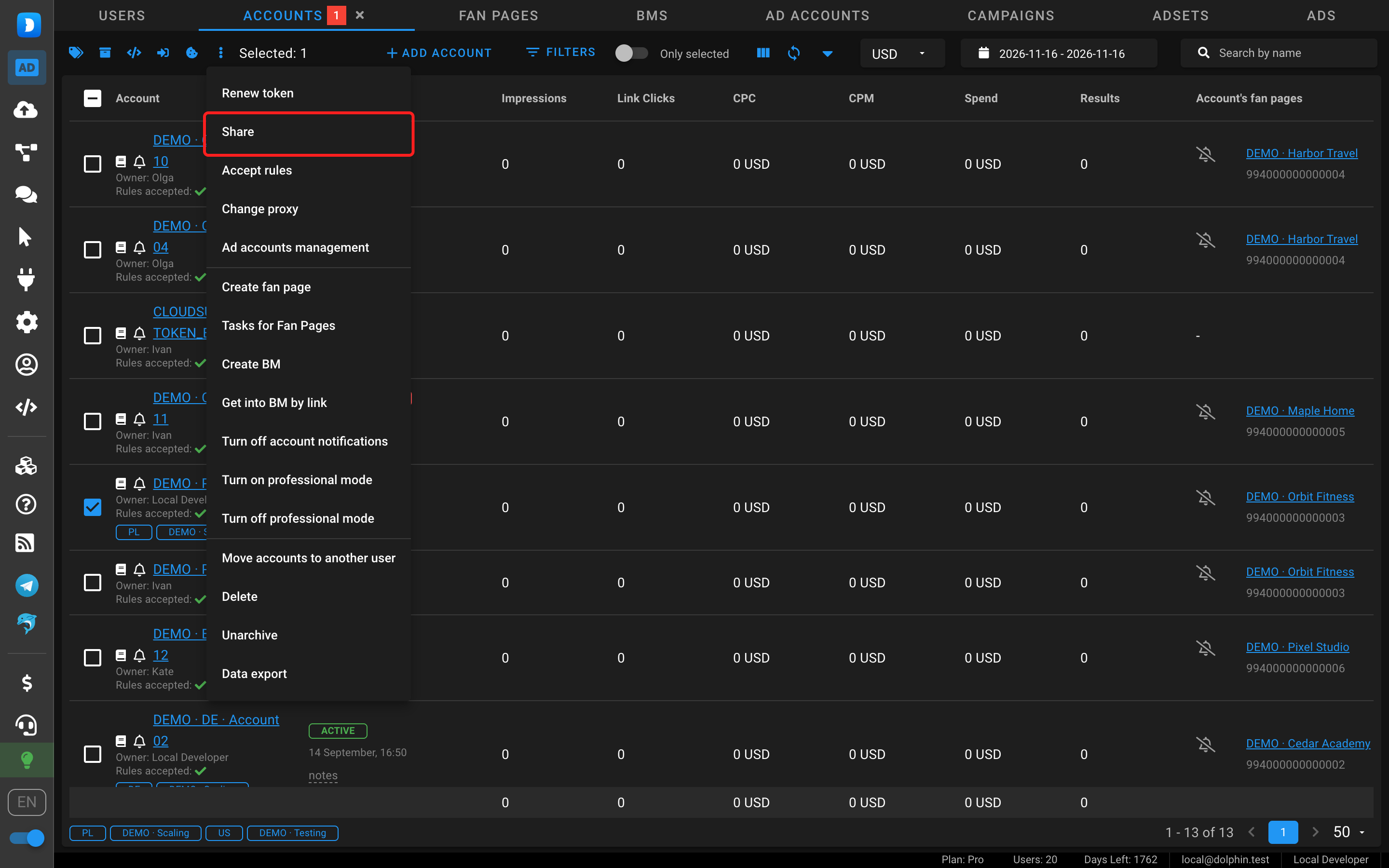
- Open the ⋮ menu above the table and choose Share.
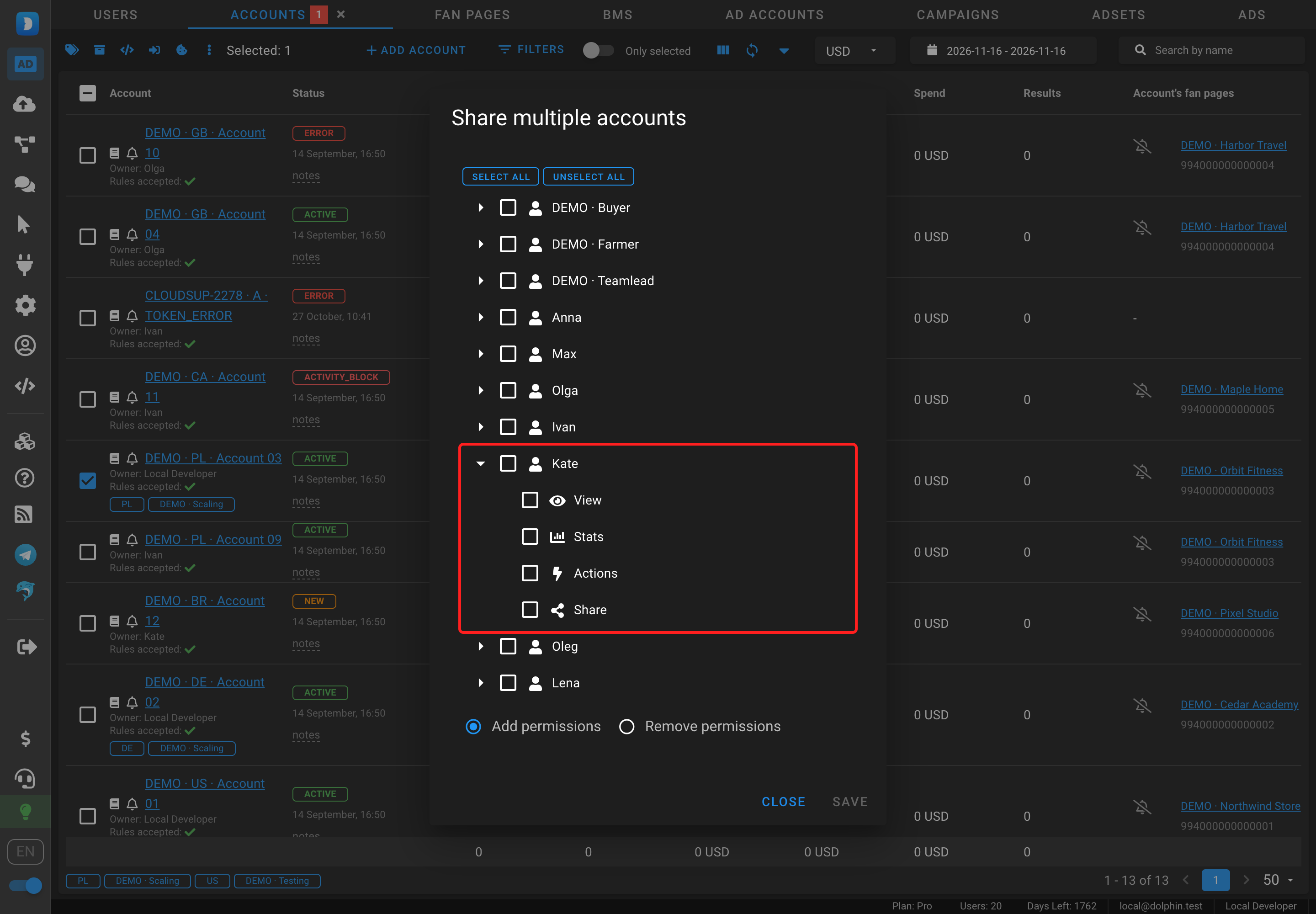
- In the Share multiple accounts window, expand the employee. If they already have access, their current permissions are ticked.
- Tick the final set of permissions. The Select all and Unselect all buttons tick or clear everything at once.
- Keep the Add permissions mode and click Save.
- The accounts appear for the employee. In your account row, the Shared icon appears with the list of employees.
⚠️ "Add permissions" saves exactly what is ticked
The employee's permissions are replaced with the set ticked in the window. If you untick a permission that was already given and click Save, that permission is removed. If you tick several accounts on which the employee has different permissions, the ticks are merged and applied to all selected accounts. To avoid changing other settings by accident, change permissions one account at a time or for a group of accounts with the same permissions.
🔐 What the permissions give
| Permission | What the employee can do |
|---|---|
| 👁️ View | Sees the account, its ad accounts, campaigns, ad sets, ads and fan pages, and the statistics figures in these tables. Can pick the account's ad accounts in the launch wizard but can't start the launch. Without this permission the account will not appear for the employee. |
| 📊 Stats | Opens summary statistics by dates. The figures in the ad account and campaign tables are visible without it, with "View" alone. |
| ⚡ Actions | Launches ads, renews the token, creates fan pages and BMs, links cards, manages campaigns. With this permission the employee can also share the account further. |
| 🔗 Share | Tick it only together with "Actions". On its own it doesn't let the employee share the account: without "Actions" Cloud refuses for lack of permissions. |
💡 Ready-made sets
- A buyer will launch and run ads: View + Stats + Actions.
- A manager or analyst only looks at the figures: View + Stats.
- The employee will share accounts further: they need Actions, tick Share together with it.
- The employee only looks and must not change anything: View. Without "Actions" they can't start a launch or share the account.
🚫 How to take permissions away
- Tick the accounts and choose ⋮ → Share.
- Switch the mode to Remove permissions.
- Tick the employee and the permissions to take away, and click Save.
You can also remove one permission for one account in the Add permissions mode: untick it and save, the other ticked permissions stay.
⚠️ Removing "View"
If you remove the View permission or all permissions at once, the account disappears for the employee completely.
🔁 How to move accounts to another employee
- Tick the accounts on the Accounts tab.
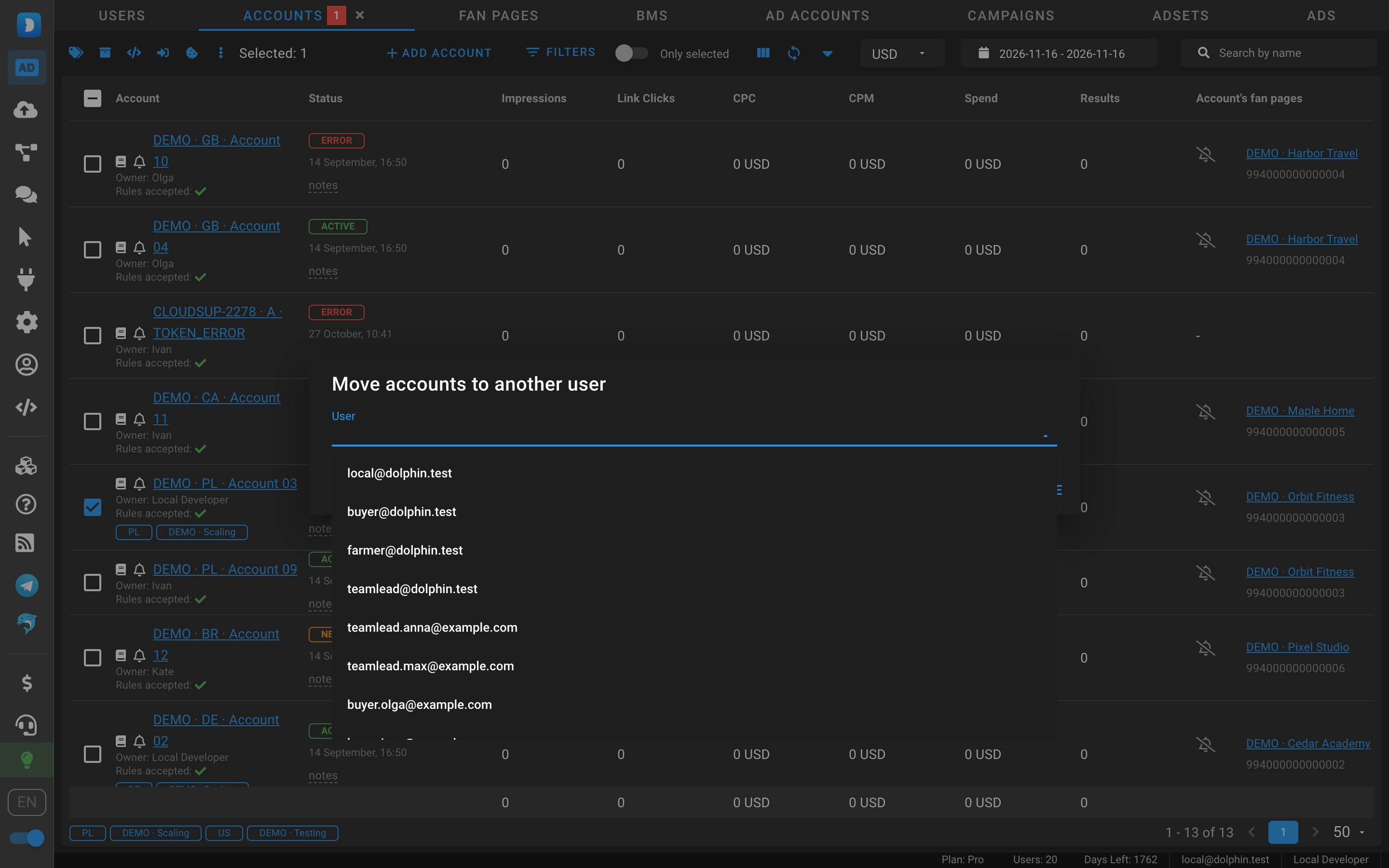
- Choose ⋮ → Move accounts to another user.
- In the User field, choose the employee, click Move and confirm the transfer.
📦 What moves together with the account
- Cookies, tokens, login, password and 2FA.
- Tags set by the previous owner.
- Proxy: the recipient gets a copy of it in the Proxy section.
- Ad accounts, BMs, fan pages and statistics.
👮 Who can move accounts
| Role | What they can move |
|---|---|
| 👑 Administrator | Any team account to any employee |
| 🧑💼 Teamlead, 🎯 Buyer, 🌱 Farmer | Only accounts they own |
ℹ️ After the move
The previous owner no longer has the account among their own. Team administrators still see it. If the account should stay with you, use "Share".
⚖️ Share or move: which to choose
| Question | 🤝 Share | 🔁 Move |
|---|---|---|
| Who is the owner | You | The employee |
| Can permissions be limited | Yes | No |
| Can it be taken back | Yes, remove permissions | Only by moving it back, by the owner or an administrator |
| Both see the account | Yes | No, except administrators |
| Proxy copy | No, the proxy is shared | Yes |
🌐 Proxies for employees
Proxies are given separately, in the Proxy section, with the Use, Edit and Actions permissions. Instructions: How to choose proxies and share them with your team.
💳 Plans
- Share and Move accounts to another user are available on Base and Pro, and on the trial.
- On Light and Start the items are grey and open a window offering to change the plan.
- Adding users is possible from the Base plan.
✅ Checklist: access is set up
- Employees are added with the right roles, buyers have teamleads.
- Buyers got accounts through "Share" with permissions or through "Move accounts to another user".
- Employees got proxies with the "Use" permission.
- Account rows show the "Shared" icon with the right people.
❓ FAQ
An employee doesn't see an account I shared.
Check that they have the "View" permission. Ask them to refresh the page.
An employee sees the account but can't launch ads from it.
Give them the "Actions" permission. With "View" alone they can pick the ad accounts in the launch wizard, but the launch ends with a permissions error.
I gave an employee "Share", but they can't share the account.
That needs the "Actions" permission. Add it together with "Share".
I added one permission, and another one disappeared.
The "Add permissions" mode saves exactly the permissions ticked in the window. Open the window again, tick all the permissions you need and save.
Can I share an account with an employee from another team?
No. You can share only with users of your own team.
Does a teamlead need to share their buyers' accounts?
No. A teamlead sees them automatically once an administrator assigns them to the buyer.
🧭 What's next
- 👥 How to add users and assign a teamlead to a buyer
- 👤 How to work with accounts in Ads Manager
- 🌐 How to choose proxies and share them with your team
🐬 Give accounts to your team in a couple of clicks. Try Dolphin {Cloud}