How to work with accounts in Ads Manager
Updated:
⚡ In short
- The Ads Manager → Accounts tab collects all your Facebook accounts: statuses, statistics and actions on them.
- The working account status is ACTIVE. On ERROR, check the proxy, update cookies and choose Renew token.
- Almost all actions work in bulk: tick the accounts and choose an action above the table or in the ⋮ menu.
- On Light and Start some actions are not available: "Share", "Move accounts to another user", fan page tasks and others. See the table below.
On the Accounts tab in Dolphin {Cloud} you watch the state of your accounts and prepare them for launches: accept rules, create fan pages and BMs, change proxies, share accounts with your team. Below, every element of the tab is covered in order. How to add accounts is described in How to add Facebook accounts.
🗺️ How the tab is organized
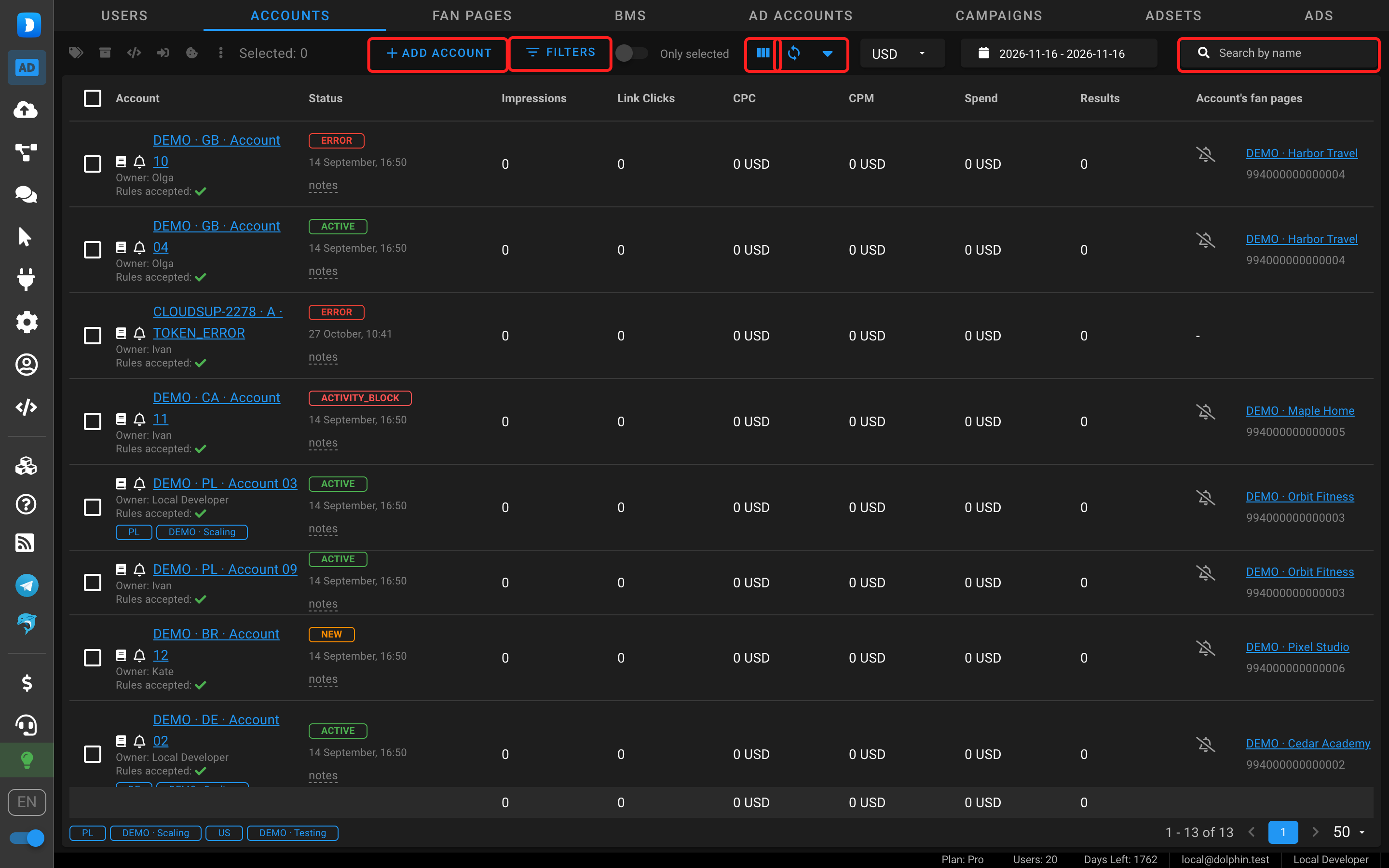
| Element | What it is for |
|---|---|
| Add account | Add one account or many at once. |
| Search by name | Find an account by its name. |
| Filters | Status, error reason, tags, spend, archived. |
| Only selected | Show only the ticked accounts. |
| Update FB data | Pull ad accounts, BMs and statistics for the last 30 or 90 days. |
| Columns | Choose statistics columns, save the set under your own name and share it with the team. |
| Icons and the ⋮ menu | Actions on the ticked accounts. They become active once at least one account is selected. |
👤 What you see in an account row
- The name and the Facebook profile ID. Clicking the name opens the account card for editing.
- Owner, if the account belongs to another employee.
- Icons: Rules accepted, Pro mode, account notifications off or on, Shared (who you shared the account with).
- Fb API log with the latest requests for the account and their errors.
- Status, error reason, last sync time and a note.
- Tags and statistics across all the account's ad accounts.

🚦 Account statuses
| Status | What it means | What to do |
|---|---|---|
| 🟢 ACTIVE | The token works, the account is ready | You can work |
| 🟡 NEW | The account was just added or the token is being renewed | Wait a couple of minutes |
| 🔴 ERROR | The token failed the check | See "Account in ERROR" below |
| 🔴 ACTIVITY_BLOCK | Facebook restricted actions on the account | Check the account in the browser |
🏷️ Error reasons
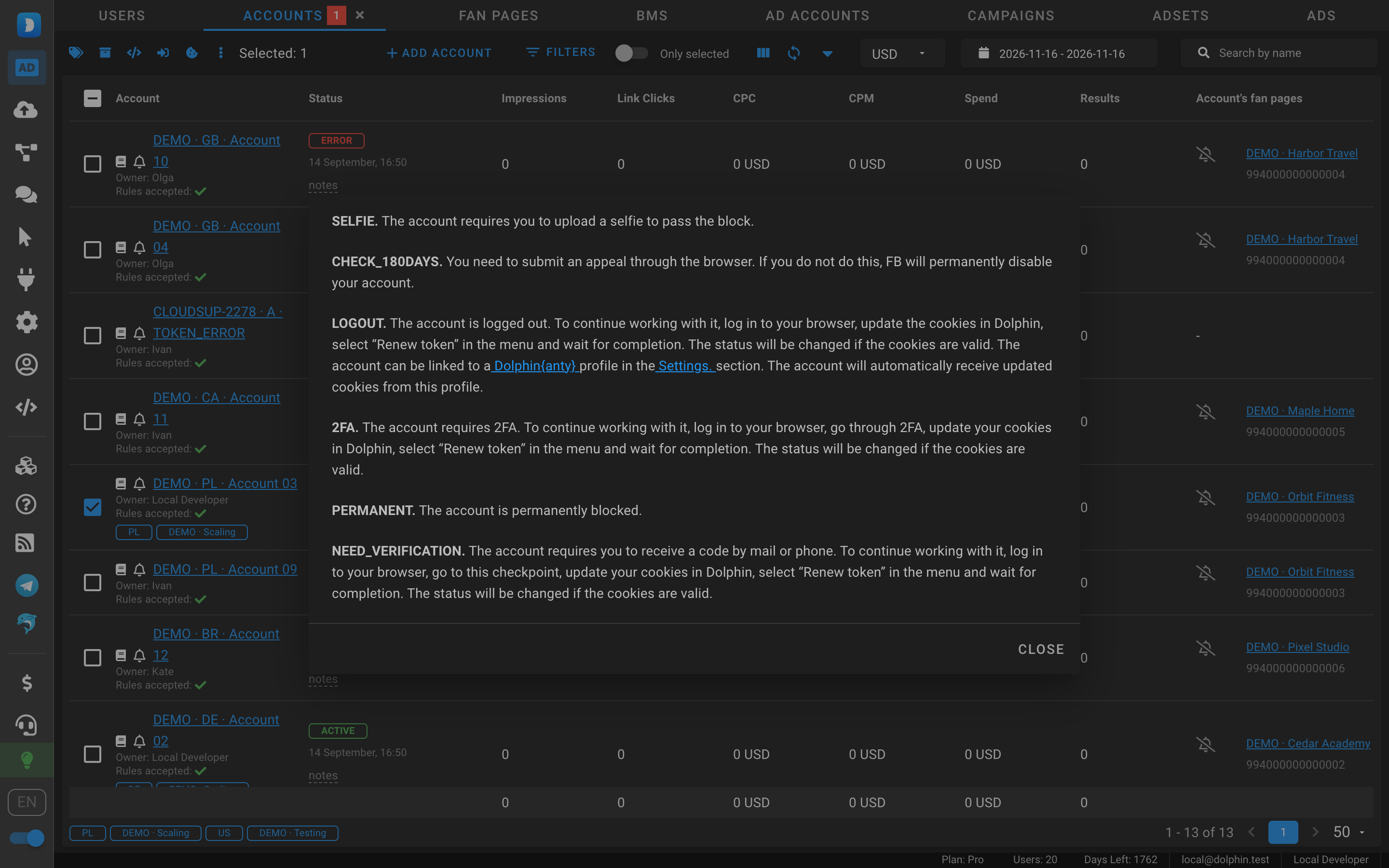
A reason may be shown next to the status. Clicking it opens a hint.
| Reason | What happened | What to do |
|---|---|---|
| LOGOUT | The account was logged out | Log in in the browser, update cookies in Cloud and choose "Renew token" |
| 2FA | Facebook asks for a 2FA code | Log in in the browser, pass 2FA, update cookies and the token |
| NEED_VERIFICATION | A code from email or phone is needed | Pass the check in the browser, update cookies and the token |
| SELFIE | Facebook asks for a selfie | Upload a selfie in the browser |
| CHECK_180DAYS | The account is under review, an appeal is needed | File an appeal in the browser, otherwise Facebook disables the account for good |
| PERMANENT | The account is banned for good | It can't be restored |
🔖 Other labels
| Label | What it means | What to do |
|---|---|---|
| Cookies required | The account has no cookies, but the action needs them | Paste cookies into the account card |
| Proxy error | The account's proxy failed the check | Check the proxy in the "Proxy" section or change it |
| No FB ID! | Cloud could not detect the profile ID; requests don't work without it | Click the "Check tokens" icon above the table. If it doesn't help, it is almost always the proxy |
🩺 Account in ERROR: what to do
- Look at the reason next to the status. If it is SELFIE, CHECK_180DAYS or PERMANENT, the problem is on Facebook's side and must be solved in the browser.
- Check the proxy: Proxy section → tick the proxy → Check.
- Open the account in your antidetect browser with the same cookies and proxy. If logging in without a password fails, log in with the password and take fresh cookies.
- Click the account name, paste the fresh cookies into the Cookies field and click Edit.
- Tick the account, choose ⋮ → Renew token and confirm. The status changes to NEW.
- Click the Check tokens icon. ACTIVE should appear.
- If the account works in the antidetect browser but Cloud still shows ERROR, contact support.
🔑 Three ways to renew the token
| Way | How |
|---|---|
| 🍪 Fresh cookies | Paste new cookies into the account card and choose ⋮ → Renew token. |
| 🔐 Login, password and 2FA | Save them in the account card and click the Try to log in icon. Cloud logs in to the account and passes 2FA itself. |
| 🐬 Dolphin {Anty} profile | Link a profile to the account, and Cloud will take fresh cookies from it. Then choose Renew token. |
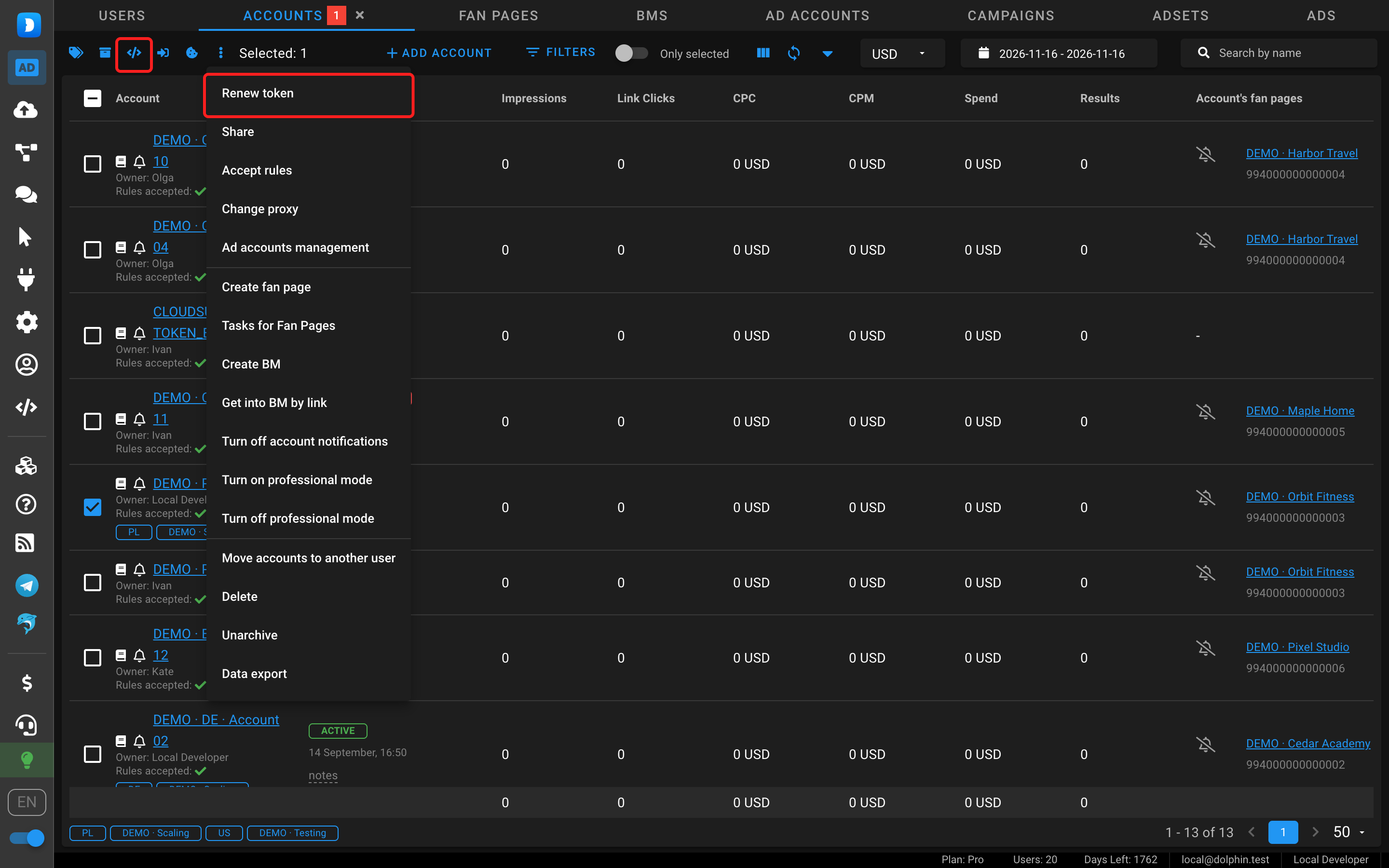
🧰 All account actions
Icons above the table:
| Icon | What it does |
|---|---|
| 🏷️ Tags | Add or remove tags on the ticked accounts. |
| 📦 Archive | Hide the accounts from the list for everyone who sees them, without deleting them. |
| 🔐 Try to log in | Log in to the account with the saved login, password and 2FA. |
| ✅ Check tokens | Check whether the current token works. |
| 🍪 Update cookies from Dolphin{anty} | Take fresh cookies from Dolphin {Anty} profiles. Not available to the Farmer role. |
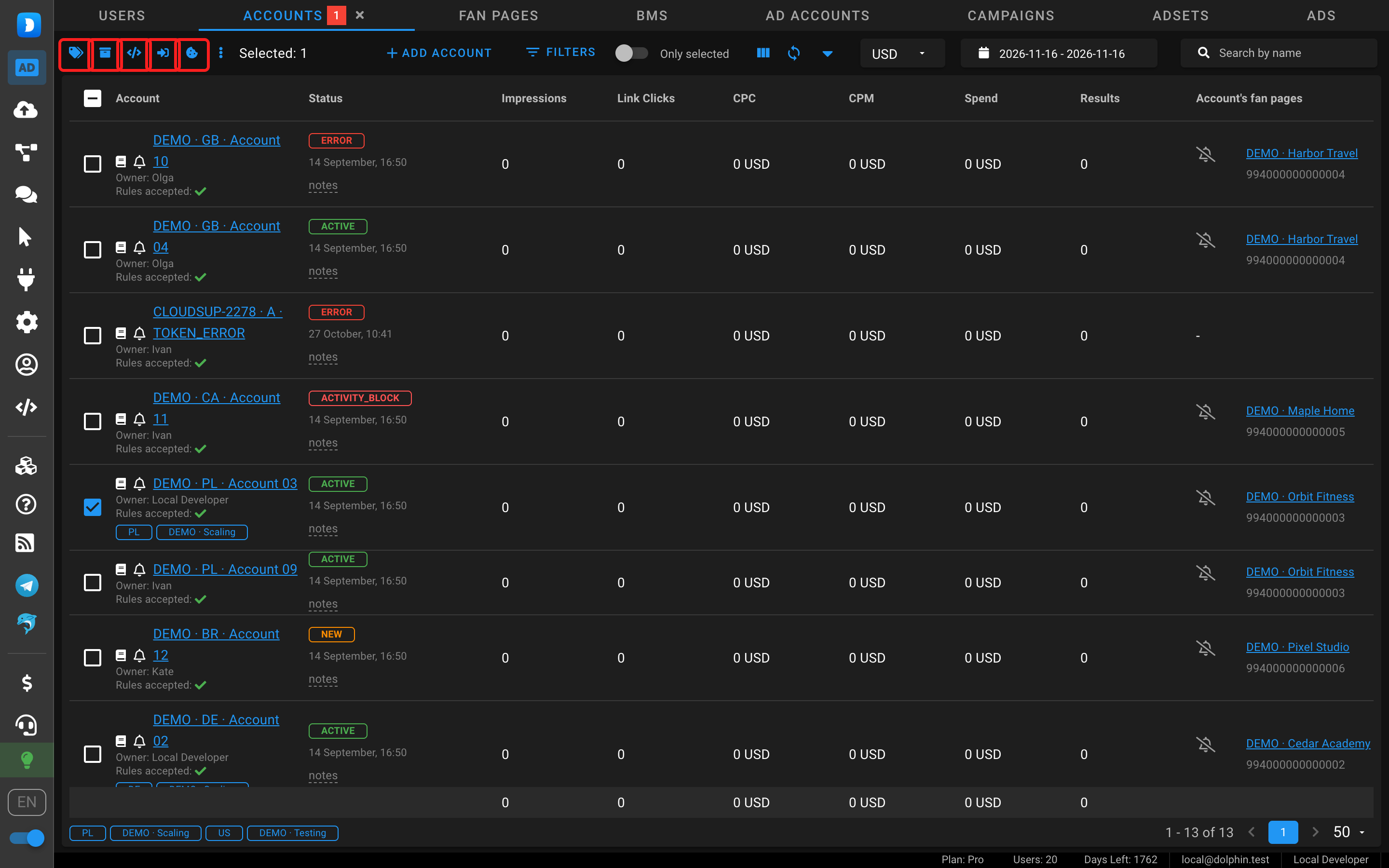
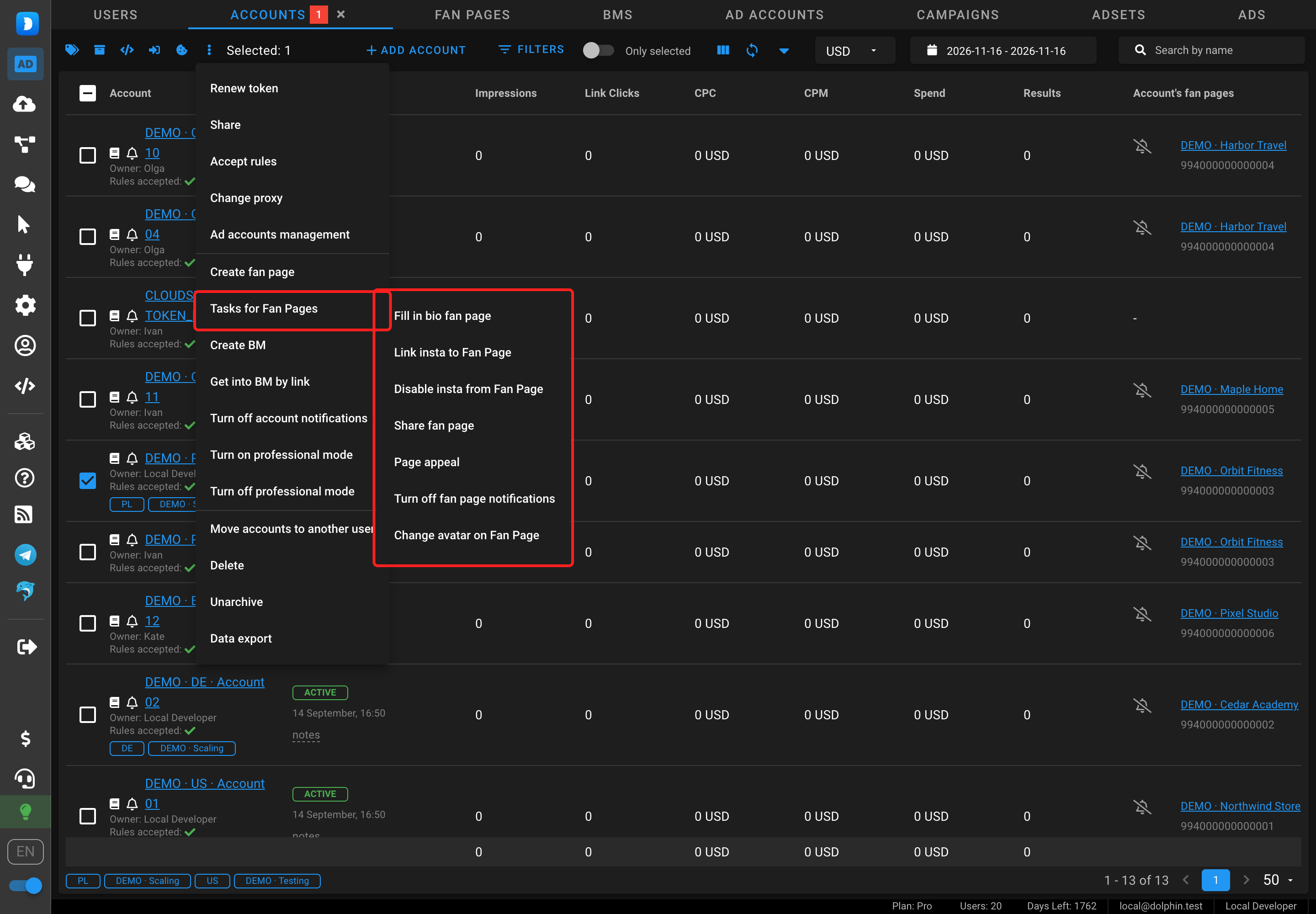
The ⋮ menu:
| Action | What it does | Not available on |
|---|---|---|
| Renew token | Get a new token from the current cookies | |
| Share | Give employees access to the accounts with chosen permissions | Light, Start |
| Accept rules | Accept Facebook's non-discrimination policy | |
| Change proxy | Change the proxy on the ticked accounts | |
| Ad accounts management | Leave personal ad accounts you no longer need | Light |
| Create fan page | Create fan pages on the accounts | |
| Tasks for Fan Pages | Bio, Instagram, sharing, appeal, notifications, avatar | Light, Start (except bio) |
| Create BM | Create Business Managers on the accounts | |
| Get into BM by link | Accept an invitation to a BM | Light |
| Turn off account notifications | Turn off notifications on the Facebook profile | Light, Start, Base |
| Turn on / Turn off professional mode | Switch the profile to Facebook's professional mode and back | |
| Move accounts to another user | Make another employee the owner of the accounts | Light, Start |
| Delete | Delete the accounts from Cloud | |
| Unarchive | Bring the accounts back from the archive | |
| Data export | Export the table to CSV, XLS, PDF or copy the IDs |
ℹ️ Grey items
If an action is not available on your plan, the item is grey, and clicking it opens a window offering to upgrade.
✅ Accept rules
- Tick the accounts.
- Choose ⋮ → Accept rules.
- Confirm the action in the browser dialog. There is no separate settings window: Cloud starts accepting the rules on all ticked accounts right away.
- Once the rules are accepted, the account gets the Rules accepted icon.
💡 Tip
Accept the rules right after adding an account, even if you already accepted them in the browser.
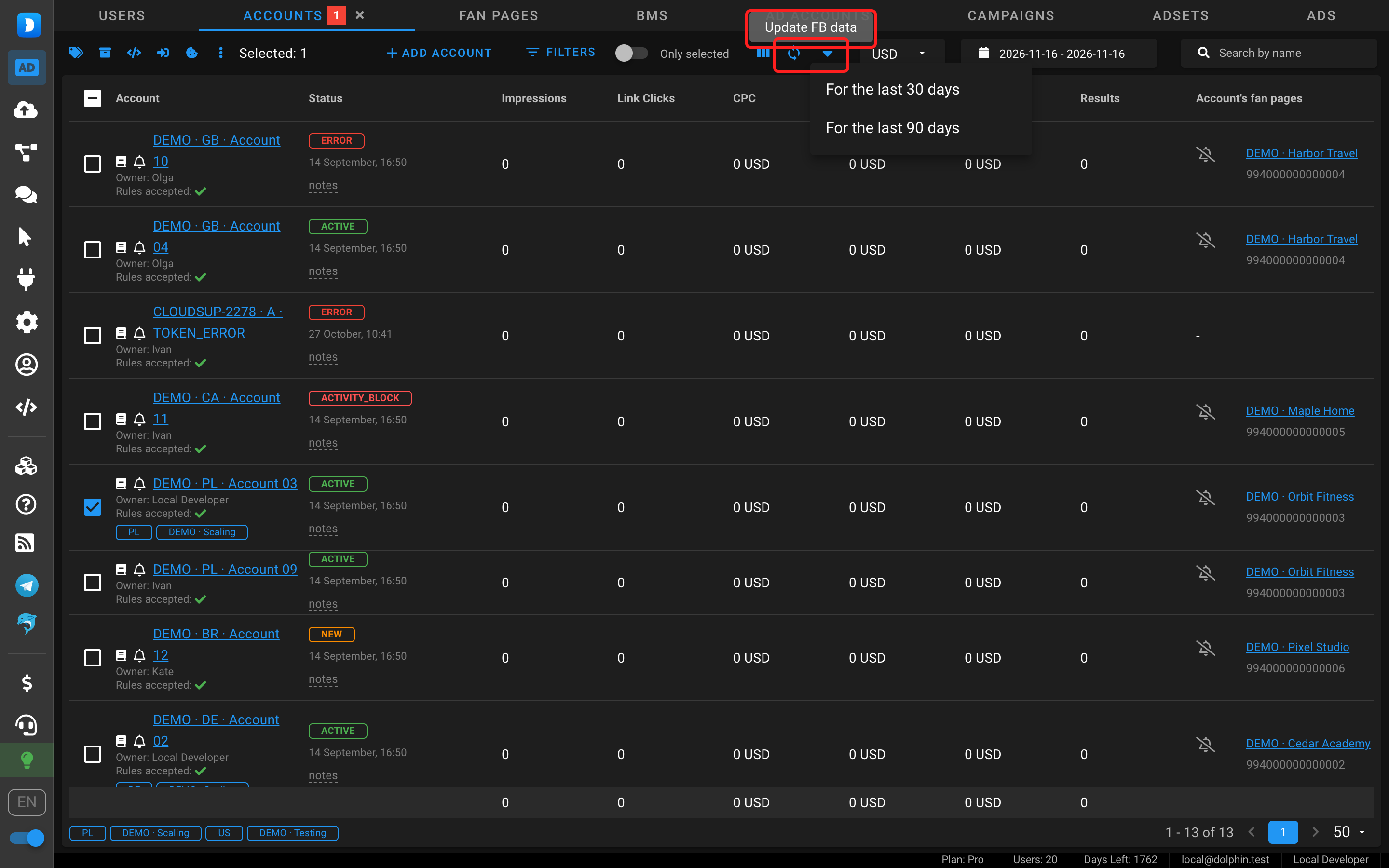
🔄 Update FB data
The Update FB data button pulls ad accounts, BMs and statistics of the ticked accounts. Choose the period: For the last 30 days or For the last 90 days. Automatic scheduled updates are set up as described in How to set up data sync from Facebook.
🗂️ Ad accounts management
Helps you leave personal ad accounts you no longer need, for example disabled ones.
- Tick the accounts and choose ⋮ → Ad accounts management.
- Tick the ad accounts and click Leave ad accounts.
- Watch the Job status column.
Errors in the window: Not personal ad account (a BM ad account can't be left this way), Account is not active, Account has no cookies.
📄 Fan pages
Create fan page
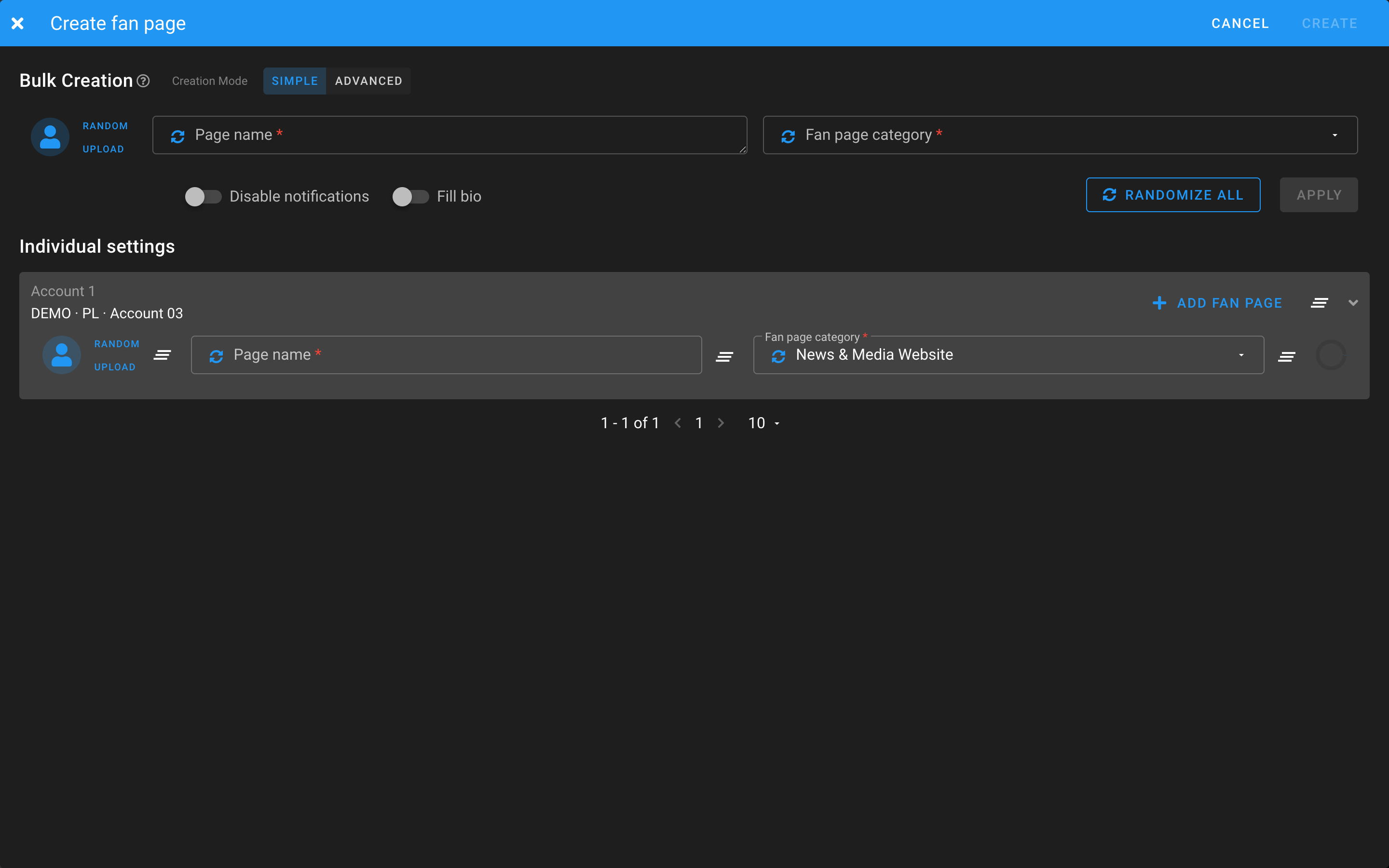
- Tick the accounts and choose ⋮ → Create fan page.
- Choose the mode: Simple or Advanced. The difference is in the table below.
- In the Bulk Creation block, set the name, category and avatar for all pages. The Randomize all button fills in random values.
- Click Apply to copy the values to the account rows. In the Individual settings block you can adjust the page for a specific account.
- Click Create at the top of the window. Each ticked account gets one page.
| Mode | What you can set |
|---|---|
| Simple | Name, category, avatar. The Disable notifications and Fill bio toggles. |
| Advanced | Everything from Simple, plus email, website, phone, Instagram, description, address and messenger. There is no Fill bio toggle here: you fill in the page info yourself. |
💡 Spintax in the name
To make names differ, use spintax: options in curly braces separated by |. For example: {Lose weight|Drop weight} in {5|6|8} {days|nights}!
- Save the Facebook password in the account card: without it the page may not be created. The window has no separate hint about this.
- If the account has no cookies, you can't turn off the new page's notifications.
- To have new pages published automatically, turn on Settings → FB Data Update → Auto publish of fan pages (Base and Pro).
Tasks for Fan Pages
| Task | What it does | Not available on |
|---|---|---|
| Fill in bio fan page | Fills in page information in bulk | |
| Link insta to Fan Page / Disable insta from Fan Page | Connects or disconnects an Instagram account | Light, Start |
| Share fan page | Gives another profile access to the page | Light, Start |
| Page appeal | Sends an appeal for a blocked page | Light, Start |
| Turn off fan page notifications | Turns off the page's notifications | Light, Start |
| Change avatar on Fan Page | Sets a new avatar on the page | Light, Start |
🏢 BMs
Create BM
- Tick the accounts and choose ⋮ → Create BM.
- Enter names or click Take names from dictionary. You can set your own email or turn on Random emails.
- Click Create and watch the Status and Result columns.
ℹ️ The BM isn't created
BM creation limits are set by Facebook. If a BM is not created in Cloud, most likely it won't be created by hand in the browser either. Try accounts from another supplier.
Get into BM by link
- Tick the accounts and choose ⋮ → Get into BM by link.
- The window shows a table: Account, Invite and Password. Paste the invite link into each account's row. Enter the Facebook password if it is needed to log in.
- Click Log in.
You can create invite links for your BMs on the BMs tab with Create invite-links. Details: How to work with BMs.
🔕 Notifications and professional mode
- Turn off account notifications turns off notifications on the Facebook profile, for example about friend requests or fan page transfers. Available on Pro.
- Turn on professional mode and Turn off professional mode switch the Facebook profile. Accounts in this mode show the "Pro mode" icon.
🤝 Share and move
Share gives an employee access with chosen permissions, while you stay the owner. Move accounts to another user makes another employee the owner. The difference and how to choose: How to give an employee access to accounts.
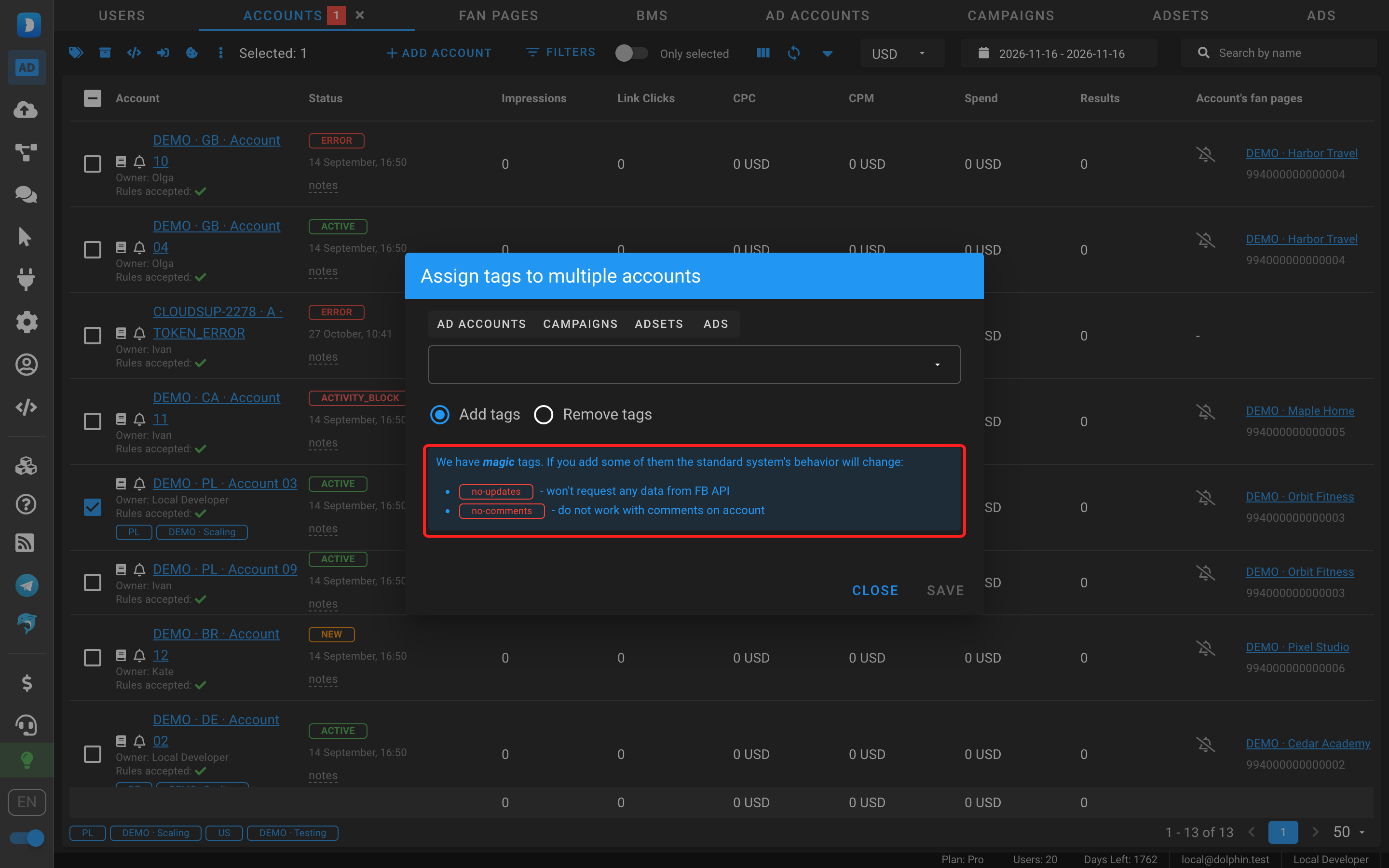
🏷️ Tags
- Tick the accounts and click the Tags icon.
- Choose Add tags or Remove tags, enter the tags and click Save.
Two tags work as settings:
| Tag | What it does |
|---|---|
не-обновлять | Cloud doesn't update this account's data |
без-комментов | Cloud doesn't work with comments on this account and its ad accounts |
Type these tags exactly as shown, in Russian.
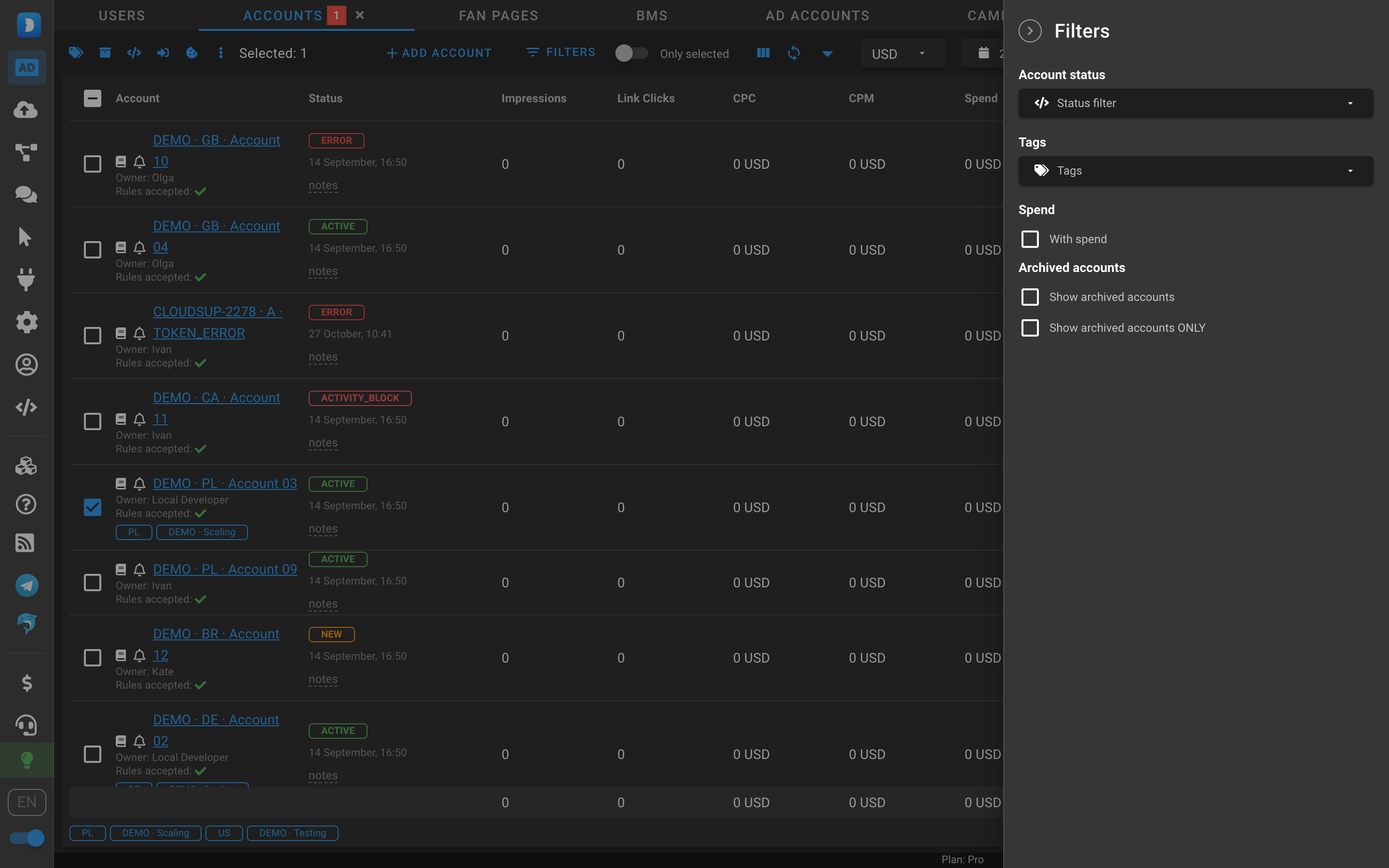
🔍 Filters and search
- Status filter: account status ACTIVE, NEW, TOKEN_ERROR or ACTIVITY_BLOCK. In the filter, TOKEN_ERROR means the ERROR status.
- The error reason filter appears when TOKEN_ERROR is selected (in the English interface it is labeled Account meeting status). Here you choose the reason: SELFIE, CHECK_180DAYS, LOGOUT, 2FA, PERMANENT, NEED_VERIFICATION.
- Tags, including service tags.
- Spend: only accounts with spend (With spend).
- Archived accounts: Show archived accounts together with the rest, or Show archived accounts ONLY.
📦 Archive and deletion
| Action | What happens | How to undo |
|---|---|---|
| 📦 Archive | The account disappears from the list for everyone who sees it, but stays in Cloud | Filters → Archived accounts → Show archived accounts ONLY, tick the account → ⋮ → Unarchive |
| 🗑️ Delete | The account is deleted from Cloud | No way, only add it again |
⚠️ Deletion can't be undone
Before deleting, Cloud shows the list of accounts. Check it: a deleted account can only be brought back by adding it again.
💳 What's available on each plan
| Action | Light | Start | Base | Pro |
|---|---|---|---|---|
| Adding, tokens, rules, proxies, fan pages, BMs, tags, archive | ✅ | ✅ | ✅ | ✅ |
| Ad accounts management, Get into BM by link | ❌ | ✅ | ✅ | ✅ |
| Share, Move accounts, fan page tasks (except bio) | ❌ | ❌ | ✅ | ✅ |
| Turn off account notifications | ❌ | ❌ | ❌ | ✅ |
The trial works like Pro. Plans in detail: How to choose a plan and pay for a subscription.
❓ FAQ
Where do I link a card to an ad account?
On the Ad accounts tab. Instructions: How to link a bank card.
Why are the action icons grey?
No account is selected. Tick the accounts.
I'm a farmer and don't see the button to update cookies from Anty.
The Dolphin {Anty} integration is not available to the Farmer role.
Does an archived account keep updating?
Yes, archiving doesn't stop data updates. To stop Cloud from updating the account, add the не-обновлять tag.
If I archive an account, will my colleagues see it?
No. The archive is shared: the account disappears from the main list for everyone who sees it, including administrators. You can find it via Filters → Archived accounts.
🧭 What's next
- ➕ How to add Facebook accounts
- 🤝 How to give an employee access to accounts
- 💳 How to work with ad accounts
- 🏢 How to work with BMs
🐬 All account actions in one tab. Try Dolphin {Cloud}