How to launch ads on a product catalog
Updated:
⚡ In short
- Turn on «Catalogs» mode in the launch wizard.
- Choose a catalog and a product set for each ad account.
- Set up the ad: format, texts with macros, links.
- Find ad account catalogs and their status in Ads Manager.
Since November 2026 Dolphin {Cloud} launches ads on Facebook product catalogs. Instead of your own images and videos, the ad shows products from the catalog, and Facebook picks the most relevant ones for each user. A catalog launch is built in the same wizard as a regular one.
🎯 Which bundles work
«Catalogs» mode works with bundles whose objective is «Link Clicks (Traffic)», «Leads», «Sales» or «App Installs». With any other objective the switch is inactive.
Dolphin {Cloud} gets ad account catalogs when it syncs the BM that owns the ad account and the catalog. If a catalog is missing from the list, refresh catalogs with the sync button in the ad account header on the «Creatives» step.
🛍️ How to turn on a catalog launch
Open «Upload bundle», choose a bundle and ad accounts, and go to the «Creatives» step.
Turn on the «Catalogs» switch. The «Bulk settings» block appears below, and the ad accounts show catalog fields instead of creatives.

ℹ️ Good to know
«Catalogs» can't be combined with Flex, Carousel and «Languages»: while one of these modes is on, the switch is unavailable. Ad copies («Ad instances») are not created in a catalog launch.
📦 How to choose a catalog and a product set
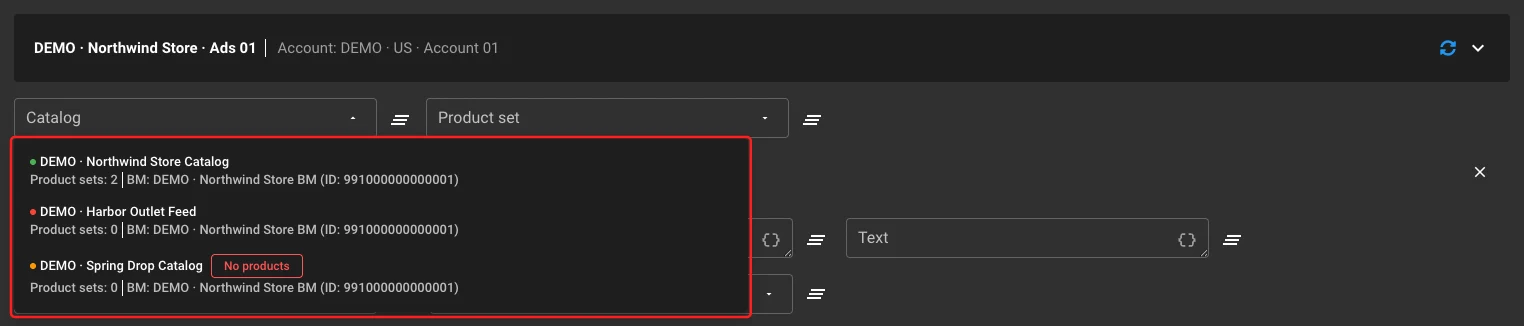
In each ad account, choose a «Catalog». The list shows how many product sets the catalog has, and the «i» icon tells you which BM it belongs to. The dot to the left of the name shows the catalog status, and the «No products» label means the catalog is empty. See «How to read the catalog status» below.
Choose a «Product set»: the set of products that will go into the ad.
Previews of the set's products and the «Products» counter appear below the fields.
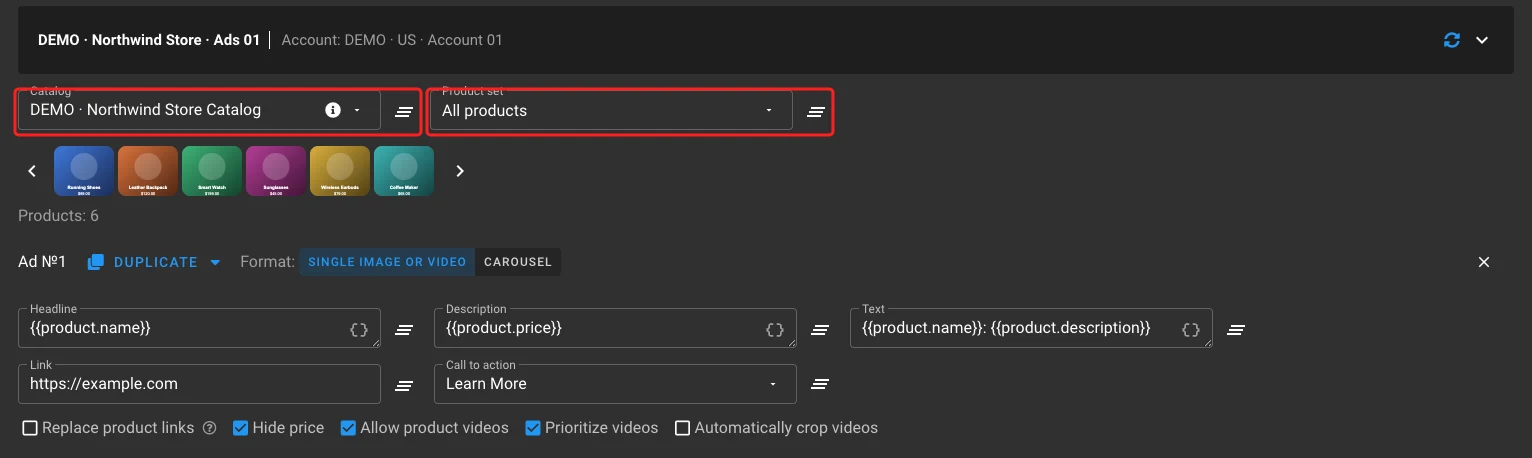
Hover over a product to see its name, Content ID and link from the catalog.

To use the same catalog or product set in other ad accounts, click the three-line icon to the right of the field. If an ad account has no available catalogs, Dolphin {Cloud} shows «There are no catalogs available for upload in this ad account».
📝 How to set up the ad
Choose the «Format»:
- Single image or video: each impression shows 1 product;
- Carousel: several products in cards. It needs at least 2 products in the set.
Fill in «Headline», «Description» and «Text». The «{ }» button in a field opens «Add Facebook macros»: for example, {{product.name}} inserts the product name and {{product.price}} its price. Clicking a macro again removes it from the text.
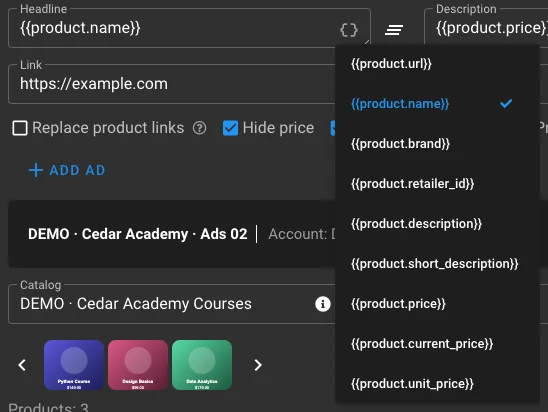
Fill in «Link» and «Call to action». The link is required: without it the «Create» button stays inactive.
If all products should lead to one page, turn on «Replace product links» and enter the «General link for products». The ad then uses one general link instead of the catalog links.

Tick the display settings you need:
- Hide price: available if «Enable Advantage+ creative optimizations» is on in the bundle;
- Allow product videos;
- Prioritize videos: only for the «Single image or video» format;
- Automatically crop videos.
The «Add ad» button adds one more ad on the same catalog to the ad account. «Duplicate» copies the ad to the current ad account or to all ad accounts of the launch.
💡 Bulk settings
The «Bulk settings» block above the ad accounts sets the format, «Replace product links», «Hide price» and the video settings for all ads of the launch at once. After that you can adjust any ad separately.
🚦 How to read the catalog status
A colored dot sits to the left of the catalog name. You can see it in two places:
- in the «Catalog» list during a launch;
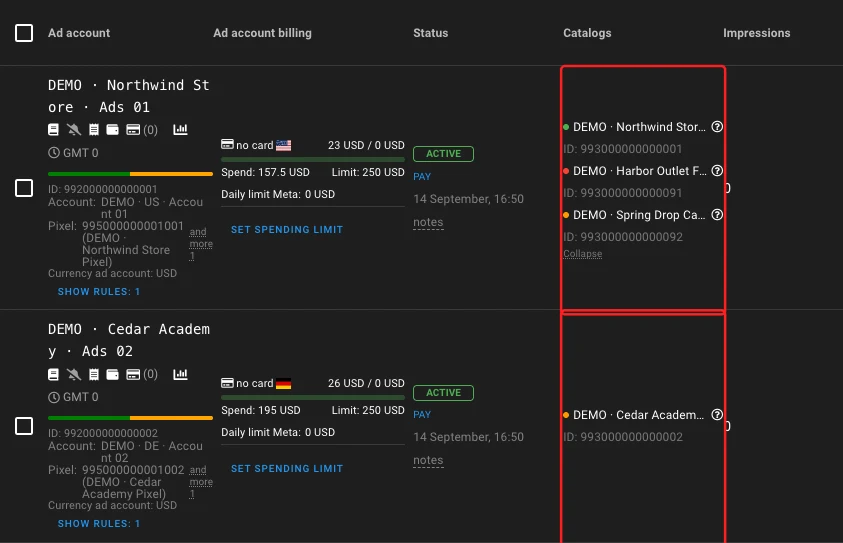
- in the «Catalogs» column on the «Ad accounts» and «BMs» tabs in Ads Manager.
The color shows what Facebook reports about the catalog in Meta Commerce Manager diagnostics:
- 🟢 Green: Facebook reports no issues. The catalog is ready for a launch.
- 🟠 Orange: no critical errors, but Facebook has recommendations for the catalog. Launches go through.
- 🔴 Red: the catalog has at least one critical error. A launch on this catalog will fail.
ℹ️ Good to know
- Issues that only concern shops, checkout and AR don't change the dot color: they don't affect ads.
- The dot has no tooltip. To see which errors Facebook found, open the catalog diagnostics in Meta Commerce Manager.
- If there is no dot, Dolphin {Cloud} hasn't received the catalog status yet. Refresh the ad account data as described below.
🏷️ What the «No products» label means
The red «No products» label next to the name in the «Catalog» list means the catalog has 0 products. This is a separate check: such a catalog can have a dot of any color, even green. A launch on an empty catalog will fail.
🛠️ What to do if a catalog is red or empty
Open the catalog in Meta Commerce Manager. Fix the errors from diagnostics or add products.
Go back to the launch and click the ⟳ «Update data from Facebook» icon in the ad account header. Dolphin {Cloud} will reload the ad account catalogs, their statuses and product counts.
Check that the dot turned green or orange and the «No products» label is gone. Run the launch.
💡 Tip
Catalog statuses also update on their own during the regular BM sync. Use the ⟳ button to see changes right away.
If the update fails, a red «!» icon appears next to the button. Click it to open the «API error caused» window with the error text. Copy the text and send it to support.
📊 Where to see ad account catalogs
In Ads Manager, the «Ad accounts» and «BMs» tabs have a «Catalogs» column. It is hidden by default: add it in the column settings. The column shows the status dot, the catalog name and ID, and the «?» icon tells you its BM. If there are more than two catalogs, you see the first two, and the rest open from the link below them.
⛔ Why a catalog launch fails
⚠️ Important
- The «Create» button stays inactive until every ad has a catalog, a product set and a link. Without this data Meta won't let you create a catalog ad.
- The «Carousel» format needs at least 2 products in the set.
- 🔴 Red dot: the launch ends with the error «The selected catalog has critical issues. Fix them in Meta Commerce Manager, sync the ad account catalogs and try again.»
- 🏷️ «No products»: the launch ends with the error «The selected catalog has no products. Add products, sync the ad account catalogs and try again.»
An orange dot doesn't block launches.
📚 See also
- 👉 How to launch a carousel ad
- 👉 How to create ad copies inside an ad set
- 👉 How to run your first launch in Dolphin {Cloud}
🐬 New to Dolphin {Cloud}? Try it free for 3 days.