How to track uploads in the queue and restart them
Updated:
⚡ In short
- Every upload goes to the Create ads → Upload jobs tab.
- The job row shows the status: processing, success, or an error with the text from Facebook.
- View log shows the details of each upload step.
- Edit and re-upload changes the account, ad account, fan page, pixel or app and runs the job again, with no need to pick creatives.
- Selected jobs can be restarted with Restart or removed with Delete.
The Dolphin {Cloud} queue shows what is happening with each upload: which ad accounts are done, where there is an error and why. Below is how to read the queue, find jobs, view the log and re-upload without setting everything up again.
📋 What the queue shows
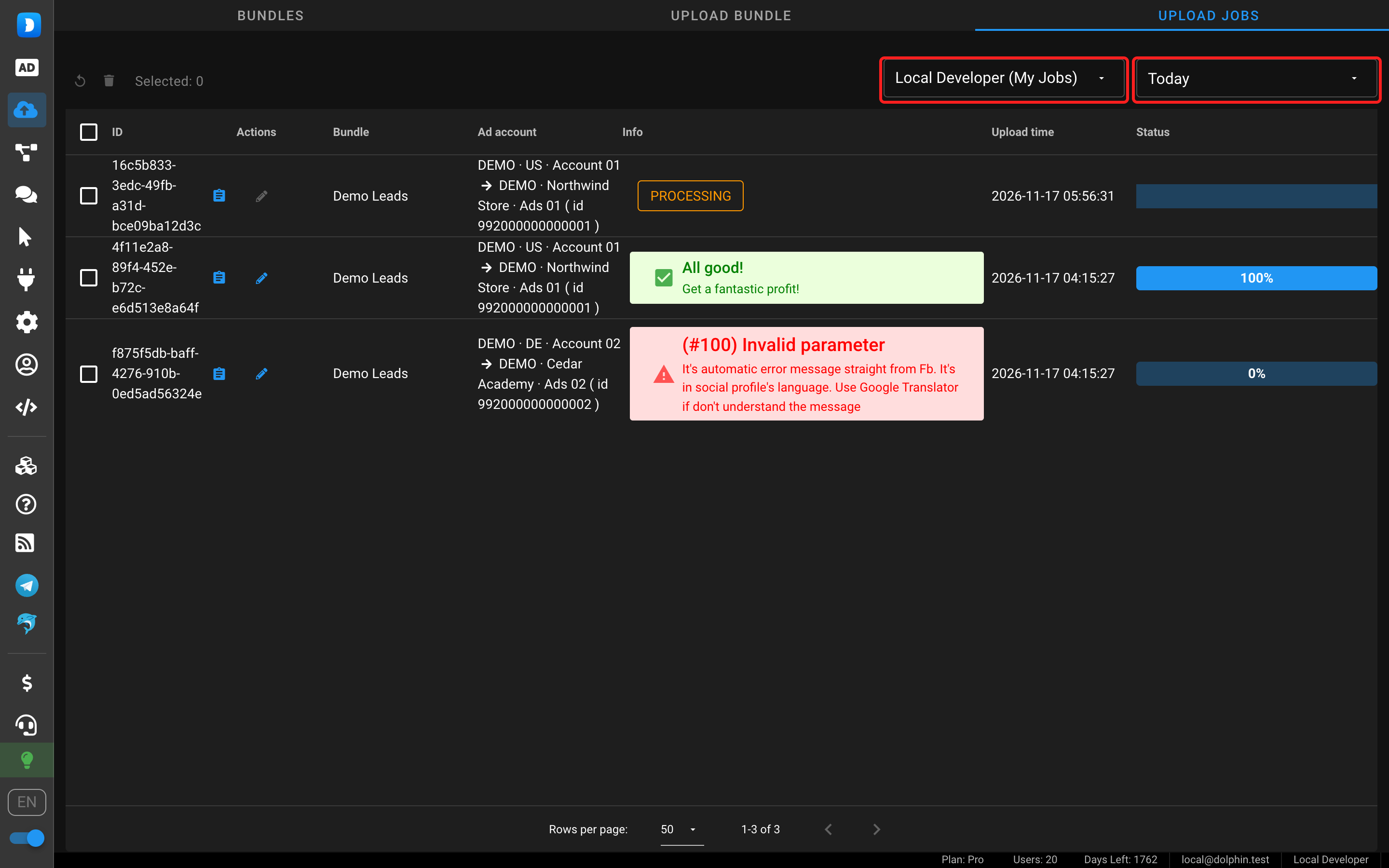
One row is one bundle uploaded to one ad account. The row shows the job ID, the bundle, the account, the ad account with its ID, the result and the time the job was created in your time zone.
| Status | What it means |
|---|---|
| ⏳ PROCESSING | Cloud is creating ads in this ad account. If the upload was set to Custom time, the job stays in this status until the launch time |
| ✅ All good! Get a fantastic profit! | Campaigns, ad sets and ads have been created |
| ❌ Error text | The upload failed. Usually this is a message from Facebook in English, with a hint next to it that you can translate the text |
🔎 How to find a job
- Period: Today, Last 3 days, Last 7 days or All time. The default is Today, and Cloud remembers the period you pick.
- User filter: your uploads are labeled My Jobs, others show their role. A buyer and a farmer see only themselves in the list.
| Role | Whose uploads they see |
|---|---|
| 👑 Administrator | All team members |
| 🧑💼 Teamlead | Their own and their buyers' |
| 🎯 Buyer, 🌱 Farmer | Only their own |
How to assign roles and a teamlead: How to add users to Dolphin {Cloud} and assign a teamlead to a buyer.
❌ How to deal with an error
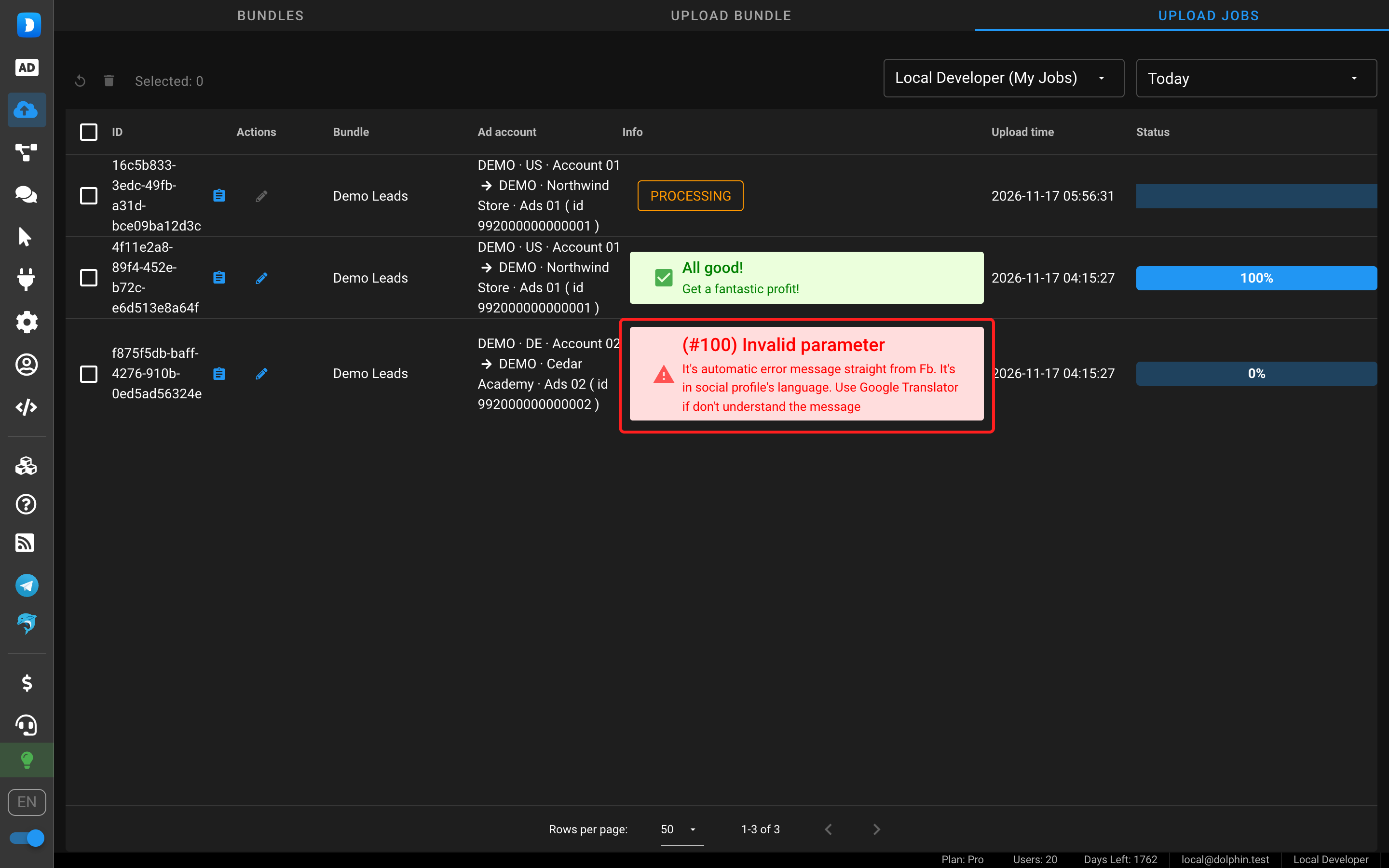
- Read the error text in the job row.
- Find it in How to fix upload errors in Dolphin {Cloud} and do what it says.
- If you need to change the account, ad account, fan page, pixel or app, use Edit and re-upload.
- If nothing needs to change, for example you refreshed the token or attached a card, select the job and click Restart.
📜 Upload log
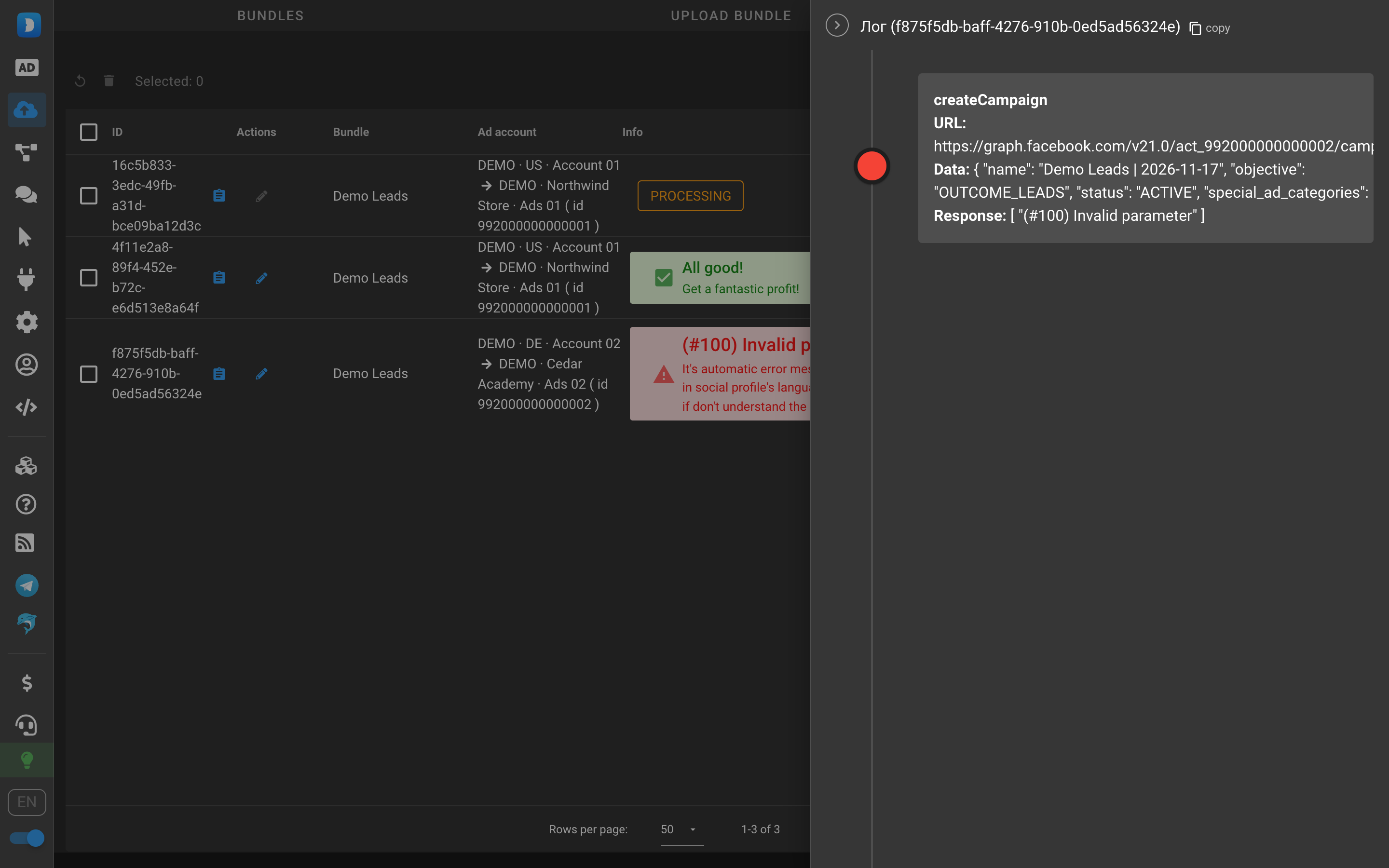
Click View log or the icon next to the job ID. A panel opens on the right with the title Лог (ID) (log; the title is shown in Cyrillic): for each upload step you see the Data and Response blocks. The error is usually in the last response.
💡 A log for support
If the error is unclear, click Copy in the log panel and send the text to support together with the job ID. This way it gets sorted out faster.
✏️ How to edit and re-upload a job
- Click the pencil icon Edit and re-upload in the job row. It is inactive while the job is PROCESSING.
- In the Edit upload window, change the fields you need.
- Click Save and re-upload. The job runs again with the same bundle, creatives, texts and budget: you cannot change them in this window.
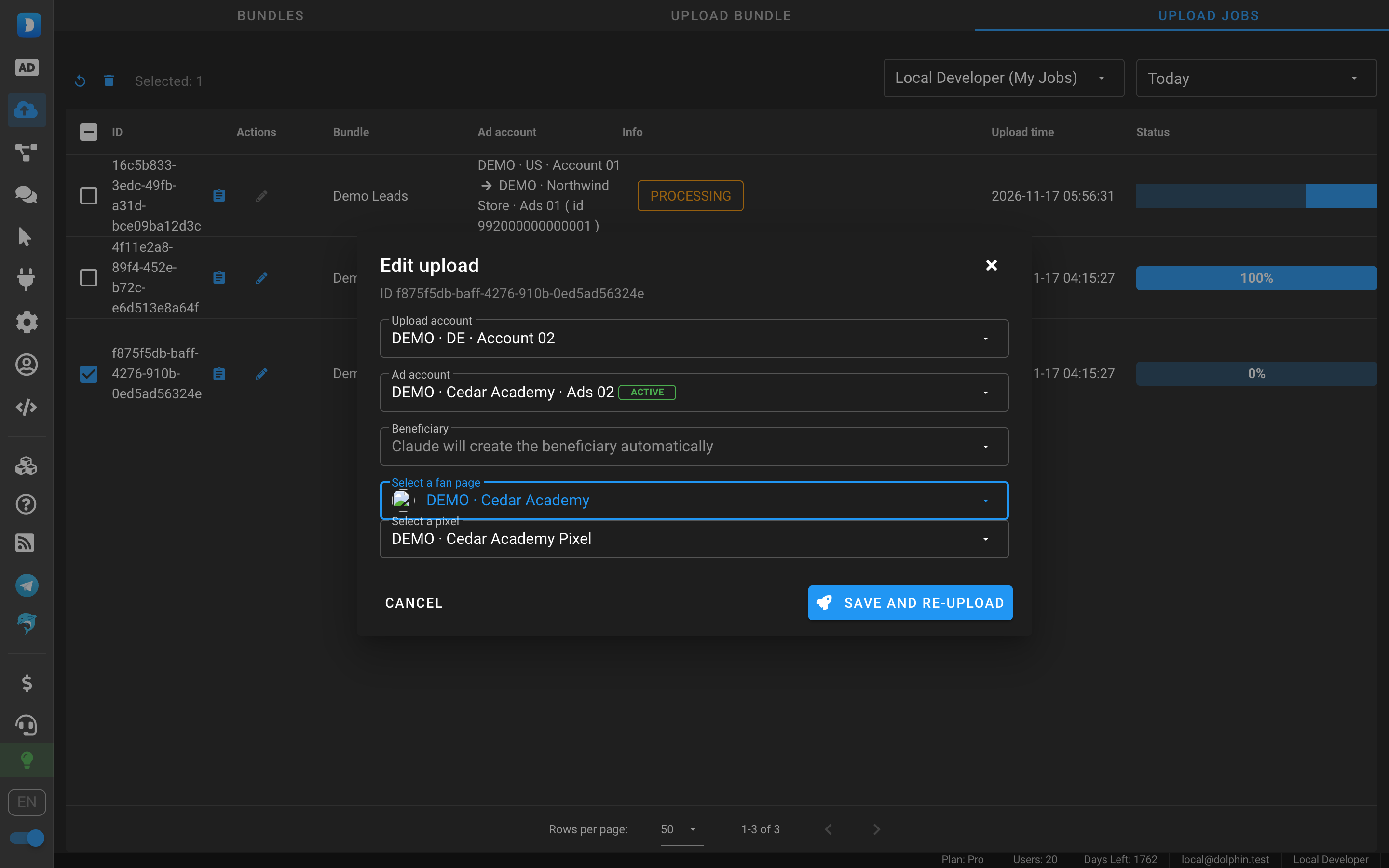
| Field | When to change it |
|---|---|
| Upload account | The account got banned or has cookie problems |
| Ad account | The ad account is blocked or has no card. You can also upload the same ads to another ad account after a successful job |
| Beneficiary | Facebook requires a beneficiary and payer |
| Select a fan page * | The fan page is banned or restricted from advertising |
| Select an app | App installs only: the app is not shared with the ad account |
| Select a pixel | For conversion objectives: you need a different pixel |
🔁 How to restart or delete jobs
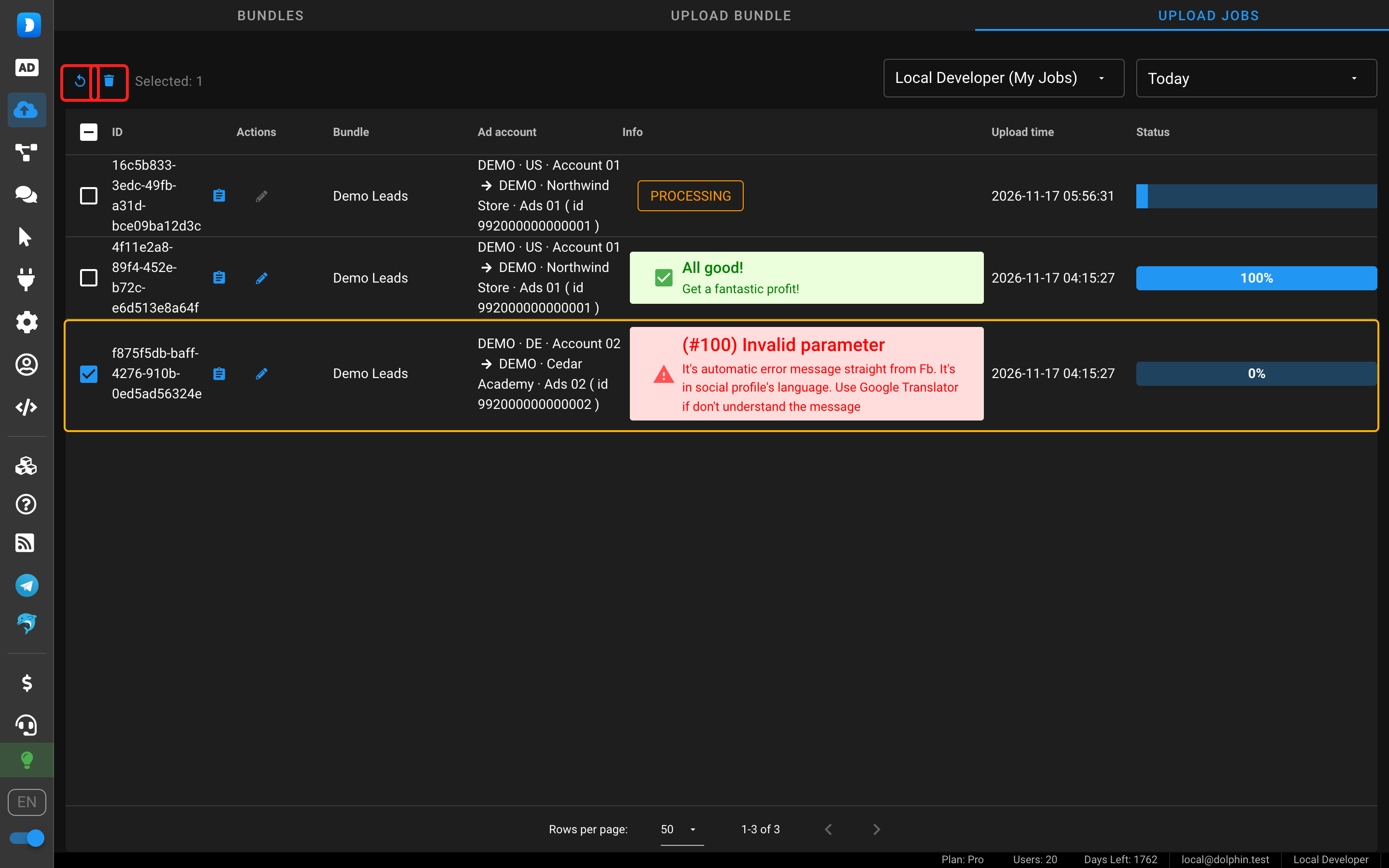
- Select jobs with the checkboxes, up to 200 at a time. Selected: N appears above the table.
- Click Restart to run them again without changes, or Delete to remove them from the queue.
- Confirm the action in the browser window.
⚠️ Restarting creates the ads again
Restart and Save and re-upload run the whole job, with all its campaigns. If some campaigns in the job were already created, they will appear in the ad account again after the restart. Delete the extra copies in Ads Manager, or remove the created campaigns beforehand.
ℹ️ Deleting from the queue
Deleting removes the job only from the Cloud queue. Ads that Cloud has already created in Facebook stay in the ad account.
✅ After-upload checklist
- All jobs of the upload show All good!.
- Jobs with errors are handled: the cause is fixed and the job is restarted.
- The ads are visible in Ads Manager in the right ad accounts.
❓ FAQ
I can't see my job.
Check the period: the default is Today, pick All time. Check that the user filter has the right uploads selected.
A job has been PROCESSING for a long time.
If the upload was set to Custom time, the job is waiting for the launch time. If the upload includes many ad accounts and a pause between ad accounts is on, the jobs run one after another. If one job takes much longer than the rest, contact support with the job ID.
The upload failed because of the token or cookies.
Refresh the account's cookies in Ads Manager on the Accounts tab and click Restart for the job.
Can I re-upload a successful job to another ad account?
Yes. Click Edit and re-upload, choose another ad account and save. The job runs for the new ad account, and the ads in the first ad account stay. If the new ad account uses another currency, Cloud recalculates the budget itself.
A teamlead can't see a buyer's uploads.
Check that the administrator has assigned this teamlead to the buyer in the users section.
🧭 What's next
- 🧯 How to fix upload errors in Dolphin {Cloud}
- 🚀 How to upload a bundle in Dolphin {Cloud}
- 👤 How to work with accounts in Ads Manager
🐬 Track all of your team's uploads in one list. Try Dolphin {Cloud}