How to launch an ad in several languages
Updated:
⚡ In short
- Bundle setup
- Creatives per language
- Limitations
- Three English options
- Language for {{creative.name}}
Since April 2026 Dolphin {Cloud} uploads multi-language ads: texts, descriptions and deep links are set per language, and Facebook shows each person the version in their language. You set up multi-language once, in the bundle.
🛠️ Bundle setup
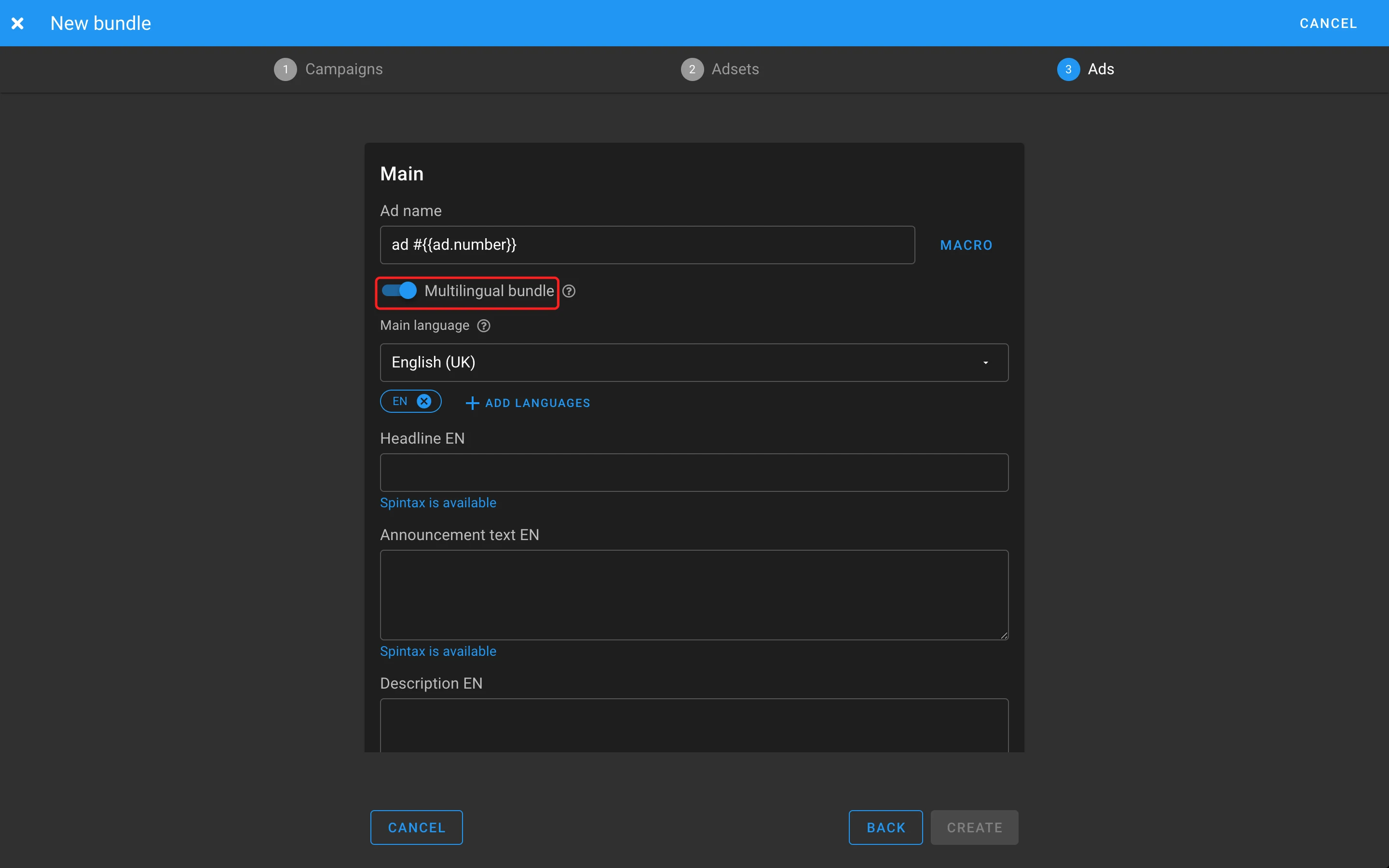
- Open the bundle and go to the "Ads" step.
- Turn on the "Multi-language bundle" switch.
- Add languages and fill in the text, headline, description and, if needed, deep link for each one.
- Save the bundle.
🔹 Creatives per language
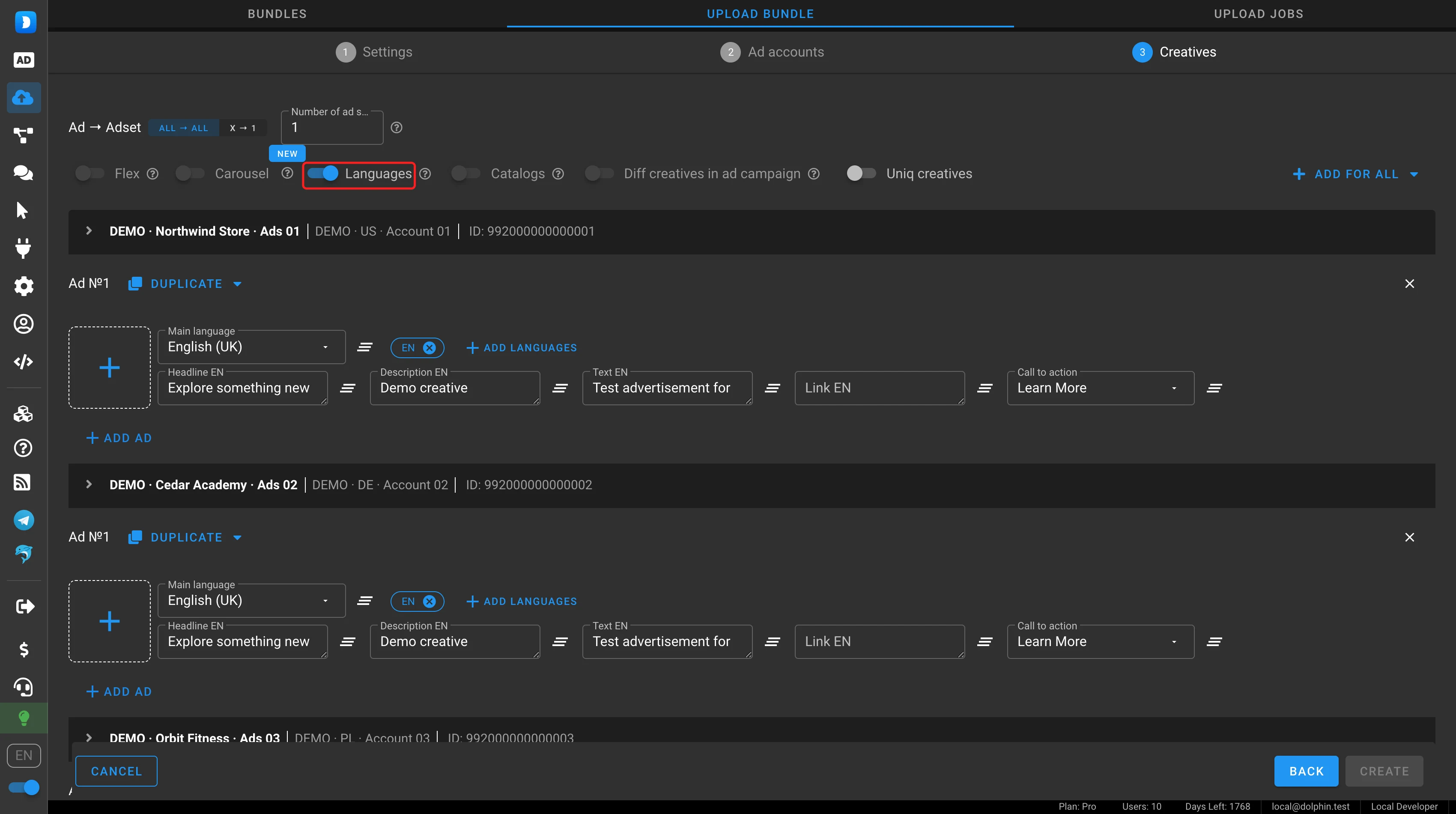
When you upload such a bundle, a "Languages" mode appears on the "Creatives" step. You can upload a separate creative for each language or one creative for all. To replace a creative manually, click the language.
Since September 2026 you can bulk upload up to 500 files (jpg, gif, png, mp4). Dolphin {Cloud} spreads them across ads and languages. You choose how many creatives go to how many ad accounts, what comes first (photo or video), and whether to fill only empty slots. Learn more in Creative distribution and bulk upload.
"All → All" and "X → 1" distribution, creative name and link parameters per language, and duplicating ads within an ad account or across a list of ad accounts are also available.
🇬🇧 Three English options
The language list has three English options: English (UK), English (US) and English (ALL). Each English version of the ad gets its own creative and texts, not the primary-language version.
In the “Add creatives for all ad accounts” window, creatives are written only to the languages you selected.
🏷️ How to choose the language for {{creative.name}} in the ad name
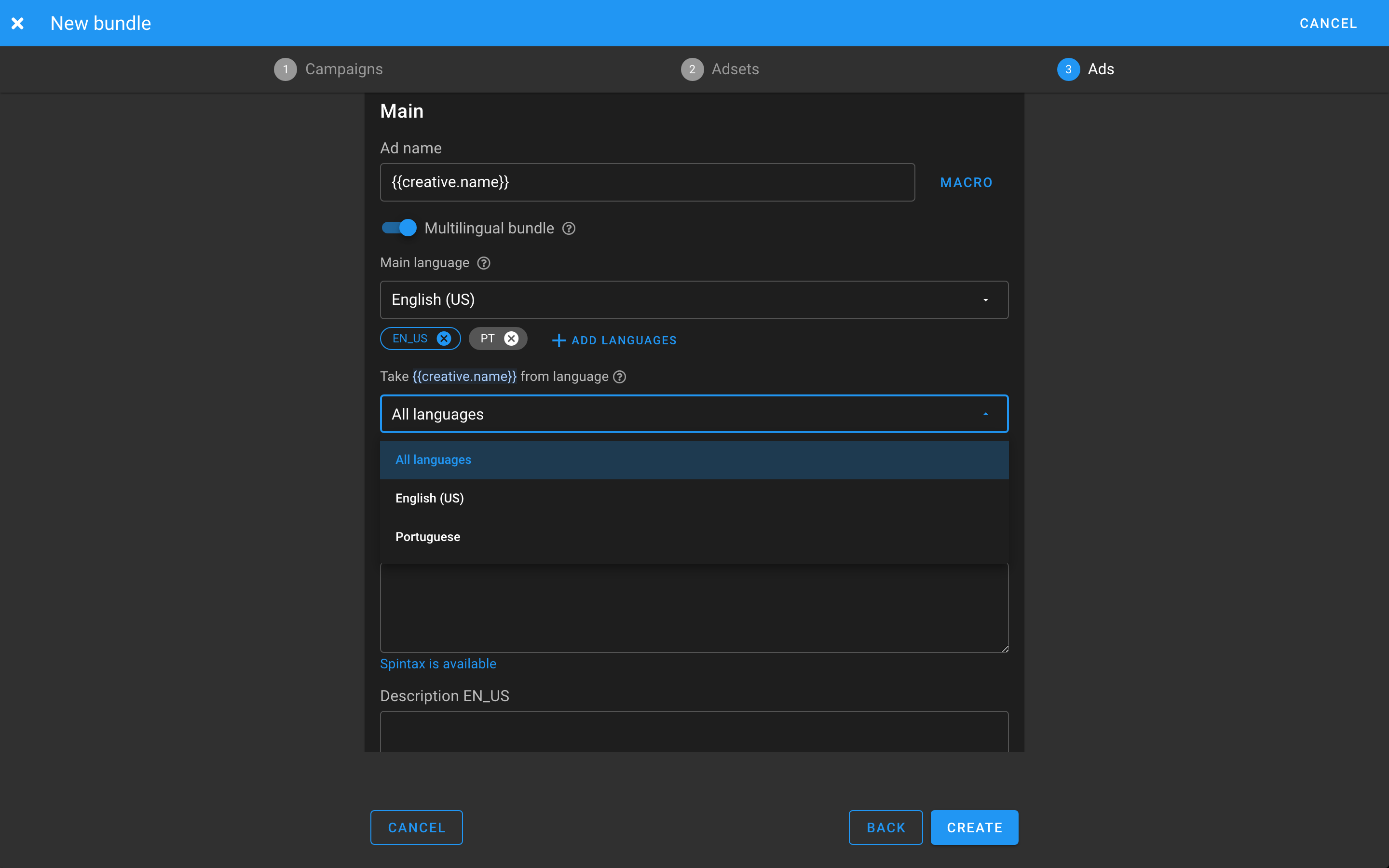
If the ad name contains the {{creative.name}} macro, by default it joins the creative names of all languages with “+”. To get the creative name of just one language, choose a source language.
1️⃣ In the bundle
- Open the bundle and turn on “Multilingual bundle”.
- Put the
{{creative.name}}macro in the ad name. The “Take {{creative.name}} from language” field appears under the language list. - Choose “All languages” or a specific bundle language and save the bundle.
“All languages” is the default, so existing bundles name ads as before.
2️⃣ During the upload
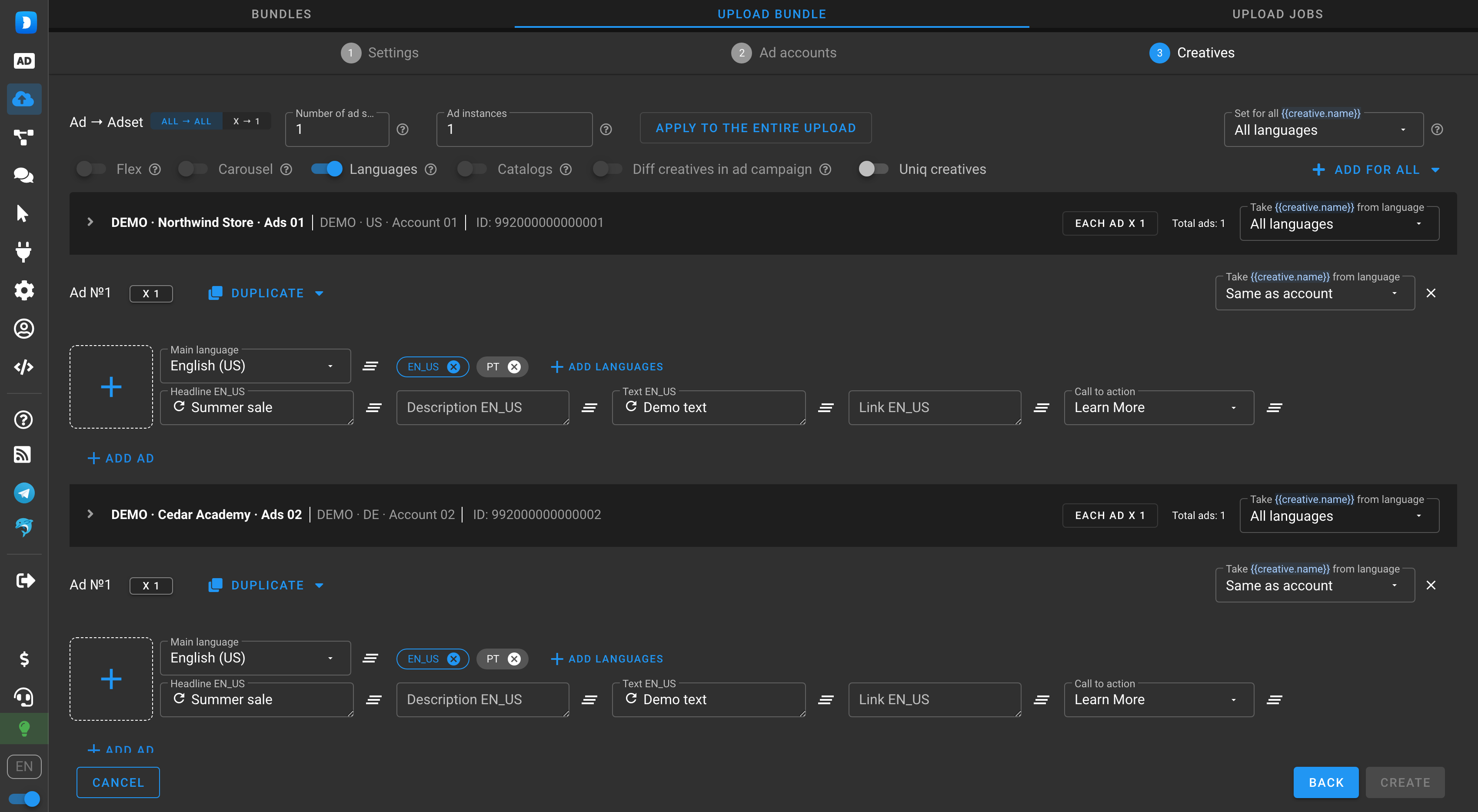
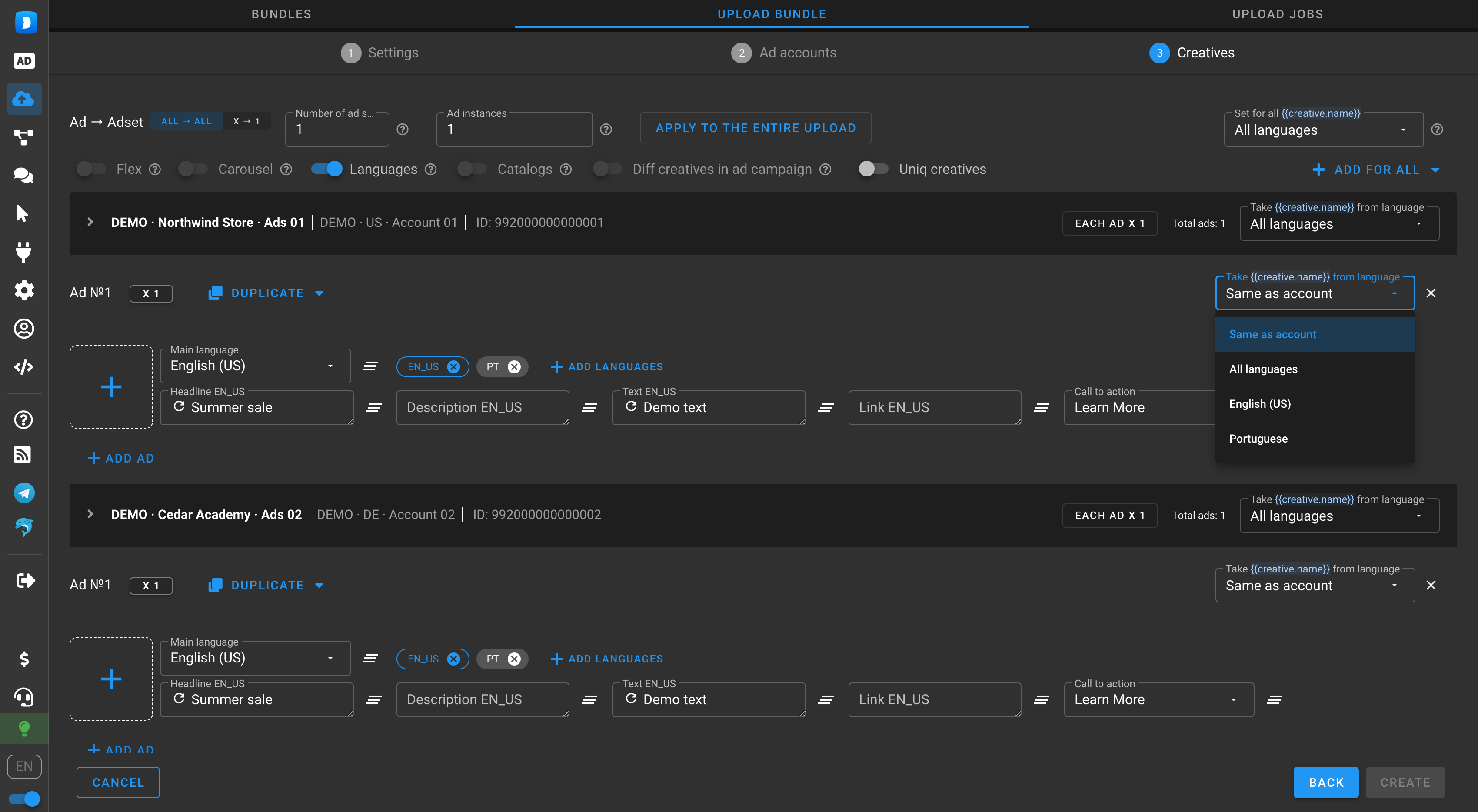
If the bundle ad name contains the {{creative.name}} macro, when you upload in “Languages” mode you can change the source on the “Creatives” step at three levels:
| Where | Field | What it affects |
|---|---|---|
| Top panel | “Set for all {{creative.name}}” | All ads in all ad accounts. Only languages present in every ad are listed |
| Ad account header | “Take {{creative.name}} from language” | All ads of this ad account |
| Ad | “Take {{creative.name}} from language” | Only this ad. “Same as account” brings back the ad account setting |
ℹ️ Good to know
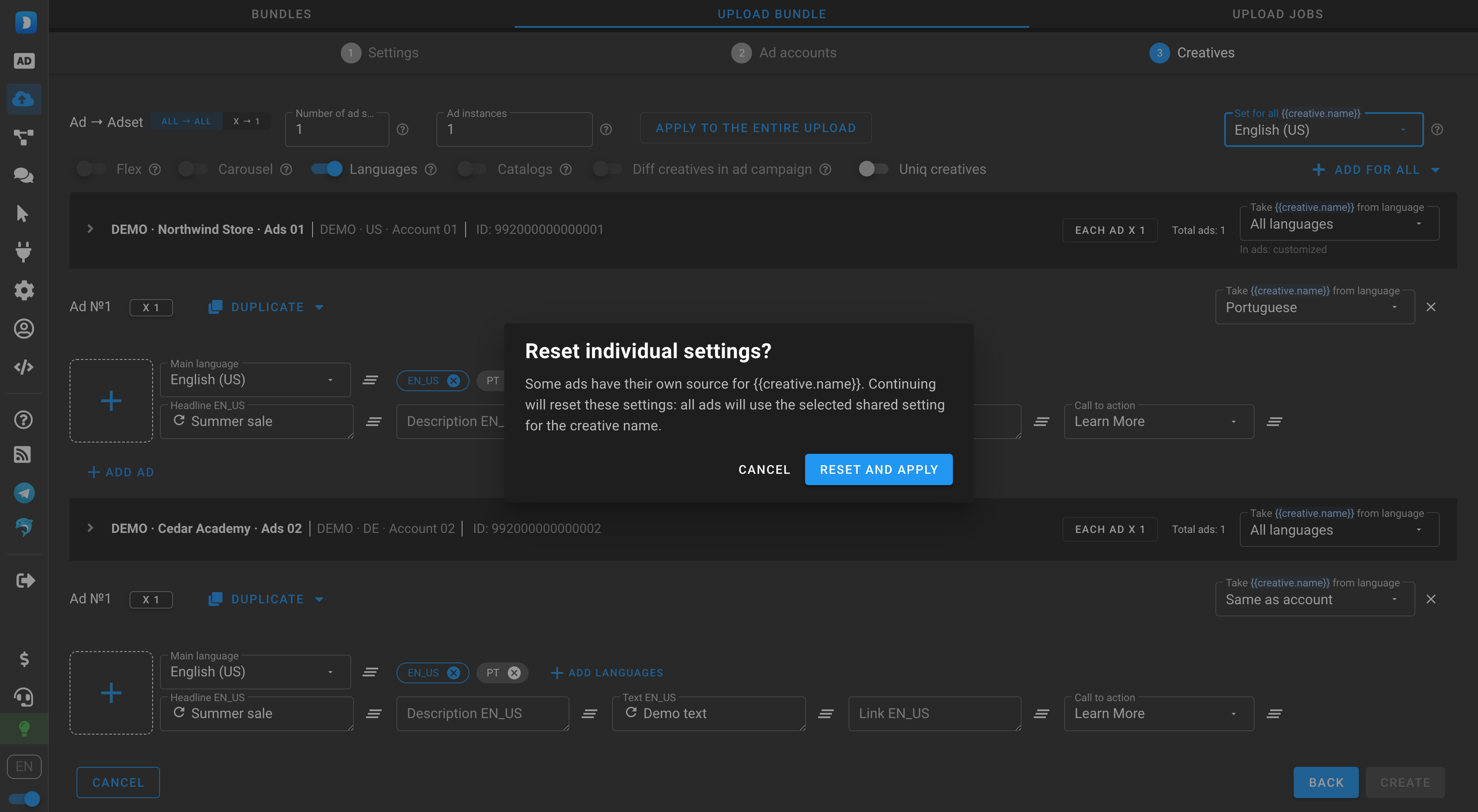
- If some ads have their own source, you will see “In ads: customized” next to the field. When you pick a value in the top “Set for all {{creative.name}}” field, Cloud asks “Reset individual settings?”. “Reset and apply” switches all ads to the shared choice.
- If an ad has no creative in the selected language, the name is taken from the primary-language creative.
- The source language cannot be removed from the ad: you will see “Cannot remove the Creative Name language”. Choose another language or “All languages” first.
- If the macro is also in the campaign or ad set name, those names also get the creative names of the selected language.
⚠️ Limitations
⚠️ Important
- Photos and videos are not mixed in one ad.
- The launch button stays inactive until all fields are filled in for every language.
- The "Diff creatives in ad campaign" switch does not work with languages.
- Links for languages are set only in the creatives.
- You cannot use different creatives for different ad accounts within one language of one ad.
- Multi-language uploads do not work on accounts added with a system token.
- If a creative error appears only with languages, Facebook is rejecting the creative itself. Replace it.
📚 See also
🐬 New to Dolphin {Cloud}? Try it free for 3 days.