How to launch a Flexible ad
Updated:
⚡ In short
- How to upload a Flexible ad
- What works together with Flexible
- Limitations and FAQ
Flexible lets you put up to 10 media files into one ad. Facebook picks which creative to show each person. The feature has been available in the Dolphin {Cloud} upload wizard since April 2025.
🛠️ How to upload a Flexible ad
- Open "Create ads" and pick a bundle with the Sales or App installs objective.
- On the "Creatives" step, first turn on the Flex switch, and only then fill in the texts. If you turn it on later, descriptions may be lost.
- Upload up to 10 images or videos for each ad and fill in the texts.
- Check the preview and start the upload.
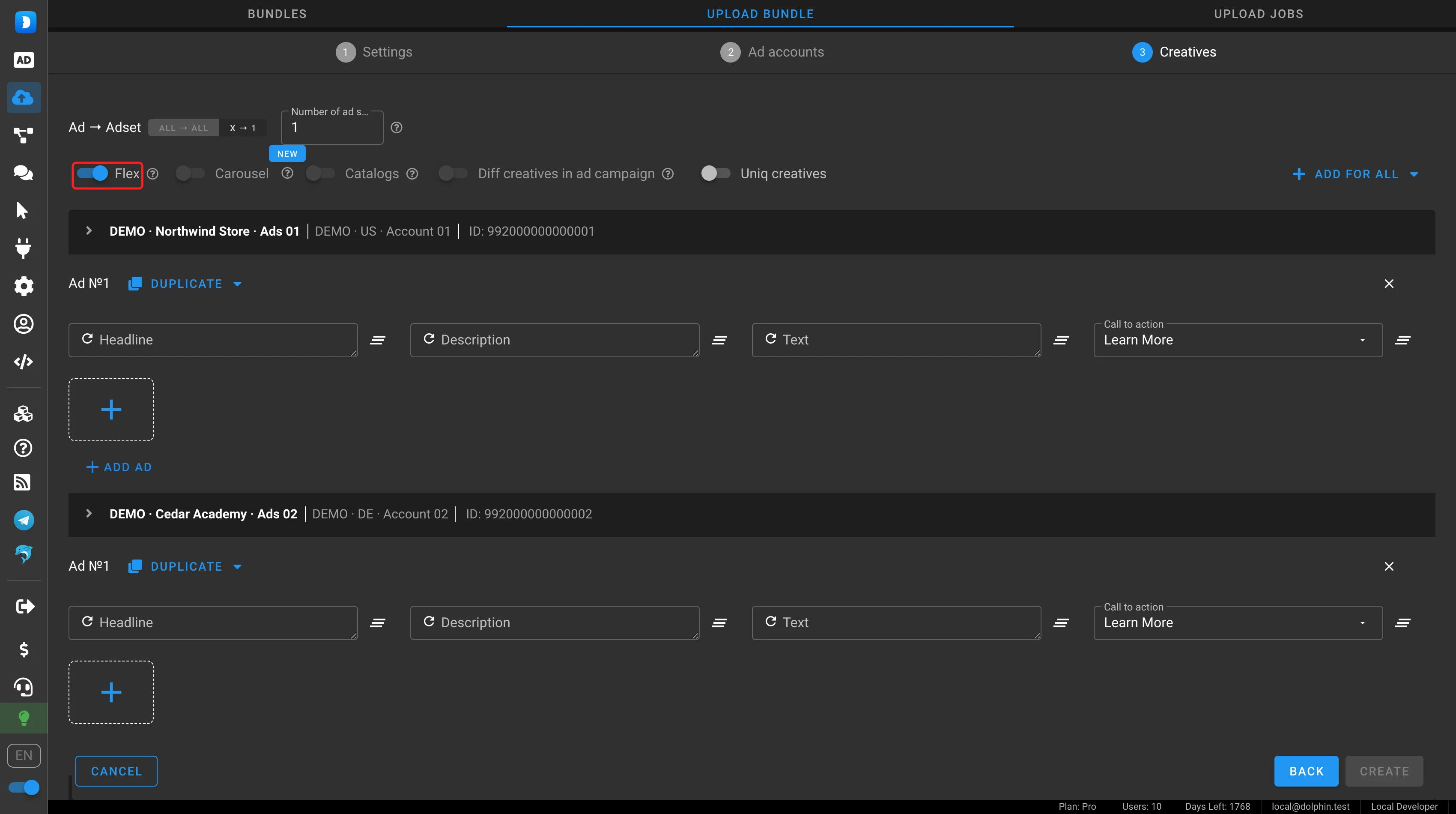
🔹 What works together with Flexible
- Duplicating ads within one ad account or across all ad accounts.
- "All → All" and "X → 1" creative distribution (X = 1 is the former "1-1"). In "X → 1" mode one Flexible creative set counts as one ad.
- URL parameters and display URL.
- Templates and creative auto-uniqueization.
Since July 2026 Flexible is uploaded in Facebook's new format. If the ad account does not support it, Dolphin {Cloud} uploads the ad the usual way.
⚠️ Limitations and FAQ
⚠️ Important
- Objectives: Sales and App installs.
- Links can be changed only at the ad level, not in the ad set.
- Bulk thumbnail upload does not work for Flexible.
- If Flexible is not available in the Facebook ad account itself, the upload may fail. If errors repeat, restart the job in the upload queue and send the upload IDs to support.
📚 See also
🐬 New to Dolphin {Cloud}? Try it free for 3 days.