How to set the budget and bid for an upload
Updated:
⚡ In short
- The budget is set in the bundle in USD, from 1 USD, decimals allowed.
- During an upload you can change it for the whole upload in extended mode and for each ad account on the Ad accounts step.
- Level Campaign (CBO) or Adset, type Daily or Lifetime.
- Randomize makes the budget slightly different in each upload.
- Plan budget increase raises the daily budget for the periods you choose.
In Dolphin {Cloud}, the budget and bid are set in three places: in the bundle, in the wizard's extended mode and in each ad account's row. Below is what is set where, what the limits are and what the errors mean.
🗺️ Where the budget is set
| Where | What you can set | What it affects |
|---|---|---|
| 🧩 Bundle, Campaigns step, Budget block | Amount, randomization, type, level, ad set limits, bid strategy | All uploads of this bundle by default |
| ⚙️ Wizard, Show more options (extended mode) → Budget and Bid | The same, plus an end date and a planned increase | The current upload only |
| 🏦 Wizard, Ad accounts step, Budget column | Amount and bid for a specific ad account | Only that ad account in the current upload |
🧩 Budget in the bundle
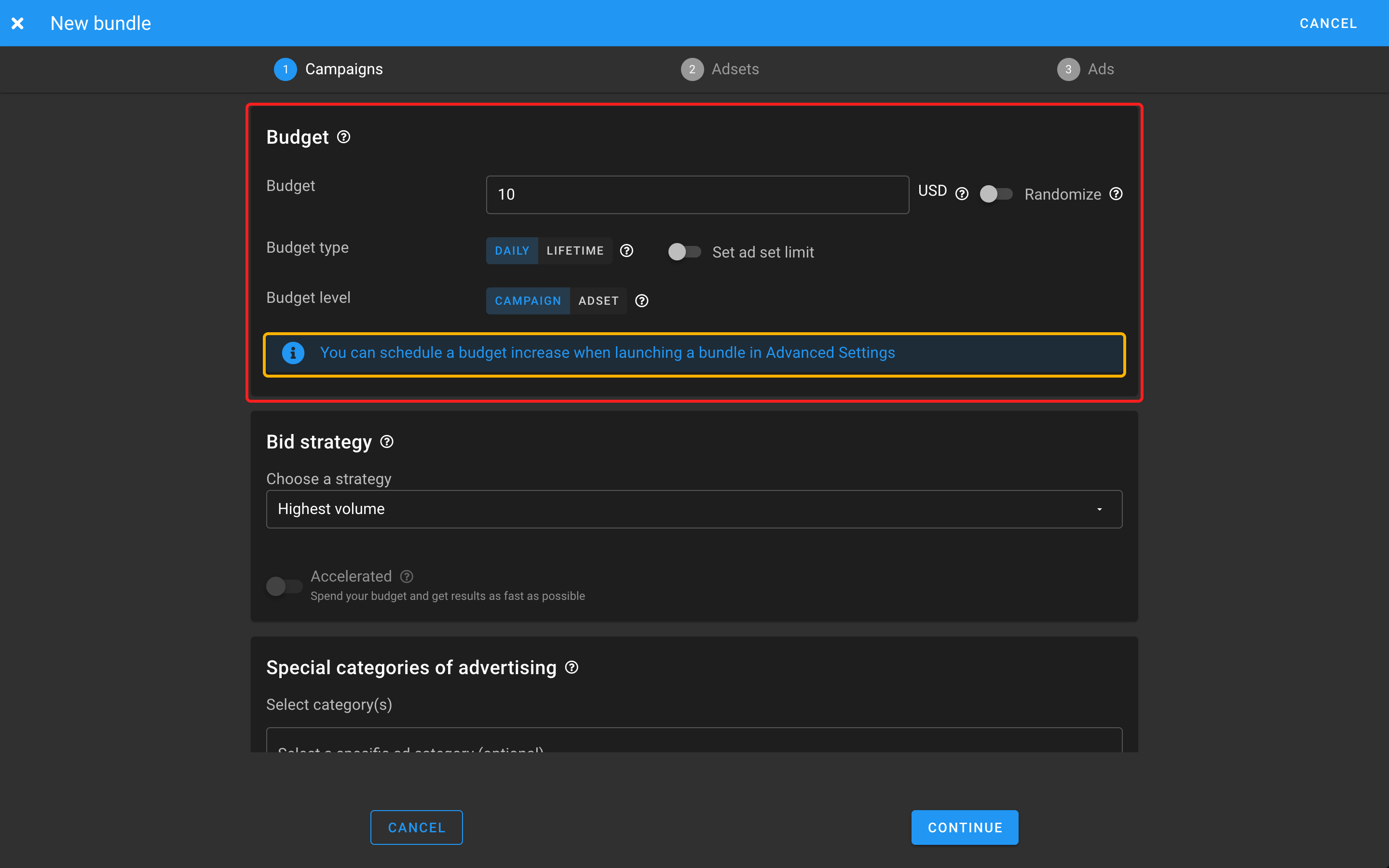
| Field | How it works |
|---|---|
| Budget | Amount in USD. Decimals are allowed, up to 2 digits after the point, for example 10.5. Minimum 1 USD. If the ad account uses another currency, Cloud converts the amount to it during the upload |
| Randomize | A random budget deviation in each upload, in percent. 100 USD and 5 % give 95 to 105 USD. A whole number from 1 to 98 |
| Budget type | Daily: the average amount per day, on some days Facebook may spend a little more. Lifetime: the maximum for the whole delivery period |
| Budget level | Campaign: one budget per campaign, Facebook splits it across ad sets itself (CBO). Adset: each ad set has its own budget |
| Set ad set limit | Only at the Campaign level. In the Ad set spending limit block, set the Minimum and Maximum one ad set can spend. For a daily budget it is a daily limit, for a lifetime budget it is a limit for the whole period |
💡 Randomization example
Budget 100 USD, randomization 5 %. Five uploads may get budgets of 100, 98, 104, 101 and 96 USD. This way campaigns in different ad accounts look less alike.
📈 Bid strategy and accelerated delivery
| Strategy | Bid needed | When it fits |
|---|---|---|
| Highest volume | No | Starts and tests: Facebook picks the bid itself |
| Lowest cost with bid cap | Yes, the Bid amount: field | You need a hard cap on the auction bid |
| Cost per result goal | Yes, the Bid amount: field | You know the acceptable average cost of a lead or purchase |
The bid cannot be 0 or negative. During an upload you can change the bid for each ad account in the Lowest cost with bid cap or Cost per result goal column.
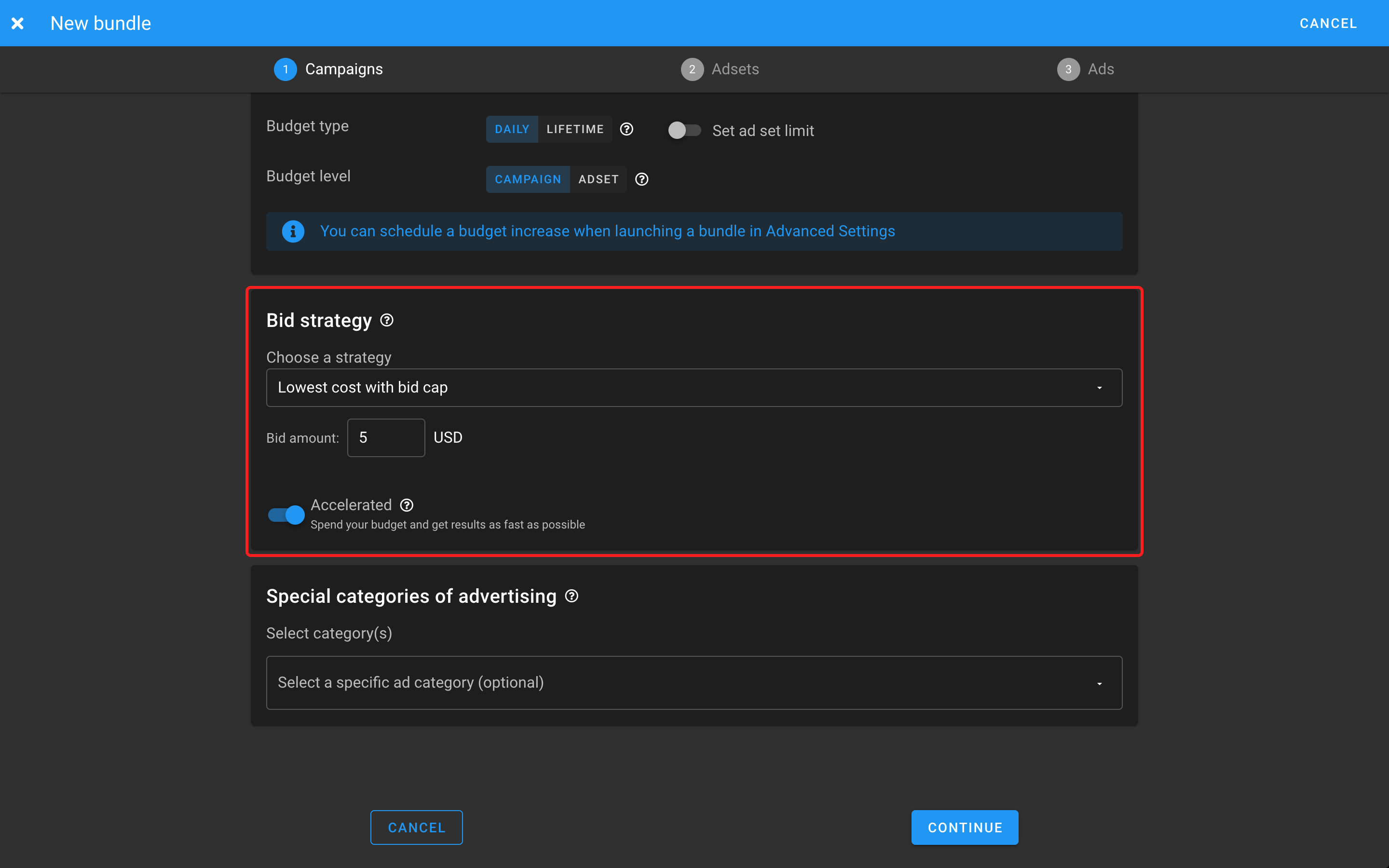
The Accelerated switch is always visible in the bid block, but you can turn it on only with the Lowest cost with bid cap strategy. The budget level does not matter. Ads are shown as often as possible and the budget is spent faster. The average cost may go up, and delivery may end early.
🏦 Budget for each ad account
On the Ad accounts step, the Budget column already holds the amount from the bundle or from extended mode. Change it in the rows you need. If randomization is on, the arrows button inside the field recalculates a random amount for that ad account.
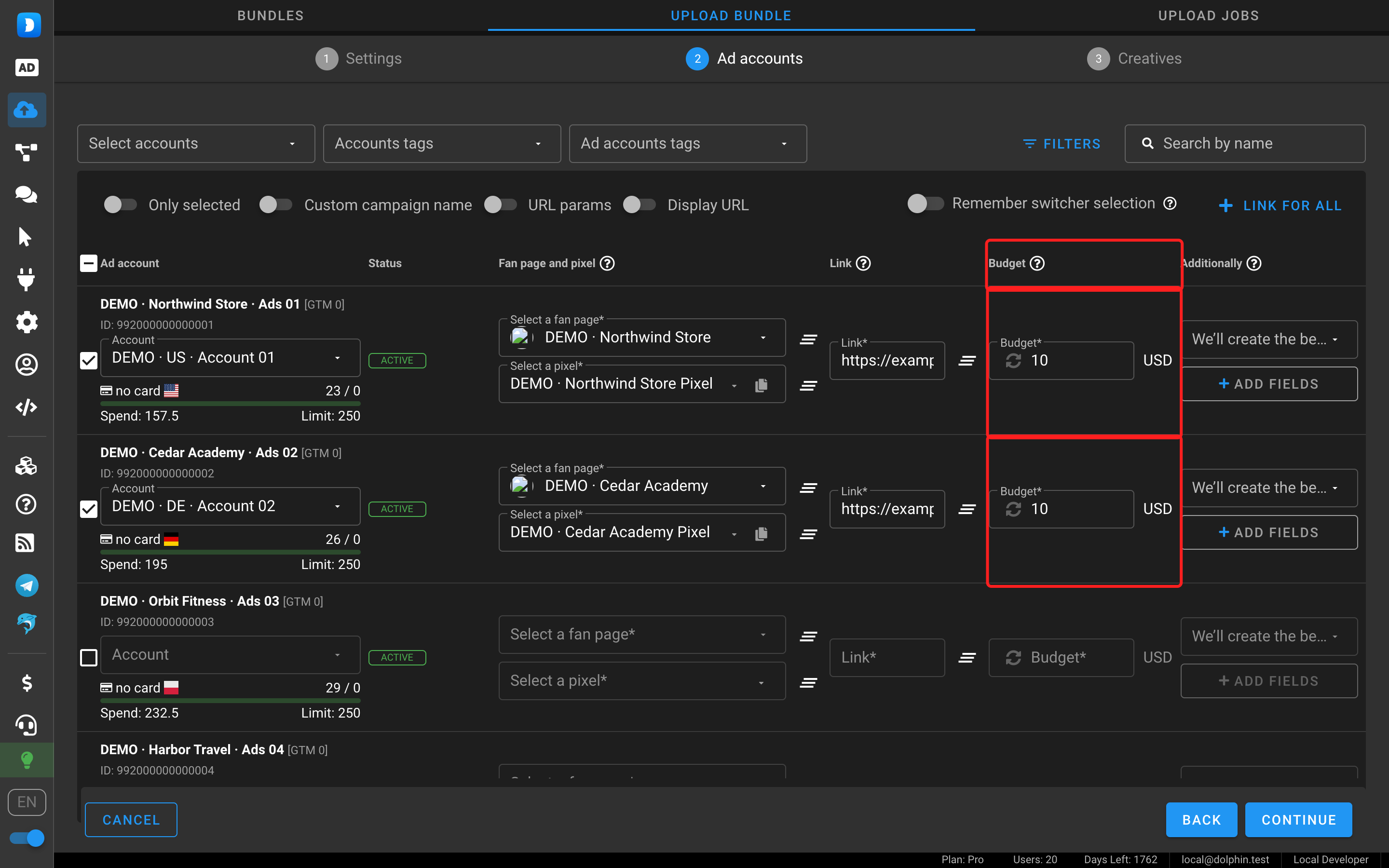
ℹ️ If Customize campaigns is on
Then the budget comes from the Campaigns step, where it is set for each campaign separately. To set the budget in the ad account column, turn customization off in the settings.
⚙️ Budget for the current upload only
- On the Settings step, turn on Show more options (extended mode).
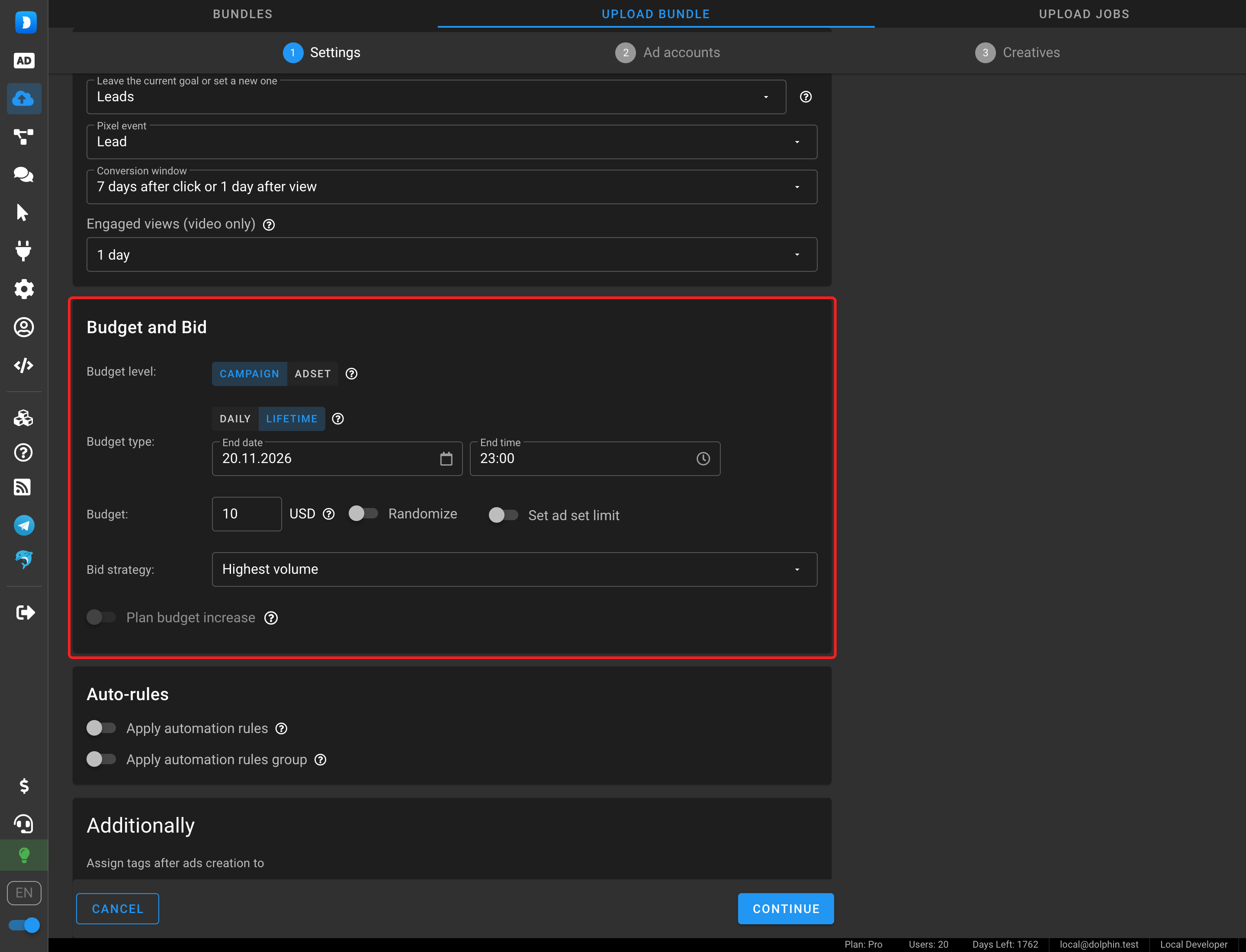
- In the Budget and Bid block, change the level, type, amount, randomization, ad set limits and strategy.
- The bundle itself does not change.
📅 Lifetime budget
If you choose the Lifetime type, the End date and End time fields appear. The end must be more than 24 hours from now, otherwise Cloud shows Invalid date. Please set date more than 24 hours from now.
🚀 Planned budget increase
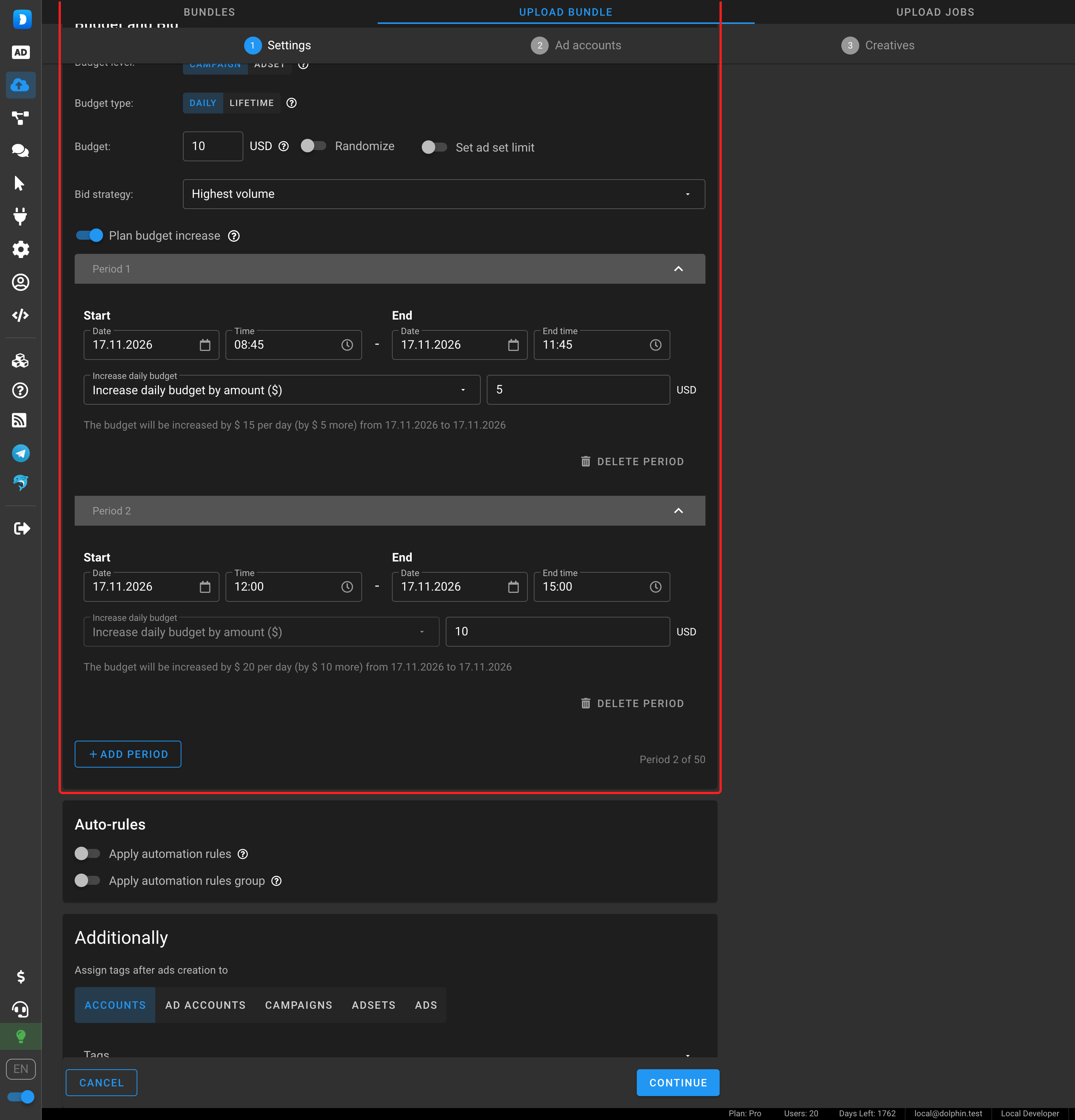
Raises the daily budget for the periods you choose, for example weekends or evening hours, and then returns it to the previous value.
- In the Budget and Bid block, turn on Plan budget increase. The switch works only with the Daily type.
- In Period 1, set the Start and End: date and time.
- In the Increase daily budget field, choose the unit of the increase and enter the value.
- Need more: Add period. Delete period removes an extra one.
| Rule | Value |
|---|---|
| Number of periods | Up to 50 |
| Period length | At least 3 hours between start and end |
| Time step | 15 minutes |
| Overlaps | Periods must not overlap |
| Increase units | The same in all periods |
| Maximum | Up to 800 % |
✏️ How to change the budget after the upload
The budget of campaigns and ad sets that are already uploaded is changed in Ads Manager: select the rows and open Budget and Bid. Details: How to bulk edit and duplicate campaigns, ad sets and ads.
🧯 Budget errors
| Message | What to fix |
|---|---|
| The value of the "Budget" field must be equal to or greater than $1 | Set a budget of 1 USD or more |
| Enter a percentage value from 1 to 99 | Enter a whole percentage from 1 to 98 |
| bid amount cannot be negative or 0 | Set a bid greater than zero |
| Invalid date. Please set date more than 24 hours from now | Move the end date further out |
| Budget increase planning is only available for daily budget types | Choose the Daily type |
| All periods must use the same unit for budget increase | Choose the same unit in all periods |
✅ Checklist
- The budget is 1 USD or more, the type and level are chosen.
- A bid is set for Lowest cost with bid cap and Cost per result goal.
- The Budget column has the right amount for each ad account.
- A lifetime budget has an end date.
- Increase periods do not overlap.
❓ FAQ
Why is the budget only in USD?
This way one bundle works for ad accounts in any currency. During the upload, Cloud converts the amount to the ad account's currency.
I changed the budget in the wizard, but the bundle still has the old one.
Changes in the wizard apply only to the current upload. To change the budget for good, edit the bundle.
Can I set ad set limits with an ad set budget?
No. Limits exist only at the Campaign budget level.
The Plan budget increase switch will not turn on.
It works only with a daily budget. Change the type to Daily.
🧭 What's next
- 🧩 How to create a bundle in Dolphin {Cloud}
- 🚀 How to upload a bundle in Dolphin {Cloud}
- ⚙️ How to set up advanced upload options: macros, naming and campaigns
- 🤖 How to create a Facebook auto rule
🐬 Manage the budgets of dozens of ad accounts from one window. Try Dolphin {Cloud}