How to add Facebook accounts to Dolphin {Cloud}
Updated:
⚡ In short
- Accounts are added in Ads Manager → Accounts → Add account: one at a time or many at once from a file.
- Each account needs Facebook cookies in JSON and a proxy. You don't have to paste an EAAB token: Cloud gets it from the cookies.
- An account without a proxy won't be added.
- Bulk add: Light 10 times a month, Start 20, Base and Pro unlimited. On the trial you can add 20 accounts.
To run ads in Dolphin {Cloud}, first add your Facebook accounts to it. Below are all the ways to do it: one account, a list from a file, a system token, the browser extension and the Dolphin {Anty} integration. You'll also find what to do right after adding and how to fix common errors.
🧰 What to prepare
| Data | Required? | Why and where to get it |
|---|---|---|
| 🍪 Cookies in JSON format | Yes, except with a system token | Cloud works with the account through the cookies and gets the token by itself. How to get them: How to get Facebook account cookies. |
| 🌐 Proxy | Yes | An account without a proxy won't be added. More: How to add and change proxies. |
| 🖥️ User agent | Yes, but Cloud fills it in | The window already contains a random user agent. It's better to replace it with the one from the antidetect browser where you work with the account: the account gets logged out less often. |
| 🔑 EAAB token | No | Needed only if you have no cookies or Cloud couldn't get the token by itself. How to get it: How to get an EAAB token and a BM token. |
| 🔐 Facebook login, password and 2FA | No | With them Cloud can log back into the account by itself if it gets logged out. The password is also needed to create fan pages. |
ℹ️ Good to know
You buy, farm or register the accounts yourself. Dolphin {Cloud} doesn't sell or provide accounts.
🧭 Which method to choose
| Method | When it fits |
|---|---|
| ➕ Single add | A few accounts, and you want to fill in every field by hand. |
| 📋 Bulk add | Dozens or hundreds of accounts from a file or from a seller's lines. |
| 🏢 System token | You want to work through the official Meta API without cookies. Some features are not available then. |
| 🧩 Dolphin {Cloud} extension | The account is already open in a browser profile, and you want to send it to Cloud together with its cookies and proxy. |
| 🐬 Dolphin {Anty} | The account profiles live in Anty, and you want to refresh cookies without copying them by hand. |
➕ How to add one account
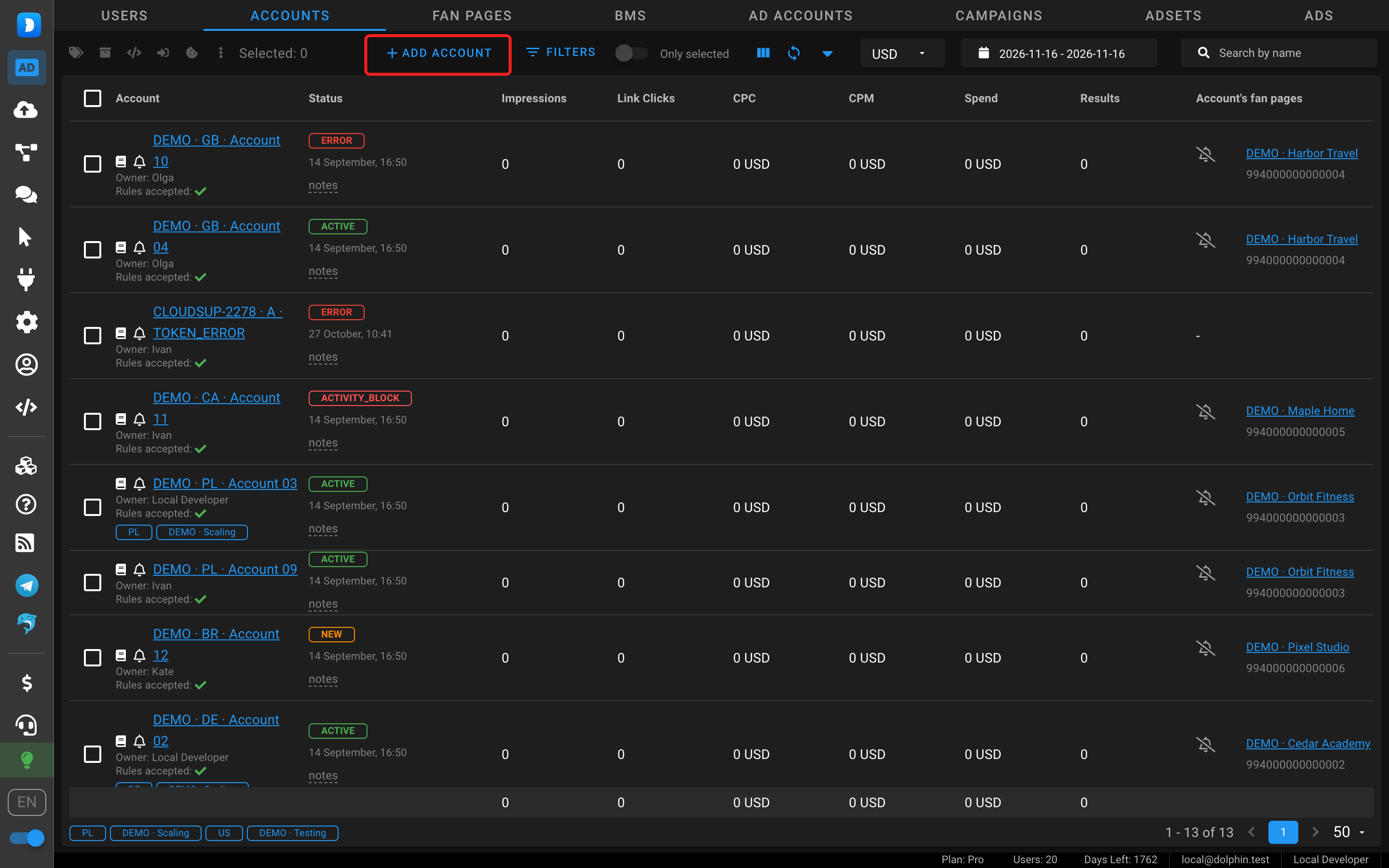
- Log in to Dolphin {Cloud}, open Ads Manager and the Accounts tab. Click Add account above the table.
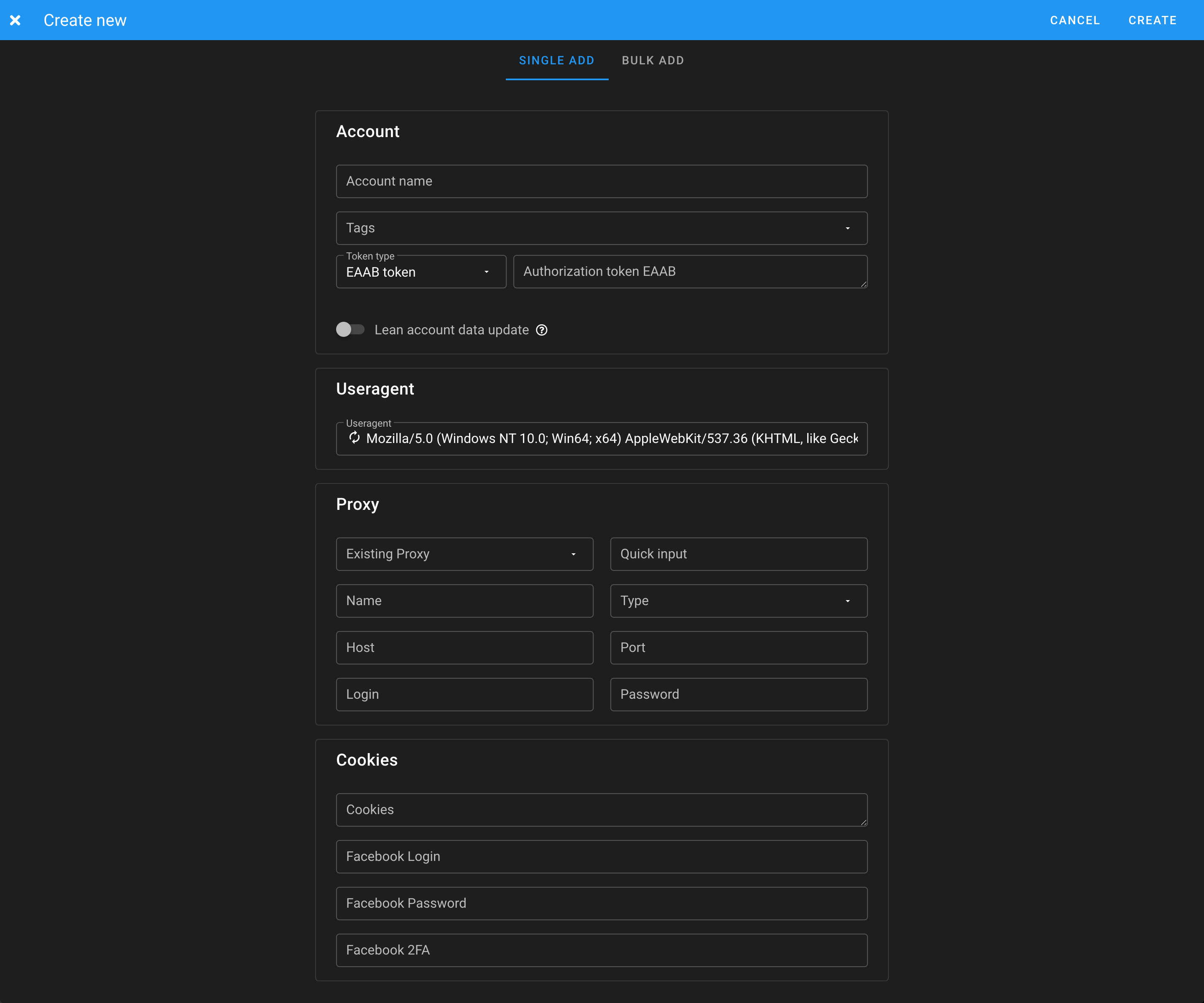
- The Create new window opens. Stay on the Single add tab.
- In the Account block, enter a name, add tags if you like and choose the token type.
- In the Useragent block, Cloud has already filled in a random user agent. Replace it with the user agent of the browser where you work with the account.
- In the Proxy block, choose a proxy you've already added or enter a new one.
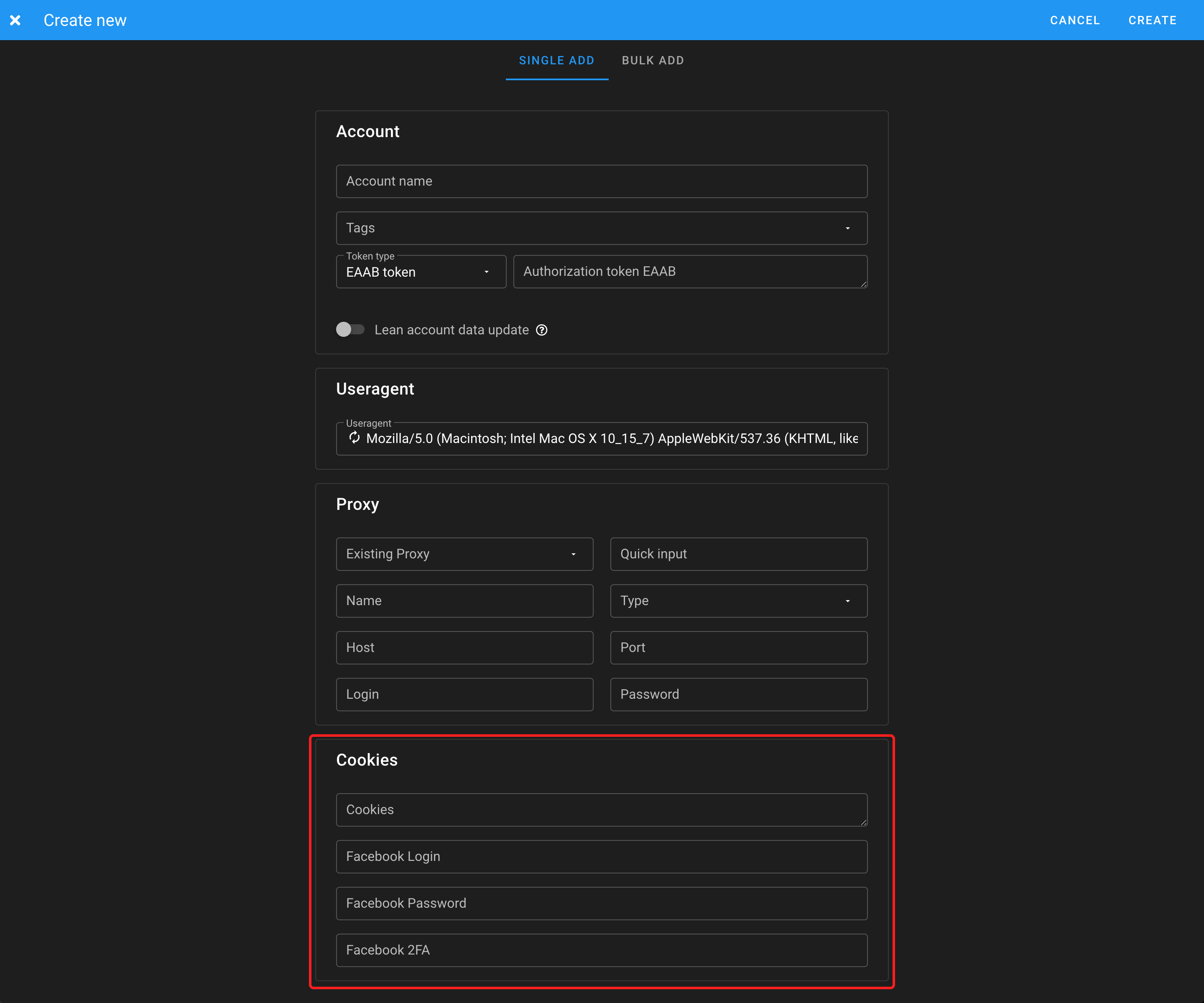
- In the Cookies block, paste the cookies in JSON. If you want Cloud to log the account back in by itself, fill in the login, password and 2FA.
- Click Create in the top right corner. The account appears in the table with the NEW status and gets ACTIVE after the check.
📝 What each field means
| Field | What to enter | Required? |
|---|---|---|
| Account name | Any clear name, for example "UA-farm-01". Only you and your team see it. | Yes |
| Tags | Labels for filters. To create a new tag, type the text and press Enter. The cross in the list deletes the tag completely. | No |
| Token type | EAAB token for regular work, System token for a system token. App token is not available yet. | Yes |
| EAAB token | A string that starts with EAAB. Leave it empty if you pasted cookies. | Only if there are no cookies |
| Lean account data update | Cloud updates the account data more carefully. Syncing takes longer, but logouts happen 3 to 5 times less often. It doesn't affect features. | No |
| Useragent | The user agent of the browser or antidetect profile. By default Cloud fills in a random one. | Yes, filled in automatically |
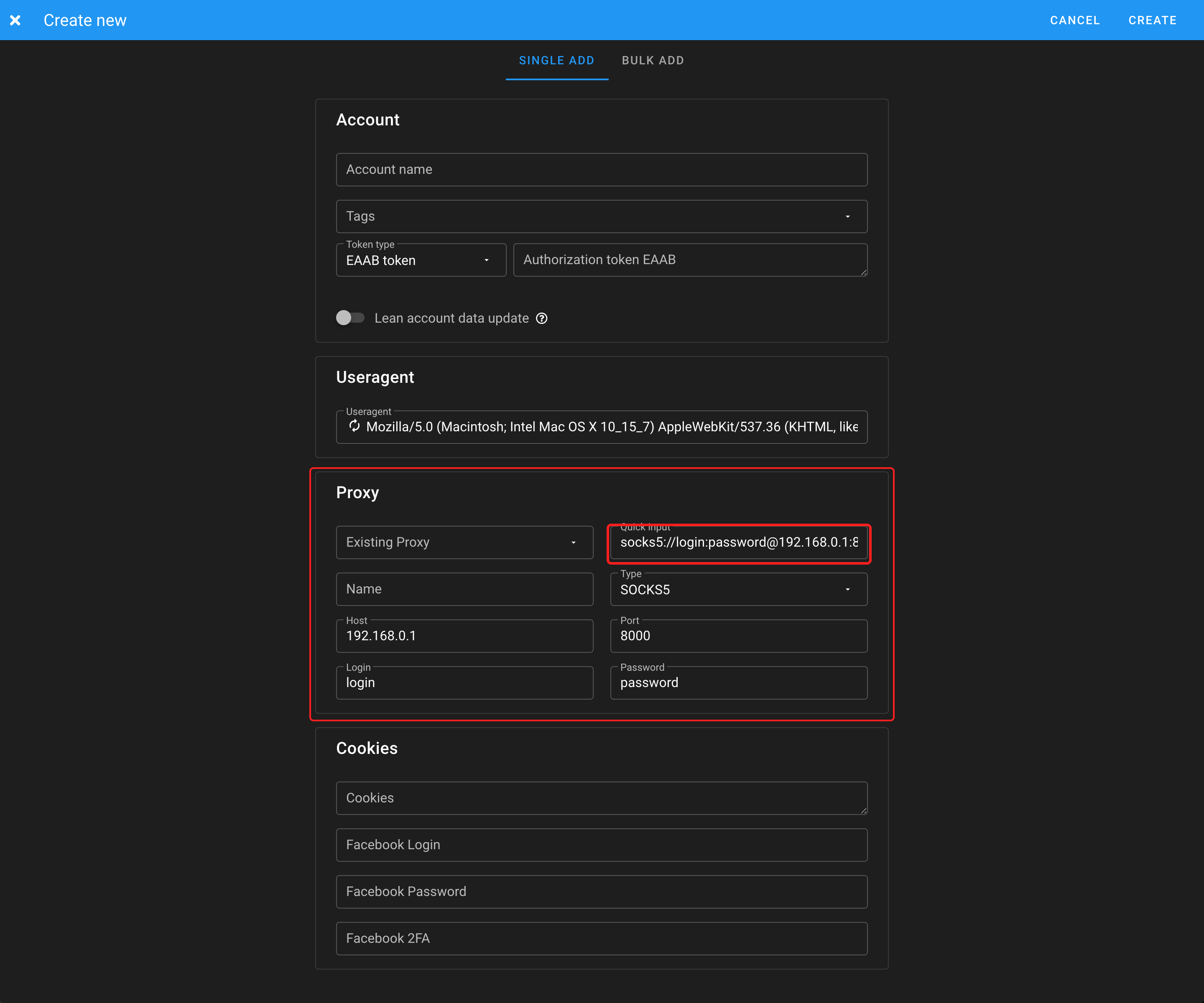
| Proxy | An Existing Proxy from the list or a new one: type, host, port, login, password. The Quick input field splits a proxy line into the fields for you. | Yes |
| Cookies | The account cookies in JSON, starting with [{. | Yes, if there is no token |
| Facebook Login, Password, 2FA | Email or phone, password and the 2FA secret key. | No |
If a required field is empty, Cloud highlights it in red and won't let you click Create. Required are the name, the proxy (type, host and port, or an existing proxy) and the EAAB token if you didn't paste cookies.

💡 Quick proxy input
Paste the proxy as one line, for example socks5://login:password@192.168.0.1:8000, and Cloud fills in the type, host, port, login and password by itself. All formats are in How to add and change proxies.
⚠️ "Failed to get the token by cookies automatically"
This happens when the cookies are outdated or the account is logged out. Log in to the account in the browser, take fresh cookies and try again. Or paste an EAAB token by hand.
📋 How to add many accounts
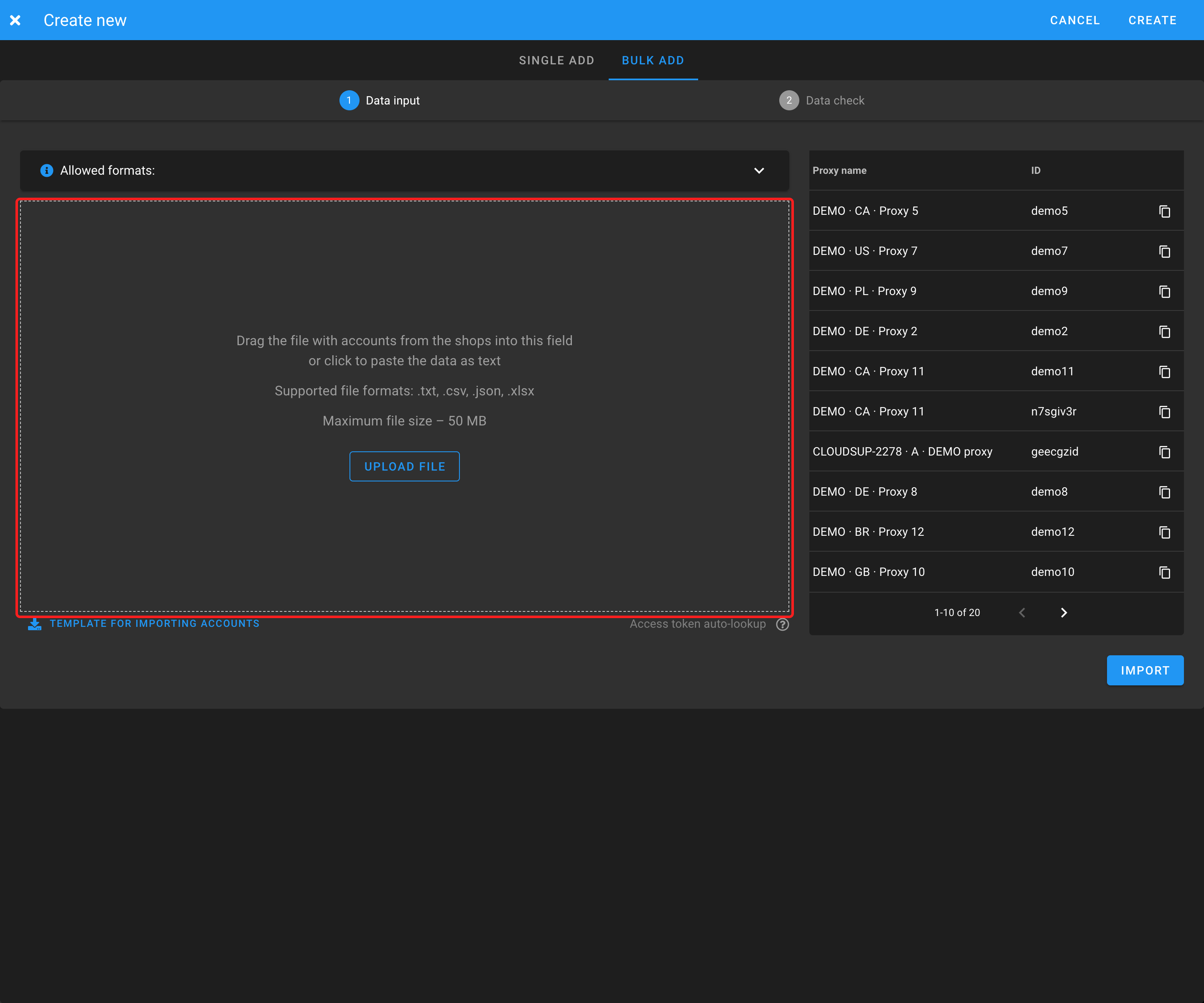
- Open Ads Manager → Accounts → Add account and switch to the Bulk add tab.
- Drag a file into the field, or click it and paste the lines as text. .txt, .csv, .json, .xlsx files up to 50 MB work. You can download an example via the Template for importing accounts link. On the right side of the window there is a table of your proxies with their IDs: you can put an ID in the line instead of the proxy itself.
- Click Import. Cloud splits the lines into fields and opens the Data check step.
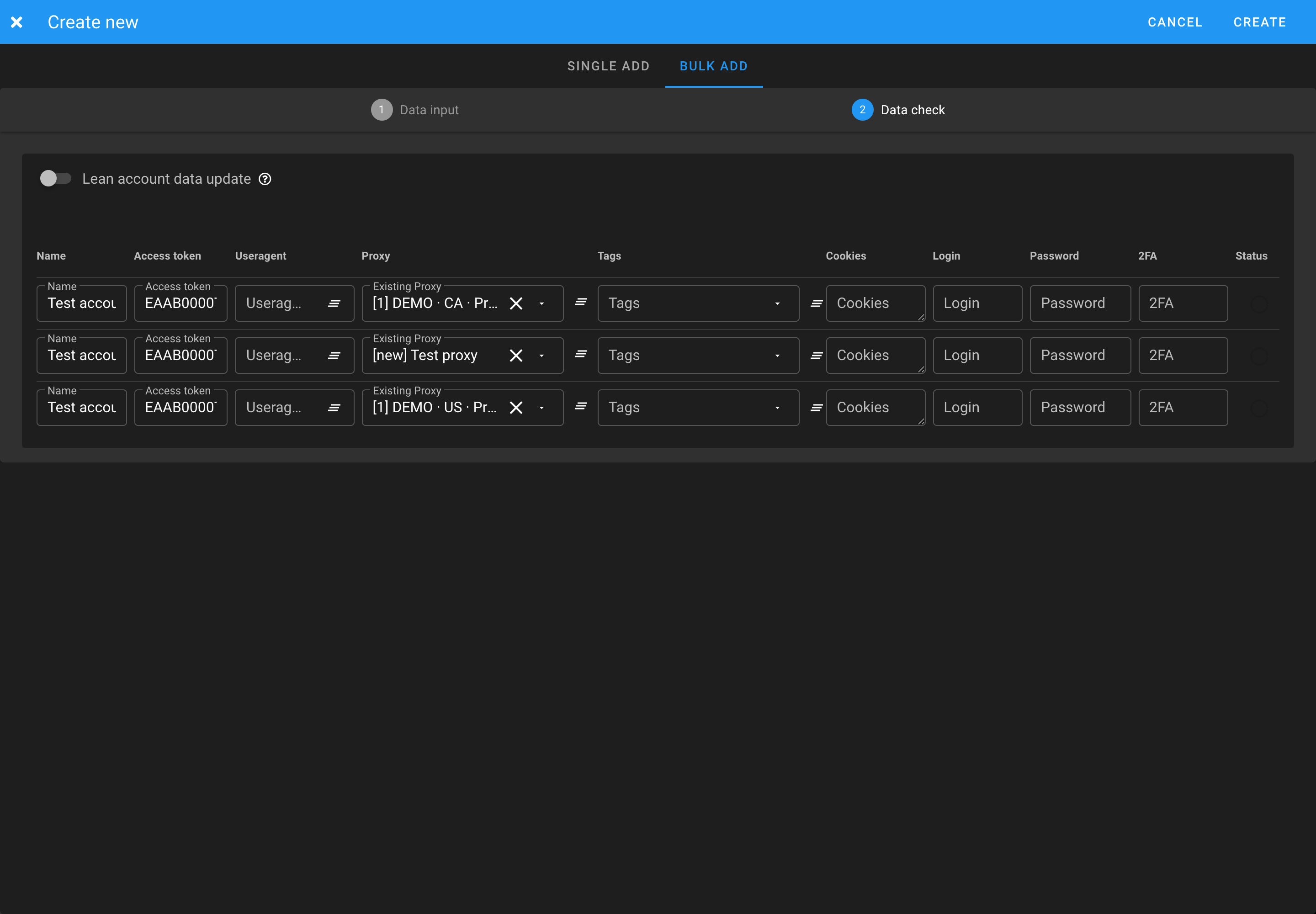
- Check the table: name, token, user agent, tags, cookies, login, password, 2FA and proxy. If some lines are missing data, Cloud shows the warning "Warning, some accounts are not valid". For accounts without a proxy, choose an existing proxy or add a new one.
- Click Create at the top of the window. The Status column shows which lines were added and which weren't.
ℹ️ How to read the “Status” column
- ✅ Green check: the account was added.
- ❌ Red cross: the account was not added. Click the cross to see the reason, fix the data and add this account again.
- If a line has no user agent, Cloud fills it in, and the token and the account are saved with the same user agent.
- The 2FA key from a .txt file goes into the 2FA field.
🧾 Line formats
Fields in a line are separated by two colons ::. The order of fields matters.
| Format | When to use |
|---|---|
Name :: access_token :: User agent :: proxy_id | The proxy is already in Cloud, you give its ID. |
Name :: access_token :: User agent :: http://host:port:login:password:name | HTTP proxy with login and password. |
Name :: access_token :: User agent :: socks5://host:port:name | SOCKS5 proxy without authorization. |
Name :: access_token :: :: http://host:port:login:password:name | Without a user agent. |
Name :: access_token :: :: http://host:port:login:password:name :: [{json cookie}] :: account login :: account password :: 2FA | The full set: proxy, cookies, login, password and 2FA. |
ℹ️ How to skip a field
Leave an empty space between the separators. For example, in the line Name :: :: User agent :: :: [{json cookie}] :: the token, proxy and password are skipped. Cloud gets the token from the cookies, and you can fill in the proxy and password at the check step. A proxy must be added.
⚠️ If some accounts weren't added
The message "For some accounts, it was not possible to identify tokens. They have not been added." means Cloud couldn't get a token from those accounts' cookies. Take fresh cookies for them and add them again.
💡 Seller lines in a different format
If Cloud didn't recognize the file, send support an example line with the real data replaced by made-up values.
💳 Limits by plan
| Plan | Bulk add |
|---|---|
| Light | 10 times a month |
| Start | 20 times a month |
| Base and Pro | Unlimited |
| Trial | 20 accounts in total for the trial, by any method |
- One time = one click on Create in the Bulk add tab, no matter how many lines there are.
- The counter resets at the start of a new calendar month.
- When the limit is used up, the "Want to import more accounts per month?" window opens with the Change tariff button. You can still add accounts one at a time.
🏢 How to connect an account with a system token
A system token is issued in Business Manager for a system user. With it, Cloud works through the official Meta API, and no cookies are needed.
- Create your own app in Meta for Developers.
- In Business Manager, open Business settings → System users and create a system user.
- Assign all assets to it: ad accounts and pages.
- Generate a token for your app: expiration Never, all available permissions.
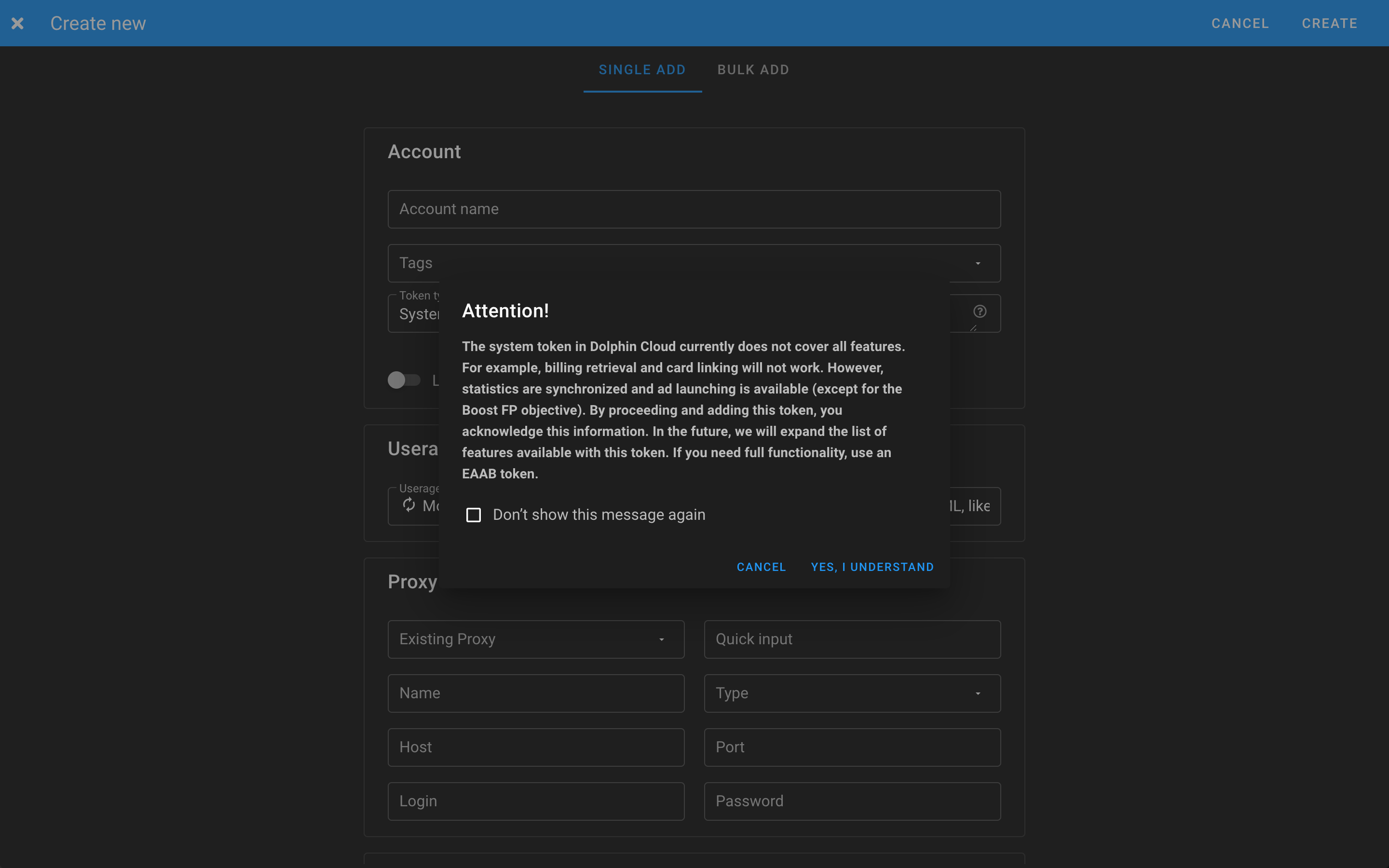
- In Cloud, click Add account, stay on the Single add tab and choose the System token type. The first time you choose it, a warning appears: click Yes, I understand.
- Paste the token, set the user agent and proxy and click Create.
| ✅ Works with a system token | ❌ Doesn't work |
|---|---|
| Syncing stats, ad accounts and campaigns | Getting billings and ad account payment |
| Launching ads | The "Boost FP" objective and launching in several languages |
| Managing campaigns, ad sets and ads | Creating fan pages |
| Spending limit, linking and removing cards, switching to prepayment, Risk Payment, fan page bio and notifications: through your EAAB-token account (see below) | Professional mode, “Verify card”, “Make primary”, linking a card to a BM |
🔁 Actions through your EAAB-token account
Facebook does not allow some actions with a system token. Dolphin {Cloud} performs them through your account with a regular EAAB token that has access to this ad account or fan page:
- setting a spending limit;
- linking and removing a card, linking a BM card to the ad account;
- switching an ad account to prepayment and confirming Risk Payment;
- fan page bio and turning off fan page notifications.
You don't need to turn anything on or restart anything. Cloud uses only your own accounts with the ACTIVE status, never other users' accounts. If there is no suitable account, the action fails with Account token type does not support this action: add an EAAB-token account that has this ad account or fan page.
ℹ️ Bulk duplication
Meta limits the number of actions for a system token. If you duplicate many campaigns or ad sets at once, the task may run slower. If you need every feature, use an EAAB token and cookies.
🐬 How to refresh cookies from Dolphin {Anty}
If your accounts live in Dolphin {Anty} profiles, Cloud can take fresh cookies straight from the profile. The integration is available to all roles except Farmer.
1️⃣ Connect your Dolphin {Anty} account
- Issue an API key in Dolphin {Anty}. Set it for a year so you don't have to reissue it often.
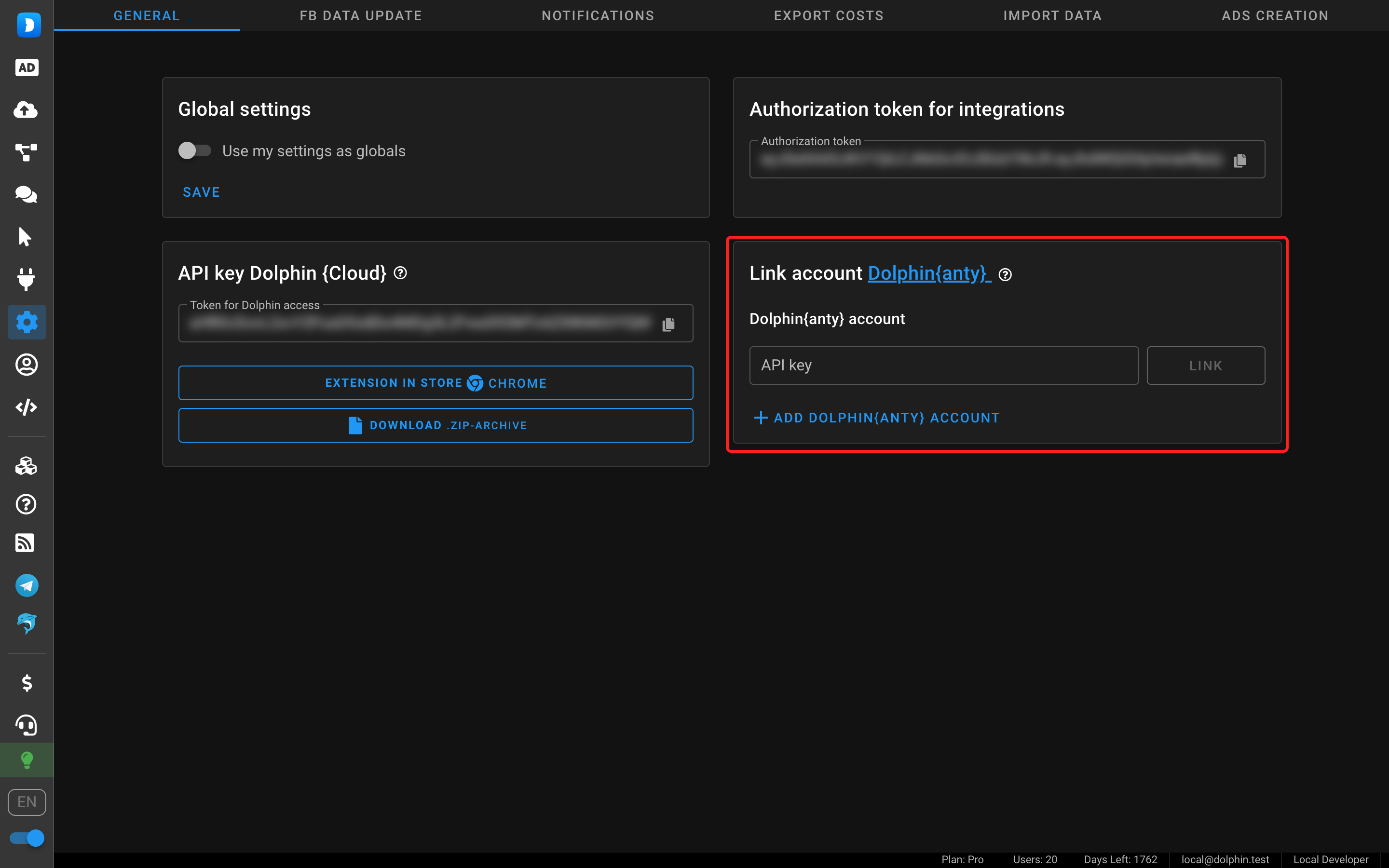
- In Cloud, open Settings → General, the Link account block.
- Click Add Dolphin{anty} account, paste the key into the API key field and click Link.
- You can link up to 3 Dolphin {Anty} accounts, that is, up to 3 separate teams.
- Your Dolphin {Anty} plan must support API access. Otherwise you'll see the error "Your current Dolphin{anty} plan does not support API access".
⚠️ If you change or delete the key
Cloud accounts lose their link to the profiles of that Anty account. If you connect the same key again later, the links come back by themselves.
2️⃣ Link a profile to an account
- First add the account to Cloud in any way.
- Open it by clicking its name in the table. The Anty profile can only be chosen in the window of an account that's already added: it isn't there when you create a new one.
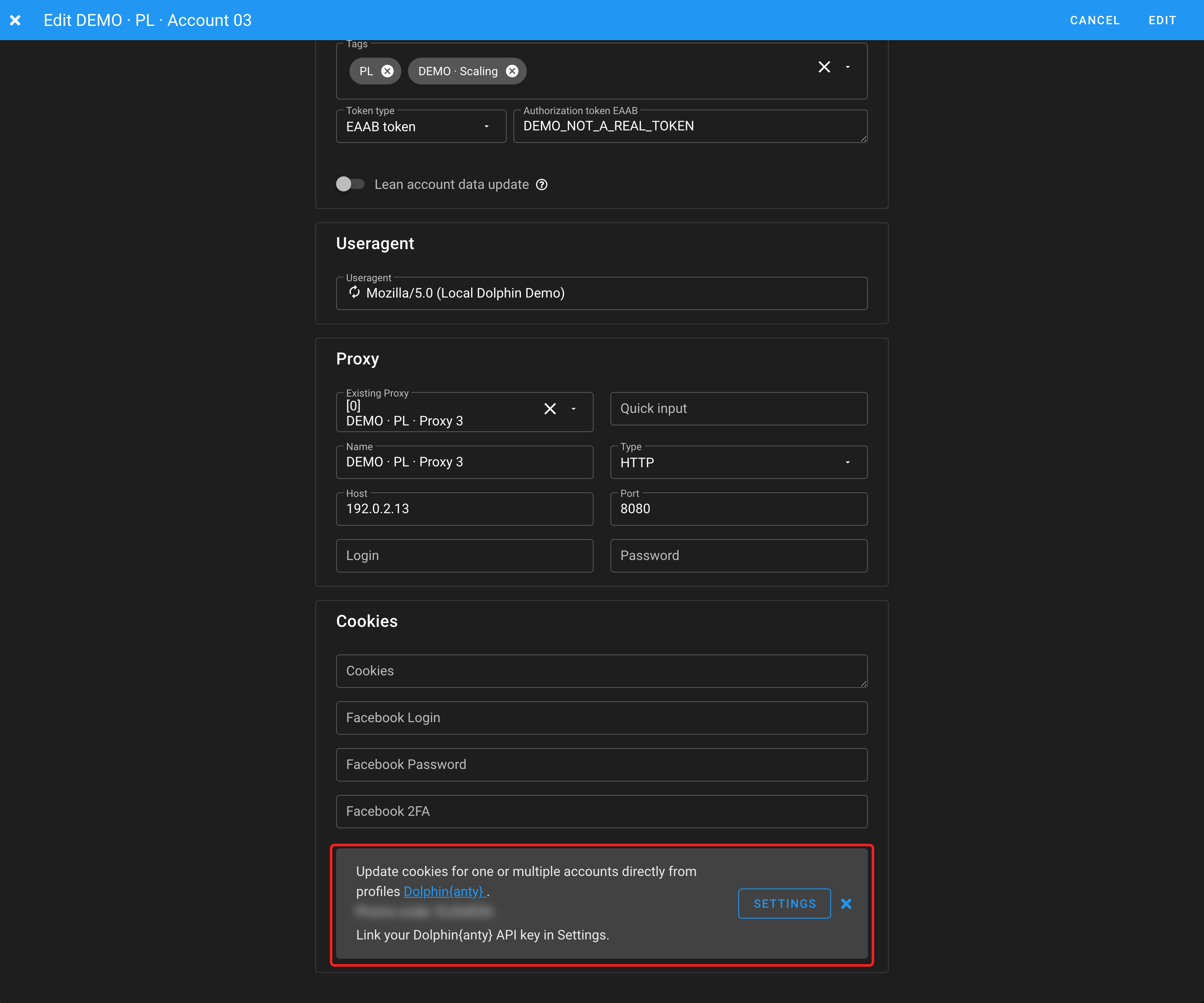
- In the Cookies block, choose the Dolphin{anty} account and the Profile.
- Click Edit to save. If the cookies go stale, Cloud takes fresh ones from the chosen profile by itself.
If no Dolphin {Anty} account is linked in the settings yet, the window shows "Link your Dolphin{anty} API key in Settings." instead of the profile picker. Do step 1 first.
3️⃣ Refresh cookies for many accounts at once
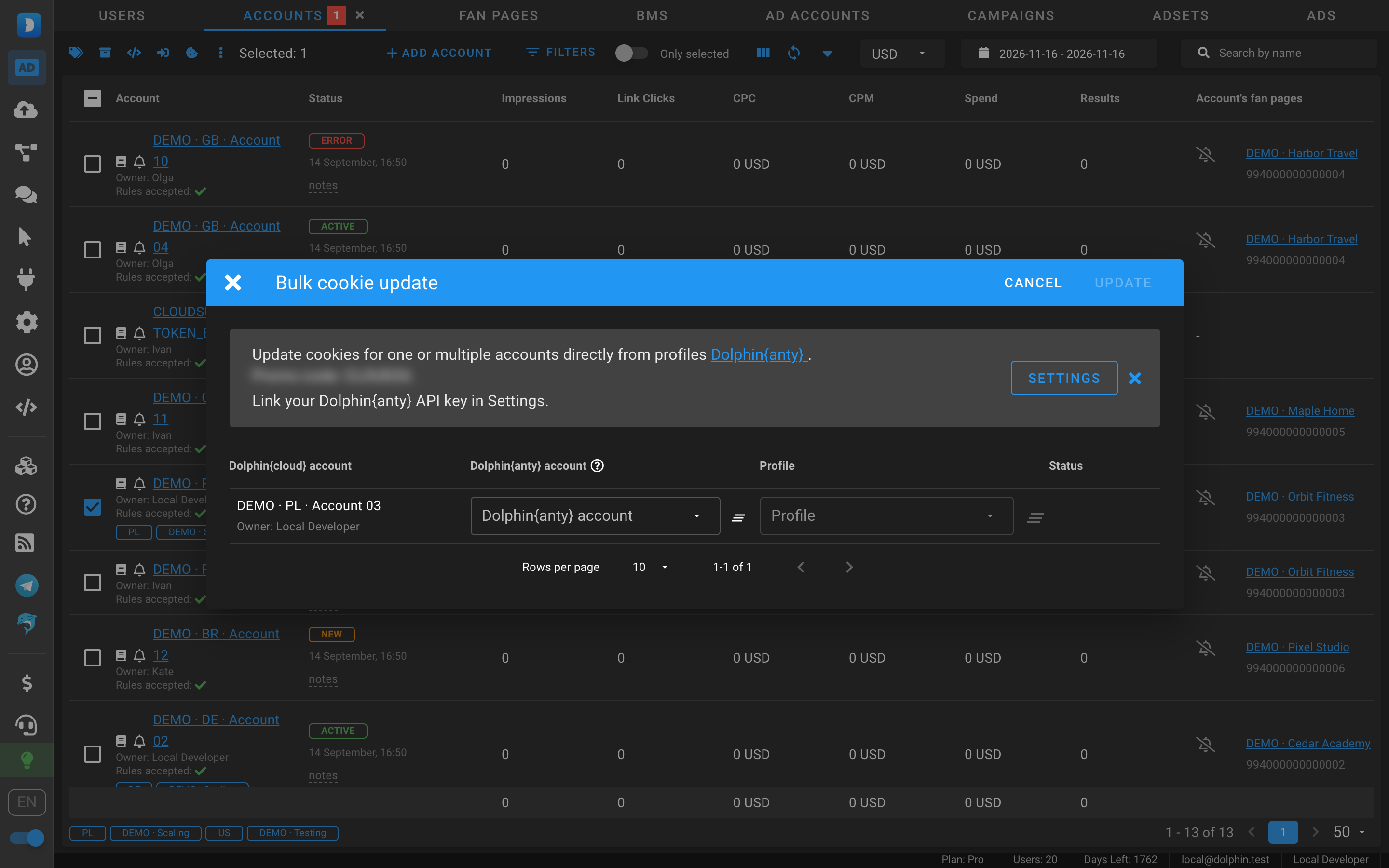
- On the Accounts tab, tick the accounts you need.
- Click the cookie icon Update cookies from Dolphin{anty} above the table.
- In the Bulk cookie update window, choose the Anty account and profile for each account. The Copy to other accounts button sets the same Anty account for the other lines.
- Click Update, then choose Renew token in the ⋮ menu.
ℹ️ Good to know
A profile can only be linked in the window of an account that's already added or in the "Bulk cookie update" window. This field isn't there when you add accounts, one at a time or as a list.
🧩 How to add an account with the Dolphin {Cloud} extension
The extension sends the account from an open browser profile to Cloud together with its token, cookies and proxy.
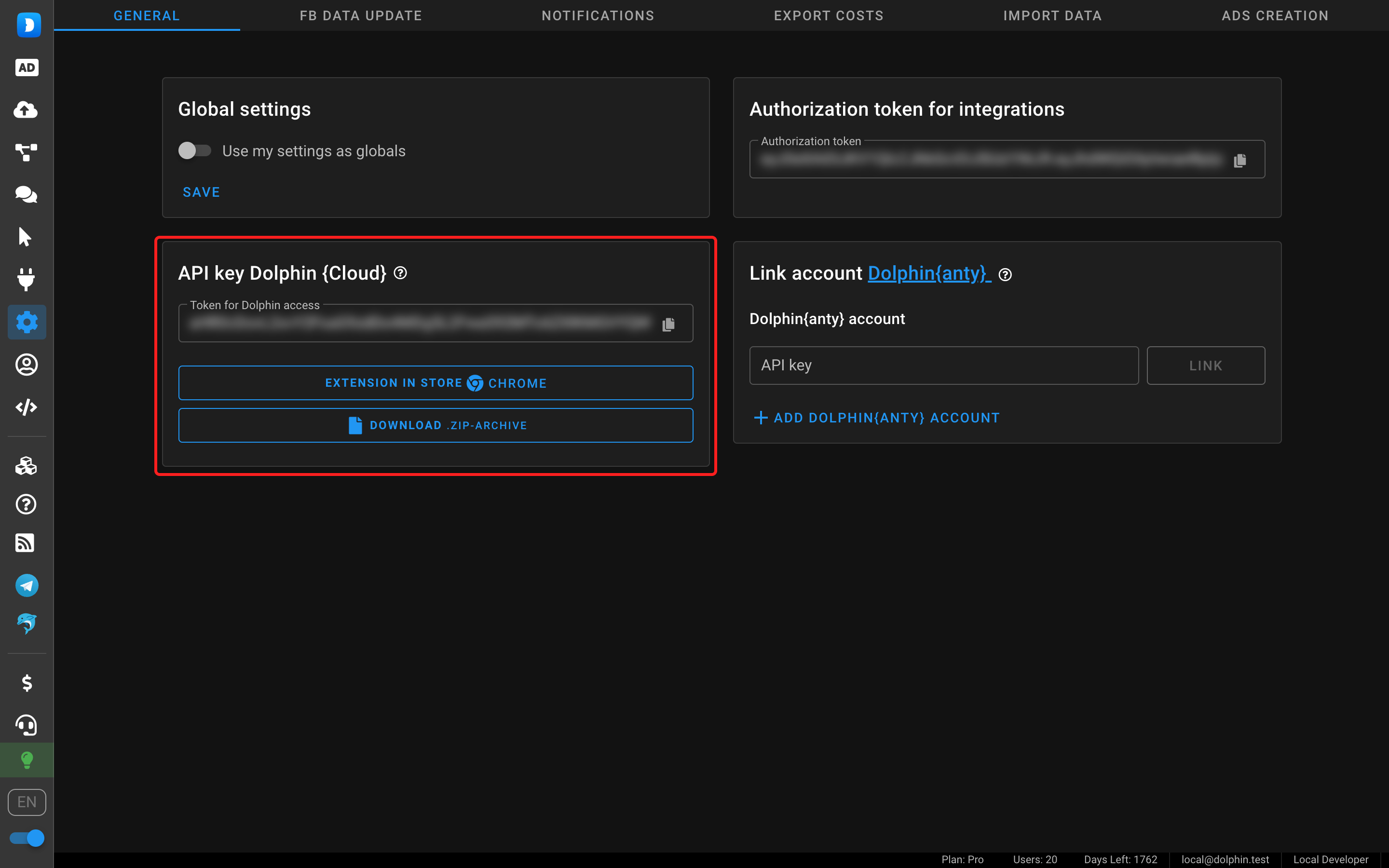
- In Cloud, open Settings → General, the API key Dolphin {Cloud} block, and copy the key.
- Install the extension from the Chrome Web Store or download the .zip archive in the same block.
- In Dolphin {Anty}, paste the key into the Anty settings, and it gets into the extension by itself. In another browser, open the extension, paste the key and click Connect.
✅ What to do right after adding
- Wait for the ACTIVE status. NEW means the check is still running.
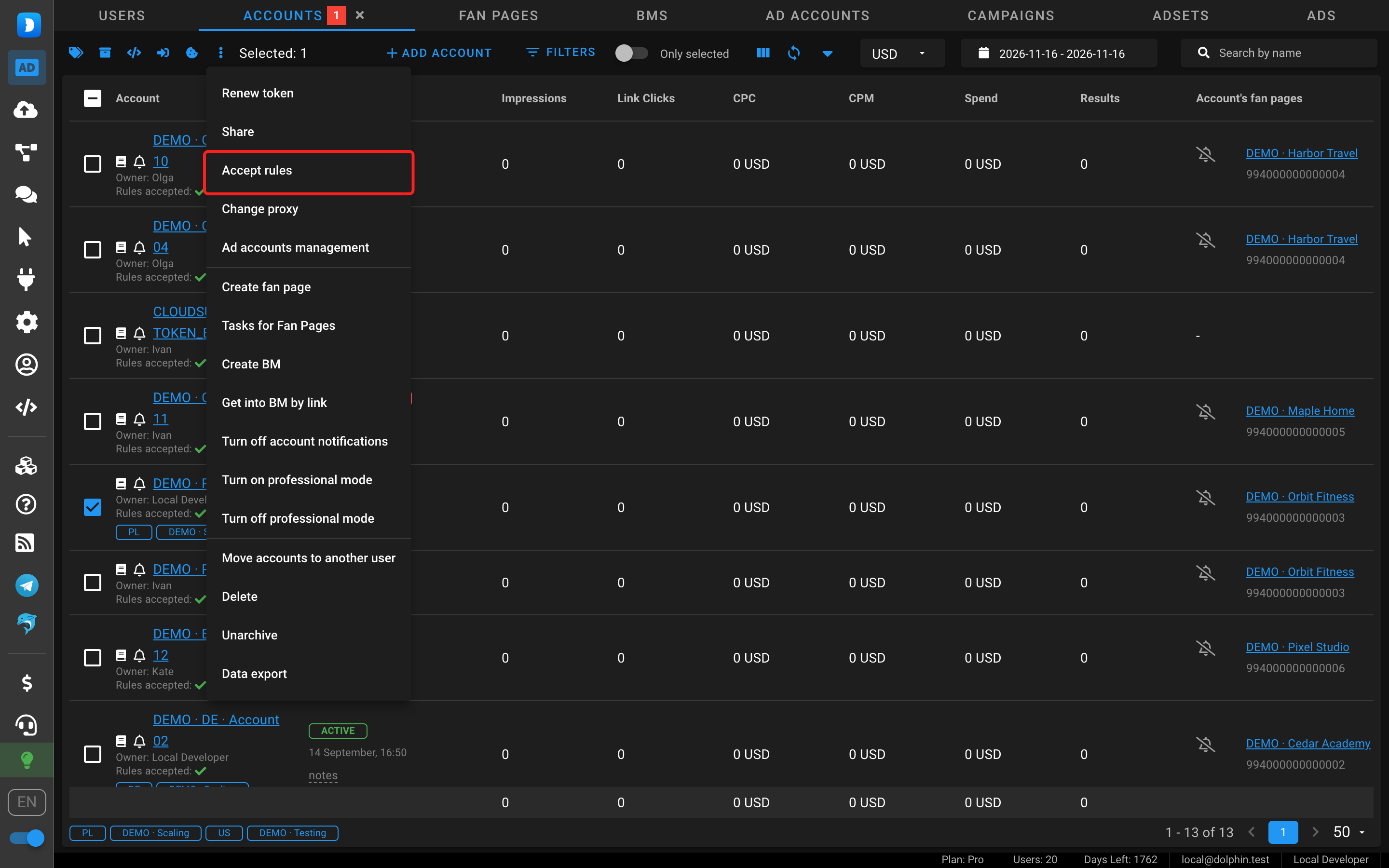
- Tick the accounts and choose ⋮ → Accept rules. Facebook asks you to accept the non-discrimination policy before running ads, so it's better to do it right away.
- Click Update FB data to pull in ad accounts, BMs and stats.
- Check that the account doesn't show "No FB ID!". If it does, click the Check tokens icon above the table.
- If accounts get logged out often, turn on Lean account data update for them.
What the statuses mean and all the account actions are covered in How to work with accounts in Ads Manager.
🆘 Common errors
| What you see | Why | What to do |
|---|---|---|
| "Cookies do not contain Fb entries." | The cookies have no Facebook entries | Export the cookies while facebook.com is open |
| "The c_user parameter is missing" | The account wasn't logged in when you exported | Log in to Facebook and take the cookies again |
| "Failed to get the token by cookies automatically" | The cookies are outdated or the account is logged out | Fresh cookies or an EAAB token by hand |
| Red fields in the "Proxy" block | The type, host or port is missing, or the port isn't a number from 1 to 65535 | Check the proxy line |
| "Your proxies have the wrong port format" | The port contains letters or symbols | Use digits only for the port |
| "Trial version limit exceeded" | You've already added 20 accounts on the trial | Choose and pay for a plan |
| ERROR status or "No FB ID!" | The token failed the check, most often because of the proxy | Check the proxy and click the "Check tokens" icon above the table |
❓ FAQ
Do I need to paste an EAAB token?
No, if you pasted cookies. Cloud gets the token by itself. A token is needed only if there are no cookies or they couldn't be read.
Can I add an account without a proxy?
No. Every account needs a proxy.
Can several accounts use one proxy?
Yes. How many exactly, see How to choose proxies and share them with your team.
When can I bulk add accounts again on Light or Start?
From the start of the next calendar month. You can add accounts one at a time right now.
Why don't I see the Dolphin {Anty} block in the account window?
The block is only in the window of an account that's already added: it isn't there when you create a new one. Also, the integration isn't available to the Farmer role. For other roles, the profile picker appears once at least one Dolphin {Anty} account is linked in the settings.
The account was added but is stuck in ERROR. What should I do?
Step-by-step instructions are in How to work with accounts in Ads Manager.
🧭 What's next
- 🍪 Cookies: How to get Facebook account cookies
- 🌐 Proxies: How to add and change proxies
- 👤 Working with accounts: How to work with accounts in Ads Manager
- 🤝 Team access: How to give an employee access to accounts
🐬 Add your first accounts and launch ads. Try Dolphin {Cloud}