How to connect to the API: keys, tokens and limits
Updated:
⚡ In short
- The API key and integration token are in «Settings» → «General» in Dolphin {Cloud}.
- The API documentation is published on Postman.
- Request data no more than once every 20–30 minutes.
The API lets you connect Dolphin {Cloud} to your scripts, trackers and other services. Here is where to find the keys, what the API can do and which limits to keep in mind.
ℹ️ Plan
The “API” menu item is available on all paid plans, not on the trial.
🔑 Where to find the keys
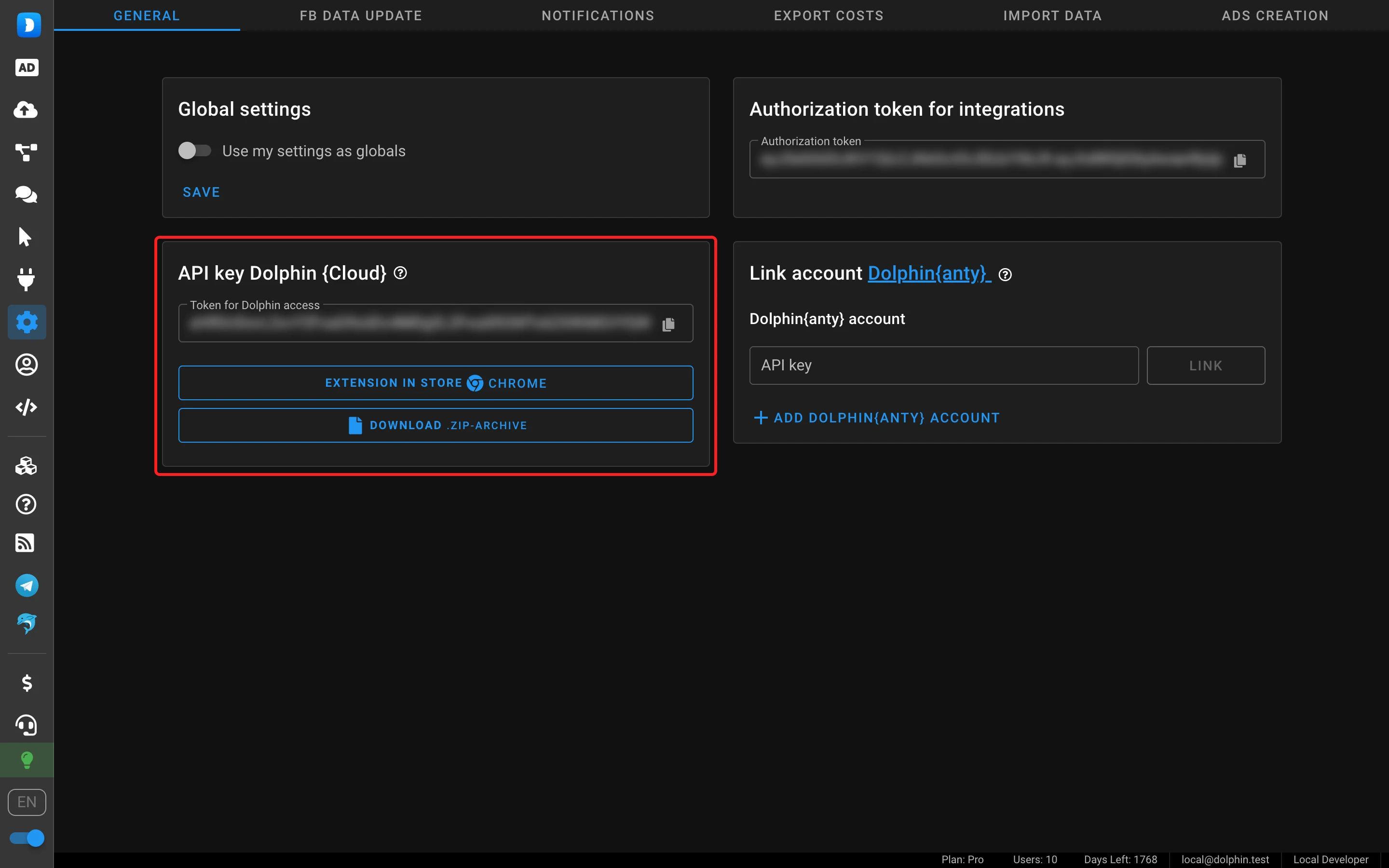
- Open «Settings» → «General».
- Find the «Dolphin {Cloud} API key» or «Authorization token for integrations» block.
- Copy the key you need and paste it into the service you are connecting.
| Key | What it is for |
|---|---|
| 🧩 Dolphin {Cloud} API key | Connecting the Dolphin {Anty} extension and integrations |
| 🔐 Authorization token for integrations | Authorizing external services and scripts in the API |
⚠️ Important
Never share your keys: anyone with them can access your account data.
📖 Documentation
- The API section is in the left menu.
- Full method reference: Postman documentation.
⚙️ What you can do via the API
- Get statistics for accounts and campaigns.
- Work with bundles.
- Change the page in ads.
ℹ️ Good to know
The team owner's key returns statistics for the whole team. A member's key returns only their own data.
⏱️ Limits
⚠️ Important
- Request data no more than once every 20–30 minutes, otherwise Facebook may throttle requests.
- Drafts are not available via the API.
- Facebook may temporarily block the API for an account for 12–48 hours. If that happens, wait and try again later.
💡 Tip
To send conversions from a tracker, postbacks are easier, and for regular data refresh use the built-in auto-update.
📚 Read also
- 👉 Adding accounts: file, system token and Dolphin {Anty}
- 👉 Importing data from trackers
- 👉 Automatic FB data refresh
🐬 Automate your ad workflow with the API: try Dolphin {Cloud}