How to add users to Dolphin {Cloud} and assign a teamlead to a buyer
Updated:
⚡ In short
- A team has 4 roles: Administrator, Teamlead, Buyer and Farmer. The role decides what a person sees and what they can do.
- Only an Administrator adds users: Ads Manager → Users → Add user.
- A teamlead is assigned to a buyer in the buyer's card, in the Teamlead field. After that the teamlead sees the buyer and works with the buyer's accounts.
- Users are available from the Base plan. One user is already included in the plan, the rest are bought on top.
In Dolphin {Cloud} the whole team works in one shared account. Each employee signs in with their own email and password and sees only what their role allows. Below we cover all roles, adding users, assigning a teamlead, and what happens when you change a role or delete a user.
👥 Which roles there are
| Role | Who it is for | In short |
|---|---|---|
| 👑 Administrator | Team owner and managers | Sees everything and everyone in the team, manages users. |
| 🧑💼 Teamlead | Head of a group of buyers | Sees themselves and their buyers, works with their accounts. |
| 🎯 Buyer | Media buyer who runs ads | Works only with their own accounts, does not see others. |
| 🌱 Farmer | Employee who prepares accounts | Works with accounts, BMs and ad accounts, without ads and campaign stats. |
👑 Administrator
- Sees all team users on the Users tab, together with their stats.
- Sees the accounts of every employee: buyers, teamleads and farmers.
- The only role that adds, edits, deletes and restores users and changes their roles, passwords and teamleads.
- Can turn on Global settings → Use my settings as globals. Then all other employees work with the administrator's settings and cannot change them on their side.
- Full access to all sections: Ads Manager, creating ads, auto-rules, comments, postbacks, proxies, settings.
ℹ️ Team owner
The person who registered the account is always an Administrator: you cannot change their role or delete them. Only the owner sees the Profile section with the plan and payments. Other administrators can manage users, but only the owner can edit their own card.
🧑💼 Teamlead
- On the Users tab sees themselves and the buyers the administrator assigned to them, with their stats.
- Sees their buyers' accounts and works with them: ad accounts, campaigns, ad sets, ads, comments, ad creation.
- Also gets access to accounts the buyer adds later.
- Sees their buyers' proxies and can share proxies within their group.
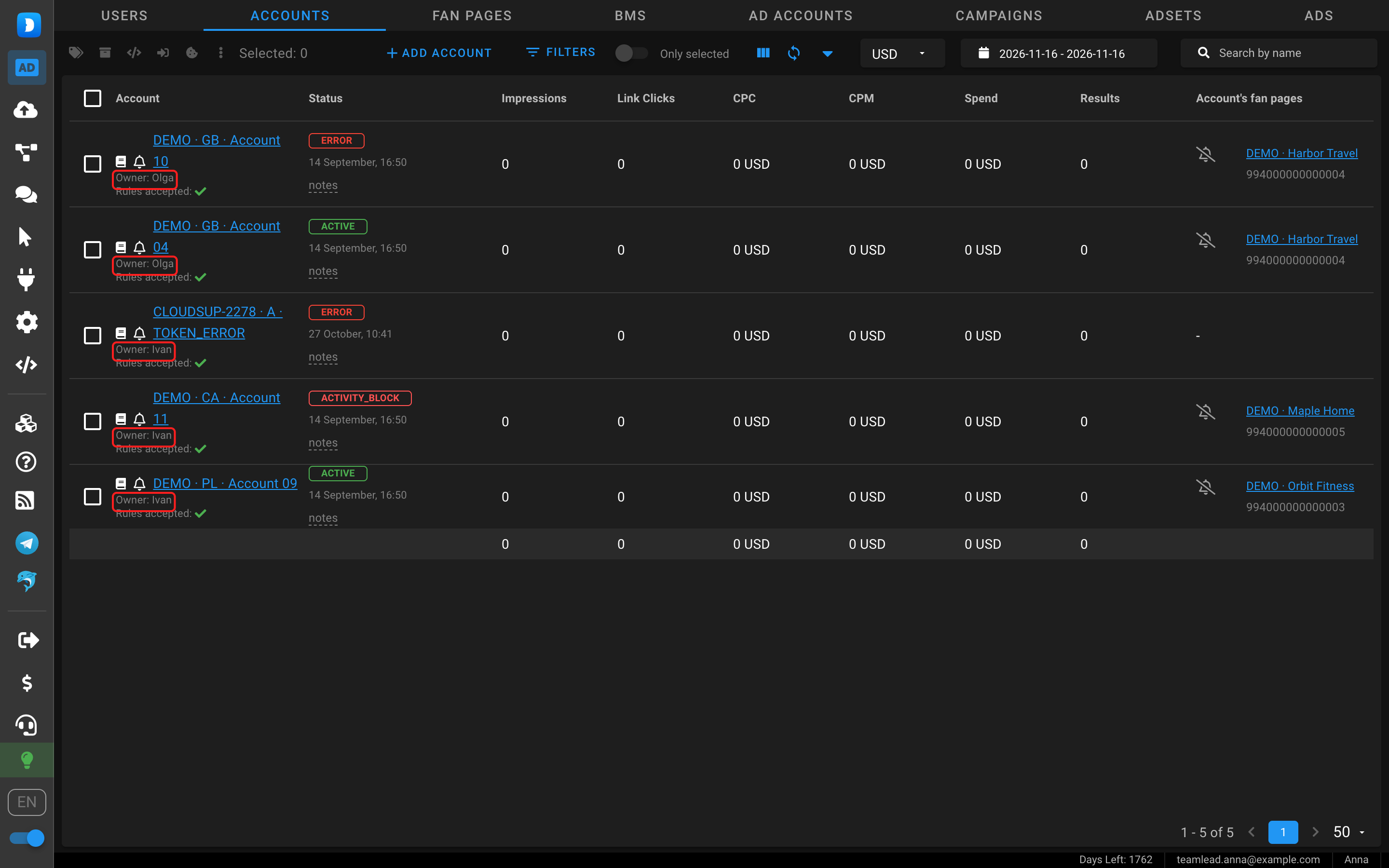
- Buyers' accounts show an Owner label with the buyer's name, so they are easy to tell apart from the teamlead's own.
- In the ad creation queue sees their own jobs and their buyers' jobs.
⚠️ What a teamlead cannot do
- Add, delete or edit users, or assign buyers to themselves. The administrator does that.
- See other teamleads' buyers or other groups.
- Turn on global team settings.
🎯 Buyer
- Works with their own accounts and with accounts shared with them.
- Has all working sections: Ads Manager, creating ads, auto-rules, comments, postbacks, proxies, settings (except global ones).
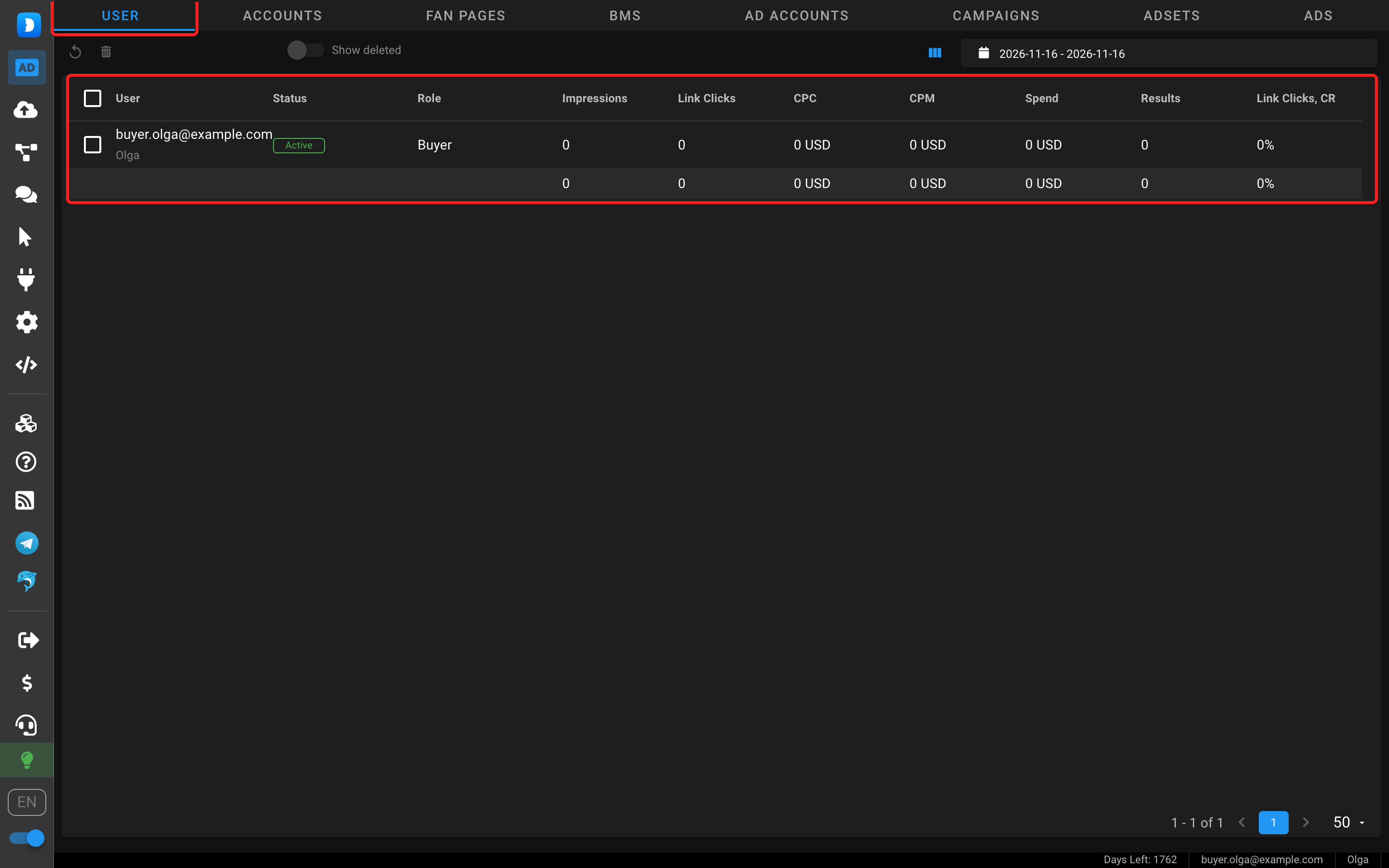
- The tab is called User: it shows only the buyer and their stats.
- Does not see colleagues' accounts, proxies or ads unless they are shared.
💡 Teamlead for a buyer
A buyer can have one teamlead. Buyer is the only role that has the Teamlead field.
🌱 Farmer
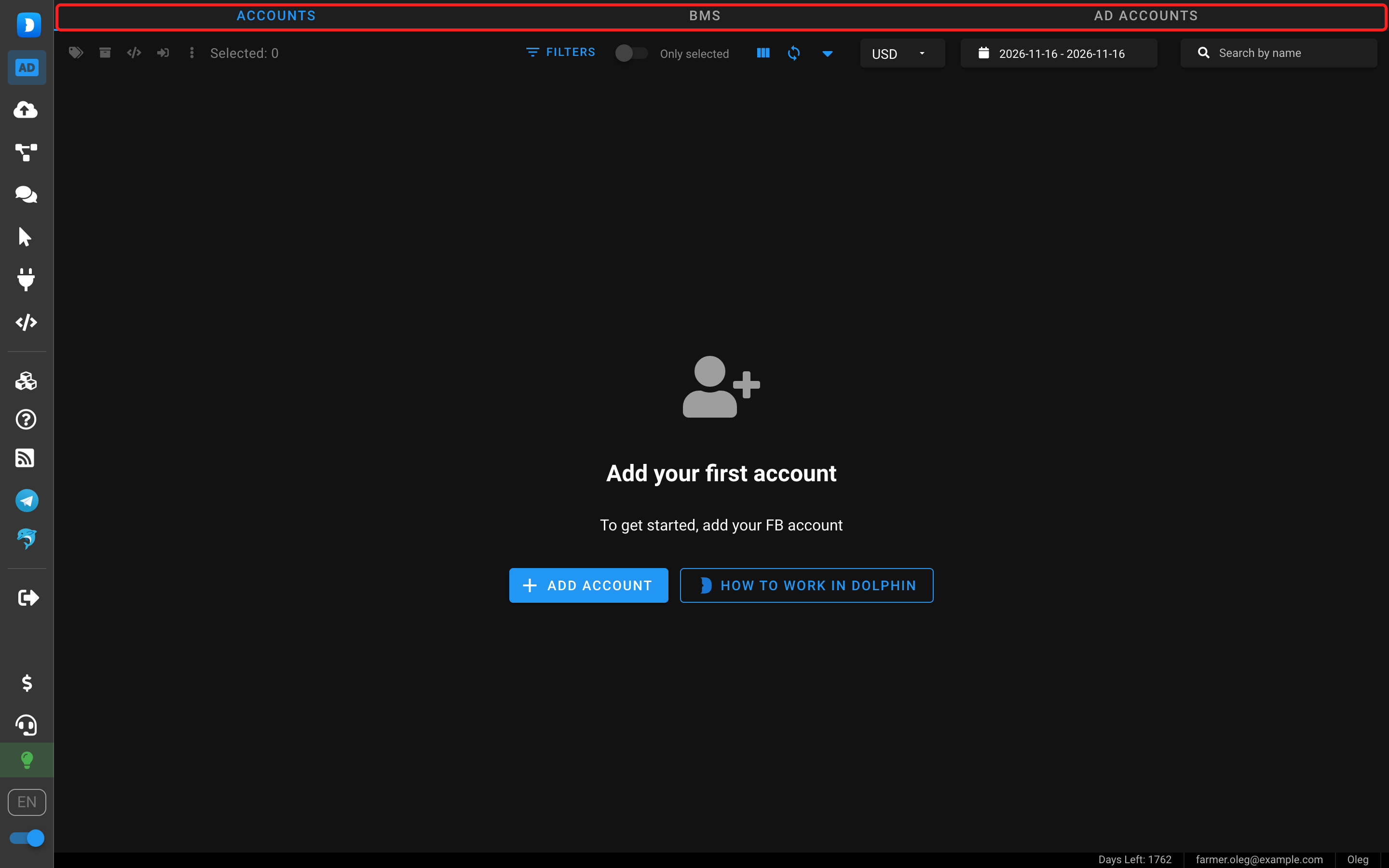
- In Ads Manager sees only the Accounts, BMs and Ad accounts tabs.
- Adds and prepares accounts to hand over to buyers: works with BMs and ad accounts, attaches payment methods.
- Does not see the Users, Fan pages, Campaigns, Adsets, Ads tabs or the Settings and Profile sections.
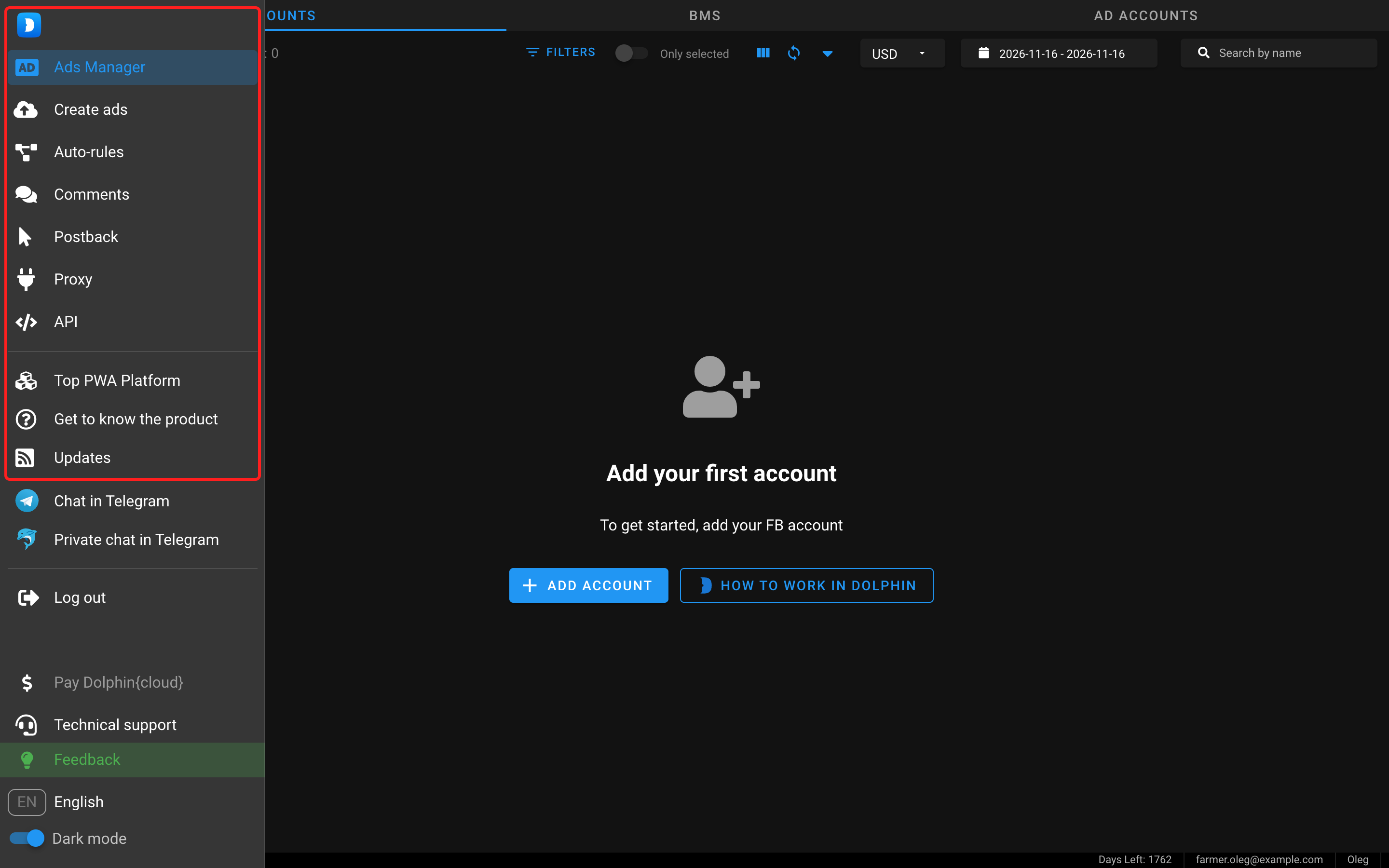
- Creating ads, comments and campaign stats are not available to a farmer. The Create ads and Comments items are visible in the left menu but open empty.
- Administrators see the farmer's accounts.
📊 Roles compared
| What is allowed | Admin | Teamlead | Buyer | Farmer |
|---|---|---|---|---|
| «Users» tab | ✅ whole team | ✅ self and buyers | ☑️ self only | ❌ |
| Add, edit, delete users | ✅ | ❌ | ❌ | ❌ |
| Whose accounts they see | Everyone's | Own and buyers' | Own | Own |
| Accounts, BMs, ad accounts | ✅ | ✅ | ✅ | ✅ |
| Fan pages, campaigns, ad sets, ads | ✅ | ✅ | ✅ | ❌ |
| Creating ads | ✅ | ✅ | ✅ | ❌ |
| Comments | ✅ | ✅ | ✅ | ❌ |
| «Settings» section | ✅ | ✅ | ✅ | ❌ |
| Global settings for everyone | ✅ | ❌ | ❌ | ❌ |
| Profile, plan, payments | Owner only | ❌ | ❌ | ❌ |
Sections that depend on the plan (creating ads, auto-rules, comments) are available to roles only if the team's plan includes them.
💳 How many users you can add
- On the Light and Start plans you cannot add users. You need Base or Pro.
- One user (you) is already included in the plan. If you buy N additional users, the license has N+1 seats.
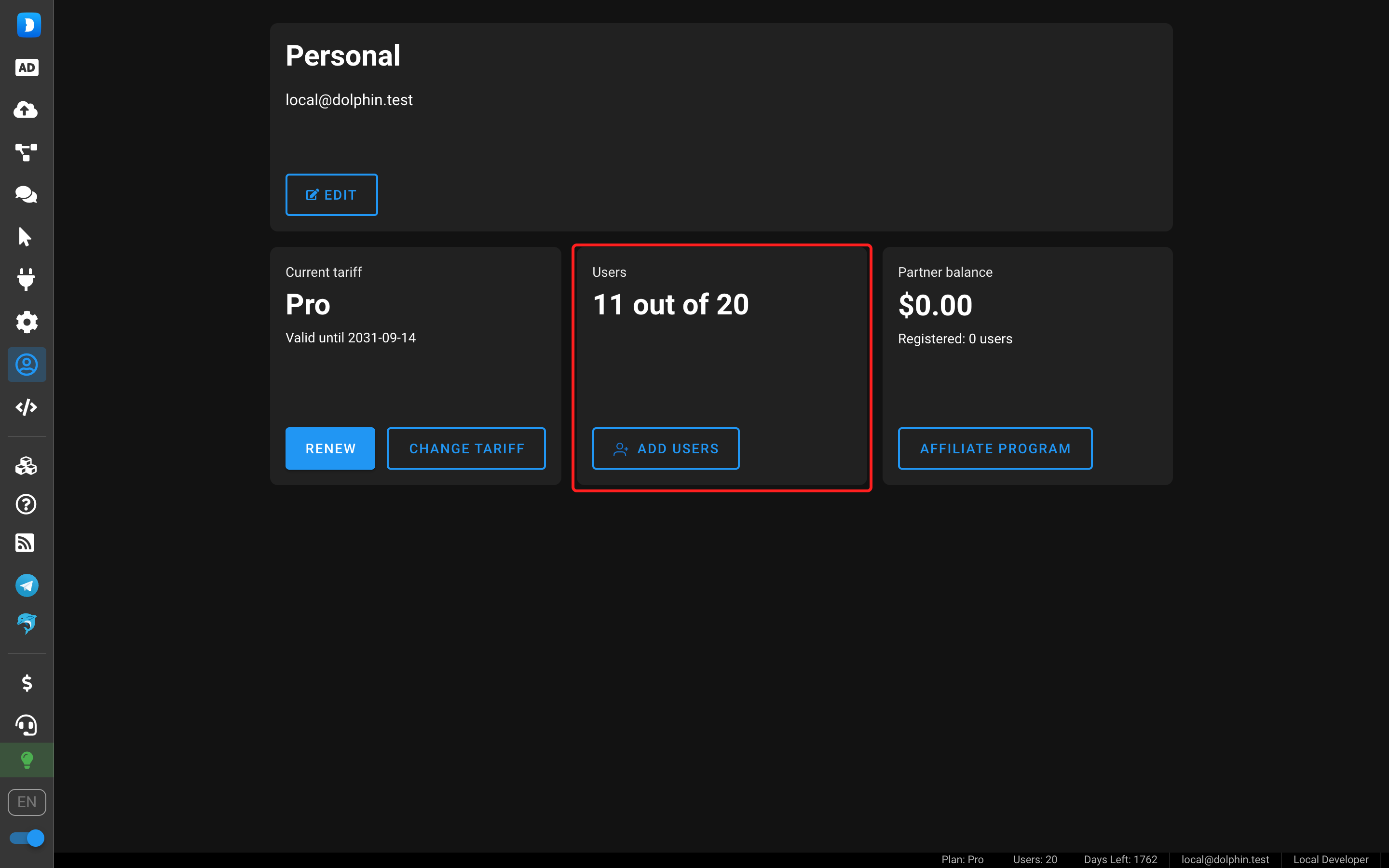
- How many seats are taken is shown in Profile → Overview, in the Users block («2 of 5»).
- When seats run out, the Add user button turns grey and shows a hint. Buy more seats: Profile → Overview → Users → Add users.
📖 More about plans: How to choose a plan and pay for your subscription.
➕ How to add a user
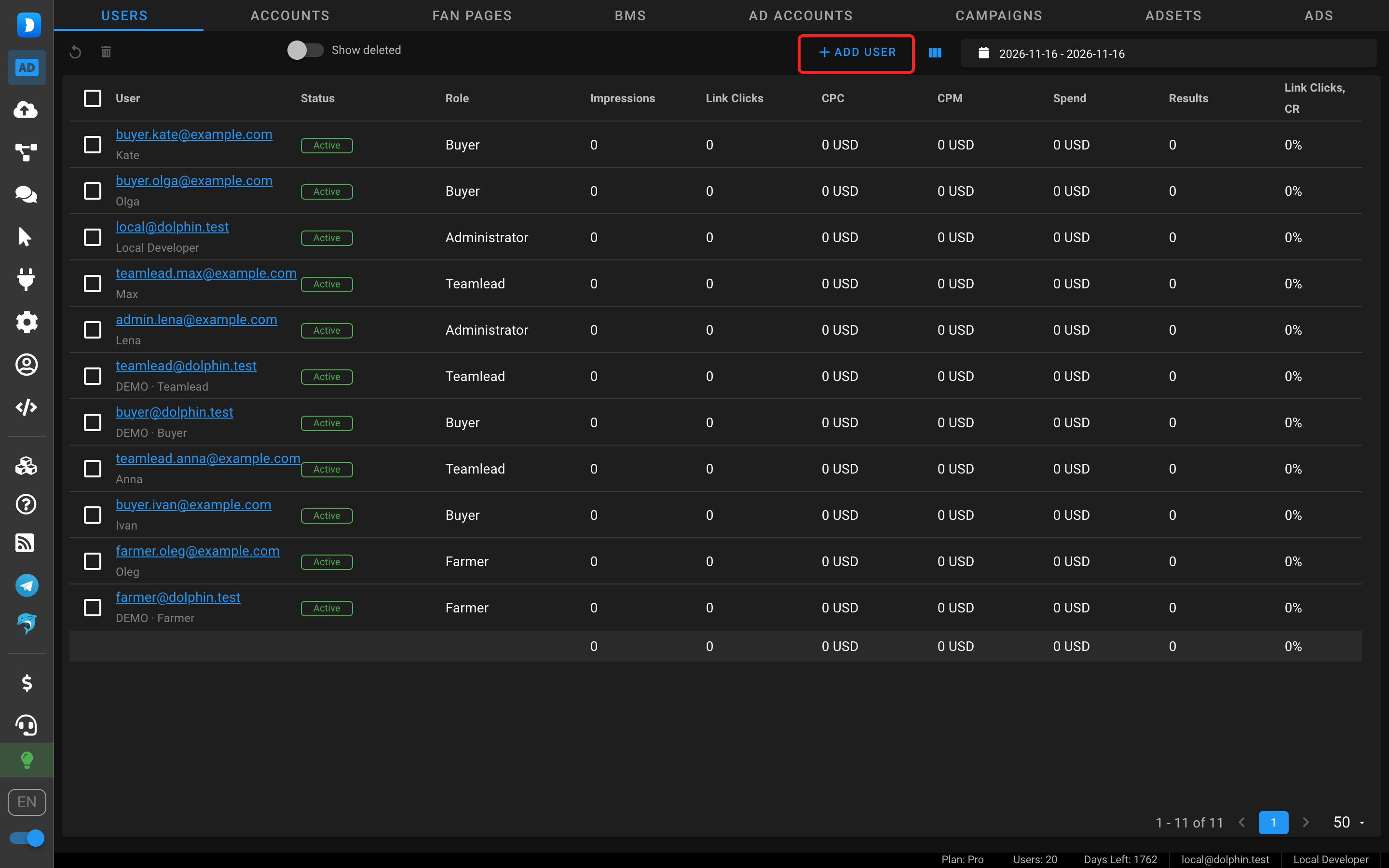
- Open Ads Manager and go to the Users tab.
- Click Add user on the right above the table.
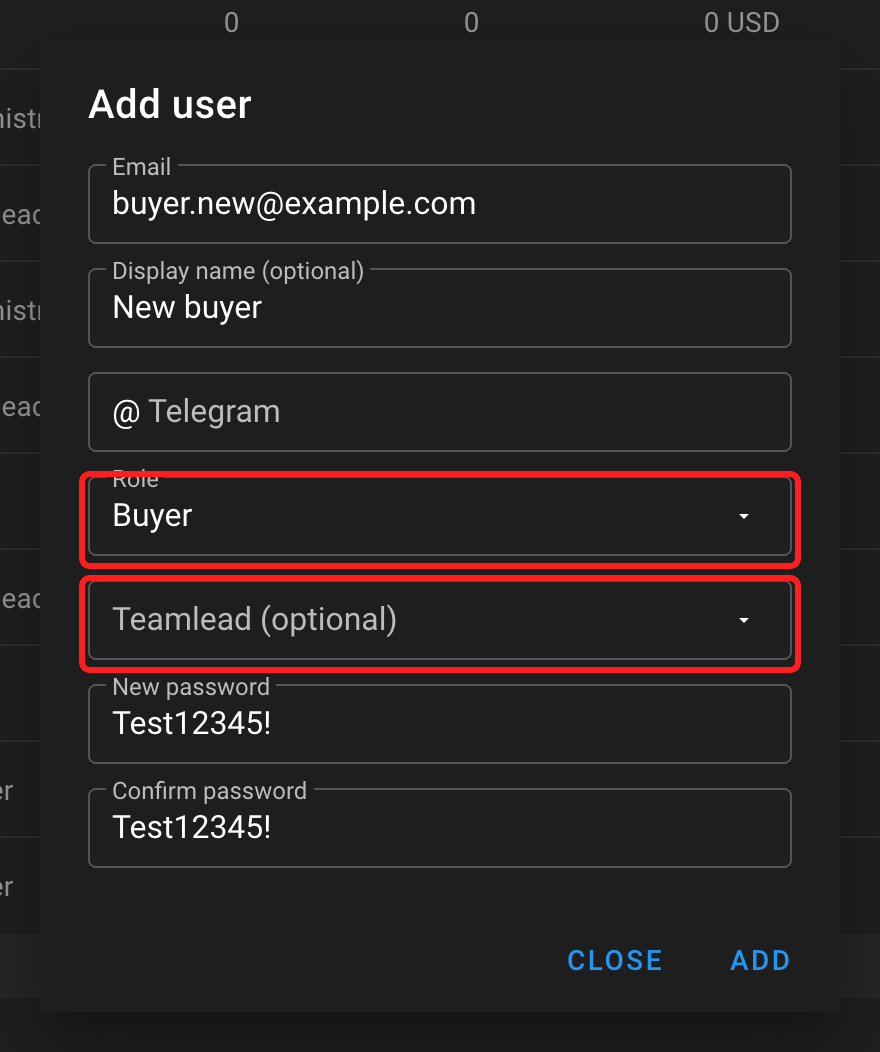
- Fill in the form:
- Email: the employee's login. It must be unique across the whole service.
- Display name (optional). Shown under the email in the users list.
- Telegram: optional, enter it without the @ sign. One Telegram cannot be set for two users.
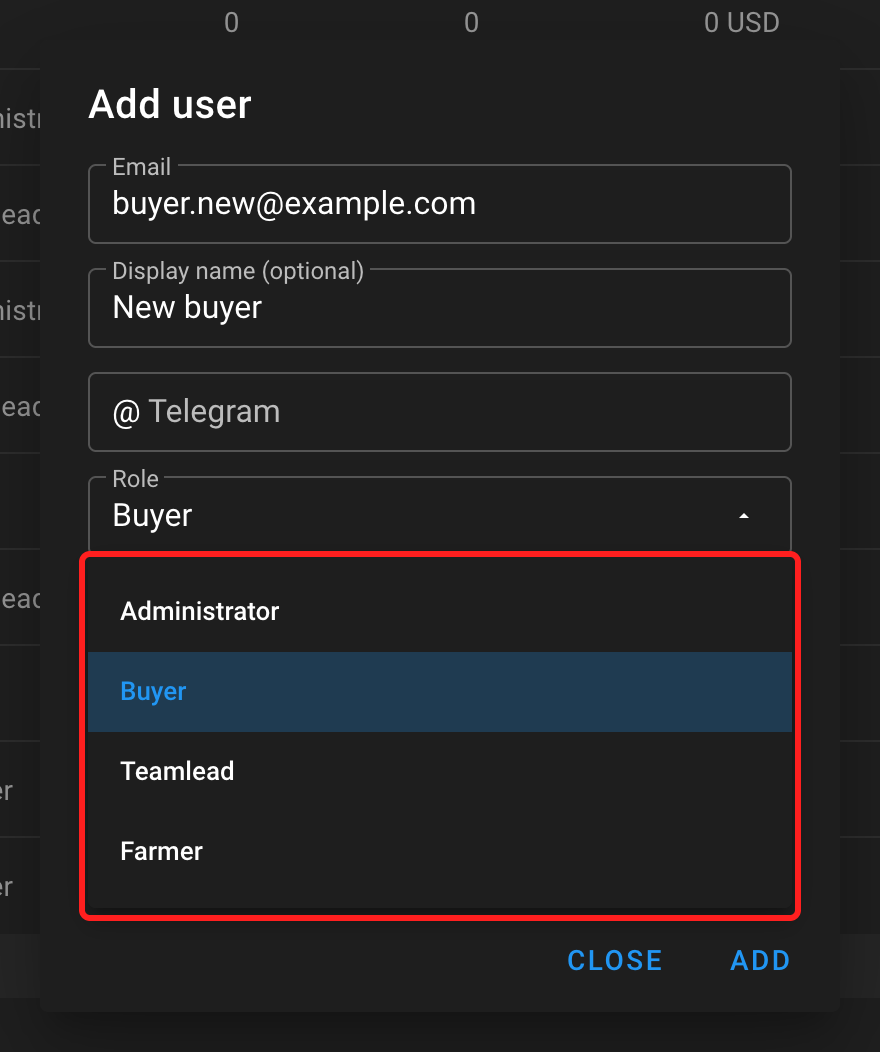
- Role: Administrator, Buyer, Teamlead or Farmer.
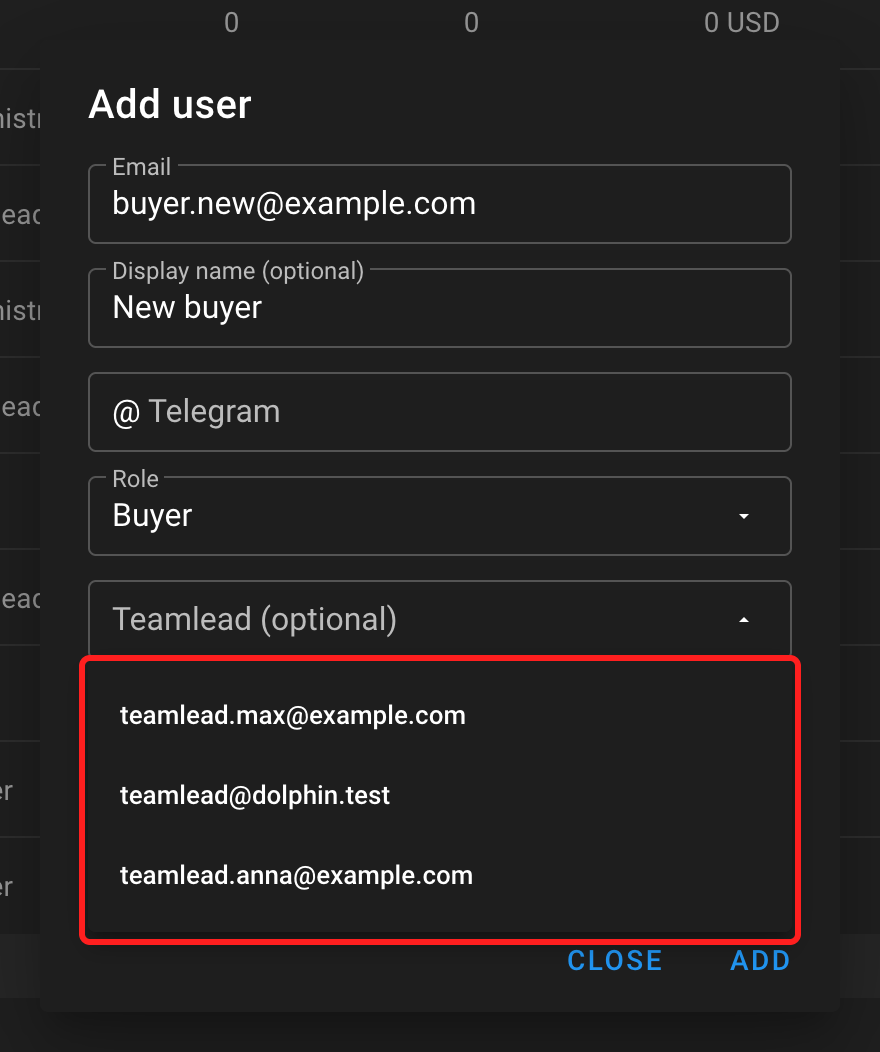
- Teamlead (optional) appears only when the Buyer role is selected.
- New password and Confirm password: at least 6 characters, both fields must match.
- Click Add. The user appears in the table with the Active status.
- Give the employee the email and password. They sign in on the Dolphin {Cloud} website with the Log in button in the top right corner. They do not need to confirm the login through the Telegram bot.
⚠️ If the user is not added
- The Add button is inactive: the email or role is empty, the password is empty, or the passwords do not match.
- «This username already exists in the system»: this email is already registered in Dolphin {Cloud}, including in another team. Use a different one.
- «The telegram username has already been taken»: this Telegram belongs to another user.
🧑💼 How to assign a teamlead to a buyer
- First add the teamlead: a user with the Teamlead role. Only users with this role appear in the list.
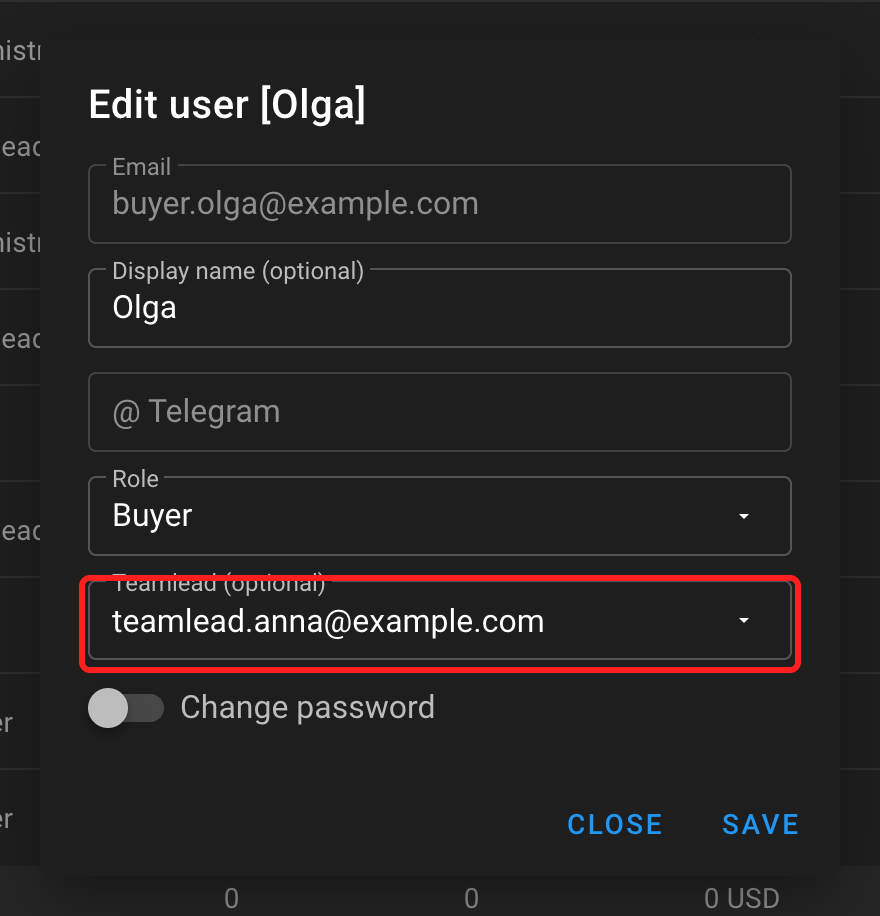
- On the Users tab click the buyer's email. The Edit user window opens.
- In the Teamlead field choose the teamlead. The list shows teamleads' emails.
- Click Save.
💡 Right when adding
You can also choose the teamlead in the Add user window: select the Buyer role, and the Teamlead field appears below.
✅ What changes after the assignment:
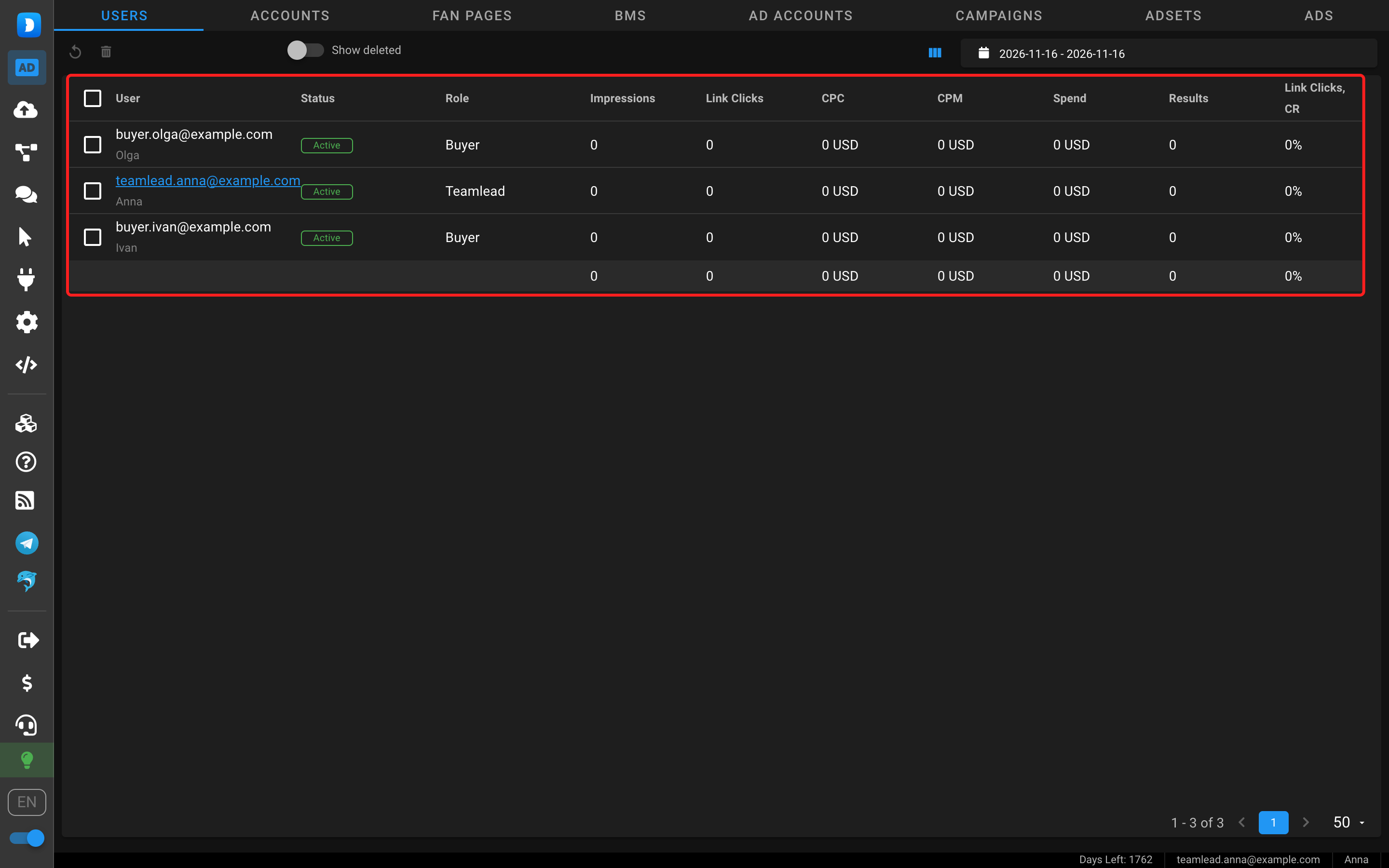
- The buyer appears on the teamlead's Users tab, with stats.
- The teamlead sees the buyer's accounts on the Accounts tab and can work with their ad accounts, campaigns and ads.
- The teamlead also sees accounts the buyer adds later.
- The teamlead can work with the buyer's proxies.
ℹ️ Good to know
- A buyer can have only one teamlead. One teamlead can have any number of buyers.
- The number of teamleads in a team is unlimited.
- To move a buyer to another teamlead, choose the new one in the Teamlead field and save. The new teamlead immediately sees the buyer and their accounts, and the previous one immediately loses access to them.
✏️ How to edit a user
Click the user's email on the Users tab. In the edit window you can change:
- display name;
- role;
- teamlead (for a buyer);
- password: turn on Change password and enter the new one twice.
Email and Telegram cannot be changed after the user is created: these fields are locked.
⚠️ What happens when you change a role or password
- Buyer → another role: the teamlead is removed.
- Teamlead → another role: all their buyers are left without a teamlead. If you later give back the Teamlead role, the buyers do not come back by themselves: assign them again.
- Any role → Administrator: the user gets access to the whole team's accounts.
- Administrator → another role: only their own accounts and accounts shared with them remain.
- New password: the user is logged out and can sign in only with the new password.
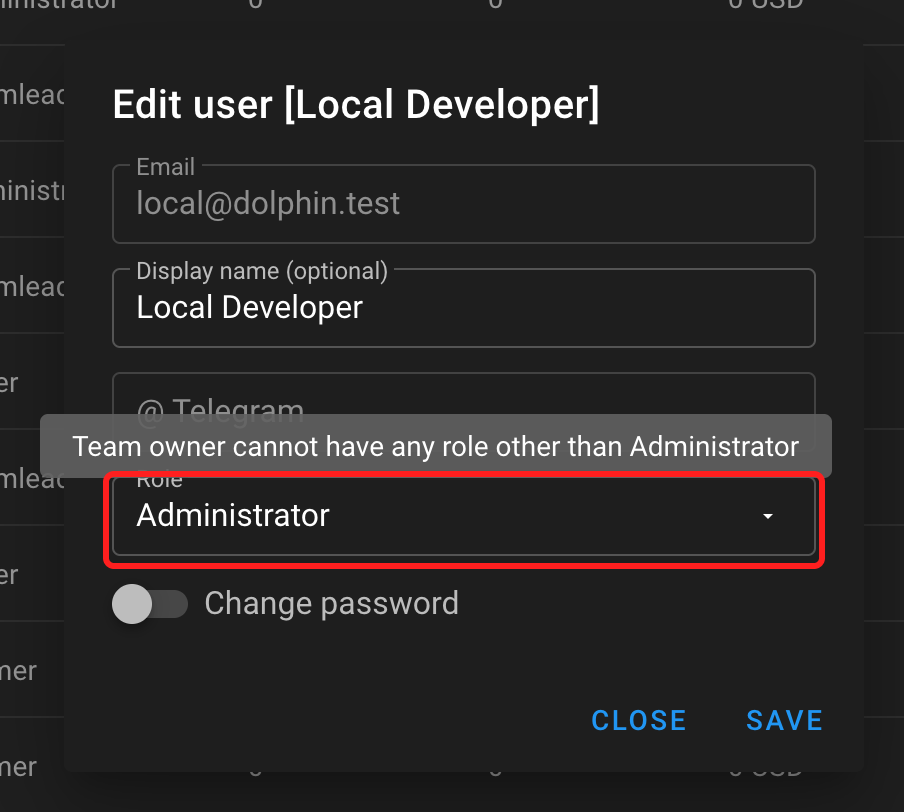
- You cannot change your own role. The team owner can only have the Administrator role.
🗑️ How to delete and restore a user
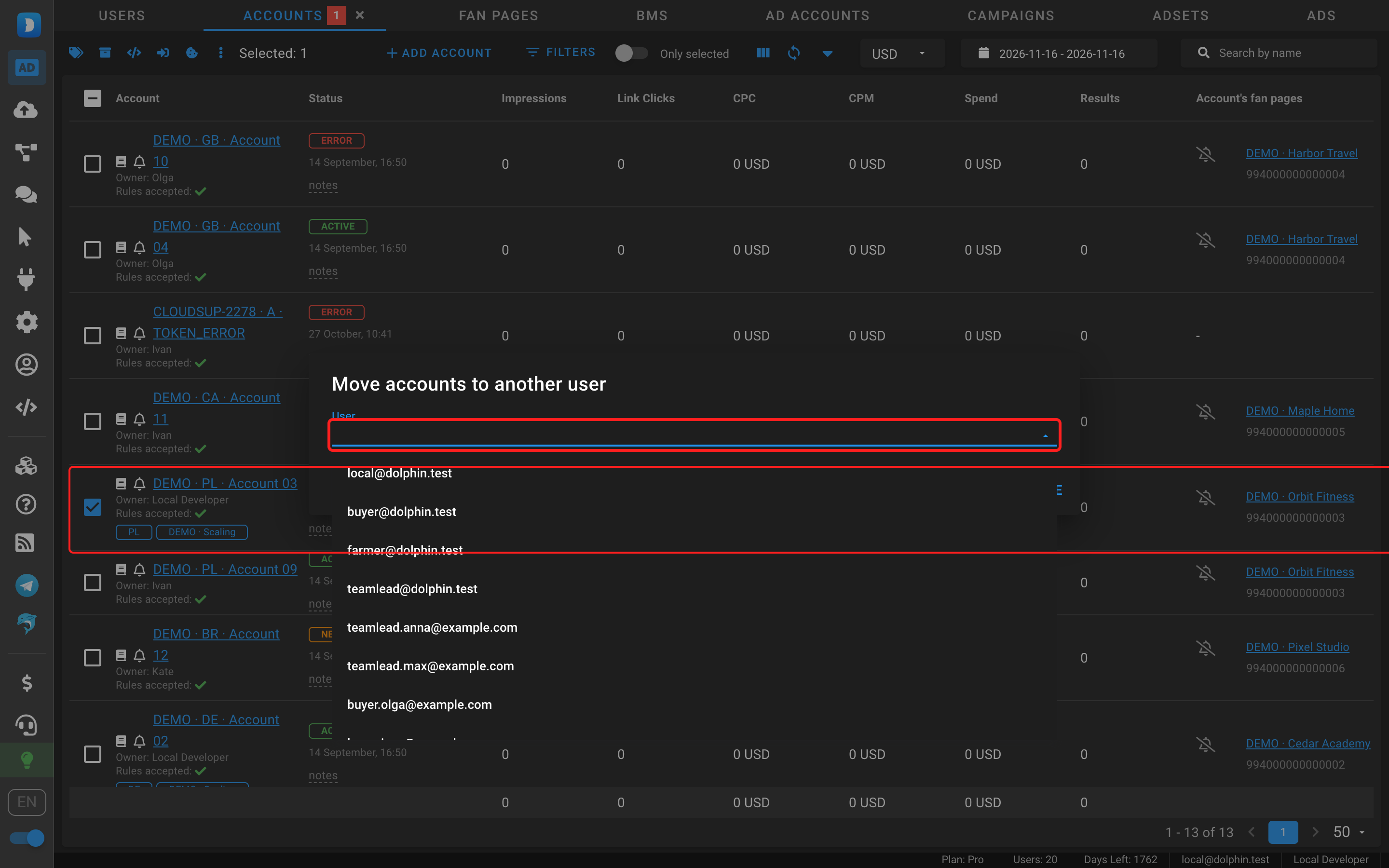
- If the user has accounts the team needs, move them first: Accounts tab → select the accounts → bulk actions menu → Move accounts to another user → choose the user → Move.
- On the Users tab tick the user.
- Click the trash icon above the table and confirm.
⚠️ Attention
- Accounts that only the deleted user had access to are deleted together with them.
- The deleted user is logged out right away.
- You cannot delete yourself or the team owner.
- Only an administrator can delete and restore users.
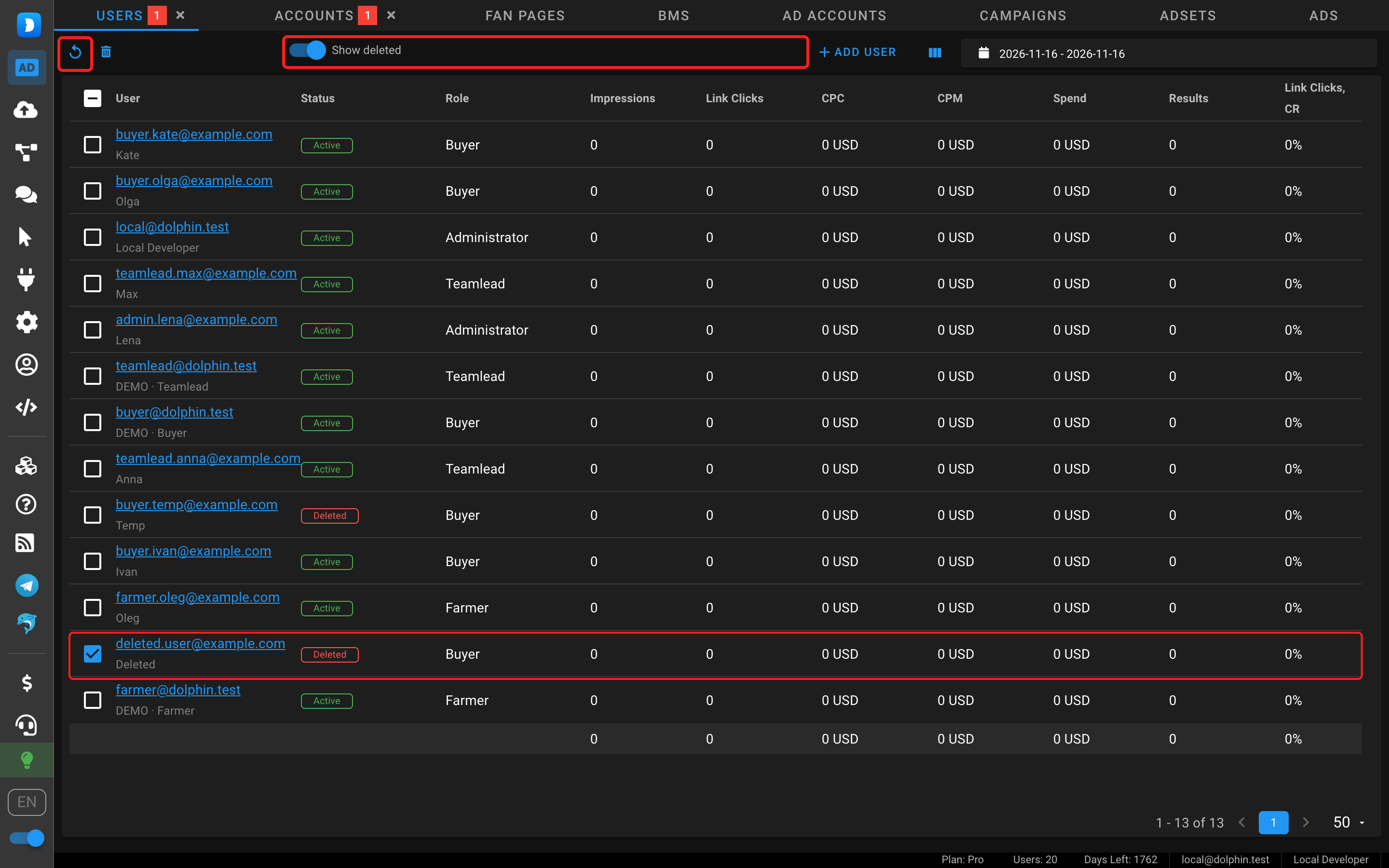
🔄 To bring a user back, turn on Show deleted, tick the user (status Deleted) and click the Restore icon on the left above the table. The user can sign in again with their password, but accounts deleted together with them do not come back.
⚙️ Shared settings for the whole team
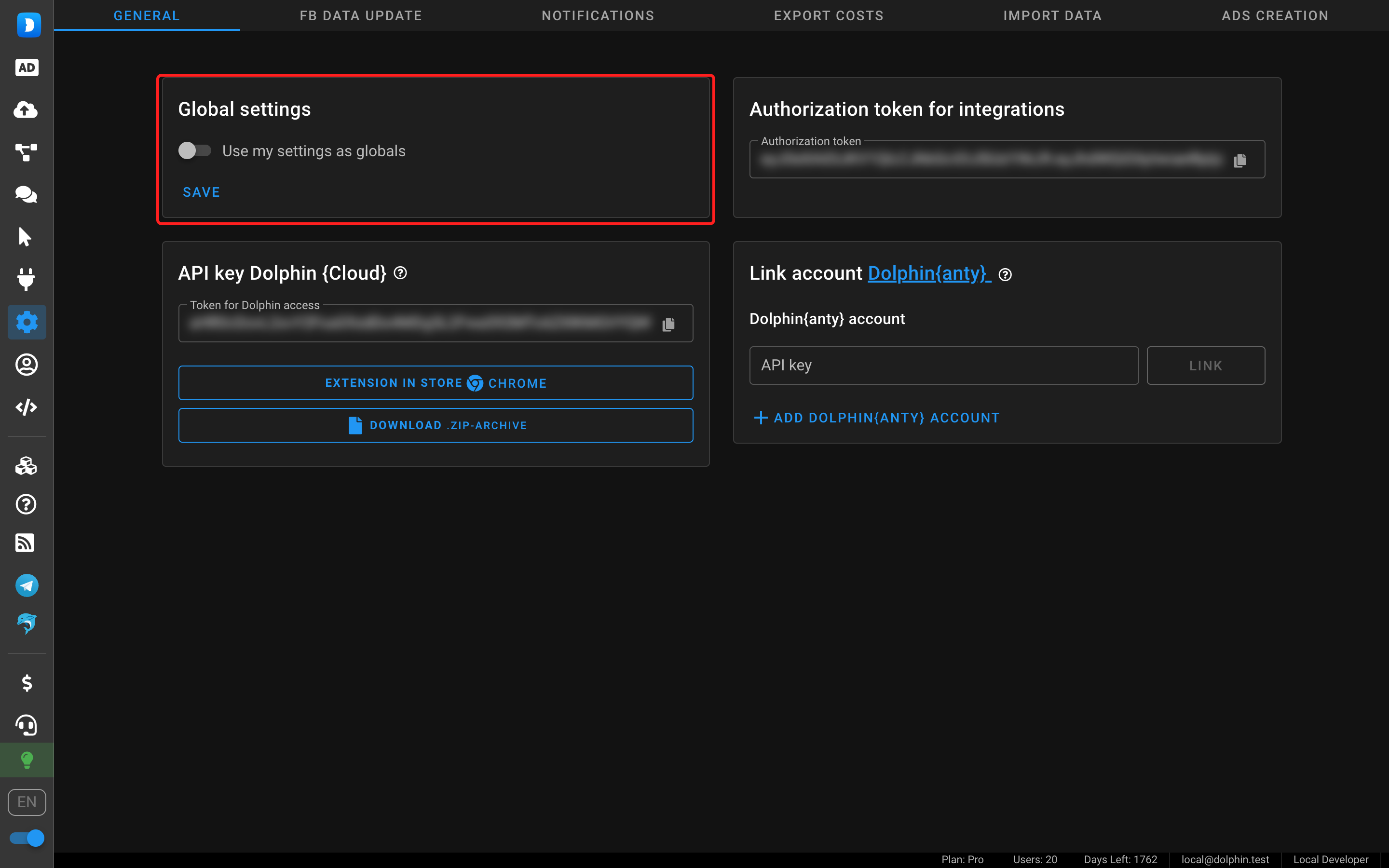
An administrator can apply their settings to everyone: Settings → Global settings → Use my settings as globals. While the switch is on, other employees work with the administrator's settings and cannot change them on their side. Not available on Light and Start.
👀 What the service looks like for different roles
🎯 A buyer sees the User tab with only themselves:
🌱 A farmer has only accounts, BMs and ad accounts, without the Settings section:
✅ Checklist: the team is set up
- Base or Pro plan with enough free seats
- Employees added with the right roles
- Teamleads created before they are assigned to buyers
- Each buyer has a teamlead (if your team has groups)
- Accounts handed out via «Share» or «Move accounts to another user»
- Before deleting an employee, their accounts are moved to colleagues
❓ FAQ
The teamlead does not see the buyer's accounts. What should I check?
Open the buyer's card and make sure the right person is selected in the Teamlead field and the buyer's role is exactly Buyer. A teamlead can be assigned only to a buyer.
A teamlead tries to save a user card and gets an error. Why?
Only an administrator can change users. Ask them to make the change.
Can I assign a teamlead to a farmer?
No. Only the Buyer role has the Teamlead field. Administrators see the farmer's accounts, and they are handed to buyers via «Move accounts to another user» or «Share».
Can a teamlead add a buyer to themselves?
No. Only an administrator adds users and links them to teamleads.
Why is the «Add user» button grey?
You are out of seats on your plan, or you are on Light/Start. Buy more users in Profile → Overview.
How do I give an employee only some of the accounts?
Share the accounts you need and choose the permissions. Step by step: How to work as a team: roles and access.
🧭 What next
- 🤝 Share accounts: How to work as a team: roles and access
- 👤 Accounts and moving them: How to work with accounts in Ads Manager
- 🔌 Proxies for the team: How to choose proxies and share them with your team
- 💳 Plans: How to choose a plan and pay for your subscription
🐬 Build a team with roles and teamleads. Try Dolphin {Cloud}