How to set up postbacks and see conversions in Ads Manager
Updated:
⚡ In short
- Get a global postback URL in Dolphin {Cloud}
- Connect an affiliate network, tracker or your own server with the ad.id macro
- See registrations, purchases, revenue and ROI right in Ads Manager
A postback sends conversions from any affiliate program, tracker or server to Dolphin {Cloud}. Revenue, spend, ROI and approvals are aggregated at every level, up to the "Users" tab.
ℹ️ Good to know
Postbacks are available on the Pro plan and during the trial. Until May 2025 the section was called "Tracker".
🔗 Connecting a postback
- Open the "Postbacks" section → "Postback URL" tab.
- Check your affiliate network's tags and macros: status (
{status}: new, approved, declined), amount ({web_total}), currency ({currency}). - Pass the ad ID into a network tag with the
{{ad.id}}macro, for example into sub or S. - Fill in the macro fields and copy the "Ready URL" into your network or tracker.
- Test it with a real ad.id: the response should be
success: true. - Make sure the test conversion appears on the right ad.
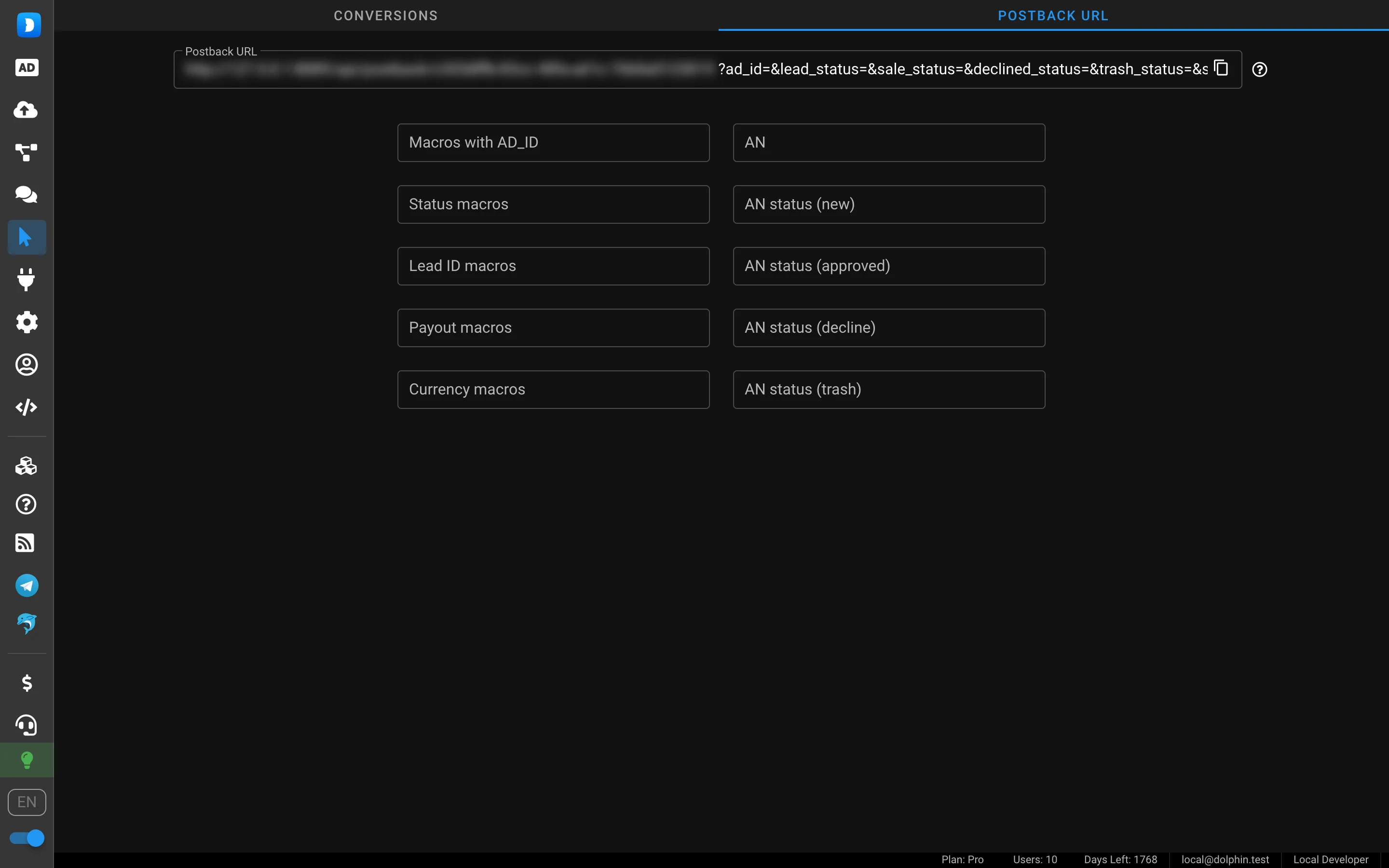
📊 Where to see results
The "Conversions" tab shows every postback received.
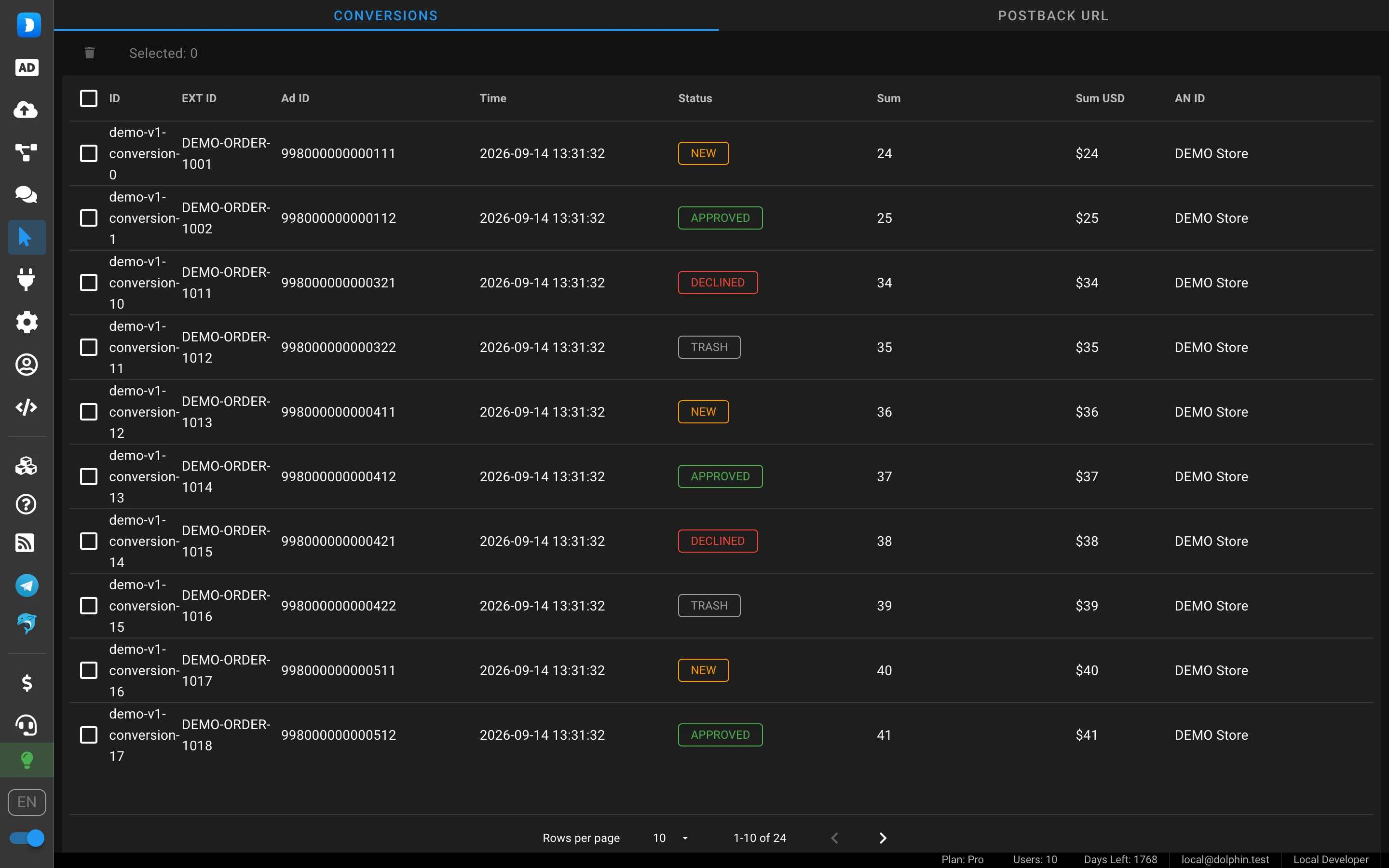
| Postback status | Ads Manager column |
|---|---|
NEW | "Registrations (postback)" |
APPROVED | "Purchases (postback)" |
- Each column has a CPA.
- Each ad shows a postback counter by status.
- Add the columns in "Column settings"; see Columns, currency, export and notes.
🎰 Gambling: registration and deposit for one lead
- Pass the lead ID into the ext parameter, s2s integration.
- For registration:
lead_status=registration; for deposit:sale_status=deposit. - The status changes with the event, so one lead goes from registration to deposit.
💡 Tip
If conversions do not show up, first check that the tag receives {{ad.id}} and not a campaign or ad set ID.
📚 See also
🐬 Track ROI for every ad without spreadsheets: try Dolphin {Cloud}