How to find what you need in Ads Manager: statuses, filters and search
Updated:
⚡ In short
- Status traffic light
- Filters
- Search
In Dolphin {Cloud} Ads Manager you can spot problem campaigns at a glance by their color status and find the right ad accounts and campaigns with filters and search. Here is how it works.
🔹 Status traffic light
A colored bar appears to the left of ad set names (since August 2025) and campaign names (since February 2026):
- red: bans and rejections;
- yellow: in review or minor issues;
- green: everything is fine.
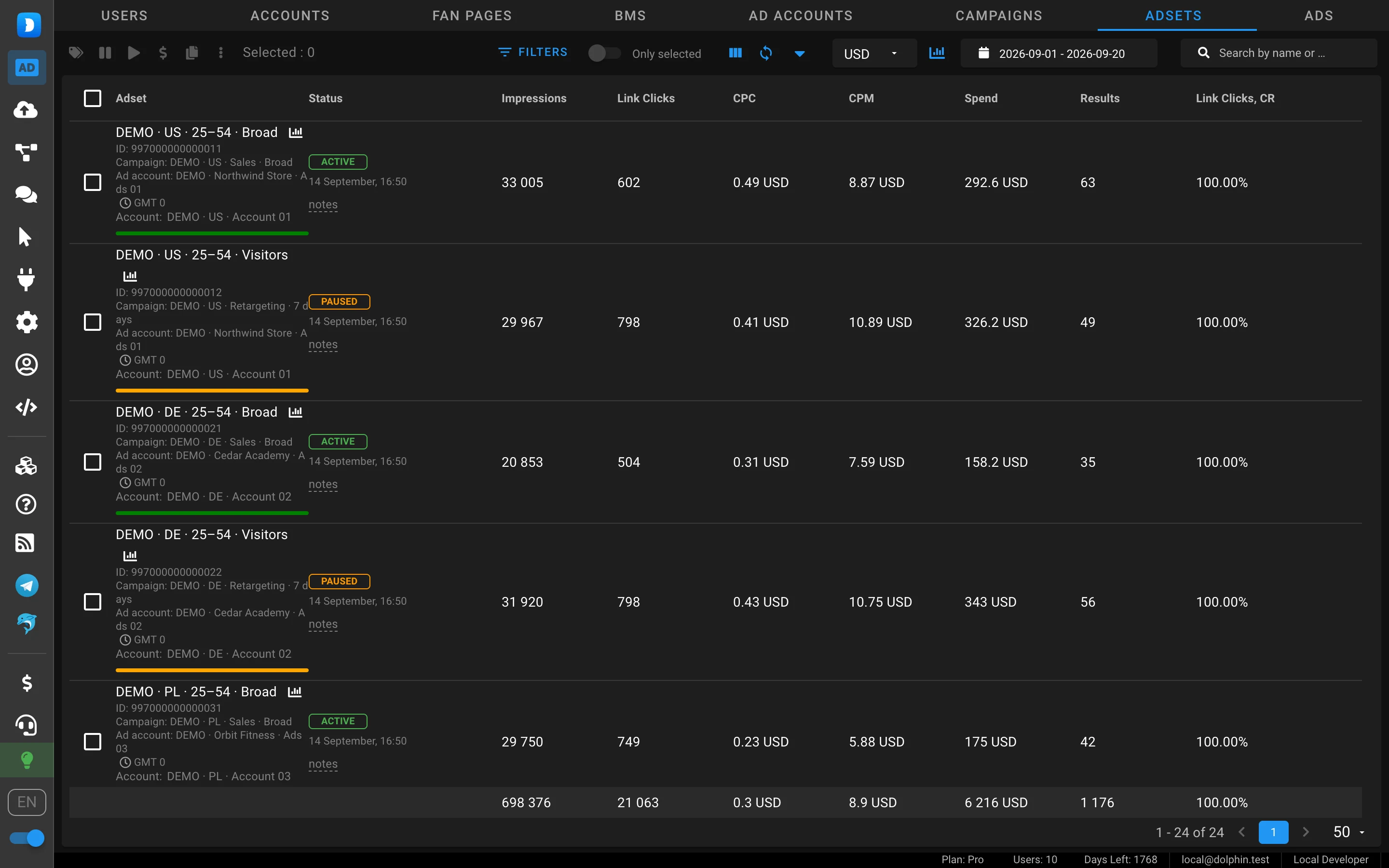
The IN PROCESS status means the campaign is still being prepared after upload. You can filter by it too.
🔹 Filters
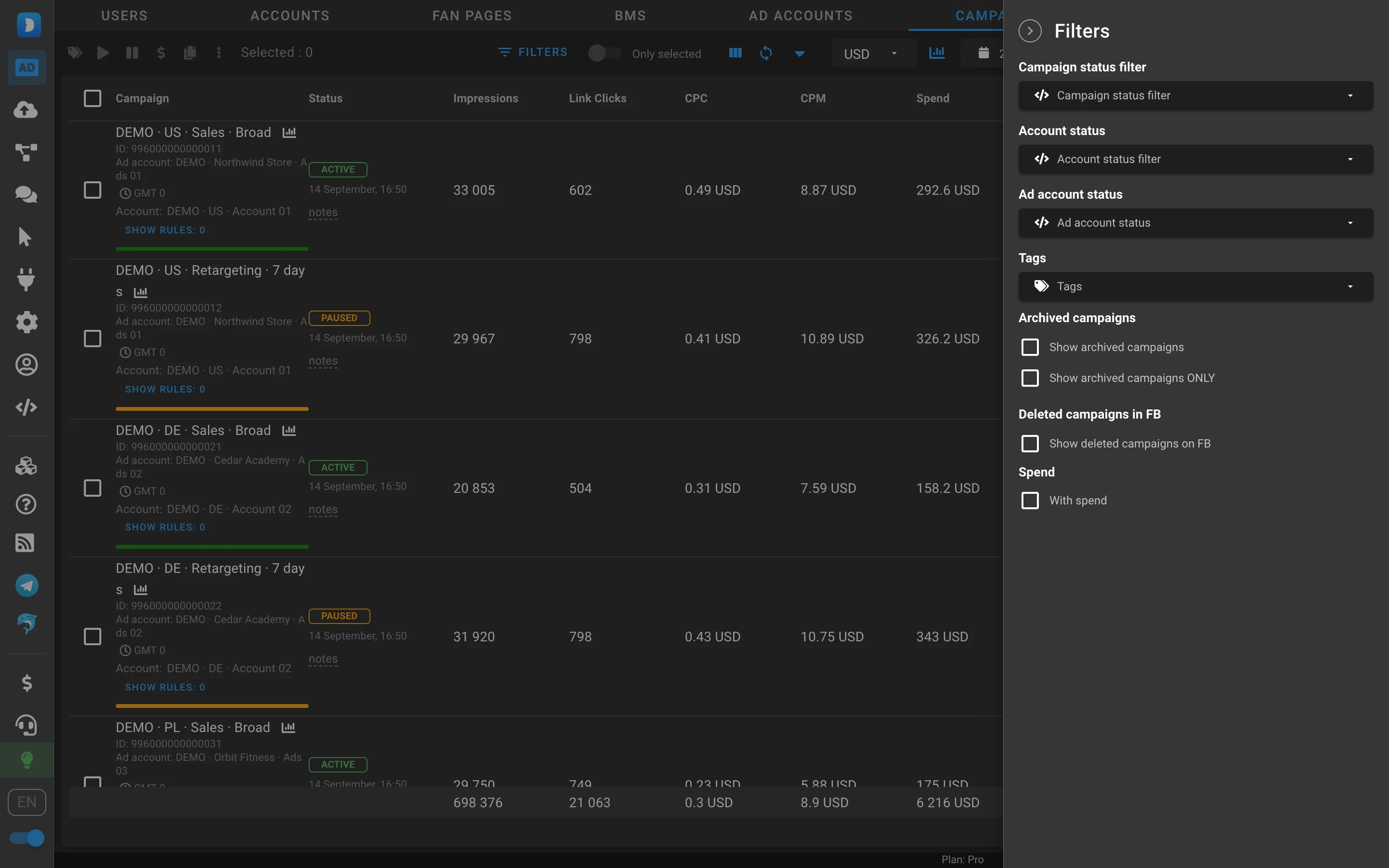
- "Time zone" on the "Ad accounts" tab, with multiple values. The time zone is shown under the ad account name.
- By pixel on the "Ad accounts" tab: a quick way to build a list of ad accounts for an upload.
- "With active campaigns".
- By BM, spend and status.
- Archive: "Filters" → "Show archived"; every level also has "archived only". Archived entities are excluded from updates and notifications, but statistics of archived campaigns stay on "Ad accounts".
- "Show deleted": campaigns deleted in Facebook are hidden by default.
Filters work only in the interface, not in the API. The "Selected only" switch shows only checked rows on the "Ad accounts", "Campaigns", "Ad sets", "Ads" and "Accounts" tabs.
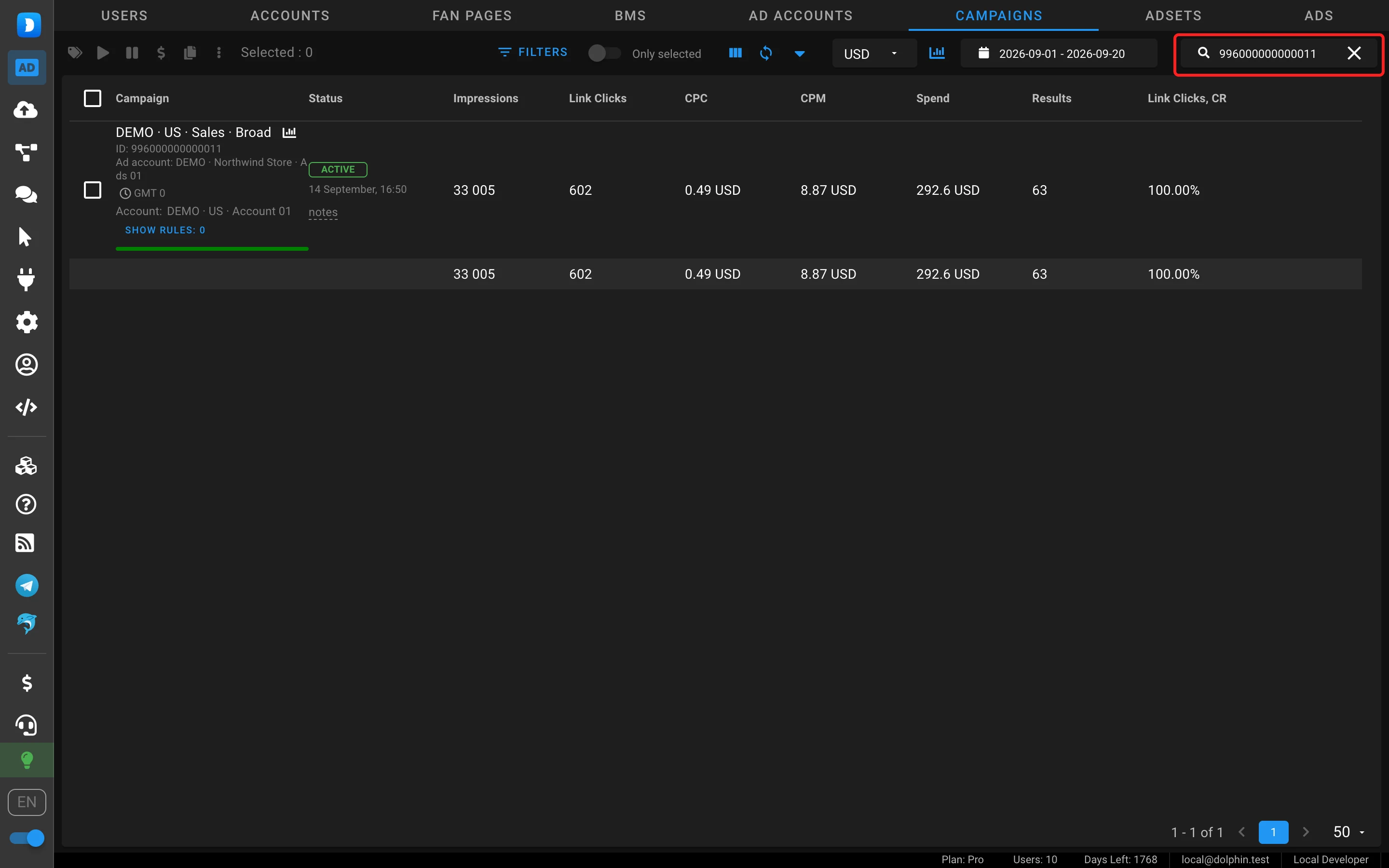
🔹 Search
You can search by name or ID at every level.
📚 See also
🐬 New to Dolphin {Cloud}? Try it free for 3 days.