How to set up advanced upload options: macros, naming and campaigns
Updated:
⚡ In short
- Show more options (extended mode) on the Settings step changes only the current upload: the number of campaigns and ad sets, the event, the budget, auto rules and tags.
- Customize campaigns adds a Campaigns step where you can set up each campaign separately.
- Macros in names make campaign, ad set and ad names unique.
- On the Ad accounts step, the Custom campaign name, URL params and Display URL switches set separate values for each ad account.
A bundle in Dolphin {Cloud} holds the default settings. The wizard's advanced options let you change them for one upload without touching the bundle, and fine-tune names and links per ad account. Below are all of these options in order.
⚙️ How to turn on extended mode
- Open the upload wizard: Create ads → Upload bundle.
- On the Settings step, choose a bundle.
- Turn on the Show more options switch. New blocks appear below.
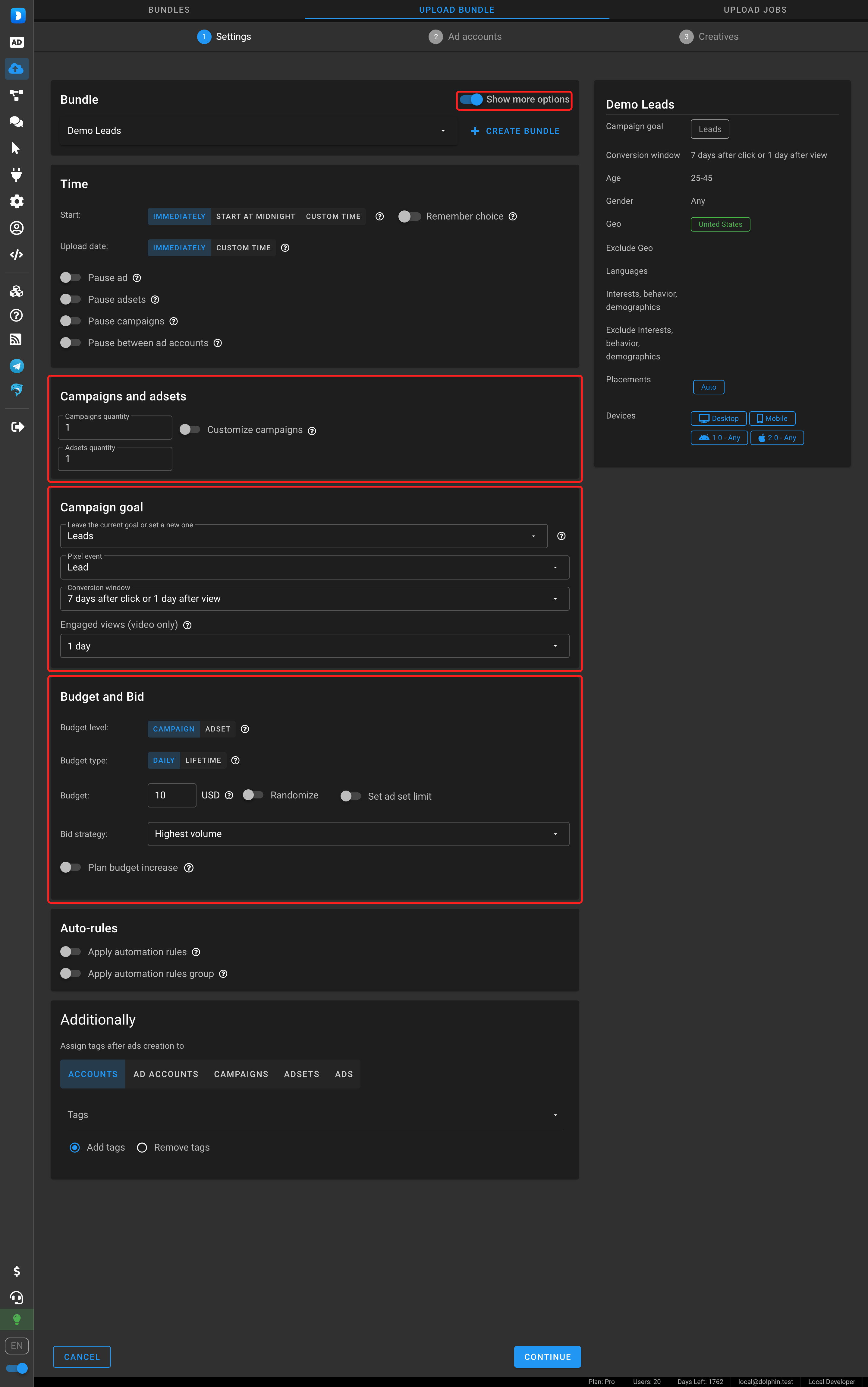
| Block | What you can change |
|---|---|
| 📊 Campaigns and adsets | Campaigns quantity and Adsets quantity in each ad account, the Customize campaigns switch |
| 🎯 Campaign goal | Pixel event, conversion window, app optimization. The objective itself cannot be changed |
| 💵 Budget and Bid | Budget level and type, amount, randomization, ad set limits, strategy, end date and planned increase |
| 🤖 Auto-rules | Apply an auto rule or a group of auto rules to the new ads right away |
| 🏷️ Additionally | Tags that Cloud assigns after the ads are created |
ℹ️ The bundle does not change
Everything you change in extended mode applies only to this upload. To change the bundle for good, edit it on the Bundles tab.
🎯 Campaign goal
The Leave the current goal or set a new one field shows the bundle's objective. You cannot change the objective in the wizard: if you need another one, choose a bundle with that objective. You can change the Pixel event, the Conversion window, and for apps Optimize for and Run ads by.
💵 Budget and Bid
The same fields as in the bundle, plus an End date for a lifetime budget and Plan budget increase. Details: How to set the budget and bid for an upload.
🤖 Auto-rules
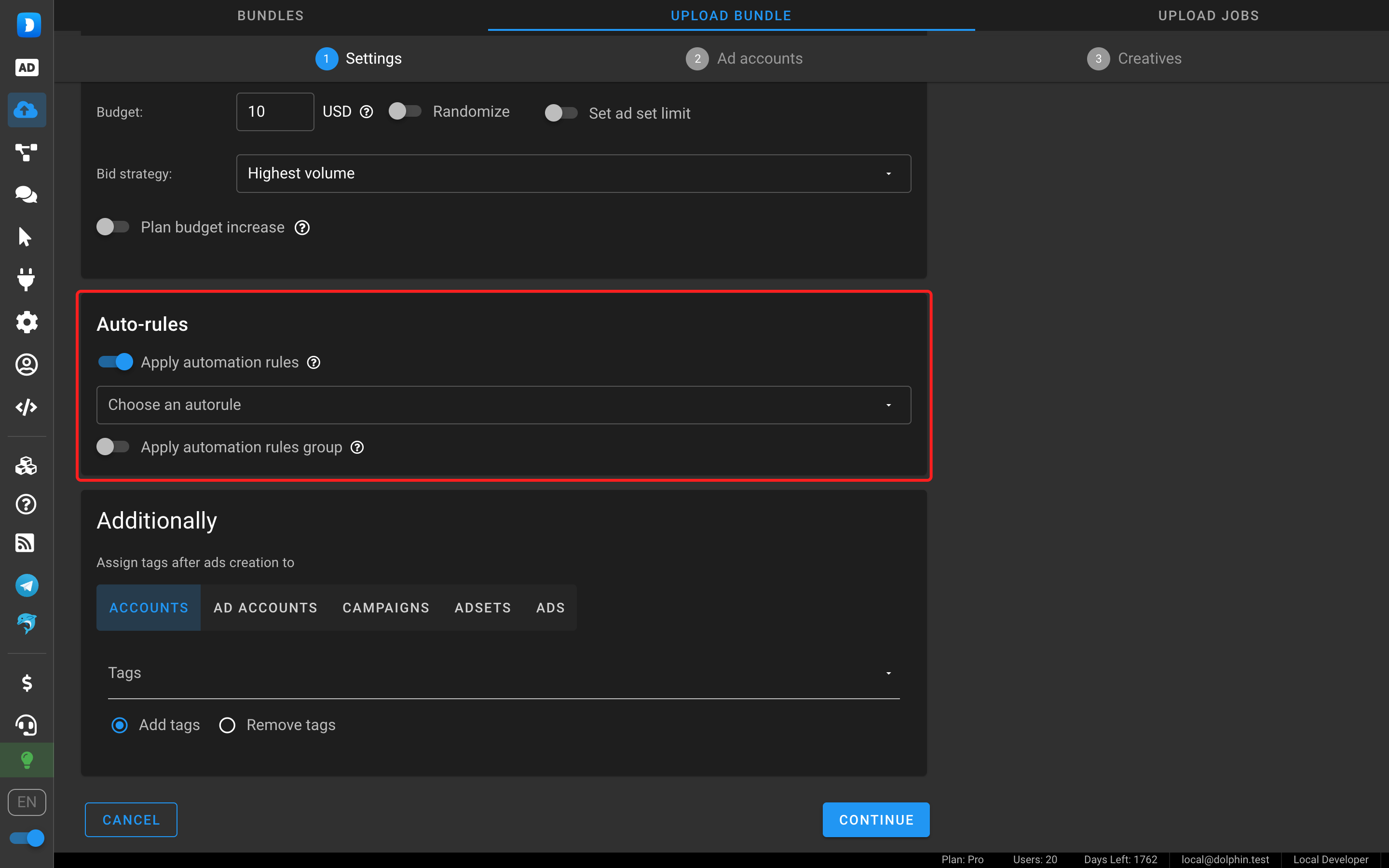
- Apply automation rules: choose one or more rules in the Choose an autorule field.
- Apply automation rules group: choose a group in the Choose an autorule group field.
Rules and groups are created in advance in the auto rules section. How: How to create a Facebook auto rule and How to group auto rules, schedule them and share them.
🏷️ Tags after the upload
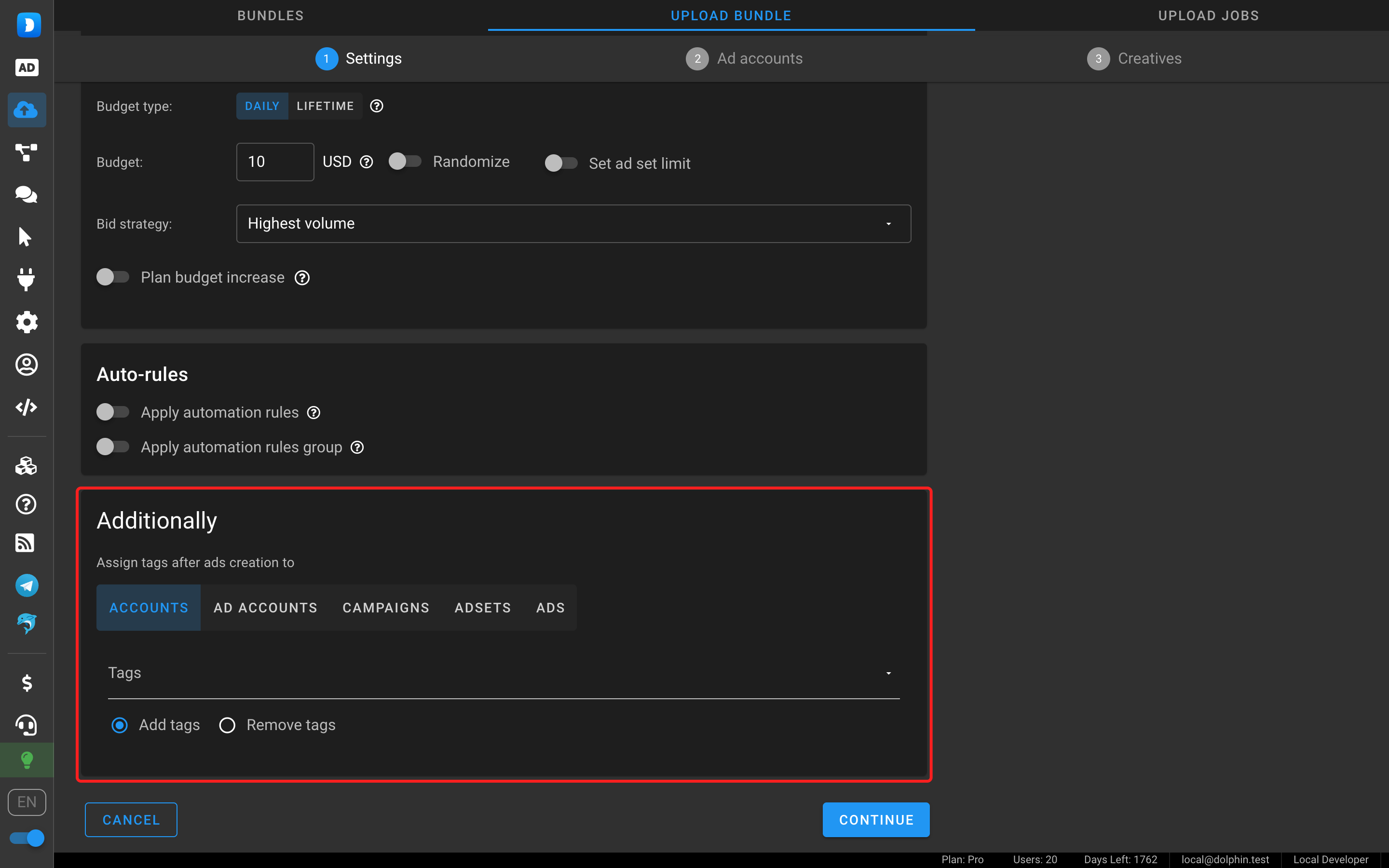
In the Additionally block, under the line «Assign tags after ads creation to», click the buttons of the entities that need tags: Accounts, Ad accounts, Campaigns, Adsets or Ads. You can pick several. Then choose or enter tags in the Tags field and mark what to do with them: Add tags or Remove tags. After the upload, these tags make it easy to find the ads in Ads Manager. The block is not available for the Boost Fan Page objective.
🧱 Customizing campaigns
Need to upload several different campaigns to one ad account at once, for example with different names and budgets? Turn on Customize campaigns in the Campaigns and adsets block. A Campaigns step appears after the Settings step.
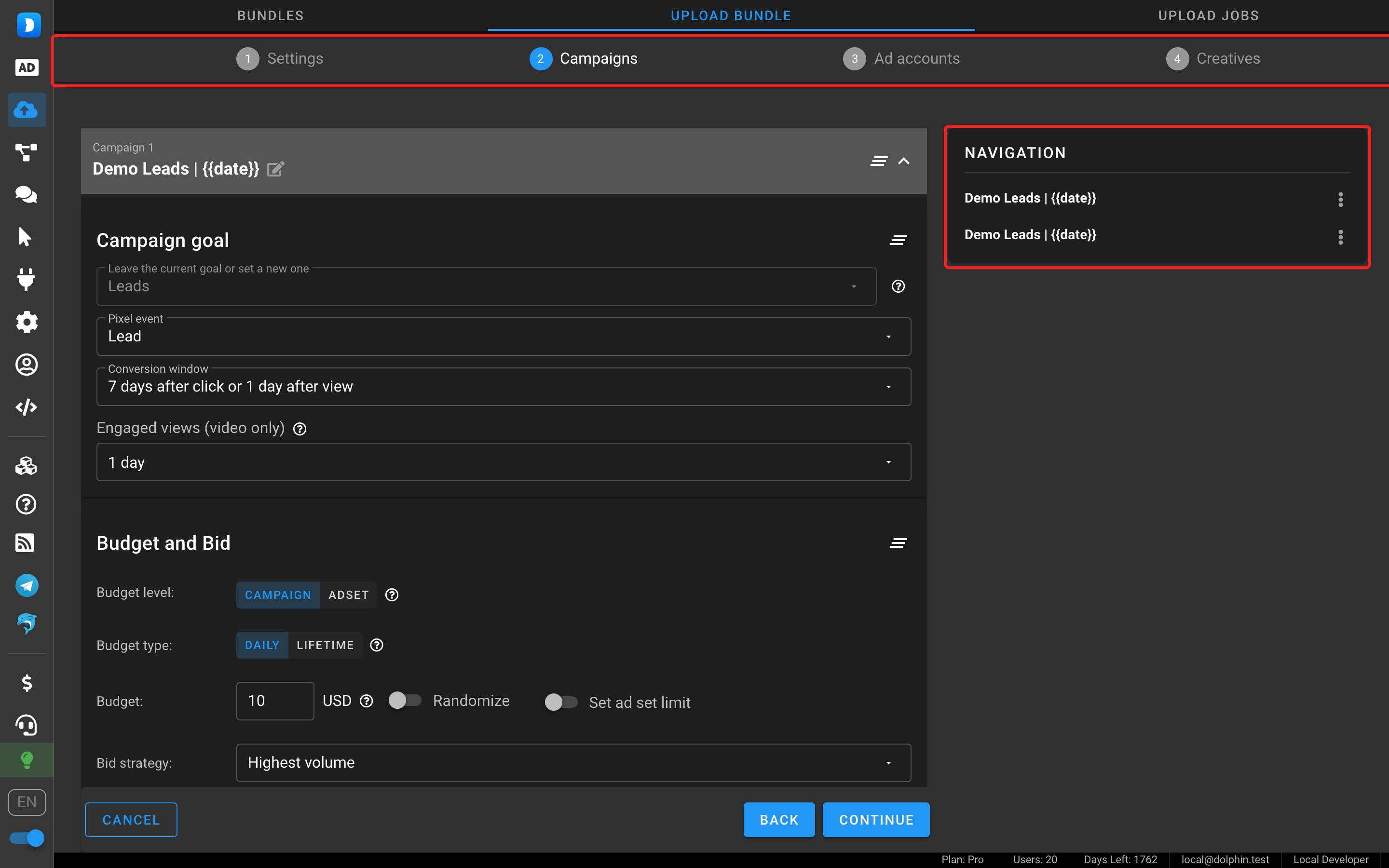
- On the Campaigns step, open Campaign 1 and set the Campaign name, budget and other parameters.
- To copy the settings to the other campaigns, click the three-lines icon in the campaign header: Apply campaign settings to others. The campaign blocks have the same icons: Apply only the campaign objective and Apply only budget and bid copy only that block to the other campaigns.
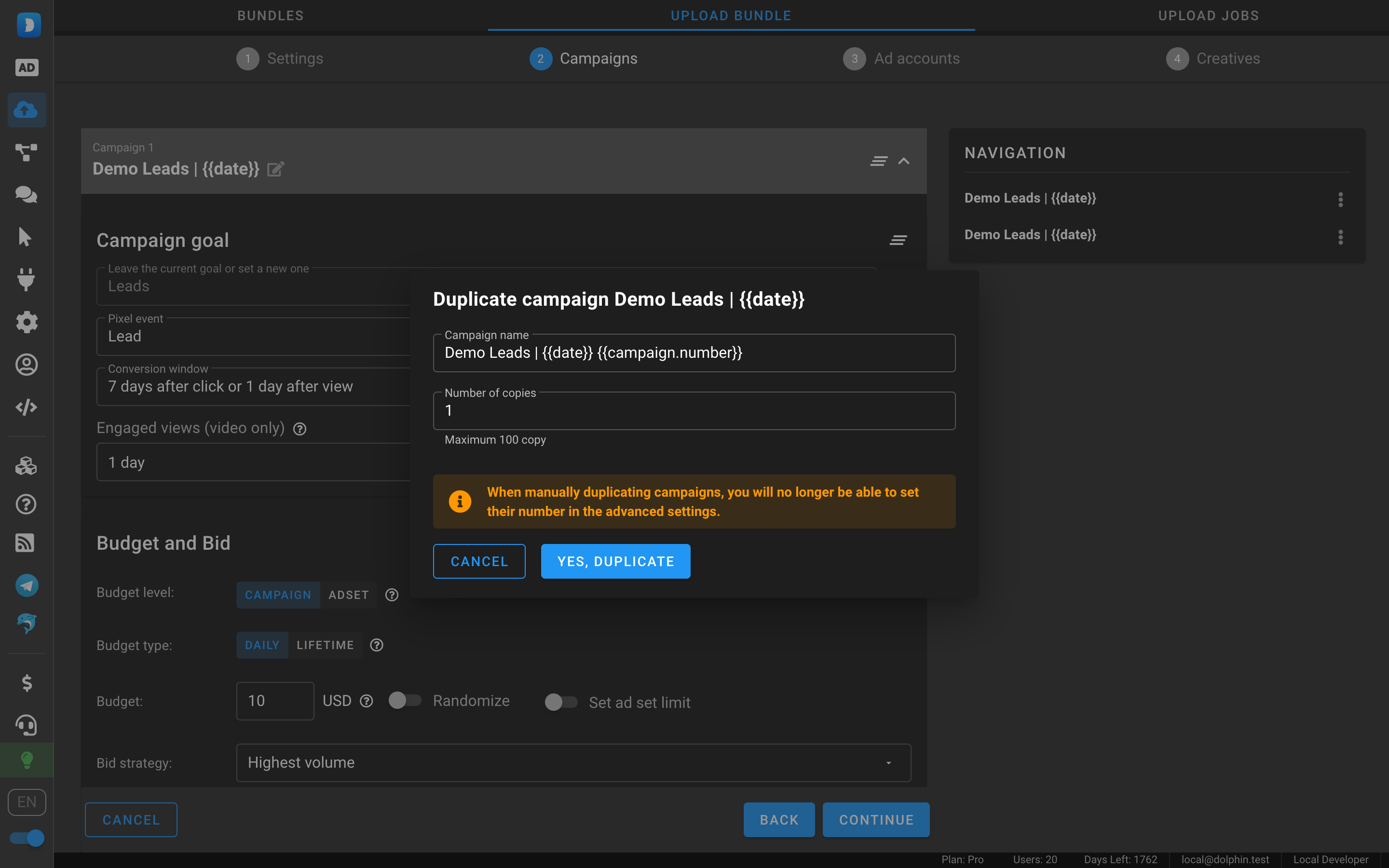
- In the Navigation panel on the right, Duplicate makes copies of a campaign and Delete removes an extra one.
- Click Continue, then go through the Ad accounts and Creatives steps.
⚠️ Number of campaigns after manual changes
- You can make up to 100 copies of a campaign at a time.
- After you duplicate or delete campaigns manually, the Campaigns quantity field in the settings no longer changes the number of campaigns. Change it with the buttons in the Navigation panel.
- A deleted campaign cannot be restored.
- If you turn customization off, all campaigns return to the default settings.
- With customization, the budget comes from the Campaigns step, not from the Budget column on the Ad accounts step.
🔤 Macros in names
Macros are added in the bundle next to the campaign, ad set and ad names with the Macro button. Cloud fills in data from the specific upload, so campaigns in different ad accounts get different names.
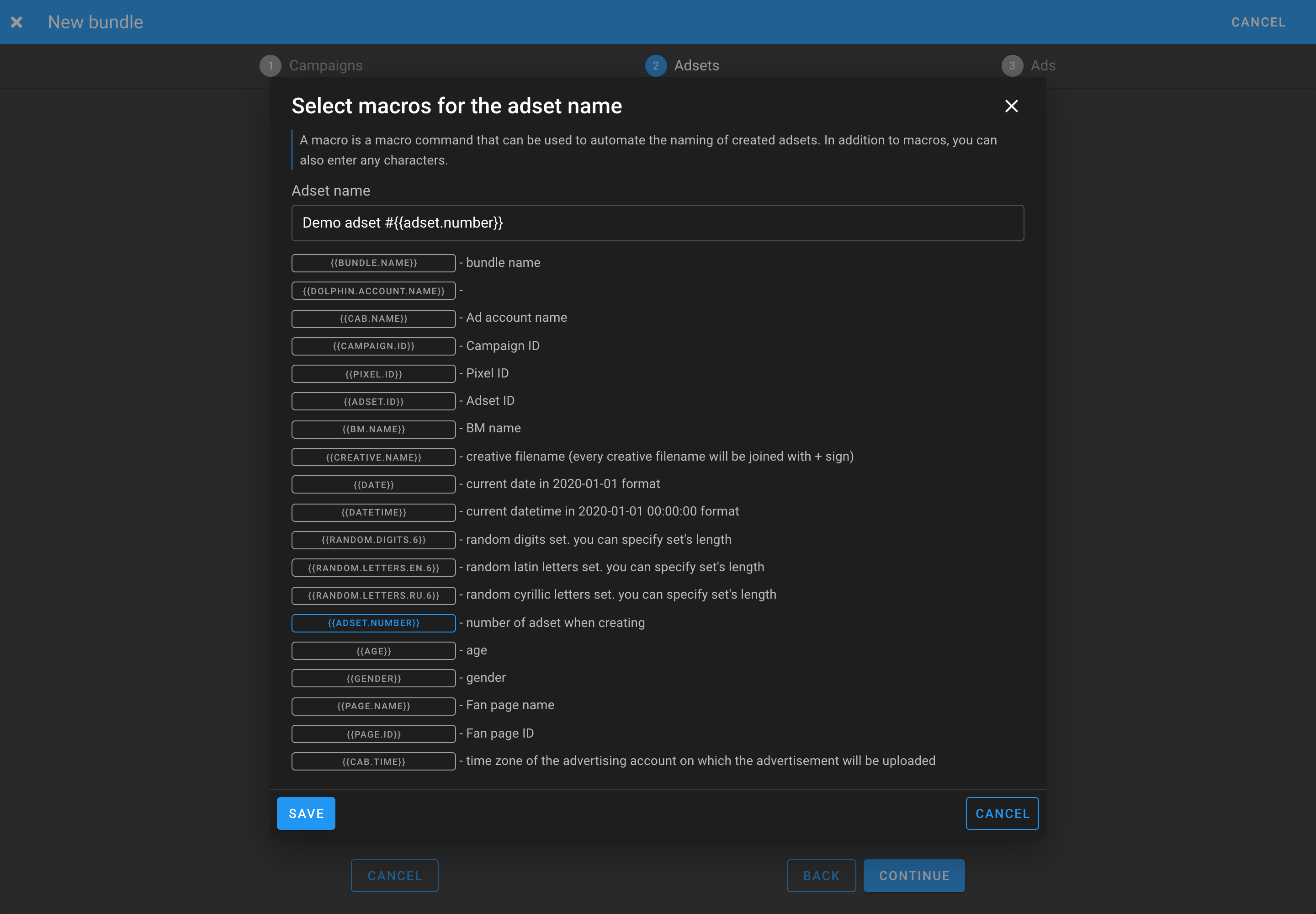
The list of macros with descriptions is shown right in the macros window. The most useful ones: {{cab.name}} and {{cab.id}} (ad account), {{date}} (upload date), {{campaign.number}} and {{adset.number}} (campaign and ad set sequence number), {{age}} and {{gender}} (age and gender from the bundle), {{random.digits.6}} (random digits). Full table: How to create a bundle in Dolphin {Cloud}.
There are also macros for links: put them in the link parameters so your tracker can tell ads apart, for example https://example.com/?sub1={{ad.id}}.
ℹ️ Boost Fan Page
Bundles with the Boost Fan Page objective cannot use macros in names: Facebook requires this.
🏷️ Special ad categories
Ads for credit, housing or jobs must run with a special category. Choose it in the bundle, on the Campaigns step, in the Special categories of advertising block.
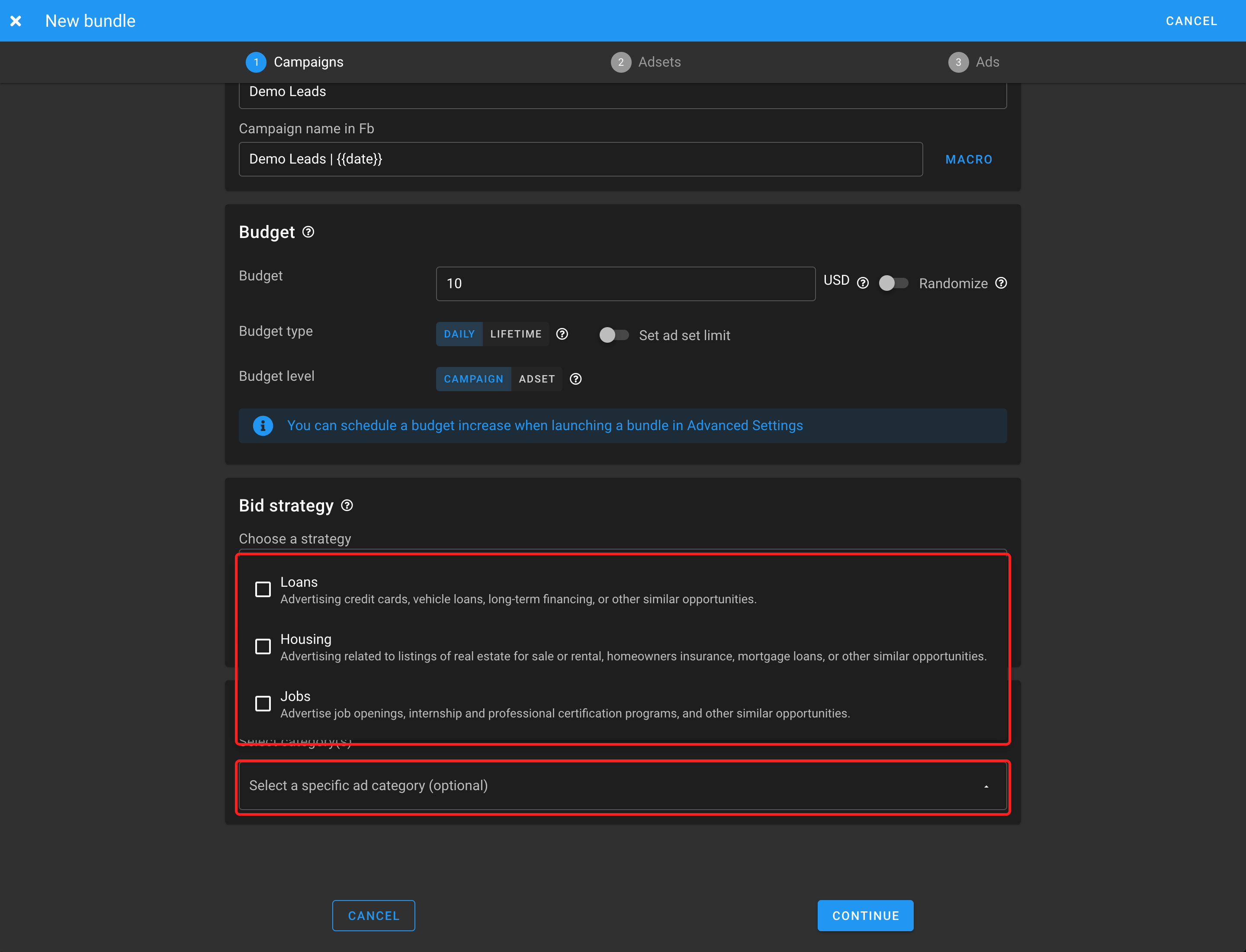
| Category | For which ads |
|---|---|
| Loans | Credit cards, auto loans, long-term financing |
| Housing | Property sales and rentals, home insurance, mortgages |
| Jobs | Job openings, internships, professional certification programs |
The field is called Select a specific ad category (optional): if your ads are not about these topics, leave it empty.
⚠️ What gets locked
With a special category you cannot choose age and gender or add interests, behaviors and demographics. These fields in the bundle become unavailable.
🧷 Switches on the Ad accounts step
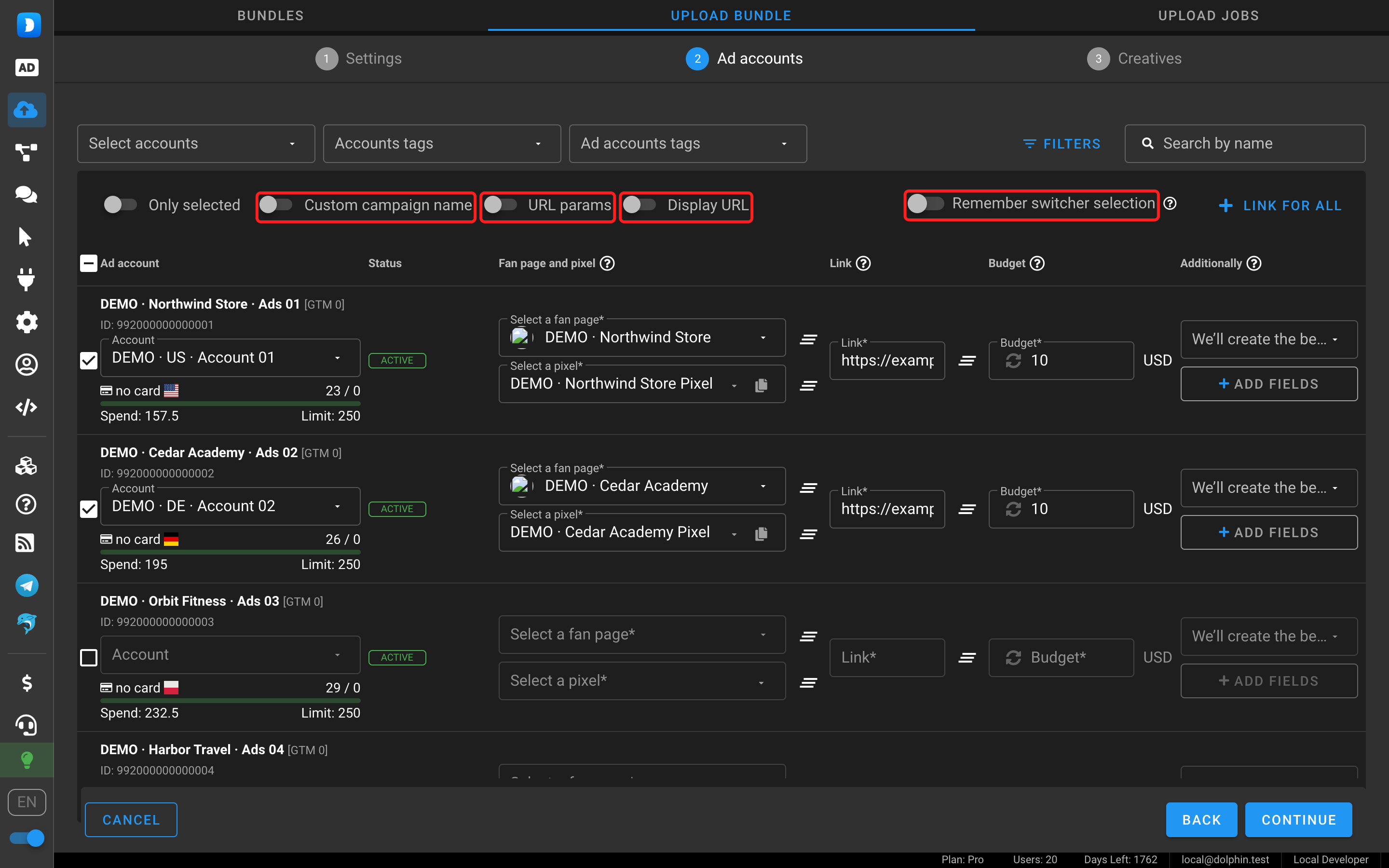
| Switch | What it adds to the ad account row |
|---|---|
| Custom campaign name | A field for your own campaign name in this ad account instead of the name from the bundle |
| URL params | A field for this ad account's link parameters, for example tracker tags |
| Display URL | A field for the address shown in the ad instead of the real link |
| Remember switcher selection | Cloud remembers the switches turned on at this step, except Only selected, and turns them on in the next uploads. If the switches match across bundles and upload types, the choice applies to all of them |
To avoid typing the same thing in every row, fill in the field for the first ad account and click the three-lines icon to the right of the field. The value is copied to the other ad accounts.
The Add fields button in an ad account row adds the same fields for that ad account only: Custom campaign name, URL params, Display URL and Domain tracking.
✅ Checklist
- The number of campaigns and ad sets in extended mode matches the plan.
- The pixel event and conversion window are right.
- If customization is on, each campaign has its own name and budget.
- Auto rules and tags are chosen, if you need them.
- Names have macros, links have tracker tags.
❓ FAQ
How do I change the objective in the wizard?
You can't: the objective is set only in the bundle. Choose a bundle with the objective you need, or copy the bundle and change the objective in the copy.
I changed Campaigns quantity, but the number of campaigns did not change.
You have already duplicated or deleted campaigns manually on the Campaigns step. Change the number there with Duplicate and Delete, or turn customization off.
I don't see the URL params switch.
The set of switches depends on the bundle's objective. URL params and Display URL are available for Traffic, Leads and Sales. Custom campaign name is available for those and for App installs.
Where do I find the list of macros?
In the macros window next to the campaign, ad set and ad name fields in the bundle. Each macro has a description there.
🧭 What's next
- 💵 How to set the budget and bid for an upload
- 🚀 How to upload a bundle in Dolphin {Cloud}
- 🧩 How to create a bundle in Dolphin {Cloud}
- 📋 How to track uploads in the queue and restart them
🐬 Upload different campaigns to one ad account in one go. Try Dolphin {Cloud}